Introduction
Thank you for choosing the MEIZE 10.1 Inch Tablet. This manual provides essential information for setting up, operating, and maintaining your device. Please read it carefully to ensure optimal performance and longevity of your tablet.

Figure 1: MEIZE 10.1 Inch Tablet
This image displays the MEIZE 10.1 Inch Tablet from an angled perspective, showcasing its vibrant display with a variety of application icons and widgets, including a clock, calendar, weather, and common communication apps.
Product Features
The MEIZE 10.1 Inch Tablet is designed for versatile use, offering a blend of performance and connectivity. Key features include:
- Display: 10.1-inch HD IPS touchscreen with 1280x800 resolution for clear and vibrant visuals.
- Performance: Powered by a 1.3 GHz Quad-Core processor and 2GB RAM for smooth operation.
- Storage: 32GB internal storage, expandable up to 128GB via microSD card (not included).
- Connectivity: Dual SIM card slots for 3G phone calls and multi-network connection, Wi-Fi (802.11 b/g/n), Bluetooth 4.0, GPS, and OTG.
- Cameras: Equipped with a 5MP rear camera and a 2MP front camera.
- Battery: 6000mAh rechargeable lithium battery for extended usage.
- Operating System: Android 9.0 Pie.

Figure 2: High-Definition IPS Screen
This image highlights the tablet's 1280x800 IPS screen, emphasizing its fast response time and wide 178-degree viewing angle, ideal for immersive visual experiences.

Figure 3: Front and Rear Cameras
This image illustrates the tablet's camera capabilities, featuring a 2MP front camera suitable for video calls and a 5MP rear camera for capturing photos and videos.
What's in the Box
Upon unboxing, you should find the following items:
- 1 x MEIZE Tablet
- 1 x Power Adapter
- 1 x USB Cable
- 1 x User Manual
Setup Guide
1. Initial Charging
Before first use, fully charge your MEIZE tablet. Connect the provided USB cable to the tablet's charging port and the other end to the power adapter. Plug the adapter into a wall outlet. The charging indicator will typically light up.
2. Inserting SIM and SD Cards
The tablet supports dual SIM cards for 3G phone calls and a microSD card for expandable storage.
- Locate the SIM/SD card tray on the side of the tablet.
- Carefully open the tray cover.
- Insert your SIM cards (SIM1, SIM2) and/or microSD card into the designated slots, ensuring correct orientation as indicated on the tray.
- Close the tray cover securely.
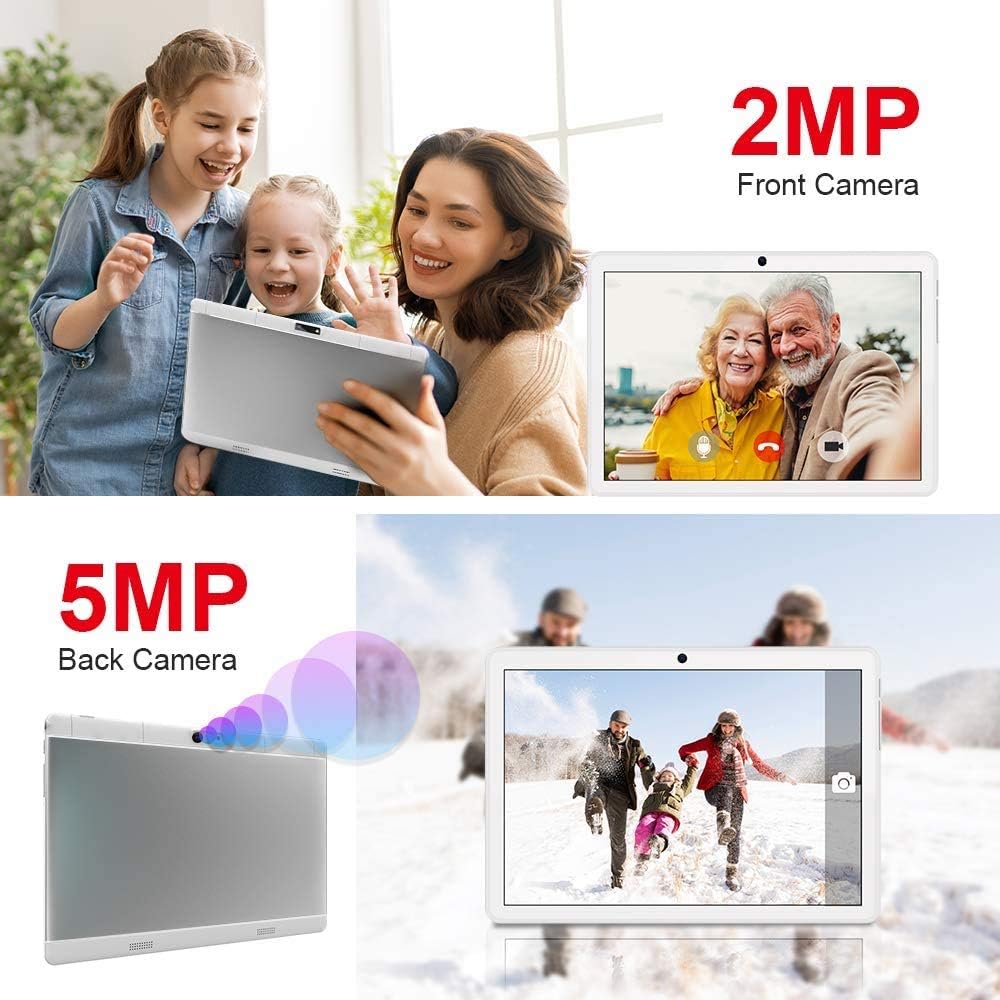
Figure 4: SIM and SD Card Installation
This image demonstrates the location and method for inserting an SD card, SIM1, and SIM2 into the tablet's dedicated slots, highlighting its dual SIM and expandable storage capabilities.
3. Powering On/Off
- To Power On: Press and hold the Power button until the MEIZE logo appears on the screen.
- To Power Off: Press and hold the Power button until a power-off menu appears. Select "Power off" and confirm.
- To Restart: From the power-off menu, select "Restart".
4. Initial Setup
Upon first power-on, the tablet will guide you through the initial setup process. This typically includes:
- Selecting your language.
- Connecting to a Wi-Fi network.
- Setting up your Google account (optional, but recommended for app downloads).
- Setting date and time.
- Configuring screen lock options.
Operating Instructions
1. Basic Navigation
The MEIZE tablet uses a capacitive touchscreen for interaction:
- Tap: To open an app, select an item, or press a button.
- Tap & Hold: To access contextual menus or move icons.
- Swipe: To scroll through pages, lists, or switch between home screens.
- Pinch: To zoom in or out on images and web pages.
2. Connecting to Wi-Fi
- Go to Settings > Network & Internet > Wi-Fi.
- Toggle Wi-Fi On.
- Select your desired Wi-Fi network from the list.
- Enter the password if prompted and tap Connect.
3. Bluetooth Pairing
- Go to Settings > Connected devices > Bluetooth.
- Toggle Bluetooth On.
- Ensure the device you wish to pair with is in pairing mode.
- Select the device from the "Available devices" list and follow on-screen prompts to complete pairing.
4. Using GPS
The tablet features built-in GPS for navigation and location-based services. Ensure location services are enabled in Settings > Location. You can then use pre-installed map applications or download others from the Google Play Store.
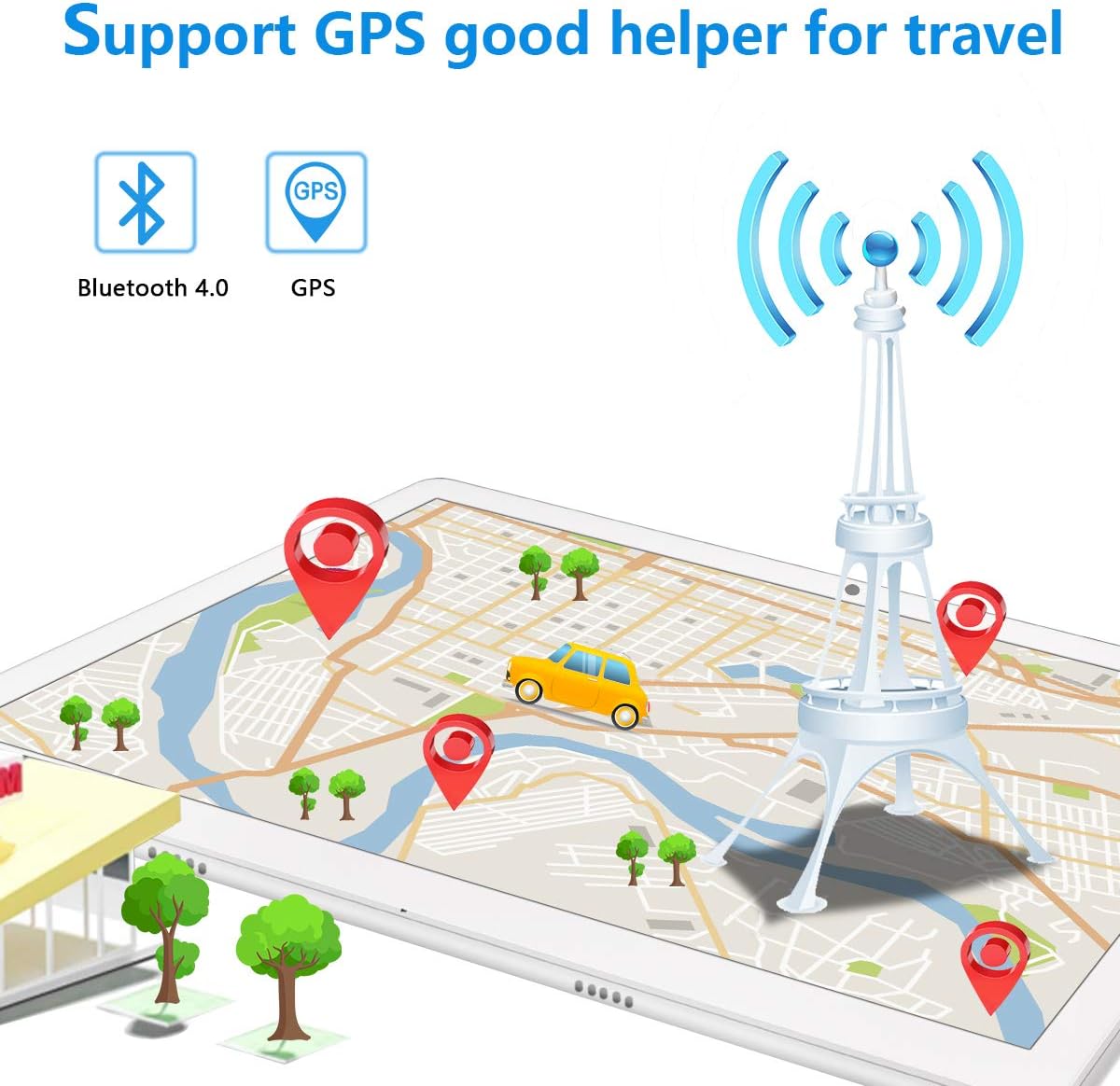
Figure 5: GPS and Bluetooth Functionality
This image illustrates the tablet's integrated GPS and Bluetooth 4.0 capabilities, showing a map with navigation points, indicating its utility for travel and connectivity with external devices.
5. Making Phone Calls (3G)
With a compatible 3G SIM card inserted, you can make and receive phone calls directly from your tablet.
- Open the Phone application.
- Dial the desired number using the on-screen keypad or select a contact.
- Tap the call button to initiate the call.
6. Camera Usage
The tablet features a 5MP rear camera and a 2MP front camera for photos and videos.
- Open the Camera application.
- Switch between front and rear cameras using the camera switch icon.
- Tap the shutter button to take a photo or record a video.
7. Storage Management
Your tablet comes with 32GB of internal storage. You can expand this by up to 128GB using a microSD card. To manage storage:
- Go to Settings > Storage to view storage usage and free up space.
- Regularly transfer photos and videos to your computer or cloud storage to prevent storage issues.

Figure 6: App and Media Enjoyment
This image showcases the tablet's ability to run various applications and display media, including social media, video streaming, and photo galleries, emphasizing its entertainment capabilities.
Maintenance
1. Battery Care
To maximize battery life and longevity:
- Avoid extreme temperatures.
- Do not let the battery drain completely before recharging frequently.
- Use the original charger and cable provided.
- For prolonged storage, charge the tablet to about 50% and power it off.
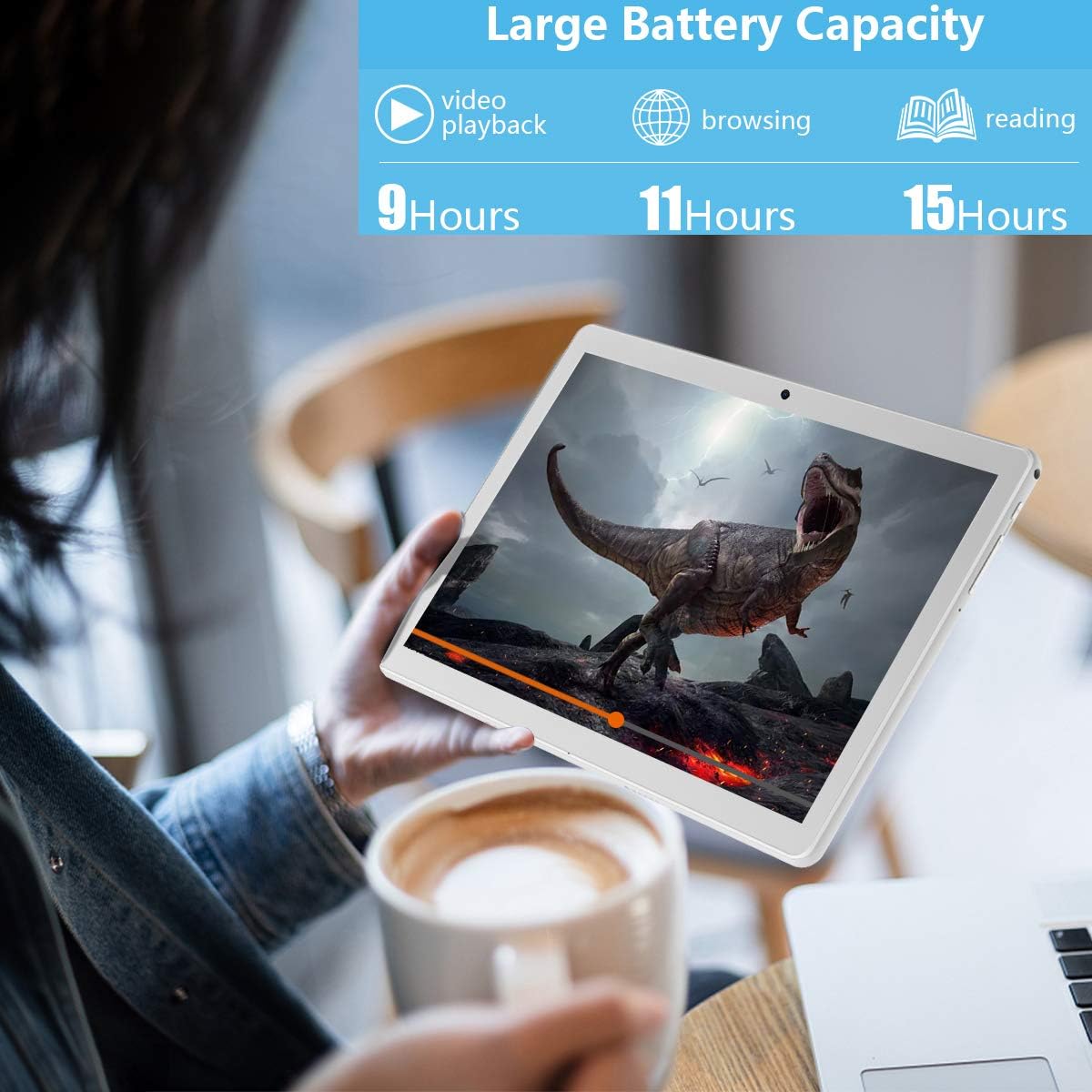
Figure 7: Extended Battery Life
This image highlights the tablet's large battery capacity, indicating approximately 9 hours of video playback, 11 hours of browsing, and 15 hours of reading on a single charge.
2. Cleaning
Use a soft, lint-free cloth to clean the screen and body of the tablet. Avoid using harsh chemicals or abrasive materials.
3. Software Updates
Periodically check for system updates to ensure your tablet has the latest features and security patches. Go to Settings > System > System update.
Troubleshooting
If you encounter issues with your MEIZE tablet, refer to the following common solutions:
| Problem | Possible Solution |
|---|---|
| Tablet does not power on. | Ensure the battery is charged. Connect to the charger for at least 30 minutes before attempting to power on again. |
| Wi-Fi connection is unstable or drops frequently. | Restart your Wi-Fi router. Forget the network on your tablet and reconnect. Ensure you are within range of the Wi-Fi signal. |
| Apps are slow or crashing. | Close background applications. Clear app cache (Settings > Apps & notifications > select app > Storage & cache > Clear cache). Restart the tablet. |
| Tablet is not charging. | Check if the charging cable and adapter are securely connected. Try a different power outlet. Inspect the charging port for any debris. |
| SIM card not detected. | Ensure the SIM card is correctly inserted into the tray. Restart the tablet. Verify the SIM card is active with your carrier. |
If the problem persists after trying these solutions, please contact MEIZE customer support.
Specifications
| Feature | Detail |
|---|---|
| Brand | MEIZE |
| Model Name | k105 |
| Operating System | Android 9 Pie |
| Screen Size | 10.1 Inches |
| Screen Resolution | 1280 x 800 |
| Processor | 1.3 GHz Quad-Core |
| RAM | 2 GB SDRAM DDR3 |
| Internal Storage | 32 GB |
| Expandable Storage | Up to 128 GB (microSD) |
| Rear Camera Resolution | 5 MP |
| Front Camera Resolution | 2 MP (from image) |
| Wireless Type | 802.11b (Wi-Fi), Bluetooth 4.0 |
| Battery Capacity | 6000mAh |
| Average Battery Life | 8 Hours |
| Dimensions (LxWxH) | 9.84 x 6 x 0.5 inches |
| Item Weight | 1.65 pounds |
| Color | Silver |
Warranty and Support
MEIZE offers customer support for its products. For any inquiries, technical assistance, or warranty claims, please refer to the contact information provided with your purchase or visit the official MEIZE website. The product typically includes a 30-day replacement service and lifetime support.
For further assistance, you may visit the MEIZE Store on Amazon.


