
1. Introduction
Thank you for choosing the BolyGuard MG984G-36M Trail Camera. This manual provides detailed instructions for the setup, operation, and maintenance of your camera. Designed for outdoor surveillance, this camera captures high-resolution images and videos, offering 4G connectivity for cloud services and remote management via a dedicated application.
Please read this manual thoroughly before using the camera to ensure optimal performance and longevity.
2. Product Overview
The BolyGuard MG984G-36M is a robust trail camera featuring a camouflage design for discreet outdoor placement. It is equipped with a high-resolution sensor, infrared LEDs for night vision, and an external antenna for reliable 4G communication.
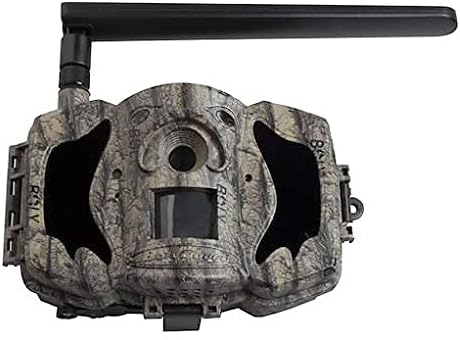
Figure 1: Front view of the BolyGuard MG984G-36M trail camera. This image displays the front view of the BolyGuard MG984G-36M trail camera. It features a camouflage pattern casing, a prominent external antenna on the top left, and the main lens and sensor area visible on the front. The camera is designed for outdoor use and blends with natural environments.
Key Components:
- Main Lens: Captures images and videos.
- PIR Sensor: Detects motion to trigger recording.
- Infrared LEDs: Provides illumination for night vision.
- External Antenna: Ensures stable 4G network connectivity.
- LCD Screen: For menu navigation and settings adjustment (located inside the camera).
- Battery Compartment: Holds required batteries (not included).
- SD Card Slot: For storage of captured media.
- SIM Card Slot: For 4G network access.
3. Setup
3.1 Battery Installation
- Open the camera casing latches.
- Locate the battery compartment.
- Insert the required batteries (e.g., AA batteries, not included) according to the polarity indicators (+/-). Ensure all batteries are new and of the same type.
- Close the battery compartment securely.
3.2 SIM Card and SD Card Installation
- With the camera powered off, locate the SIM card slot. Insert a activated 4G SIM card into the slot until it clicks into place.
- Locate the SD card slot. Insert a compatible SD card (up to 32GB, Class 10 recommended, not included) into the slot until it clicks.
- Attach the external antenna to the designated port on the camera.
3.3 Initial Power-On and App Setup
- Switch the camera to the 'SETUP' mode. The internal LCD screen will power on.
- Follow the on-screen prompts to set the date, time, and other basic settings.
- Download the official BolyGuard app from your smartphone's app store.
- Register an account and add your camera to the app by following the in-app instructions, typically involving scanning a QR code or entering the camera's serial number.
- Ensure the camera has a stable 4G signal, indicated on the LCD screen.
4. Operating Instructions
4.1 Basic Operation Modes
- OFF: Camera is powered off.
- SETUP: Allows access to the camera's menu for configuration and viewing captured media.
- ON: Camera is in active surveillance mode, detecting motion and capturing media according to settings.
4.2 Settings Configuration
In 'SETUP' mode, use the navigation buttons to access and modify settings:
- Mode: Select Photo, Video, or Photo+Video.
- Image Size: Set photo resolution (e.g., 36MP, 24MP).
- Video Size: Set video resolution (e.g., 1080P, 720P).
- PIR Sensitivity: Adjust motion detection sensitivity (High, Normal, Low).
- Trigger Interval: Set the delay between consecutive triggers.
- Time-Lapse: Configure time-lapse photography settings.
- Send Mode: Configure how media is sent via 4G (e.g., instant, daily report).
- Cloud Service: Enable or disable cloud storage and app connectivity.
4.3 Remote Management via App
Once connected to the BolyGuard app, you can:
- Receive real-time notifications of detected activity.
- View captured photos and videos remotely.
- Change camera settings from your smartphone.
- Monitor camera status (battery level, signal strength, SD card capacity).
5. Maintenance
- Cleaning: Regularly clean the camera lens and PIR sensor window with a soft, dry cloth. Avoid abrasive materials or harsh chemicals.
- Battery Replacement: Replace all batteries when the low battery indicator appears or when performance degrades. Always use fresh batteries of the same type.
- SD Card Management: Periodically format the SD card in the camera's menu to maintain optimal performance and prevent data corruption. Back up important files before formatting.
- Firmware Updates: Check the BolyGuard official website for any available firmware updates. Follow the provided instructions carefully for installation.
- Storage: When not in use for extended periods, remove batteries and store the camera in a cool, dry place away from direct sunlight.
6. Troubleshooting
- Camera Not Powering On: Ensure batteries are correctly inserted with correct polarity and are fully charged. Check if the power switch is in the 'SETUP' or 'ON' position.
- No 4G Signal: Verify the SIM card is active and correctly inserted. Ensure the external antenna is securely attached. Move the camera to an area with better network coverage.
- No Images/Videos Captured: Check if the SD card is inserted and has sufficient free space. Verify PIR sensitivity settings and ensure the camera is in 'ON' mode.
- Poor Image/Video Quality: Clean the camera lens. Ensure the camera is securely mounted and not subject to excessive vibration. Check resolution settings.
- App Connectivity Issues: Ensure the camera has a stable 4G connection. Verify your smartphone has internet access. Re-add the camera to the app if necessary.
7. Specifications
| Feature | Detail |
|---|---|
| Model Number | MG984G-36M |
| Image Resolution | Up to 36 Megapixels |
| Video Resolution | Full HD (1080P) |
| Connectivity Technology | Wireless (4G) |
| Product Dimensions | 50 x 50 x 28 cm |
| Item Weight | 5.66 kg |
| Batteries | Required (not included) |
| ASIN | B087V4SWGH |
| Date First Available | 7 July 2020 |
8. Warranty and Support
For warranty information and technical support, please refer to the official BolyGuard website or contact your authorized dealer. Keep your purchase receipt as proof of purchase for warranty claims.
Online resources, including FAQs and additional troubleshooting guides, may be available on the manufacturer's support pages.


