
Introduction
Thank you for choosing the Perixx PERIBOARD-317 Backlit USB Keyboard. This full-size wired keyboard is designed for comfortable daily typing, featuring large print keys and white LED backlighting for enhanced visibility in various lighting conditions. Its low-profile keys offer a quiet and responsive typing experience. This manual provides essential information for setting up, operating, maintaining, and troubleshooting your keyboard.
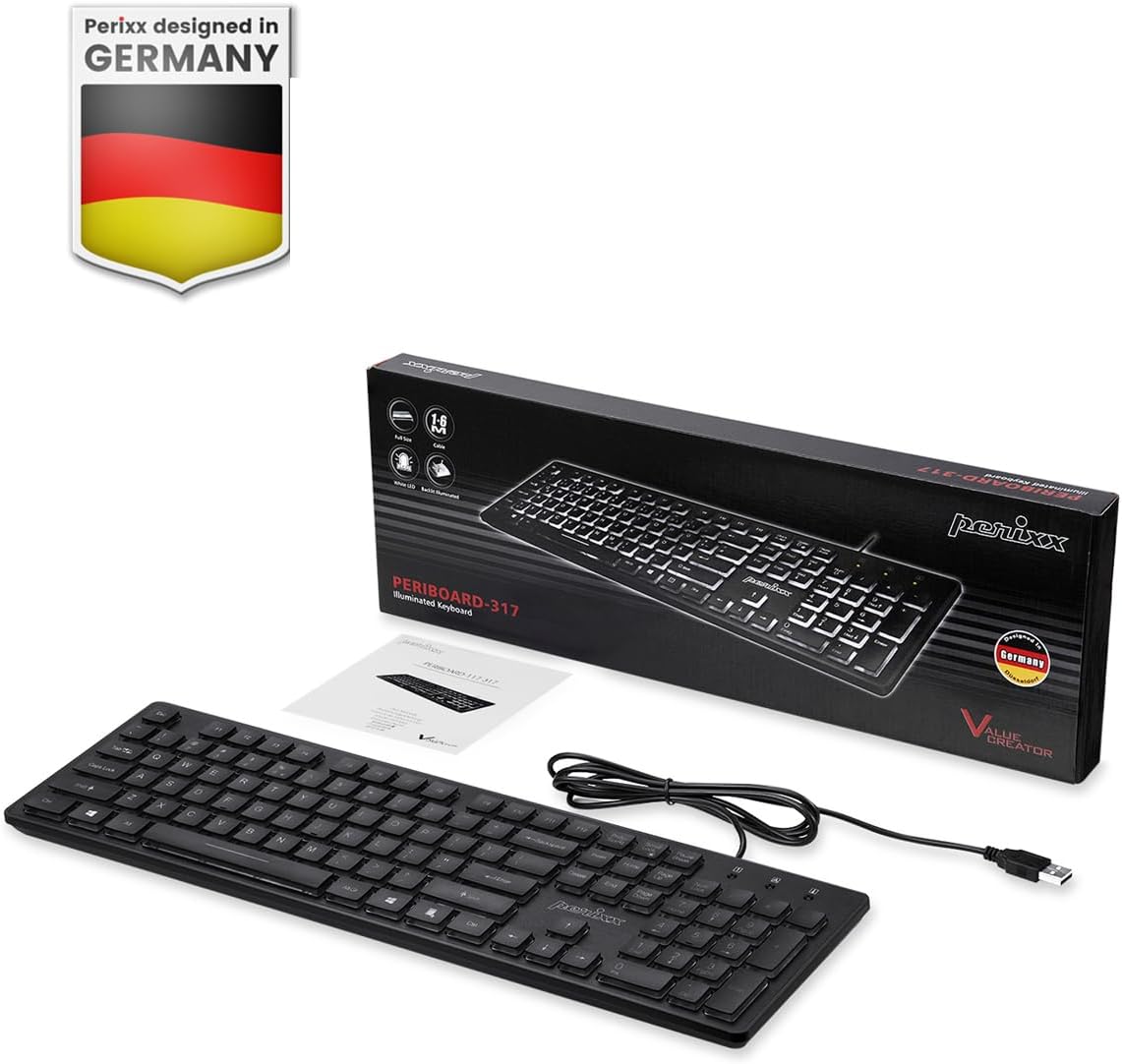
Image: Perixx PERIBOARD-317 keyboard and its contents.
1. Setup
1.1 Package Contents
- Perixx PERIBOARD-317 Keyboard
- User Manual
1.2 System Requirements
- Compatible with Windows 7, 8, 10, and 11.
- Available USB-A port.
1.3 Connecting the Keyboard
- Unpack the Perixx PERIBOARD-317 keyboard from its packaging.
- Locate an available USB-A port on your computer.
- Plug the USB-A cable of the keyboard into the USB-A port on your computer.
- The keyboard is plug-and-play; no additional drivers or software installation is required. Your computer will automatically detect and configure the device.

Image: Connecting the Perixx PERIBOARD-317 keyboard via USB.
2. Operating Instructions
2.1 Basic Typing
The Perixx PERIBOARD-317 features a standard full-size Italian QWERTY layout with 105 keys. The large print characters on the keys are designed for improved visibility, making typing easier for users with visual impairments or in low-light environments.

Image: Large print keys for enhanced visibility.
2.2 Backlight Control
The keyboard is equipped with a bright, uniformly distributed white LED backlight. This feature allows for comfortable typing in dimly lit conditions.
- Turning On/Off the Backlight: Locate the backlight control key (often indicated by a sun or light bulb icon, or a dedicated function key combination). Press this key to toggle the backlight on or off.
- Adjusting Brightness: If available, use the designated brightness control keys (often function keys combined with Fn) to increase or decrease the backlight intensity.

Image: White LED backlighting for clear visibility.

Image: Easy typing in low-light conditions with the illuminated keys.
2.3 Scroll Lock and Backlight Interaction
Please note the interaction between the backlight and the Scroll Lock function:
- When the backlight is active, the Scroll Lock function is disabled.
- When the backlight is turned off, the Scroll Lock function is enabled.
2.4 Typing Experience
The low-profile keys with wider surfaces provide a responsive, quiet, and precise typing experience. The high-quality ABS key printing is designed to resist wear, and the membrane switches are rated for 5 million keystrokes.

Image: Quiet and responsive typing experience.

Image: Low-profile chiclet keys for comfortable typing.
3. Maintenance
3.1 Cleaning the Keyboard
To maintain your keyboard's performance and appearance:
- Disconnect the keyboard from your computer before cleaning.
- Use a soft, lint-free cloth slightly dampened with water or a mild cleaning solution to wipe the keycaps and surface.
- Avoid spraying liquids directly onto the keyboard.
- For dust and debris between keys, use compressed air.
3.2 Storage
Store the keyboard in a dry environment, away from extreme temperatures and direct sunlight, when not in use for extended periods.
4. Troubleshooting
4.1 Keyboard Not Responding
- Ensure the USB cable is securely plugged into both the keyboard and the computer's USB port.
- Try plugging the keyboard into a different USB port on your computer.
- Restart your computer.
- Test the keyboard on another computer to determine if the issue is with the keyboard or the computer.
4.2 Backlight Not Working
- Ensure the backlight is turned on using the dedicated backlight control key.
- Check if the brightness level is set too low. Adjust it using the brightness control keys.
- Verify that the Scroll Lock function is not interfering (refer to section 2.3).
4.3 Keys Not Registering or Repeating
- Clean the affected keys as described in the Maintenance section.
- Ensure no debris is lodged under the keycap.
- If the issue persists, it may indicate a hardware problem. Refer to the Warranty and Support section.
5. Specifications
| Feature | Detail |
|---|---|
| Brand | Perixx |
| Model Name | PERIBOARD-317 IT B |
| Model Number | 11629 |
| Connectivity Technology | USB (Wired) |
| Keyboard Description | Full-size, Backlit |
| Recommended Uses | Daily use, study |
| Special Feature | Backlit (White LED), Large Print Keys |
| Keyboard Backlight Color Support | Monochromatic |
| Product Dimensions (L x W x H) | 44L x 12.9W x 2.7H cm |
| Power Source | Corded Electric |
| Switch Type | Linear (Membrane) |
| Keyboard Layout | QWERTY (Italian) |
| Number of Keys | 105 |
| Compatible Operating Systems | Windows 7, 8, 10, 11 |
| Housing Material | ABS Plastic |
| Item Weight | 530 Grams |
| Manufacturer | Perixx |
| Manufacturer Part Number | PB-317IT-11629 |
| Country of Origin | China |
6. Warranty and Support
6.1 Warranty Information
The Perixx PERIBOARD-317 keyboard is covered by a limited 24-month warranty from the date of purchase. This warranty covers manufacturing defects and workmanship under normal use.
6.2 How to Obtain Support
For warranty claims, technical assistance, or product inquiries, please visit the official Perixx website. Warranty replacement requests (RMA) are generally processed within 48-72 hours.
For more information, visit: www.perixx.com

Image: Perixx - Designed in Germany.


