
Introduction
This manual provides detailed instructions for the installation, operation, and maintenance of your JOOWIN AX200 WiFi 6 Card. The AX200 is a PCIe WiFi card designed for desktop PCs, offering WiFi 6 (802.11ax) connectivity with dual-band support (2.4GHz and 5.8GHz) and Bluetooth 5.0. It is compatible with Windows 10 64-bit operating systems only.
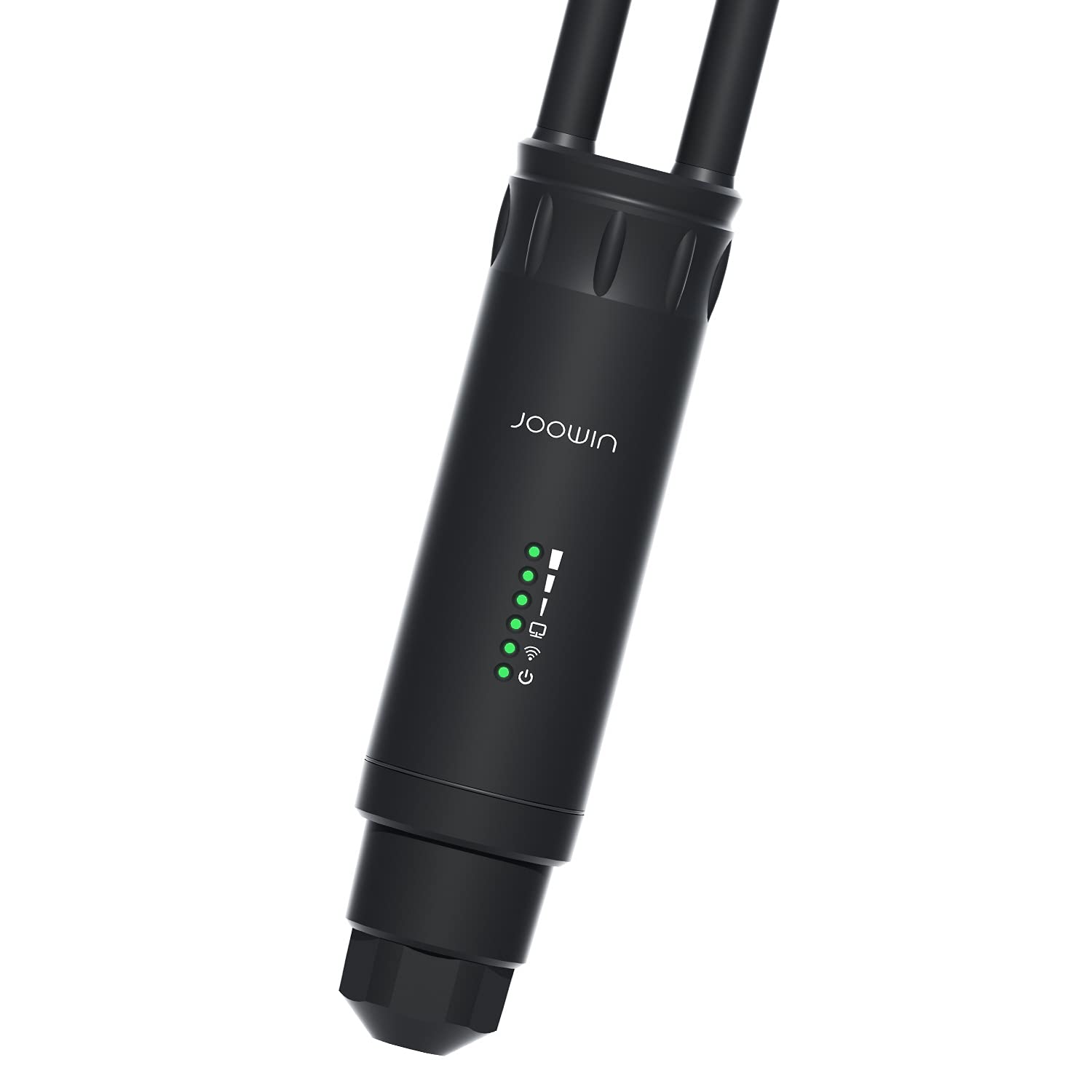
Image: The JOOWIN AX200 WiFi 6 Card, featuring a heat sink and two external antennas for enhanced signal reception.
Product Features
- Dual Band WiFi 6 (802.11ax): Supports 2.4GHz (up to 574Mbps) and 5.8GHz (up to 2400Mbps) for a combined speed of up to 2974Mbps.
- Bluetooth 5.0: Offers faster speeds and extended range compared to previous Bluetooth versions, for connecting peripherals like mice, keyboards, speakers, and headphones.
- High Gain Antennas: Equipped with two 6dBi omnidirectional antennas for improved signal reception and stability.
- MU-MIMO and 160MHz Channels: Enhances network efficiency for multiple devices and provides higher throughput for demanding applications like 4K video streaming and gaming.
- Heat Sink Design: Features an organ pipe heat sink for effective heat dissipation, ensuring stable performance.
- PCIe Interface: Compatible with PCIE-1X, PCIE-4X, PCIE-8X, and PCIE-16X slots.
- Operating System Support: Exclusively supports Windows 10 64-bit.
Setup and Installation
Follow these steps to install the JOOWIN AX200 WiFi 6 Card into your desktop PC and install the necessary drivers.
- Power Off PC: Ensure your computer is completely powered off and unplugged from the power source before opening the case.
- Open PC Case: Carefully open your computer's side panel to access the motherboard.
- Locate PCIe Slot: Identify an available PCIe slot (PCIE-1X, PCIE-4X, PCIE-8X, or PCIE-16X).
- Insert WiFi Card: Gently insert the JOOWIN AX200 WiFi 6 Card into the chosen PCIe slot, ensuring it is seated firmly. Secure the card with a screw if your case requires it.
- Attach Antennas: Screw the two provided high-gain antennas onto the connectors at the back of the WiFi card.
- Close PC Case: Close your computer's side panel and reconnect the power cable.
- Power On PC: Turn on your computer.
- Download Drivers:
- Access the driver download page using the following link: https://bit.ly/2WKp9SI.
- Search for "AX200" to locate the correct drivers.
- Download both the WiFi and Bluetooth drivers for Windows 10 64-bit.
- Decompress Drivers: Before installation, decompress the downloaded driver files. Failure to decompress will prevent successful installation.
- Install Drivers:
- Navigate to the decompressed driver folder.
- Run the Bluetooth driver installer, typically named BT_21.30.0_64_Win10.exe.
- Run the WiFi driver installer, typically named WiFi_21.30.3_Driver64_Win10.exe.
- Follow the on-screen prompts to complete the installation for both drivers.
- Restart PC: After installing both drivers, restart your computer to ensure all changes take effect.
Your JOOWIN AX200 WiFi 6 Card should now be ready for use. You can connect to available WiFi networks and pair Bluetooth devices through your Windows 10 settings.
Operating Instructions
Once the drivers are successfully installed and your PC has restarted, the JOOWIN AX200 WiFi 6 Card will enable WiFi and Bluetooth functionalities.
- Connecting to WiFi:
Access the network settings in Windows 10. Select the desired WiFi network from the list of available networks and enter the password if prompted.
- Pairing Bluetooth Devices:
Go to "Settings" > "Devices" > "Bluetooth & other devices" in Windows 10. Ensure Bluetooth is turned on, then click "Add Bluetooth or other device" and follow the instructions to pair your device.
- Antenna Positioning:
For optimal signal strength, ensure the external antennas are positioned vertically and are not obstructed by other objects or the PC case itself.
Troubleshooting
- No WiFi or Bluetooth after installation:
Verify that both the WiFi and Bluetooth drivers were installed correctly. Check Device Manager in Windows 10 for any yellow exclamation marks next to network adapters or Bluetooth devices. Reinstall drivers if necessary, ensuring they are decompressed first.
- Slow WiFi speeds or frequent disconnections:
Ensure the antennas are securely attached and properly positioned. Try connecting to the 5.8GHz band for better performance if your router supports it and you are in close proximity. Note that there is a natural transmission loss when connecting wirelessly compared to a direct wired connection.
- Bluetooth device not pairing:
Ensure the Bluetooth device is in pairing mode. Check that Bluetooth is enabled in Windows settings. Try restarting your PC and the Bluetooth device.
- Card not detected by PC:
Power off your PC, unplug it, and re-seat the WiFi card firmly in the PCIe slot. Try a different PCIe slot if available. Ensure your motherboard's BIOS/UEFI settings are not disabling the PCIe slot.
Specifications
| Feature | Detail |
|---|---|
| Model | CF-AX200 PRO |
| Hardware Specifications | AX200NGW |
| Wireless Standard | 802.11ax / ac / a / b / g / n |
| Wireless Frequency Band | 2.412-2.472GHz (574Mbps), 5.180-5.825GHz (2400Mbps) |
| Bluetooth Version | Bluetooth 5.0 |
| Antenna | 2 * 6dBi High Gain Omnidirectional |
| Physical Interface | PCIe-X1 |
| Compatible Slots | PCIE-1X, PCIE-4X, PCIE-8X, PCIE-16X (Graphics card slot) |
| Transmit Power (WiFi) | 19.5 dBm (maximum) |
| Transmit Power (Bluetooth) | 10 dBm |
| Operating System Support | Windows 10 64-bit Only |
| Product Dimensions | 72 * 46mm (Card), 143mm (Antenna length) |
| Working Temperature | 0 ℃ ~ 40 ℃ |
| Storage Temperature | -40 ℃ ~ 70 ℃ |
| Working Humidity | 10% ~ 90% RH non-condensing |
| Storage Humidity | 5% ~ 90% RH non-condensing |
Support and Warranty
JOOWIN provides lifetime free technical support for the AX200 WiFi 6 Card.
For further assistance or technical inquiries, please contact us via email:
Email: YIYUANUS@163.com


