
1. Introduction
This manual provides detailed instructions for the installation, operation, and maintenance of your BV-Tech 6-Port Unmanaged Gigabit Desktop PoE Switch, model POE-SW502G-FBA. This device is designed to expand your network connectivity, offering both data and power transmission over Ethernet cables to compatible devices.
2. Product Features
- All-Gigabit 6-Port Connectivity: Provides 4 x 10/100/1000 Mbps PoE ports and 2 Gigabit uplink ports for seamless network expansion.
- Robust 60W Total Power Budget: Delivers up to 60W total system power. Port 1 supplies up to 60W Hi-PoE, while ports 2-4 provide up to 30W each under IEEE802.3af/at protocols.
- 820ft Long Distance Reach: Features an Extend Mode to transmit PoE up to 820ft (250m), automatically reducing bandwidth to 10 Mbps for network stability over long distances.
- Intelligent PoE Watchdog: Automatically detects port status and restarts failed ports to recover dropped IPC connections, reducing manual maintenance.
- Durable Hardware & Protection: Engineered for wide working temperatures (14°F to 131°F), features up to 4KV lightning protection, wall-mount capabilities, and a fanless metal housing.
3. Package Contents
Please verify the contents of your package. If any items are missing or damaged, contact your vendor.
- BV-Tech 6-Port Unmanaged Gigabit Desktop PoE Switch (Model POE-SW502G-FBA)
- Power Adapter
- Power Cord
- User Manual (this document)

The package includes the BV-Tech 6-Port Unmanaged Gigabit Desktop PoE Switch unit, its power adapter, and a power cord for immediate setup.
4. Physical Overview
Familiarize yourself with the ports and indicators on your PoE switch.

All six ports on this switch are Gigabit, ensuring high-speed data transfer. The image highlights the four PoE ports (1-4), two uplink ports (5-6), and the DC power input.
4.1 PoE Ports (1-4)

The switch features four Power over Ethernet (PoE) ports, allowing connected devices to receive both data and power over a single Ethernet cable.
Ports 1-4 are PoE-enabled ports. Port 1 is a Hi-PoE port, capable of delivering up to 60W for high-power devices. Ports 2-4 can deliver up to 30W each.

Port 1 (labeled '1-Hi') is a dedicated Hi-PoE port capable of supplying up to 60W, ideal for high-power devices such as PTZ cameras or motorized zoom cameras.

The switch supports Power over Ethernet (PoE) with a total budget of 60W, delivering both data and power to compatible devices like IP cameras over a single Ethernet cable.
4.2 Uplink Ports (5-6)

Two dedicated Gigabit Ethernet uplink ports provide high-speed connections to your router or network backbone.
Ports 5-6 are Gigabit uplink ports, typically used to connect the switch to your main network router, NVR, or other network devices that do not require PoE.
4.3 Dimensions
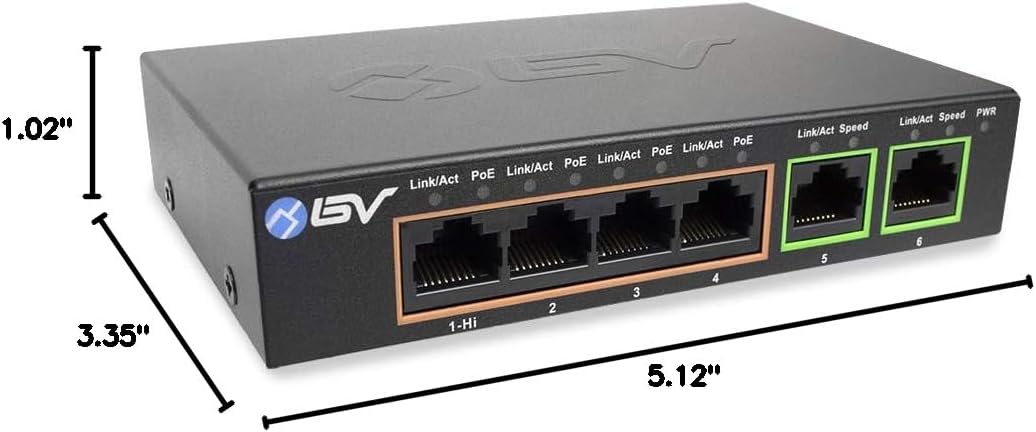
This image provides the physical dimensions of the switch, measuring 5.12 inches in length, 3.35 inches in width, and 1.02 inches in height, indicating its compact desktop design.
5. Setup Instructions
Follow these steps to set up your BV-Tech PoE Switch:
- Unpack the Switch: Carefully remove the switch and its accessories from the packaging.
- Connect Power: Connect the power adapter to the DC power input port on the switch and then plug the power cord into a standard electrical outlet. The PWR LED indicator on the front panel should illuminate.
- Connect Uplink Devices: Use standard Ethernet cables to connect your router, NVR, or other network devices to the Gigabit uplink ports (ports 5 or 6).
- Connect PoE Devices: Connect your PoE-compatible devices (e.g., IP cameras, VoIP phones, wireless access points) to the PoE ports (ports 1-4) using Ethernet cables. The Link/Act and PoE LEDs for these ports should illuminate.
- Optional: Enable Extend Mode: If you need to extend PoE transmission distance up to 820ft (250m) for ports 1-4, locate the 'Default/Extend' switch on the device (if present, typically on the front or side panel) and set it to 'Extend'. Note that this will reduce the bandwidth to 10 Mbps for the PoE ports.

This image illustrates common applications for the PoE switch, including connecting to a router, IP phone, printer, and camera, showcasing its versatility in various network setups.
6. Operating Instructions
6.1 LED Indicators
- PWR (Power): Illuminates when the switch is powered on.
- Link/Act (Link/Activity): Illuminates when a device is successfully connected to the port. Blinks to indicate data activity.
- PoE (Power over Ethernet): Illuminates when a PoE device is connected and receiving power from the port.
6.2 Extend Mode
The Extend Mode feature allows for longer PoE transmission distances. When enabled, the PoE ports (1-4) can transmit data and power up to 820ft (250m). This mode automatically limits the port speed to 10 Mbps to ensure stable transmission over extended distances. For standard Gigabit speeds, ensure Extend Mode is disabled.
7. Maintenance
To ensure optimal performance and longevity of your switch, follow these maintenance guidelines:
- Cleaning: Use a soft, dry cloth to clean the exterior of the switch. Do not use liquid or aerosol cleaners.
- Ventilation: Ensure the switch is placed in a well-ventilated area. Do not block any ventilation openings.
- Environment: Operate the switch within the specified temperature and humidity ranges (14°F to 131°F).
- Cable Management: Keep network cables organized and free from kinks or excessive bends to prevent signal degradation.
8. Troubleshooting
If you encounter issues with your switch, refer to the following common problems and solutions:
- No Power (PWR LED Off):
- Ensure the power adapter is securely connected to the switch and a working power outlet.
- Verify the power outlet is functional by plugging in another device.
- No Link (Link/Act LED Off):
- Check if the Ethernet cable is securely connected to both the switch port and the connected device.
- Ensure the connected device is powered on and functioning correctly.
- Try a different Ethernet cable or port.
- No PoE Power (PoE LED Off):
- Verify that the connected device is PoE-compatible (IEEE 802.3af/at standard).
- Check the total power budget. If too many high-power devices are connected, some may not receive power.
- Ensure the Ethernet cable is of good quality and supports PoE.
- If using Port 1 for a Hi-PoE device, ensure the device requires up to 60W.
- Slow Network Speed:
- Check if Extend Mode is enabled. If so, the speed for PoE ports will be limited to 10 Mbps. Disable Extend Mode for Gigabit speeds.
- Ensure all connected devices and cables support Gigabit Ethernet for optimal performance.
- Verify there are no network loops or excessive traffic on the network.
If the problem persists, please contact technical support.
9. Specifications
| Feature | Specification |
|---|---|
| Brand | BV-Tech |
| Model Number | POE-SW502G-FBA |
| Number of Ports | 6 (4 PoE, 2 Uplink) |
| Data Transfer Rate | 10/100/1000 Mbps (Gigabit) |
| Switch Type | Unmanaged |
| PoE Standard | IEEE 802.3af/at |
| Total PoE Power Budget | 60 Watts |
| Hi-PoE Port (Port 1) | Up to 60W |
| Standard PoE Ports (2-4) | Up to 30W each |
| Extend Mode Distance | Up to 820ft (250m) at 10 Mbps |
| Operating Temperature | 14°F to 131°F (-10°C to 55°C) |
| Lightning Protection | Up to 4KV |
| Case Material | Metal |
| Dimensions (L x W x H) | 5.12" x 3.35" x 1.02" |
| Item Weight | 0.89 Kilograms |
10. Product Video
An introductory video demonstrating the features and functionality of the BV-Tech 6-Port Unmanaged Gigabit Desktop PoE Switch (Model POE-SW502G-FBA).
11. Warranty and Support
This BV-Tech product comes with a 1-year warranty from the date of purchase. This warranty covers defects in materials and workmanship under normal use.
For technical support, warranty claims, or further assistance, please contact your vendor or visit the official BV-Tech support website. Please have your model number (POE-SW502G-FBA) and purchase information ready.