
1. Introduction
Thank you for purchasing the Maegoo 2.4G Wireless Game Controller. This manual provides detailed instructions to help you set up, operate, and maintain your controller for an optimal gaming experience. Please read this manual carefully before use and retain it for future reference.
2. Package Contents
Please check the package contents upon opening. If any items are missing or damaged, please contact customer support.
- 1 x Maegoo 2.4G Wireless Game Controller
- 1 x 2.4G USB Dongle Receiver
- 1 x USB Charging Cable
- 1 x User Manual (this document)
3. Product Overview
Familiarize yourself with the various components of your Maegoo Wireless Game Controller.

Image: Front and bottom view of the Maegoo Wireless Game Controller with labels for D-pad, Left Stick, Select, Home, Start, A/B/X/Y Buttons, Right Stick, LED Indicator Lights, R1, R2, L1, L2, and Micro USB Charging Port.
- D-pad: Directional Pad for precise movement.
- Left Stick: Analog stick for 360-degree movement.
- Select Button: Used for various in-game functions.
- Home Button: Returns to the system menu or dashboard.
- Start Button: Used for pausing or starting games.
- A/B/X/Y Buttons: Action buttons for in-game commands.
- Right Stick: Analog stick, often used for camera control or aiming.
- LED Indicator Lights: Displays connection status and battery level.
- R1/L1 Buttons: Shoulder buttons.
- R2/L2 Triggers: Analog triggers.
- Micro USB Charging Port: For charging the controller.
4. Setup and Connection
4.1 Charging the Controller
The controller features a built-in 600mAh rechargeable lithium battery. Before first use, ensure the controller is fully charged.
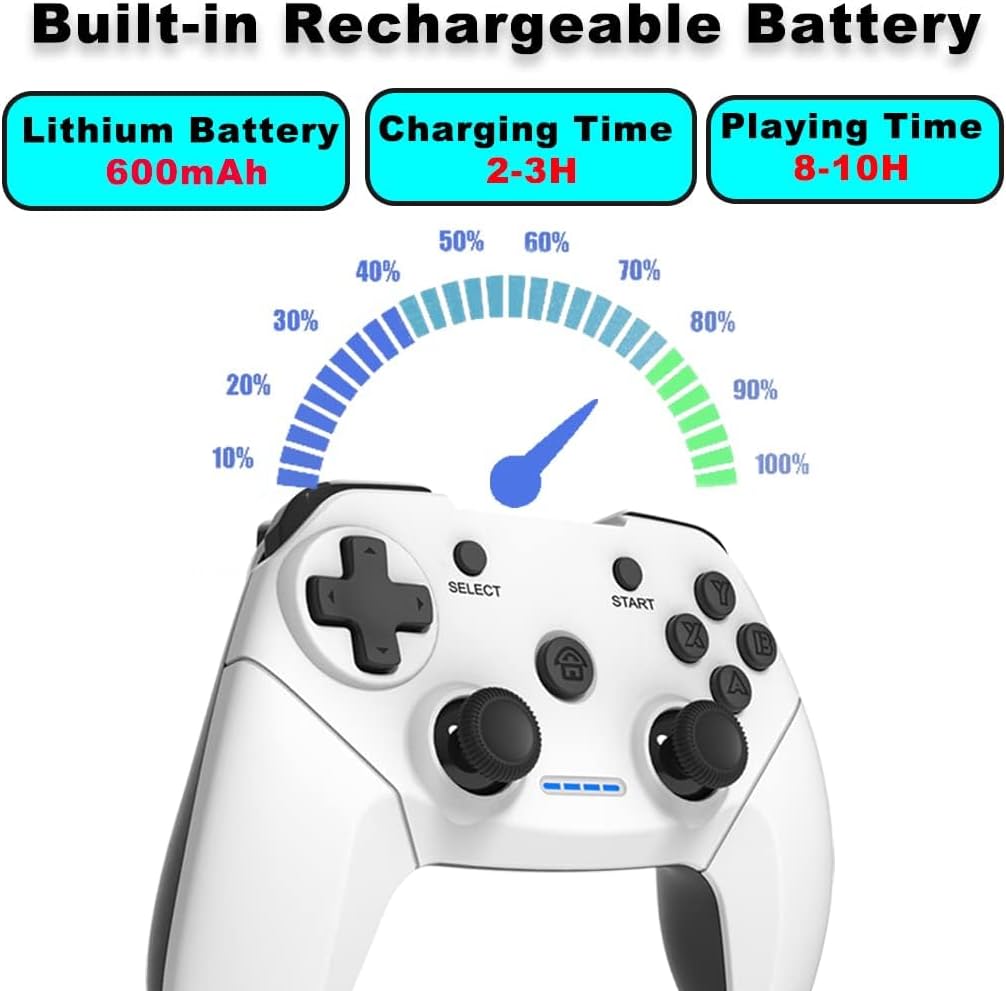
Image: Maegoo Wireless Game Controller displaying battery information: Lithium Battery 600mAh, Charging Time 2-3H, Playing Time 8-10H.
- Connect the supplied USB charging cable to the Micro USB Charging Port on the controller.
- Plug the other end of the USB cable into a USB power source (e.g., PC USB port, USB wall adapter).
- The LED indicator lights will show charging status. Once fully charged, the lights will indicate completion.
- Charging time is approximately 2-3 hours, providing 8-10 hours of playing time.
4.2 Compatibility and Connection
The Maegoo Wireless Game Controller is compatible with PC (Windows XP/7/8/10), PlayStation 3 (PS3), Smart TV, and TV Box via a 2.4G USB dongle.

Image: Diagram illustrating the Maegoo Wireless Game Controller's 2.4G wireless connection to PC (Windows XP/7/8/10), PlayStation 3, and Android TV/TV Box.
- Insert the 2.4G USB Dongle: Plug the 2.4G USB dongle receiver into an available USB port on your PC, PS3, Smart TV, or TV Box.
- Power On the Controller: Press the 'Home' button on the controller to power it on.
- Automatic Connection: The controller will automatically attempt to connect to the USB dongle. The LED indicator lights will stop flashing and remain solid once a successful connection is established.
- Driver Installation (Windows XP/7 only): For Windows XP and Windows 7, you may need to install the Xbox 360 controller driver for full functionality. For Windows 8/10, the controller is typically plug-and-play.
- Connection Range: The wireless connection has a range of up to 10 meters (32.8 feet).
5. Operating the Controller
5.1 Basic Controls
Refer to Section 3, 'Product Overview', for the location of all buttons and sticks.
- Movement: Use the D-pad or Left Stick for character movement or menu navigation.
- Actions: Use the A/B/X/Y buttons for in-game actions such as jumping, attacking, or confirming selections.
- Camera/Aiming: Use the Right Stick for camera control or aiming in games.
- Shoulder Buttons (L1/R1) and Triggers (L2/R2): These are typically used for specific in-game functions like firing weapons, blocking, or accelerating.
5.2 Dual Vibration Function
The controller is equipped with dual motors that provide vibration feedback, enhancing your gaming immersion by simulating in-game events like impacts, explosions, and crashes.

Image: Maegoo Wireless Game Controller with red circles indicating the location of the dual vibration motors within the grips.
- This feature is automatically enabled when supported by the game.
- The intensity of the vibration may vary depending on the game and in-game events.
5.3 Power Saving Mode
To conserve battery life, the controller will automatically enter sleep mode after a period of inactivity. Press the 'Home' button to wake it up.
6. Maintenance
Proper care will extend the life of your controller.
- Cleaning: Use a soft, dry cloth to clean the controller. Do not use harsh chemicals or abrasive cleaners.
- Storage: Store the controller in a cool, dry place away from direct sunlight and extreme temperatures.
- Avoid Drops: Do not drop or subject the controller to strong impacts.
- Liquid Contact: Keep the controller away from liquids.
7. Troubleshooting
If you encounter issues with your controller, please refer to the following troubleshooting steps:
| Problem | Possible Cause | Solution |
|---|---|---|
| Controller does not power on. | Low battery. | Charge the controller for 2-3 hours. |
| Controller does not connect to device. | USB dongle not properly inserted or out of range. | Ensure the 2.4G USB dongle is securely plugged into the device. Move the controller closer to the dongle (within 10 meters). |
| Connection is unstable or frequently disconnects. | Interference from other wireless devices or low battery. | Ensure the controller is fully charged. Move away from other 2.4GHz wireless devices. Try a different USB port for the dongle. |
| Buttons or sticks are unresponsive. | Connection issue or software problem. | Reconnect the controller. Restart the game or device. For Windows XP/7, ensure Xbox 360 controller drivers are installed. |
| Vibration function not working. | Game does not support vibration or feature is disabled. | Check game settings to ensure vibration is enabled. Verify the game supports vibration feedback. |
If the problem persists after trying these solutions, please contact Maegoo customer support.
8. Specifications
- Model: AN12-1218
- Connectivity: 2.4G Wireless USB Dongle
- Compatibility: PC (Windows XP/7/8/10), PlayStation 3, Smart TV, TV Box
- Wireless Range: Up to 10 meters (32.8 feet)
- Battery: Built-in 600mAh Rechargeable Lithium Battery
- Charging Time: Approximately 2-3 hours
- Playing Time: Approximately 8-10 hours
- Dimensions: 17 x 7 x 12 cm (6.7 x 2.8 x 4.7 inches)
- Weight: 380 g (0.84 lbs)
9. Warranty and Support
Maegoo products come with a standard warranty. For specific warranty details, please refer to the warranty card included with your purchase or visit the official Maegoo website. If you require technical assistance or have questions not covered in this manual, please contact Maegoo customer support through the retailer or the official website.