
Introduction
This manual provides detailed instructions for the setup, operation, and maintenance of your X9 Performance X9RF2ACMOUSE Wireless Mouse. Please read this manual thoroughly before using the product to ensure proper functionality and to prevent damage.
Product Overview
The X9 Performance X9RF2ACMOUSE is a versatile wireless mouse designed for multi-device compatibility, featuring both USB-A and USB-C connectivity. It offers precise optical tracking and adjustable DPI settings for various computing needs.

Image: The X9 Performance X9RF2ACMOUSE wireless mouse in white, shown with its convertible USB-A and USB-C receivers.
Package Contents
- 1 x X9 Performance X9RF2ACMOUSE Wireless Mouse
- 1 x USB-A Receiver (2.4G RF)
- 1 x USB-C Receiver (2.4G RF)
- 1 x AA Battery
- 1 x User Manual

Image: The X9 Performance wireless mouse alongside its two included receivers: one USB-A and one USB-C.
Setup
1. Battery Installation
- Locate the battery compartment on the underside of the mouse.
- Slide open the battery cover.
- Insert the provided AA battery, ensuring correct polarity (+/-).
- Close the battery cover securely.

Image: The underside of the X9 Performance wireless mouse, illustrating the battery compartment and the dedicated storage slots for both USB-A and USB-C receivers.
2. Connecting to Your Device
The mouse supports both USB-A and USB-C connections. Choose the appropriate receiver for your device.
- Remove the desired USB receiver (USB-A or USB-C) from its storage compartment on the underside of the mouse.
- Insert the receiver into an available USB port on your computer or tablet.
- Turn on the mouse using the On/Off switch located on the underside.
- Your device should automatically detect and install the necessary drivers. No additional software is required.
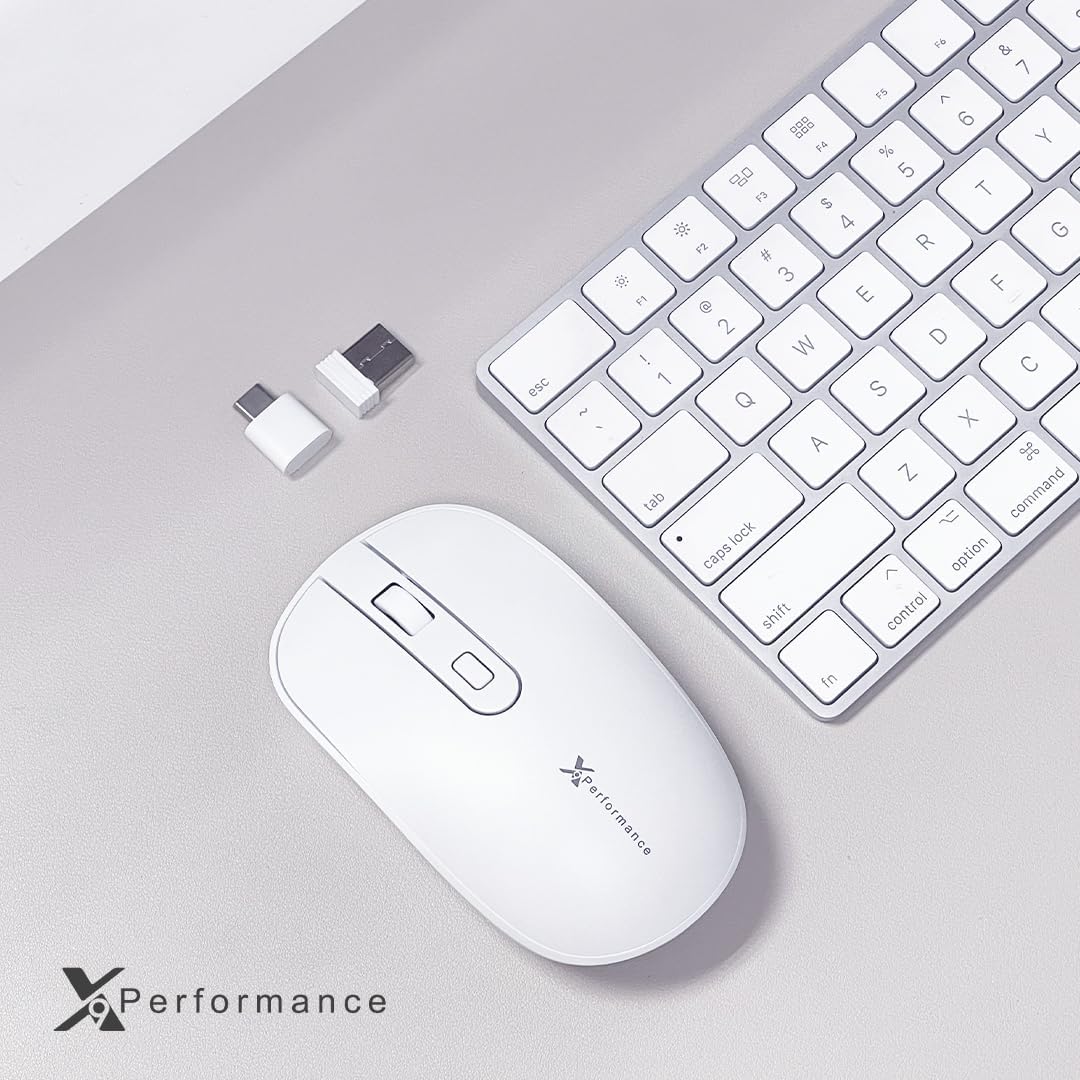
Image: The X9 Performance wireless mouse positioned next to a keyboard, with both USB-A and USB-C dongles visible, demonstrating its dual connectivity options.
3. Switching Between USB-A and USB-C Modes
The mouse features a system switch to toggle between the USB-A and USB-C modes.
- Locate the 'system switch' button on the underside of the mouse, near the optical sensor.
- Press this button to switch between the USB-A and USB-C operating modes. An indicator light will confirm the active mode.
This feature allows you to pair and switch between two devices, one connected via USB-A and another via USB-C, with a single mouse.
Video: A demonstration of the X9 Performance wireless mouse's dual wireless connectivity, showing how to use both USB-A and USB-C dongles with different devices.
Operating Instructions
1. DPI Adjustment
The mouse features on-the-fly DPI switching to adjust cursor sensitivity.
- Locate the DPI button, typically positioned behind the scroll wheel.
- Press the DPI button to cycle through the available sensitivity settings: 800, 1200, and 1600 DPI.
- Select the DPI setting that best suits your task or preference.

Image: A close-up view of the X9 Performance wireless mouse, highlighting the scroll wheel, left and right click buttons, and the DPI adjustment button.
2. Silent Click Buttons
The mouse is equipped with silent click buttons, reducing operational noise by up to 90% compared to traditional mice. This feature is integrated into the design and requires no special activation.
Video: An overview of the X9 Performance Dual USB-A | USB-C Wireless Mouse, demonstrating its features and compatibility.
Maintenance
- Cleaning: Use a soft, dry cloth to clean the mouse. For stubborn dirt, a slightly damp cloth can be used, followed by immediate drying. Avoid harsh chemicals or abrasive materials.
- Battery Replacement: Replace the AA battery when the mouse performance degrades or the low battery indicator (if present) illuminates.
- Storage: When not in use, especially during travel, store the USB receivers in their dedicated compartments on the underside of the mouse to prevent loss. Turn off the mouse to conserve battery life.
Troubleshooting
- Mouse not responding:
- Ensure the mouse is turned on.
- Check the battery. Replace if necessary.
- Verify the USB receiver is securely plugged into the correct port (USB-A or USB-C).
- Ensure the system switch on the underside of the mouse is set to the correct mode (USB-A or USB-C) for the connected receiver.
- Try plugging the receiver into a different USB port.
- Restart your computer.
- Cursor movement is erratic or slow:
- Clean the optical sensor on the underside of the mouse.
- Ensure you are using the mouse on a suitable surface (non-reflective, opaque).
- Adjust the DPI setting using the DPI button.
- Connection drops frequently:
- Ensure the mouse is within the effective wireless range (typically up to 30 feet).
- Minimize interference from other wireless devices.
- Check battery level.
Specifications
| Feature | Detail |
|---|---|
| Model Number | X9RF2ACMOUSE |
| Connectivity Technology | 2.4G RF Wireless (USB-A and USB-C) |
| Movement Detection | Optical |
| DPI Settings | 800 / 1200 / 1600 |
| Buttons | Left, Right, Scroll Wheel, DPI Button, System Switch |
| Power Source | 1 x AA Battery (included) |
| Item Weight | 4.9 ounces |
| Package Dimensions | 7.48 x 4.33 x 1.77 inches |
| Compatibility | Mac, Windows, Chrome OS, and other devices with USB-A or USB-C ports |
Warranty Information
X9 Performance products are designed and manufactured to high-quality standards. For specific warranty details, including coverage period and terms, please refer to the warranty card included with your product or visit the official X9 Performance website. Keep your proof of purchase for warranty claims.
Support
If you encounter any issues or have questions regarding your X9 Performance X9RF2ACMOUSE Wireless Mouse that are not addressed in this manual, please contact X9 Performance customer support. Contact information can typically be found on the product packaging or the official X9 Performance website.


