
1. Introduction
This manual provides essential information for setting up, operating, maintaining, and troubleshooting your Winnovo WinBook-N140 14-inch laptop. Please read this guide thoroughly to ensure proper use and to maximize the lifespan of your device.
2. Setup
2.1 Unboxing and Initial Power-On
Carefully remove the laptop and all accessories from the packaging. Connect the power adapter to the laptop's DC-IN port and then to a power outlet. The laptop is designed to run on Windows 10.

Image 2.1: The Winnovo WinBook-N140 laptop displaying the Windows 10 desktop environment.
2.2 Windows 10 Initial Configuration
Upon first power-on, you will be guided through the Windows 10 setup process. Follow the on-screen prompts to select your region, language, connect to a Wi-Fi network, and create a user account. Ensure you have an active internet connection for updates and account synchronization.
3. Operating Instructions
3.1 Power Management
- Power On: Press the power button located on the top right of the keyboard.
- Power Off: Click the Start button, then Power > Shut down.
- Sleep Mode: Close the laptop lid or click the Start button, then Power > Sleep.
3.2 Keyboard and Touchpad
The laptop features a standard QWERTY keyboard. The touchpad supports multi-touch gestures for navigation. A unique feature is the integrated numeric keypad on the touchpad.

Image 3.1: Close-up view of the laptop's touchpad, illustrating the activation of the integrated numeric keypad. To activate or deactivate the numeric keypad, slide your finger up or down on the designated area of the touchpad.
3.3 Display
The WinBook-N140 features a 14-inch HD IPS display with a resolution of 1366 x 768 pixels, providing clear visuals for various tasks.
3.4 Connectivity
The laptop supports dual-band Wi-Fi (2.4GHz and 5GHz) for stable internet access and Bluetooth 4.2 for connecting wireless peripherals.

Image 3.2: The laptop screen displaying icons for Bluetooth 4.2 and dual-band Wi-Fi (2.4GHz + 5.0GHz), indicating its wireless connectivity capabilities.
3.5 Ports and Interfaces
The WinBook-N140 is equipped with various ports for external device connectivity:
- USB 3.0: For high-speed data transfer with compatible devices.
- Mini HDMI: For connecting to external displays or projectors.
- 3.5mm Ear Jack: For headphones or external speakers.
- TF Card Slot: For expanding storage with a microSD card.
- DC-IN: For connecting the power adapter.

Image 3.3: Side view of the laptop highlighting the various input/output ports, including the TF card slot, 3.5mm headphone jack, USB 3.0, DC-IN, and Mini HDMI.
3.6 Webcam
The laptop includes an integrated webcam. For privacy, a removable webcam baffle is provided.
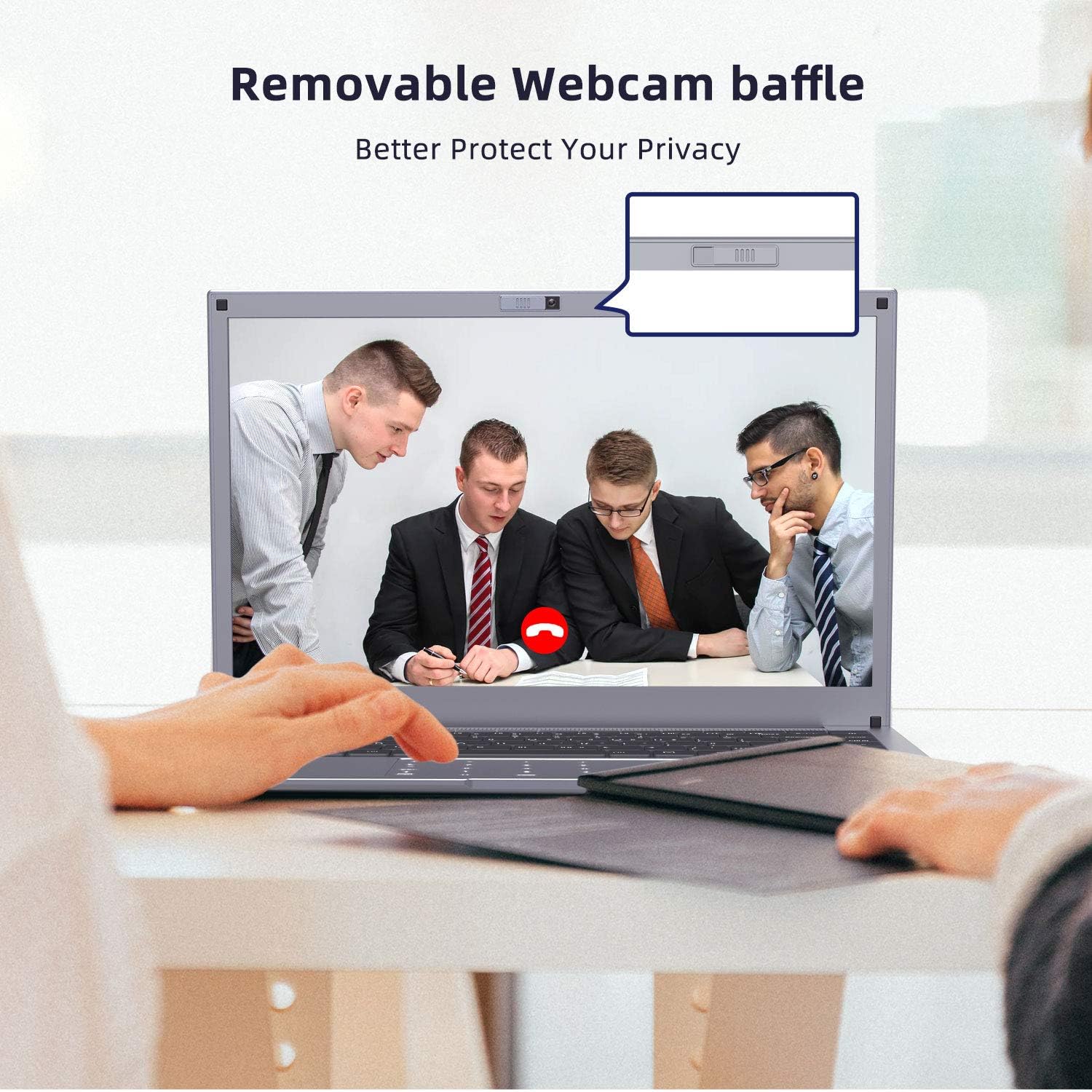
Image 3.4: The laptop displaying a video call, with an inset diagram illustrating the removable webcam baffle for enhanced privacy.
4. Storage and Expansion
The WinBook-N140 comes with 6GB RAM and 64GB eMMC internal storage. Storage can be expanded through two methods:
- TF Card: Insert a TF (microSD) card into the dedicated slot for up to 128GB of additional storage.
- M.2 SSD: The laptop supports an M.2 2242 SSD for up to 512GB of expanded storage. This requires opening the device and installing an M.2 SSD. Consult a professional if you are unsure about this procedure.

Image 4.1: The laptop displaying multiple open applications, with text indicating support for M.2 2242 SSD for storage expansion.

Image 4.2: The laptop displaying multiple open applications, with text highlighting its 6GB RAM and 64GB ROM specifications.
5. Maintenance
5.1 Cleaning
To clean the laptop screen, use a soft, lint-free cloth specifically designed for electronics. For the keyboard and chassis, use a slightly damp cloth. Avoid harsh chemicals or abrasive materials.
5.2 Battery Care
The laptop is equipped with a 10000mAh battery. To prolong battery life:
- Avoid fully discharging the battery frequently.
- Store the laptop in a cool, dry place when not in use for extended periods.
- Unplug the charger once the battery is fully charged if you plan to use it on battery power soon.
5.3 Software Updates
Regularly check for and install Windows updates to ensure system stability, security, and optimal performance.
6. Troubleshooting
This section addresses common issues you might encounter with your Winnovo WinBook-N140 laptop.
| Problem | Possible Cause | Solution |
|---|---|---|
| Laptop does not power on | Low battery, faulty power adapter, loose connection | Ensure power adapter is securely connected and plugged into a working outlet. Charge the laptop for at least 30 minutes before attempting to power on again. |
| No Wi-Fi connection | Wi-Fi disabled, incorrect password, router issue | Check if Wi-Fi is enabled in Windows settings. Verify the Wi-Fi password. Restart your router and the laptop. |
| Screen is blank or flickering | Display driver issue, external display connected, hardware fault | Restart the laptop. If an external monitor is connected, disconnect it. Update display drivers via Windows Update or Winnovo support website. |
| Touchpad numeric keypad not working | Feature deactivated | Slide your finger up or down on the designated area of the touchpad to activate the numeric keypad. |
7. Specifications
Below are the detailed technical specifications for the Winnovo WinBook-N140 laptop:
| Feature | Specification |
|---|---|
| Brand | Winnovo |
| Model Name | WinBook-N140 |
| Operating System | Windows 10 |
| Processor | Intel Celeron N3350 (1.1 GHz, up to 2.4 GHz) |
| RAM | 6GB DDR3 |
| Internal Storage | 64GB eMMC |
| Storage Expansion | TF Card (up to 128GB), M.2 2242 SSD (up to 512GB) |
| Display Size | 14 Inches |
| Display Resolution | 1366 x 768 pixels (HD IPS) |
| Graphics | Intel HD Graphics 505 (Integrated) |
| Wireless Connectivity | Wi-Fi (802.11ac, 802.11bgn, 2.4GHz/5GHz), Bluetooth 4.2 |
| Ports | 2x USB 3.0, 1x Mini HDMI, 1x 3.5mm Ear Jack, 1x TF Card Slot, 1x DC-IN |
| Battery | 10000mAh Lithium Ion |
| Average Battery Life | 3-5 hours (usage dependent) |
| Dimensions | 32.5 x 22 x 1.5 cm |
| Weight | 1.3 kg |
| Special Features | Touch Numeric Keypad, Removable Webcam Baffle |
8. Warranty Information
Your Winnovo WinBook-N140 laptop is covered by a manufacturer's warranty. Please refer to the warranty card included in your product packaging for specific terms, conditions, and duration. Keep your proof of purchase for warranty claims.
9. Customer Support
For technical assistance, troubleshooting beyond this manual, or warranty inquiries, please contact Winnovo customer support. Contact details can typically be found on the official Winnovo website or on the product packaging.


