Product Overview
The Hisense H9G Quantum Series 4K ULED Smart TV delivers stunning visuals and smart features for an immersive entertainment experience. Utilizing Quantum Dot technology, it produces rich colors, detailed images, and smooth motion. This TV integrates Android TV for easy access to streaming services and applications.
- Quantum Dot Technology: Experience over a billion perfectly expressed colors for incredible, ultra-bright 4K detail.
- Dolby Vision HDR & Dolby Atmos: Transform your home into an entertainment powerhouse with cinematic picture and immersive audio.
- Full Array Local Dimming: Up to 90 local dimming zones deliver superior HDR with up to 1,000-nits peak brightness.
- Game Mode: Significantly improves input lag for optimized gaming.
- Hand-Free Voice Control: Control the TV via the voice-enabled remote or an Alexa-enabled device (sold separately).
Setup Instructions
1. Unboxing and Initial Preparation
Carefully remove the TV from its packaging. It is recommended that two people handle the TV due to its size and weight. Ensure you have a flat, stable surface for assembly.
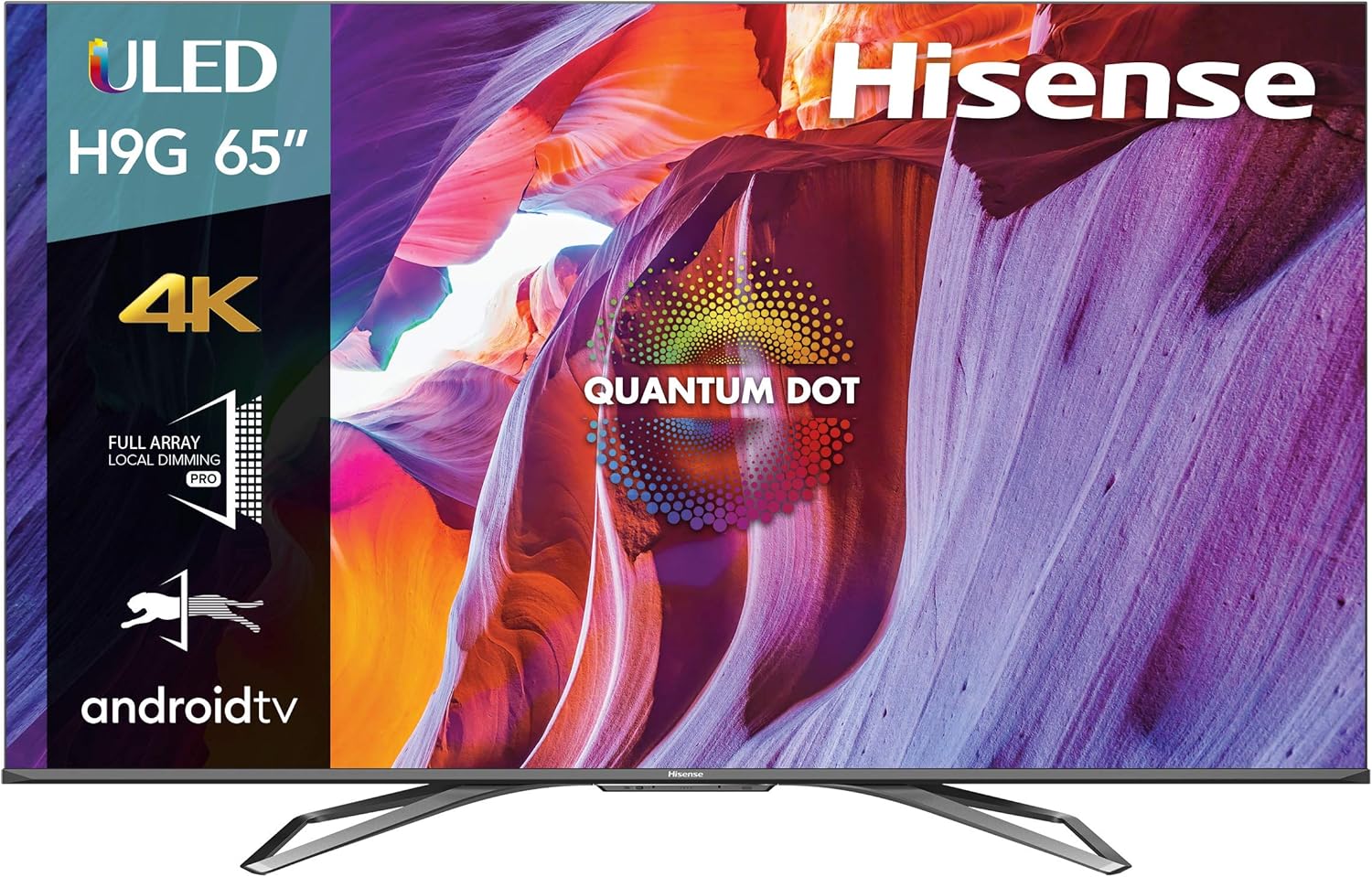
Figure 1: Hisense 65-inch H9G Quantum Series 4K ULED Smart TV.
Video: Official Hisense guide on unboxing your TV. This video demonstrates the safe removal of the TV from its packaging and initial setup steps.
2. Attaching the TV Stand
Locate the two stand legs and the provided screws. Align each stand leg with the corresponding slots on the bottom of the TV. Secure them firmly with the screws. Ensure the stand is stable before proceeding.

Figure 2: Hisense TV securely placed on its stand on a media console.
3. Connecting Power and External Devices
Connect the power cable to the TV and a power outlet. Use HDMI cables to connect external devices such as cable boxes, gaming consoles, or Blu-ray players to the HDMI ports on the TV. The TV features multiple HDMI 2.0 ports, with one supporting eARC for enhanced audio return.

Figure 3: Rear view of the Hisense TV, highlighting the various input ports for connectivity.
4. Initial Setup (Android TV)
Upon first power-on, the TV will guide you through the Android TV setup process. This typically involves connecting to your Wi-Fi network, signing into your Google account, and installing preferred streaming applications. The setup is designed to be user-friendly.
Operating Instructions
1. Remote Control Usage
The included voice-enabled remote allows for easy navigation and control. It features quick access buttons for popular streaming services like Netflix and YouTube, along with standard navigation and volume controls. Voice commands can be used to open apps, control volume, switch inputs, and search for content.

Figure 4: The Hisense voice-enabled remote control, showing its layout and quick access buttons.
2. Navigating the Android TV Interface
The Android TV interface provides a personalized home screen with recommendations, quick access to installed apps, and live TV options. You can customize the app layout and access settings directly from the home screen. The interface is responsive and integrates well with Apple's ecosystem, supporting HomeKit and AirPlay 2.
Video: Official Hisense video showcasing the features of ULED Android TVs, including interface navigation.
3. Picture and Sound Settings
The TV offers various picture modes to optimize viewing for different content types (e.g., Standard, Movie, Game). Adjust brightness, contrast, and color settings to your preference. The built-in 4.2.1 speaker system provides enhanced audio, but external soundbars can be connected for a more immersive experience.

Figure 5: Side profile of the Hisense TV, illustrating its design and speaker placement.
Maintenance
To ensure the longevity and optimal performance of your Hisense TV, regularly clean the screen with a soft, dry, lint-free cloth. Avoid using harsh chemicals or abrasive materials. Keep the ventilation openings clear to prevent overheating. Periodically check for software updates to ensure your TV has the latest features and performance improvements.
Troubleshooting
If you encounter issues with your TV, try the following basic troubleshooting steps:
- No Power: Ensure the power cable is securely connected to both the TV and the power outlet. Try a different outlet.
- No Picture/Sound: Check all HDMI connections. Ensure the correct input source is selected on the TV.
- Remote Not Responding: Replace the batteries in the remote control. Ensure there are no obstructions between the remote and the TV.
- Internet Connectivity Issues: Check your Wi-Fi router and ensure it is working correctly. Restart the TV and the router.
- Slow Performance: Restart the TV. Close any unused applications running in the background.
For more complex issues, refer to the detailed troubleshooting section in the full user manual or contact Hisense customer support.
Specifications
| Feature | Detail |
|---|---|
| Brand | Hisense |
| Model Number | 65H9G |
| Screen Size | 64.5 Inches (65-inch class) |
| Display Technology | 4K ULED (Quantum Dot) |
| Resolution | 4K (3840 x 2160) |
| Refresh Rate | 120 Hz |
| Peak Brightness | Up to 1,000-nits |
| Local Dimming Zones | Up to 90 |
| Operating System | Android TV |
| Voice Control | Alexa Built-in, Google Assistant |
| Connectivity | Bluetooth, Ethernet, HDMI, USB, Wi-Fi |
| HDMI Ports | 3 (with 1 eARC) |
| Speaker Type | Built-In |
| Dimensions (without stand) | 57.1 x 33.1 x 4.1 inches |
| Weight (without stand) | 52.7 pounds |
| Included Components | TV, Power Cable, Stand, Remote Control (with batteries), Quick Start Guide |
Warranty and Support
The Hisense 65H9G TV is backed by a 1-year manufacturer's warranty. For technical assistance, troubleshooting, or warranty claims, please refer to the Quick Start Guide included with your TV or visit the official Hisense support website.
You can also visit the Hisense Store on Amazon for additional product information and support resources.


