
Introduction
Thank you for purchasing the ABKO RGB LED Membrane Keyboard and Mouse Set, model KM110. This manual provides essential information for the proper setup, operation, and maintenance of your new peripheral set. Please read this guide thoroughly before use to ensure optimal performance and longevity of your product.
Package Contents
Verify that all items are present in your package:
- 1 x ABKO RGB LED Membrane Keyboard (KM110)
- 1 x ABKO RGB LED Optical Mouse
- 1 x User Manual (this document)
Product Overview
The ABKO KM110 set features a membrane keyboard with vibrant RGB LED backlighting and an optical mouse with color-changing LED effects, designed for use with laptops and PCs. The keyboard includes a Korean/English layout and is designed with a waterproof structure.
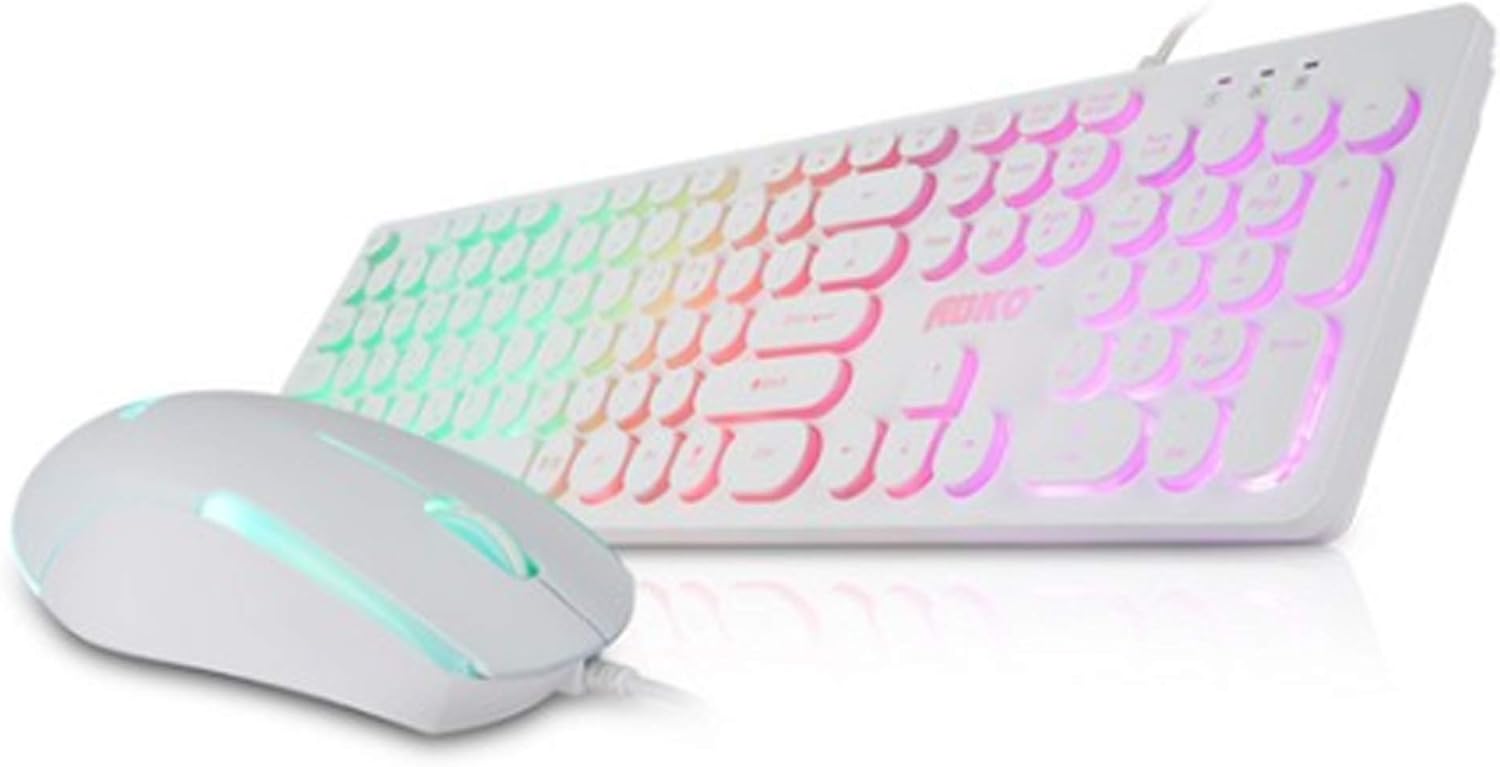
Image: The ABKO KM110 RGB LED Membrane Keyboard and Mouse Set, showcasing the white keyboard with rainbow backlighting and the matching white mouse.
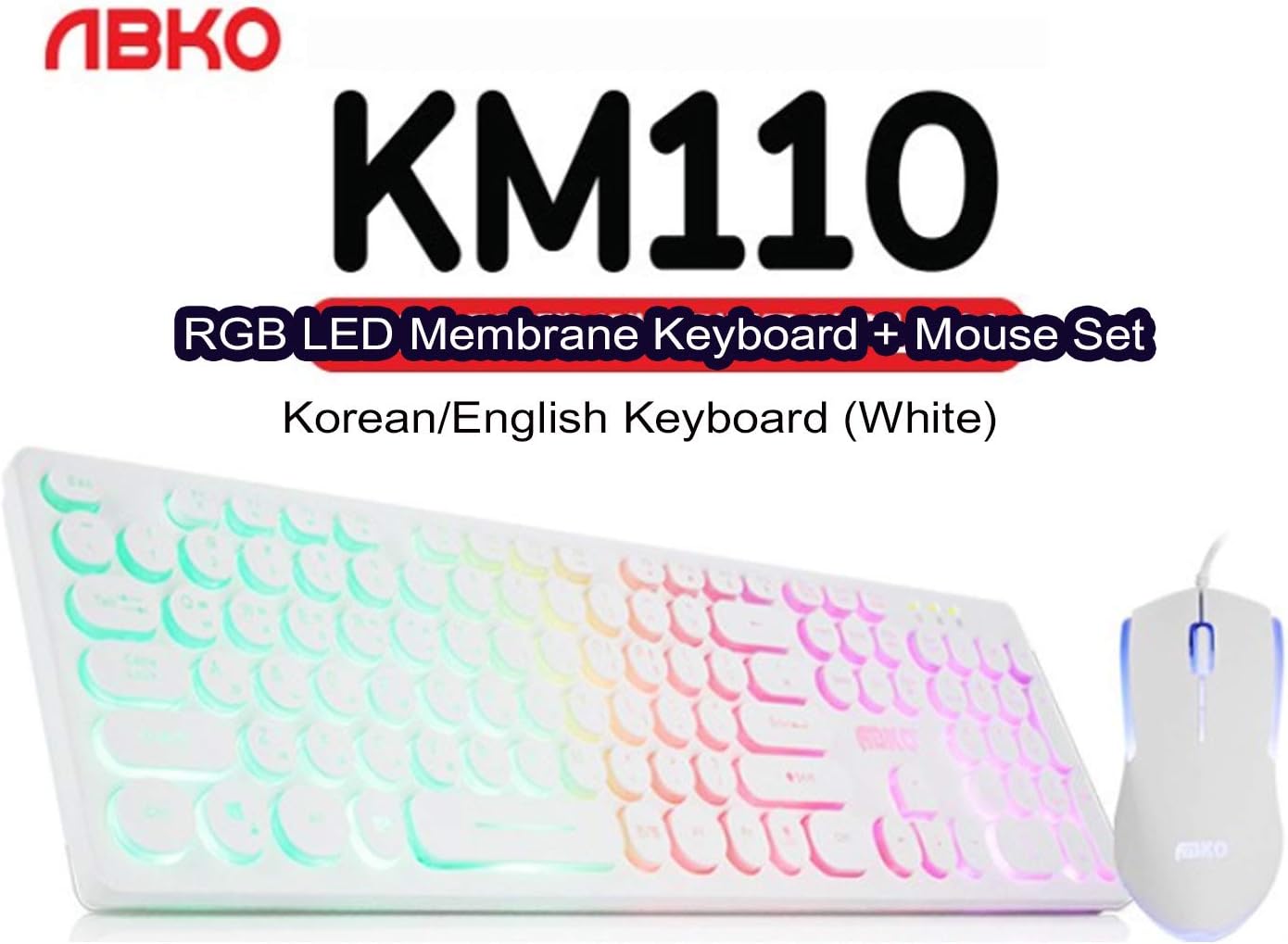
Image: A close-up view identifying the product as the ABKO KM110 RGB LED Membrane Keyboard + Mouse Set, specifically the Korean/English White version.
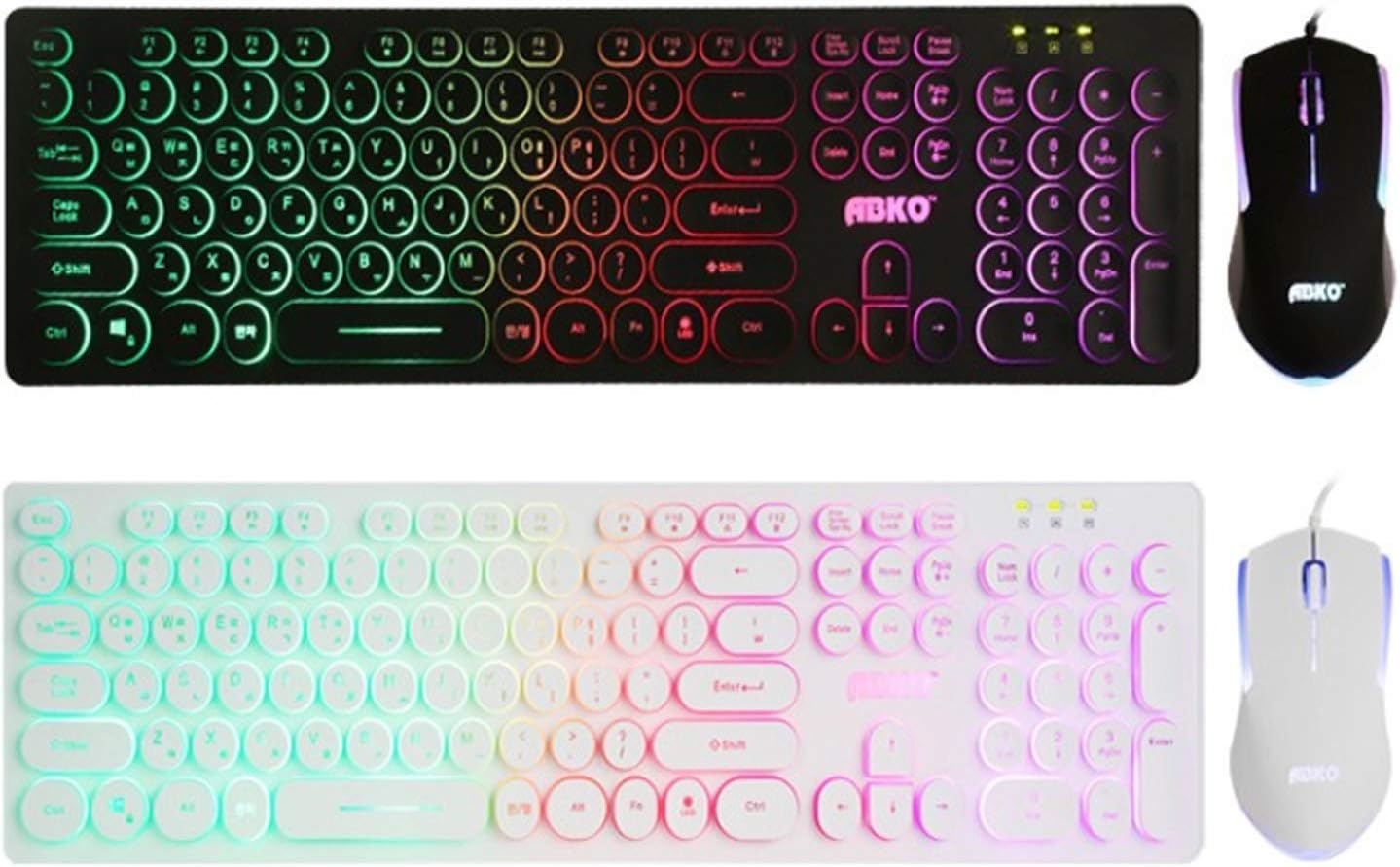
Image: A comparison view of the ABKO KM110 keyboard and mouse set in both black and white color variants, highlighting the consistent design and RGB lighting.

Image: A detailed view of the ABKO KM110 mouse, illustrating its optical sensor and the dynamic LED lighting that changes colors.
Setup Instructions
Follow these steps to connect your ABKO KM110 Keyboard and Mouse Set to your computer:
- Connect the Keyboard: Locate an available USB port on your computer (laptop or PC). Insert the USB connector of the ABKO keyboard firmly into the USB port.
- Connect the Mouse: Locate another available USB port on your computer. Insert the USB connector of the ABKO mouse firmly into the USB port.
- System Recognition: Your operating system (Windows, macOS, etc.) should automatically detect and install the necessary drivers for the keyboard and mouse. This process may take a few moments.
- Verify Functionality: Once installation is complete, test the keyboard by typing in a text editor and test the mouse by moving the cursor and clicking. The RGB lighting on both devices should illuminate.
Operating Instructions
Keyboard Operation
- Basic Typing: Use the keys as you would with any standard keyboard. The keyboard features a Korean/English layout.
- RGB LED Effects: The keyboard features a colorful LED effect. Specific key combinations (e.g., Fn + Scroll Lock, Fn + Home, etc.) are typically used to cycle through different lighting modes, adjust brightness, or change colors. Refer to the keyboard's keycap legends for specific function key combinations related to LED control.
- Waterproof Design: The membrane keyboard is designed to be waterproof, offering protection against accidental spills. In case of a spill, disconnect the keyboard immediately and allow it to dry completely before reconnecting.
Mouse Operation
- Basic Functions: The mouse provides standard left-click, right-click, and scroll wheel functionality.
- Optical Tracking: The optical sensor ensures precise cursor movement on various surfaces.
- LED Lighting: The mouse features an optical LED that changes color, providing a dynamic visual effect during use.
Maintenance
To ensure the longevity and proper functioning of your ABKO KM110 Keyboard and Mouse Set, follow these maintenance guidelines:
- Cleaning the Keyboard: Disconnect the keyboard from your computer. Use a soft, damp cloth to wipe down the keys and surface. For stubborn dirt, a small amount of mild soap solution can be used, ensuring no liquid enters the internal components. The waterproof design helps protect against spills, but direct immersion or excessive liquid should be avoided.
- Cleaning the Mouse: Disconnect the mouse. Use a soft, dry cloth to clean the surface. For the optical sensor, use a cotton swab lightly dampened with rubbing alcohol to gently clean the sensor area.
- Storage: When not in use for extended periods, store the keyboard and mouse in a clean, dry environment away from direct sunlight and extreme temperatures.
Troubleshooting
If you encounter issues with your ABKO KM110 set, refer to the following common solutions:
- Keyboard/Mouse Not Responding:
- Ensure the USB cables are securely plugged into your computer's USB ports.
- Try plugging the devices into different USB ports.
- Restart your computer.
- Test the devices on another computer to determine if the issue is with the peripherals or your system.
- LED Lights Not Working:
- For the keyboard, ensure the LED function is not turned off. Use the designated key combinations (e.g., Fn + Scroll Lock) to cycle through lighting modes or turn them on/off.
- Ensure the devices are properly connected and receiving power.
- Mouse Cursor Jumps or is Erratic:
- Clean the optical sensor on the bottom of the mouse.
- Ensure you are using the mouse on a suitable surface (e.g., a mouse pad). Avoid highly reflective or transparent surfaces.
Specifications
- Model: KM110
- Brand: ABKO
- Keyboard Type: Membrane
- Mouse Type: Optical
- Connectivity: Wired USB
- Keyboard Layout: Korean/English
- Special Features: RGB LED Backlighting (Keyboard), Color-changing LED (Mouse), Waterproof (Keyboard)
- Compatible Devices: Laptop, PC
- Product Dimensions (Keyboard): Approximately 17.6 x 4.96 x 0.98 inches (44.7 x 12.6 x 2.5 cm)
- ASIN: B087F61W2B
Warranty and Support
For warranty information and technical support, please refer to the official ABKO website or contact your retailer. Keep your purchase receipt as proof of purchase for any warranty claims.