
Product Overview
The Healthkeep CS20M Smart Bluetooth Body Fat Scale is designed to provide comprehensive body composition analysis. It measures 13 key fitness indicators and syncs data with the Feelfit app, as well as other popular fitness applications.
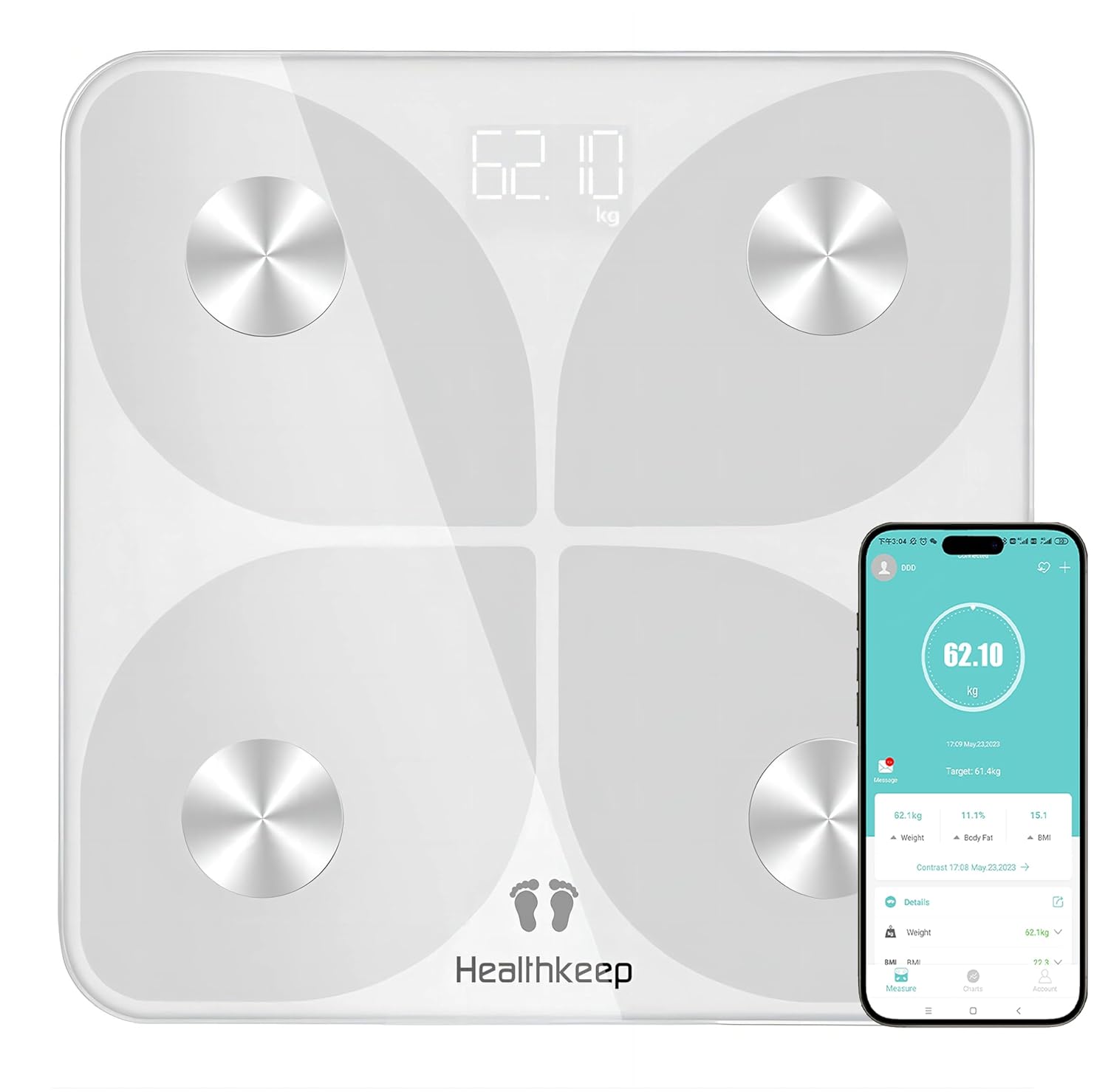
Image: The Healthkeep CS20M Smart Scale displaying weight, alongside a smartphone showing the connected app interface with detailed body data.
Key Features
- 13 Body Composition Metrics: Tracks weight, BMI, body fat percentage, fat-free body weight, subcutaneous fat, visceral fat, muscle mass, body water, skeletal muscle, bone mass, protein, metabolic age, and BMR.
- Bluetooth Connectivity: Seamlessly connects to the Feelfit app on iOS and Android devices.
- Fitness App Integration: Syncs data with Samsung Health, Apple Health, and Google Fit.
- High Precision Sensors: Equipped with 4 high-sensitivity electrodes and a G-type high-precision sensor for accurate measurements.
- Multi-User Support: Accommodates an unlimited number of users, making it suitable for families and friends.
- Durable Design: Features a rounded glass scale and anti-slip silicone feet.

Image: An infographic illustrating the 13 essential body measurements tracked by the Healthkeep Smart Scale, including Weight, BMI, Body Fat, Muscle Mass, and more.
Setup Guide
1. Unboxing and Initial Inspection
Carefully remove the scale from its packaging. Inspect the scale for any visible damage. Ensure all components are present.
2. Battery Installation
The Healthkeep CS20M scale requires 2 AAA batteries (not included). Open the battery compartment on the underside of the scale and insert the batteries, ensuring correct polarity. Close the compartment securely.
3. App Download and Pairing
- Download the "Feelfit" app from the App Store (for iOS) or Google Play (for Android).
- Enable Bluetooth on your smartphone.
- Open the Feelfit app and create a user profile.
- Step onto the scale to activate it. The app should automatically detect and pair with the scale. Follow any on-screen prompts in the app to complete the pairing process.

Image: A person interacting with a smartphone, demonstrating the scale's ability to sync data with various fitness applications like Feelfit, Apple Health, Google Fit, Fitbit, and Samsung Health via Bluetooth 4.0.
Operating Instructions
1. Taking a Measurement
- Place the scale on a hard, flat surface. Avoid carpets or uneven flooring for accurate readings.
- Ensure your feet are clean and dry.
- Step onto the scale barefoot, positioning your feet on the four metal electrodes. Stand still until your weight is displayed and the app registers the full body composition analysis.
- View your detailed body metrics in the Feelfit app.

Image: A collage showing various individuals using the Healthkeep smart scale in different settings, demonstrating its ease of use for diverse users.
2. Understanding Your Data
The Feelfit app provides detailed graphs and historical data for all 13 body metrics. This allows you to track your progress over weeks, months, or years. Refer to the app's help section for explanations of each metric and how they relate to your health goals.

Image: A smartphone screen displaying detailed graphs of body measurement trends (Weight, BMI, Body Fat) over time, illustrating the "Results at a Glance" feature for tracking fitness progress.
3. Multi-User Functionality
The Feelfit app supports an unlimited number of user profiles. Each user can download the app on their own device and pair with the scale, or multiple profiles can be managed from a single device. This allows each individual to track their personal health data privately and effectively.

Image: A group of three individuals, with a smartphone displaying a list of multiple user profiles within the Feelfit app, highlighting the "Unlimited Users" feature for shared use.
Maintenance
- Cleaning: Wipe the scale surface with a damp cloth and mild detergent. Do not use abrasive cleaners or immerse the scale in water.
- Storage: Store the scale in a cool, dry place. Avoid extreme temperatures and direct sunlight.
- Battery Replacement: Replace batteries when the low battery indicator appears on the display or in the app.
Troubleshooting
- Scale not turning on: Ensure batteries are correctly installed and not depleted. Replace if necessary.
- App not connecting to scale:
- Verify Bluetooth is enabled on your smartphone.
- Ensure the Feelfit app has Bluetooth permissions.
- Step on the scale to activate it before attempting to connect.
- Try restarting your phone and the app.
- Inaccurate readings:
- Ensure the scale is placed on a hard, flat, and level surface.
- Step onto the scale barefoot and stand still.
- Ensure your feet are clean and dry and make full contact with the electrodes.
- Body composition data not appearing: Ensure you are stepping on the scale barefoot and making proper contact with all four electrodes. The scale needs to send a low electrical current through your body to measure composition.
Specifications
| Feature | Detail |
|---|---|
| Model Number | CS20M |
| Brand | Healthkeep |
| Dimensions (L x W x H) | 28 x 28 x 4 cm |
| Item Weight | 1.2 Kilograms |
| Weight Limit | 180 Kilograms (396 lbs) |
| Reading Precision | +/- 0.05 kg (0.11 lbs) |
| Power Source | 2 AAA batteries |
| Material | Plastic, Tempered Glass |
| Display Type | LCD |
| Special Features | Body Fat Measurement, BMI, Smart Connectivity, Precise Measurement, Anti-slip Platform |

Image: A diagram illustrating the internal components of the Healthkeep smart scale, highlighting the 4 high-sensitivity electrodes, rounded glass scale, G-type high-precision sensor, and anti-slip silicone feet.
Warranty and Support
Healthkeep products are manufactured with high-quality standards. For warranty information or technical support, please refer to the contact details provided with your purchase or visit the official Healthkeep website. Please retain your proof of purchase for warranty claims.


