
Introduction
This manual provides detailed instructions for the MageGee K1 RGB Gaming Keyboard and Mouse combo. Please read this manual carefully before using the product to ensure proper setup and operation. This product is designed for use with personal computers and laptops, offering a full-size keyboard with RGB backlighting and a high-resolution gaming mouse.

Image: The MageGee K1 RGB Gaming Keyboard and Mouse set, featuring a pink keyboard with RGB backlighting and a matching pink mouse.
Package Contents
Ensure all items are present in the package:
- MageGee K1 RGB Gaming Keyboard
- MageGee K1 Gaming Mouse
- User Manual (this document)
Setup
Connecting the Device
- Locate an available USB 2.0 port on your computer or laptop.
- Plug the USB connector of the MageGee K1 Keyboard into the USB port.
- Plug the USB connector of the MageGee K1 Mouse into another available USB port.
- The keyboard and mouse are plug-and-play devices. Your operating system should automatically detect and install the necessary drivers. No additional software or drivers are typically required.
Compatibility
The MageGee K1 RGB Gaming Keyboard and Mouse are compatible with the following operating systems:
- Windows XP
- Windows Vista
- Windows 7
- Windows 8
- Windows 10
- Mac OS
- Linux
Operating the Keyboard and Mouse
Keyboard Features
The K1 keyboard features a full-size 104-key layout with ergonomic design for comfortable use. It includes a numeric keypad and function keys.

Image: Illustration of the ergonomic design of the MageGee K1 keyboard, showing the keycap profile for comfortable typing.
RGB Backlight Control
The keyboard features RGB backlighting with multiple customization options:
- Light Colors: 8 distinct colors.
- Lighting Modes: 5 different lighting effects.
- Brightness Levels: Adjustable to suit your preference.
- Speed Control: Adjust the speed of dynamic lighting effects.
To control the backlight:
- Refer to the keyboard's dedicated backlight control keys or FN key combinations for specific adjustments.
- The backlight can be turned on or off as needed.

Image: Diagram illustrating the RGB backlight features of the MageGee K1 keyboard, including 5 light modes, 8 light colors, adjustable speed/brightness, and light on/off functionality.
Multimedia Functions
The keyboard includes multimedia shortcut keys accessible via the FN key:
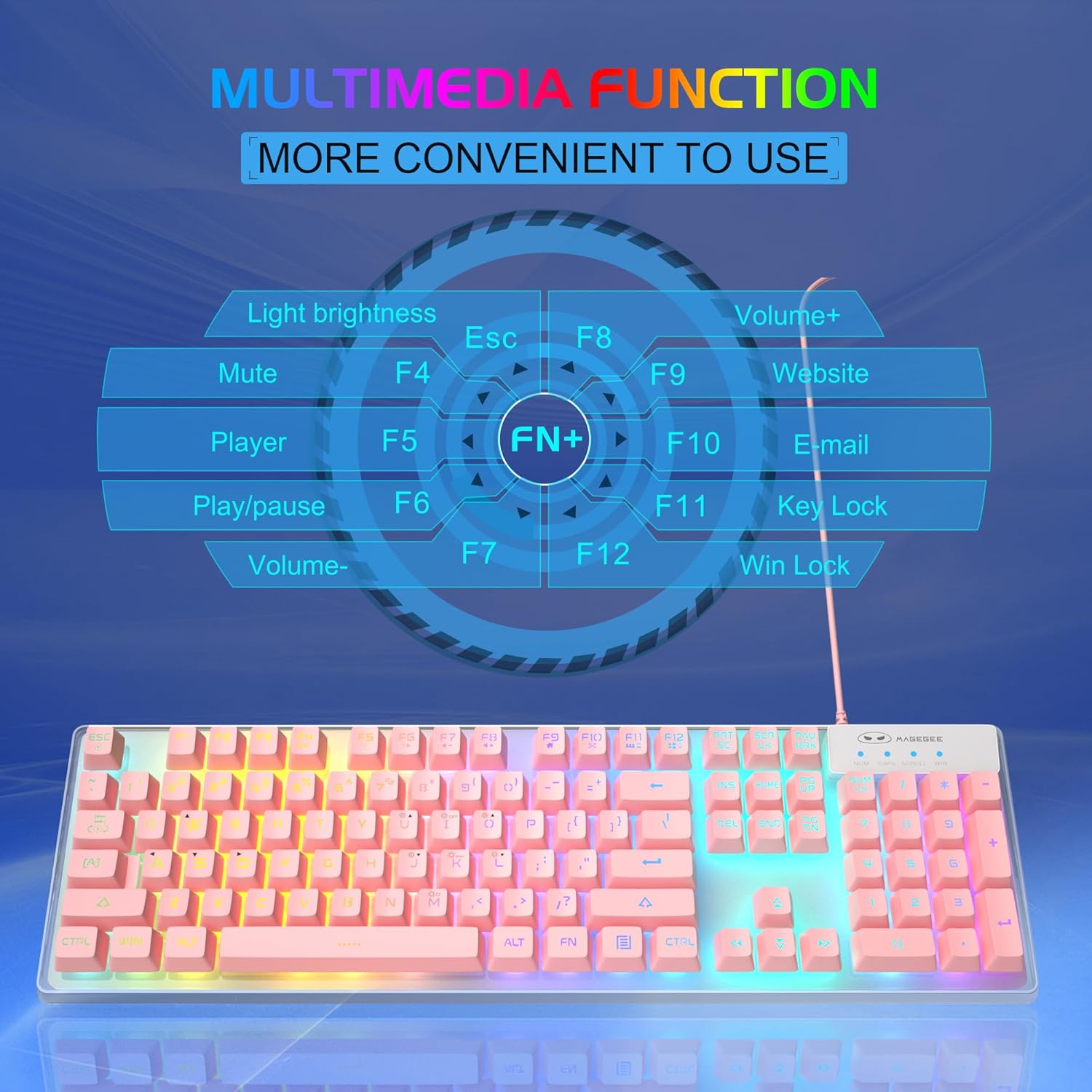
Image: A visual guide to the multimedia functions of the MageGee K1 keyboard, showing FN key combinations for mute, volume control, media playback, website, email, and key lock.
- FN + F1: Mute
- FN + F2: Volume Down
- FN + F3: Volume Up
- FN + F4: Player
- FN + F5: Play/Pause
- FN + F6: Previous Track
- FN + F7: Next Track
- FN + F8: Stop
- FN + F9: Email
- FN + F10: Web Browser
- FN + F11: Key Lock
- FN + F12: Win Lock (disables Windows key)
Mouse Features
The K1 mouse offers high resolution and responsive tracking for gaming and general computing.
DPI Adjustment
The mouse features 6 adjustable DPI (Dots Per Inch) levels to match your precision and speed requirements:
- DPI Levels: 600 / 800 / 1200 / 1600 / 2400 / 3200
To change DPI, press the dedicated DPI button on the mouse. Each press cycles through the available DPI settings.

Image: Diagram showing the MageGee K1 mouse with its 6 DPI levels (600-3200) and instructions for changing and locking the 7-color LED backlight.
LED Backlight Control (Mouse)
The mouse features a 7-color LED backlight with a breathing effect. To lock the mouse LED backlight to a specific color:
- While the mouse cycles through colors, press the side button (forward button) and the middle button (scroll wheel click) simultaneously. This will lock the current color.

Image: Display of the MageGee K1 mouse showing its 7-color cycled breathing LED lights in green, yellow, purple, cyan, red, and white.
Maintenance
Cleaning
To maintain the performance and appearance of your MageGee K1 keyboard and mouse:
- Disconnect the devices from your computer before cleaning.
- Use a soft, lint-free cloth slightly dampened with water or a mild cleaning solution.
- Avoid using harsh chemicals, abrasive cleaners, or solvents, as these can damage the surface and keycap legends.
- For the keyboard, you can use compressed air to remove dust and debris from between the keys.
- For the mouse, gently wipe the surface and the optical sensor area.
General Care
- Avoid exposing the devices to extreme temperatures, direct sunlight, or high humidity.
- Do not drop or subject the devices to strong impacts.
- Keep liquids away from the keyboard and mouse. While the keyboard has some water-resistant features, it is not fully waterproof.
Troubleshooting
If you encounter issues with your MageGee K1 keyboard and mouse, refer to the following common solutions:
| Problem | Possible Solution |
|---|---|
| Keyboard/Mouse not responding |
|
| Backlight not working (Keyboard) |
|
| Mouse tracking issues |
|
| Multimedia keys not working |
|
Specifications
Below are the technical specifications for the MageGee K1 RGB Gaming Keyboard and Mouse:

Image: Detailed dimensions of the MageGee K1 keyboard (438mm x 137mm x 35mm) and mouse (123mm x 63mm x 39mm).
| Feature | Detail |
|---|---|
| Brand | MageGee |
| Model Number | K1 |
| Color | K1 Pink |
| Connectivity Technology | Wired USB 2.0 (Gold-plated interface, Anti-interference magnetic ring) |
| Keyboard Layout | Full-size 104 keys |
| Keyboard Backlight | RGB (8 colors, 5 modes, adjustable brightness/speed) |
| Keycap Type | Double-shot injection molded, Membrane style |
| Special Keyboard Features | Ergonomic, Backlit, Shortcut and Multimedia keys, Anti-ghosting (19 keys) |
| Mouse Sensor Technology | Optical |
| Mouse DPI Levels | 600/800/1200/1600/2400/3200 |
| Mouse Backlight | 7-color cycled breathing LED |
| Compatible Operating Systems | Windows XP/Vista/7/8/10, Mac, Linux |
| Material | ABS Engineering Plastic |
| Power Source | USB Powered (No batteries required) |
Warranty and Support
Information regarding specific warranty terms and customer support contact details for the MageGee K1 RGB Gaming Keyboard and Mouse is not available in this document. Please refer to the product packaging or the official MageGee website for warranty information and customer service contacts.


