
Keychron K8J3
Keychron K8 Wireless Mechanical Keyboard User Manual
Model: K8J3 | Brand: Keychron
Introduction
This manual provides detailed instructions for the Keychron K8 Wireless Bluetooth/USB Wired Mechanical Keyboard. The K8 is a hot-swappable, tenkeyless (87-key) keyboard featuring RGB LED backlighting, Gateron Brown switches, and N-Key Rollover. It is designed for compatibility with both Mac and Windows operating systems, and includes an aluminum frame for durability.
Setup
Package Contents
- Keychron K8 Mechanical Keyboard
- USB Type-C Cable
- Keycap Puller
- Switch Puller
- Extra keycaps for Windows and Mac operating systems
Initial Charging
Before first use, connect the keyboard to a USB power source using the provided USB Type-C cable to ensure the internal 4000mAh battery is fully charged. The charging indicator light will provide status.
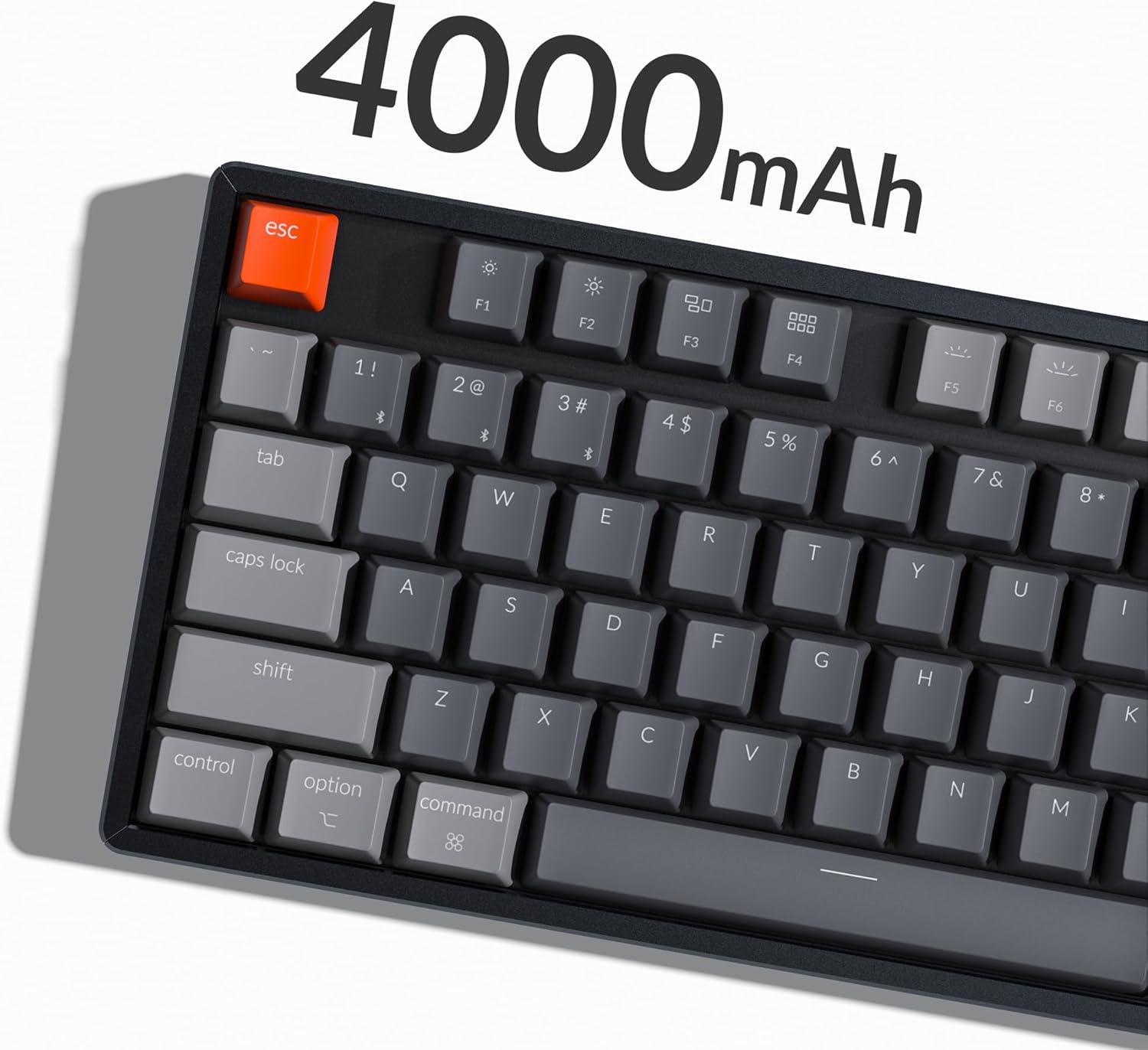
Image: The Keychron K8 keyboard highlighting its 4000mAh battery capacity.
Connectivity Options
The Keychron K8 supports both wireless Bluetooth 5.1 and wired USB Type-C connections.

Image: The Keychron K8 keyboard demonstrating its dual wireless and wired connectivity options alongside a laptop and smartphone.
Bluetooth Connection
- Ensure the keyboard's mode switch (located on the side) is set to "Bluetooth".
- Press and hold the Fn + 1 (or Fn + 2 / Fn + 3) key combination for 4 seconds until the indicator light flashes rapidly, indicating pairing mode.
- On your device (smartphone, laptop, iPad), enable Bluetooth and search for "Keychron K8".
- Select "Keychron K8" to pair. The indicator light will stop flashing upon successful connection.
- The keyboard can connect with up to 3 devices and switch between them easily using Fn + 1, Fn + 2, or Fn + 3.

Image: The Keychron K8 keyboard positioned with a laptop, tablet, and smartphone, demonstrating its ability to connect to three devices simultaneously.
Wired Connection
- Ensure the keyboard's mode switch is set to "Cable".
- Connect the USB Type-C cable from the keyboard to your computer's USB port.
- The keyboard will automatically be recognized and ready for use.
Operating System Compatibility
The K8 features a unique Mac layout with all necessary Mac function keys, and is also fully compatible with Windows. Extra keycaps for both operating systems are included. For Linux users, a dedicated user group is available for support.
Operating Instructions
Key Functions and Layout
The Keychron K8 is a tenkeyless (TKL) 87-key layout keyboard, designed for productivity. It supports N-Key Rollover for accurate input during fast typing or gaming.

Image: A top-down view of the Keychron K8 mechanical keyboard, showcasing its 87-key tenkeyless layout, with a Gateron Brown switch displayed separately.

Image: An angled view of the Keychron K8, highlighting its compact tenkeyless layout.
RGB Backlight Control
The K8 features charming RGB LED backlighting with elegant keycap legends, aiding visibility in dim environments. You can cycle through various static color backlight modes and 15+ types of RGB lighting effects.

Image: The Keychron K8 keyboard displaying its vibrant RGB LED backlighting.
Refer to the included quick start guide or Keychron's official website for specific key combinations to control backlight modes and brightness.
Adjustable Angled Feet
The keyboard is equipped with two adjustable angled feet, allowing you to customize the typing angle for ergonomic comfort.
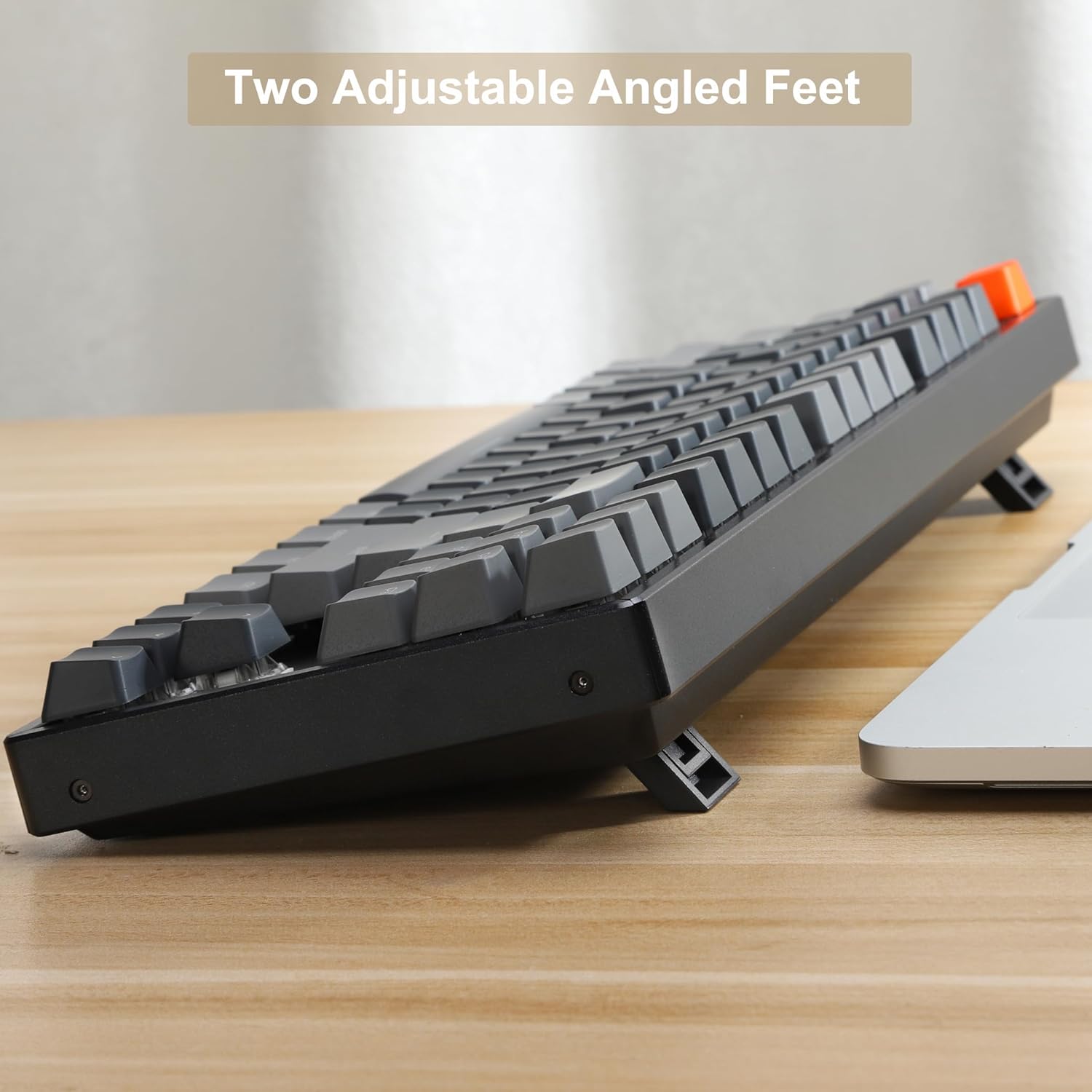
Image: A side view of the Keychron K8 keyboard, illustrating its two adjustable angled feet in an extended position.
Maintenance
Cleaning the Keyboard
- Use a soft, lint-free cloth slightly dampened with water or a mild cleaning solution to wipe down the keycaps and frame.
- For dust and debris between keys, use compressed air.
- Avoid spraying liquids directly onto the keyboard.
Hot-Swappable Switches
The K8 features hot-swappable mechanical switches, allowing you to easily change switches without soldering. The PCB supports both 3-pin and 5-pin MX mechanical switches.

Image: A close-up view of the Keychron K8 keyboard demonstrating its hot-swappable switch sockets, with examples of different switch types.
- To remove a keycap, use the provided keycap puller.
- To remove a switch, use the provided switch puller. Gently grasp the switch and pull upwards.
- To install a new switch, align the pins with the holes on the PCB and press down firmly until it clicks into place. Ensure pins are not bent.
Troubleshooting
Connectivity Issues
- Bluetooth not connecting:
- Ensure the keyboard is in Bluetooth mode and pairing mode (indicator light flashing).
- Check if Bluetooth is enabled on your device.
- Forget the device on your computer/phone and try pairing again.
- Ensure the keyboard is charged.
- Wired connection not working:
- Ensure the keyboard is in Cable mode.
- Try a different USB port on your computer.
- Try a different USB Type-C cable.
Backlight Issues
- Backlight not turning on:
- Ensure the keyboard is charged.
- Check backlight control key combinations (e.g., Fn + Light key, Fn + arrow keys for brightness).
Key Responsiveness
- Keys not responding:
- Check if the keyboard is properly connected (Bluetooth or wired).
- If a specific key is not working, try removing and re-inserting the switch for that key, ensuring it is seated correctly.
- Clean around the affected key.
Specifications
| Feature | Detail |
|---|---|
| Model Number | K8J3 |
| Layout | Tenkeyless (87-key) |
| Switches | Gateron Brown (Hot-swappable) |
| Connectivity | Bluetooth 5.1, USB Type-C (Wired) |
| Battery Capacity | 4000mAh |
| Backlighting | RGB LED |
| Frame Material | Aluminum |
| Compatible Devices | Laptop, Smartphone, Tablet |
| Operating System Compatibility | Mac, Windows, Linux |
| Product Dimensions | 14.13 x 14.13 x 5 inches |
| Item Weight | 2.9 pounds |
Warranty and Support
Warranty Information
Specific warranty details for the Keychron K8 keyboard are typically provided with the product packaging or can be found on the official Keychron website. Please retain your proof of purchase for warranty claims.
Customer Support
For further assistance, technical support, or inquiries, please visit the official Keychron support page or contact their customer service. A dedicated user group is also available for Linux users.
Official Keychron Store: Keychron Amazon Store
Related documentsK8J3


Ask a question about this manual
Ask about setup, troubleshooting, compatibility, parts, safety, or missing instructions. Manuals+ will review the question and use this page’s manual context to help answer it.