
DOGAIN KZ-02
DOGAIN Active Digital Stylus Pen (Model KZ-02) User Manual
Brand: DOGAIN | Model: KZ-02
1. Introduction
Thank you for choosing the DOGAIN Active Digital Stylus Pen. This stylus is designed to provide a smooth and precise writing and drawing experience on various touchscreen devices. Please read this manual carefully to ensure proper use and to maximize the lifespan of your device.
2. Product Features
- Fine 1.5mm Tip: Equipped with a 1.5mm fine tip for precise writing and drawing.
- Rechargeable Battery: Built-in battery provides approximately 8 hours of active use on a 60-minute charge.
- User-Friendly Design: Simple one-button operation (blue light indicates active use).
- Smooth Performance: Designed for no delay and no slip, providing a solid line experience.
- Wide Compatibility: Works with most touchscreen devices, including iOS and Android smartphones and tablets.
- Durable Construction: Made from aluminum for a lightweight yet sturdy design.

Image: The DOGAIN Active Digital Stylus Pen in use, demonstrating smooth writing on a tablet screen.
3. Setup Guide
3.1 Initial Charging
- Locate the Micro USB charging port at the end of the stylus (under the magnetic cap).
- Connect the stylus to a 5V power source using the provided Micro USB cable.
- The indicator light will be red while charging and turn green when fully charged.
- A full charge takes approximately 60 minutes and provides about 8 hours of active use.

Image: The stylus connected to a Micro USB cable for charging, with indicator lights showing charging status.
3.2 Powering On/Off
- To turn on, press the power button once. The indicator light will turn blue.
- To turn off, press the power button again. The indicator light will turn off.
4. Operating Instructions
The DOGAIN Active Digital Stylus Pen is ready to use immediately after powering on. No Bluetooth pairing is required for most devices.
- Simply touch the stylus tip to your touchscreen device to begin writing, drawing, or navigating.
- The 1.5mm fine tip allows for precise input, ideal for detailed tasks.

Image: A hand using the DOGAIN stylus to draw on a tablet, highlighting its sensitive and precise functionality.

Image: Various applications of the stylus, including writing, drawing, sketching, and playing games on different devices.
5. Compatibility
The DOGAIN Active Digital Stylus Pen is widely compatible with most touchscreen devices.
5.1 Compatible Devices
- Apple iPads (iPad / iPad 2 / new iPad 3 / iPad 4 / iPad Pro / iPad Mini / iPad Mini 2 / iPad Mini 3 / iPad Mini 4)
- Apple iPhones
- Android Smartphones and Tablets
- Most other popular touchscreen tablets and smartphones.
5.2 Incompatible Devices & Notes
- This stylus is not Bluetooth enabled and does not support "Palm Rejection".
- Not compatible with laptops, Nintendo consoles, Huawei Mediapad series, Zenfone, Xperia Windows systems.
- Not compatible with Samsung phones and tablets that use their own S-Pen.
- The strength of compatibility may be affected by your device's screen thickness, signal transmission, and other factors.
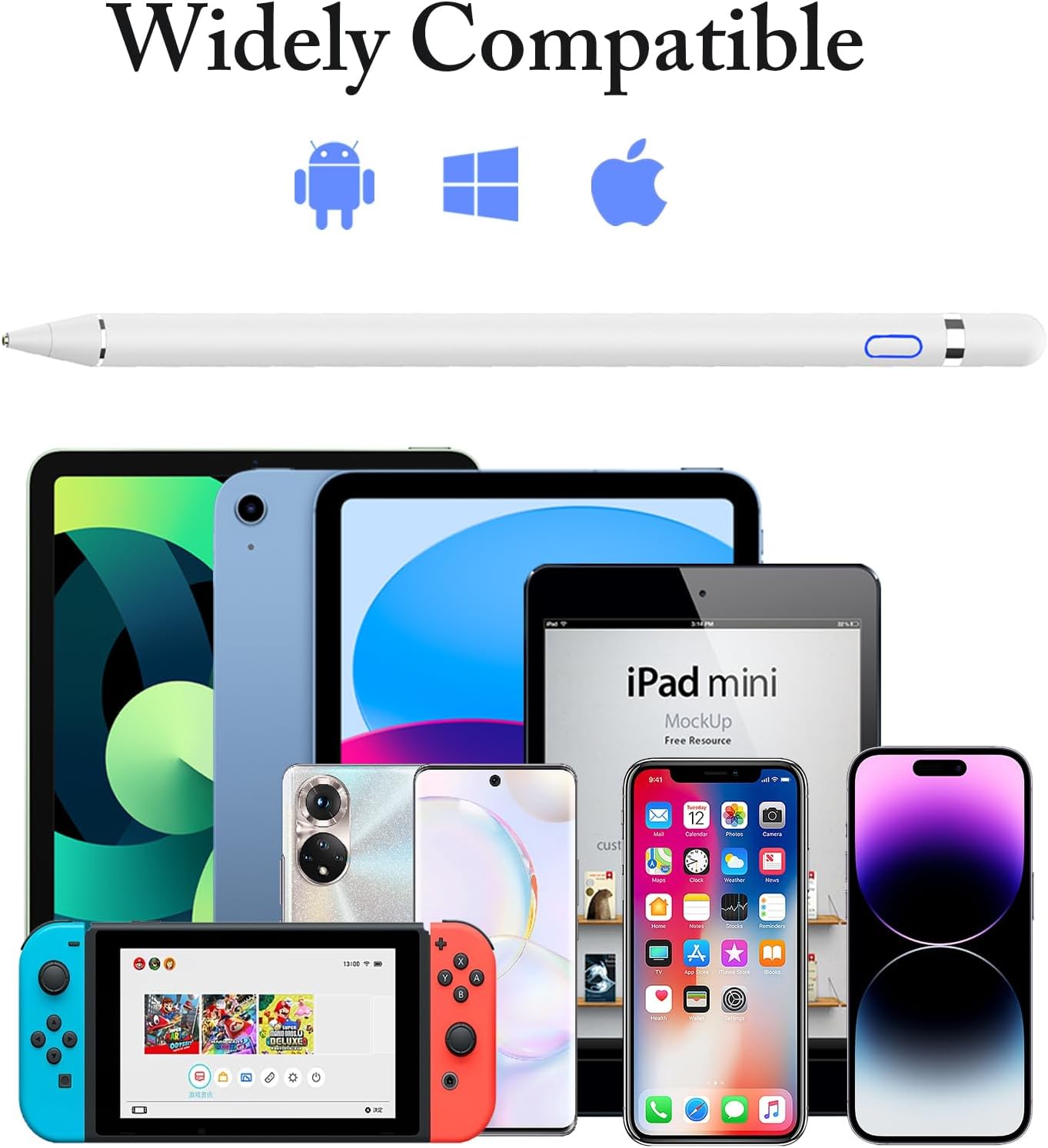
Image: The DOGAIN stylus displayed alongside a range of compatible devices, illustrating its wide compatibility.
6. Important Notes & Warnings
- No Bluetooth: This stylus does not use Bluetooth. If your device was previously connected to an Apple Pencil or similar Bluetooth stylus, ensure you "forget" that device and turn off Bluetooth on your device to prevent interference.
- Charging: Do not use the stylus while it is charging, as this can affect performance and battery life. Unplug the charging cable once the indicator light turns green (fully charged) to prevent overcharging.
- Tip Care: The stylus tip is not replaceable. Handle with care to avoid collisions that could damage the tip or the pen.
- Water Resistance: The stylus is NOT waterproof. If it accidentally gets wet, dry it immediately to prevent circuit damage.

Image: A visual representation of important usage notes and warnings for the stylus.
7. Troubleshooting
- Stylus not writing on iPad:
- Go to your iPad's Settings > Apple Pencil.
- Turn off the option "Only Draw with Apple Pencil".
- If using specific writing software, select the "finger" option for input if available.
- Inconsistent performance: Ensure your device's screen is clean and free from debris. The stylus's performance can be affected by screen protectors or the thickness of your device's screen.
- Stylus not turning on: Ensure the stylus is fully charged. Refer to the "Initial Charging" section.

Image: Screenshot of iPad settings, indicating where to disable "Only Draw with Apple Pencil" for stylus compatibility.
8. Specifications
| Brand | DOGAIN |
| Model Number | KZ-02 |
| Color | White |
| Material | Aluminum |
| Tip Size | 1.5mm |
| Item Weight | 17 Grams |
| Dimensions (L x W x H) | 7.01 x 0.35 x 7.01 inches |
| Battery Type | 1 Lithium Polymer battery (included) |
| Charging Time | Approx. 60 minutes |
| Active Use Time | Approx. 8 hours |
| Charging Input | 5V (Micro USB) |
9. Warranty and Support
For warranty information or technical support, please refer to the product packaging or contact DOGAIN customer service through the retailer where you purchased the product. Keep your purchase receipt for warranty claims.
Ask a question about this manual
Ask about setup, troubleshooting, compatibility, parts, safety, or missing instructions. Manuals+ will review the question and use this page’s manual context to help answer it.