
SENCOR SEC 106 BU
SENCOR SEC 106 BU Scientific Calculator User Manual
Model: SEC 106 BU
1. Introduction
Welcome to the user manual for your SENCOR SEC 106 BU Scientific Calculator. This guide provides detailed instructions on how to set up, operate, and maintain your calculator, ensuring you can utilize its full range of 56 scientific functions effectively for academic and professional tasks.
The SENCOR SEC 106 BU is designed for students and professionals, featuring a large 10-digit LCD display and a comprehensive set of mathematical functions, including trigonometric, hyperbolic, logarithmic, and exponential calculations, as well as coordinate and angle conversions.
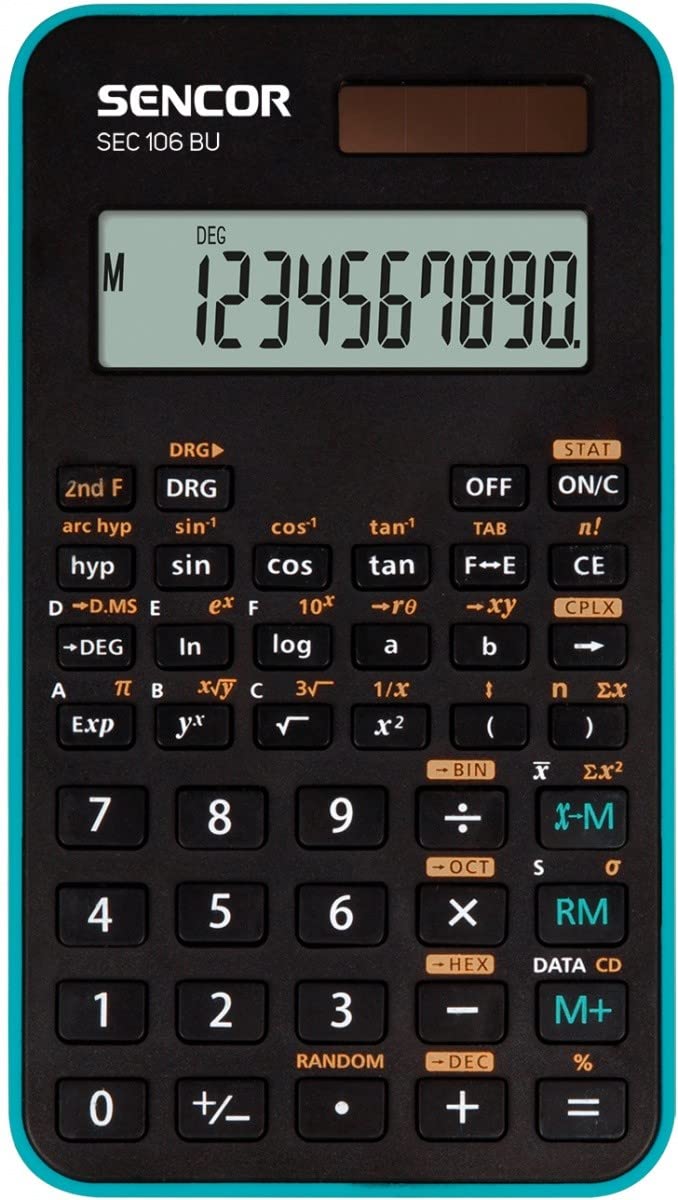
Figure 1: SENCOR SEC 106 BU Scientific Calculator. This image displays the calculator's front view, highlighting its black and blue casing, the clear 10-digit LCD screen, and the arrangement of its function keys.
2. Setup
2.1. Battery Installation
Your SENCOR SEC 106 BU calculator requires battery power. Please follow these steps to install or replace batteries:
- Locate the battery compartment cover on the back of the calculator.
- Using a small screwdriver (if necessary), gently remove the cover.
- Insert new batteries (typically AAA or button cell, refer to the compartment for specific type) ensuring the correct polarity (+/-) as indicated inside the compartment.
- Replace the battery compartment cover and secure it.
Note: Always use fresh batteries of the specified type. Remove batteries if the calculator will not be used for an extended period to prevent leakage.
2.2. Turning On/Off
- To turn on the calculator, press the ON button.
- To turn off the calculator, press the SHIFT button followed by the OFF button (often shared with another key).
3. Operating Instructions
3.1. Basic Operations
- Number Entry: Use the numeric keypad (0-9) to enter numbers.
- Decimal Point: Press the . key for decimal values.
- Arithmetic Operations: Use +, -, ×, ÷ for addition, subtraction, multiplication, and division.
- Equals: Press = to display the result of a calculation.
- Clear Entry (CE): Press CE to clear the last entered number.
- All Clear (AC): Press AC to clear all calculations and memory, resetting the calculator.
3.2. Scientific Functions
The SEC 106 BU offers 56 scientific functions. Many functions are accessed by pressing the SHIFT key first, followed by the desired function key (indicated by secondary labels above the keys).
3.2.1. Trigonometric and Hyperbolic Functions
- Trigonometric: SIN, COS, TAN. Use SHIFT + SIN (sin-1), SHIFT + COS (cos-1), SHIFT + TAN (tan-1) for inverse functions.
- Hyperbolic: Look for HYP or similar key to access hyperbolic functions (sinh, cosh, tanh, etc.).
- Angle Units: Press DRG or MODE to cycle through DEG (degrees), RAD (radians), and GRAD (gradians). Ensure the correct mode is selected for trigonometric calculations.
3.2.2. Logarithmic and Exponential Functions
- Logarithm (base 10): LOG
- Natural Logarithm (base e): LN
- Exponential (10x): SHIFT + LOG
- Exponential (ex): SHIFT + LN
3.2.3. Power and Root Functions
- Square: x²
- Square Root: √
- Cube: SHIFT + x² (x³) or dedicated key.
- Cube Root: SHIFT + √ (³√) or dedicated key.
- Power (yx): ^ or yx
3.2.4. Memory Functions
- Store to Memory: STO or M+ (adds current value to memory).
- Recall from Memory: RCL or MR.
- Clear Memory: SHIFT + MC or AC (clears all).
3.2.5. Coordinate and Angle Conversions
- Polar to Rectangular (Pol→Rec): Convert polar coordinates (r, θ) to rectangular coordinates (x, y).
- Rectangular to Polar (Rec→Pol): Convert rectangular coordinates (x, y) to polar coordinates (r, θ).
- Refer to the calculator's key labels for specific button sequences, often involving SHIFT and dedicated conversion keys.
4. Maintenance
4.1. Cleaning
- Wipe the calculator's exterior with a soft, dry cloth.
- For stubborn dirt, slightly dampen the cloth with water or a mild, non-abrasive cleaner. Do not use strong solvents.
- Avoid getting liquids inside the calculator.
4.2. Storage
- Store the calculator in a cool, dry place, away from direct sunlight and extreme temperatures.
- If storing for an extended period, remove the batteries to prevent leakage and potential damage.
5. Troubleshooting
| Problem | Possible Cause | Solution |
|---|---|---|
| Display is blank or dim. | Low or dead batteries; calculator is off. | Replace batteries; press ON button. |
| Incorrect calculation results. | Incorrect mode (e.g., angle unit); incorrect input; previous calculation in memory. | Check and change angle mode (DEG/RAD/GRAD); press AC to clear all; re-enter calculation carefully. |
| Buttons are unresponsive. | Dirt or debris under keys; internal malfunction. | Clean around keys; if problem persists, contact customer support. |
| Calculator freezes. | Temporary software glitch. | Remove and reinsert batteries to perform a hard reset. Note: This will clear all memory. |
6. Specifications
- Model: SEC 106 BU (Manufacturer Model: 45012538)
- Brand: SENCOR
- Display: Large 10-digit LCD
- Functions: 56 scientific functions
- Power Source: Battery (type not specified, typically AAA or button cell)
- Color: Black-Blue
- ASIN: B0873VTCCS
7. Warranty and Support
For warranty information, technical support, or service inquiries regarding your SENCOR SEC 106 BU Scientific Calculator, please refer to the warranty card included with your product or visit the official SENCOR website. Contact details for customer support are typically available on the manufacturer's website.
Related documentsSEC 106 BU

Ask a question about this manual
Ask about setup, troubleshooting, compatibility, parts, safety, or missing instructions. Manuals+ will review the question and use this page’s manual context to help answer it.