Introduction
This user manual provides comprehensive instructions for the installation, operation, and maintenance of your JOYEAUTO Wireless CarPlay Retrofit Kit. This device integrates advanced smartphone functionalities like Apple CarPlay and Android Auto into your vehicle's existing infotainment system, enhancing your driving experience with navigation, communication, and entertainment features.
Please read this manual thoroughly before installation and use to ensure proper functionality and to avoid any damage to your vehicle or the product.
Important Safety Information and Compatibility
Legal Disclaimer: It is crucial to confirm that your car is equipped with a Harman head unit. If unsure, please send pictures of your display's main menu for verification. This solution requires disassembly of your vehicle's display. The device includes an installation diagram and video. It is recommended to seek professional assistance for installation if you are not confident in performing it yourself. The manufacturer is not responsible for any man-made damage or incorrect device purchases.
Compatibility: This wireless CarPlay retrofit kit decoder is designed for Land Rover/Jaguar Harman models: Discovery 5 / Discovery Sport / F-space (2013-2018MY). Verify your car display and control panel pictures match those shown in the product listing before purchase.
Package Contents
Upon opening the package, verify that all the following components are present and undamaged:
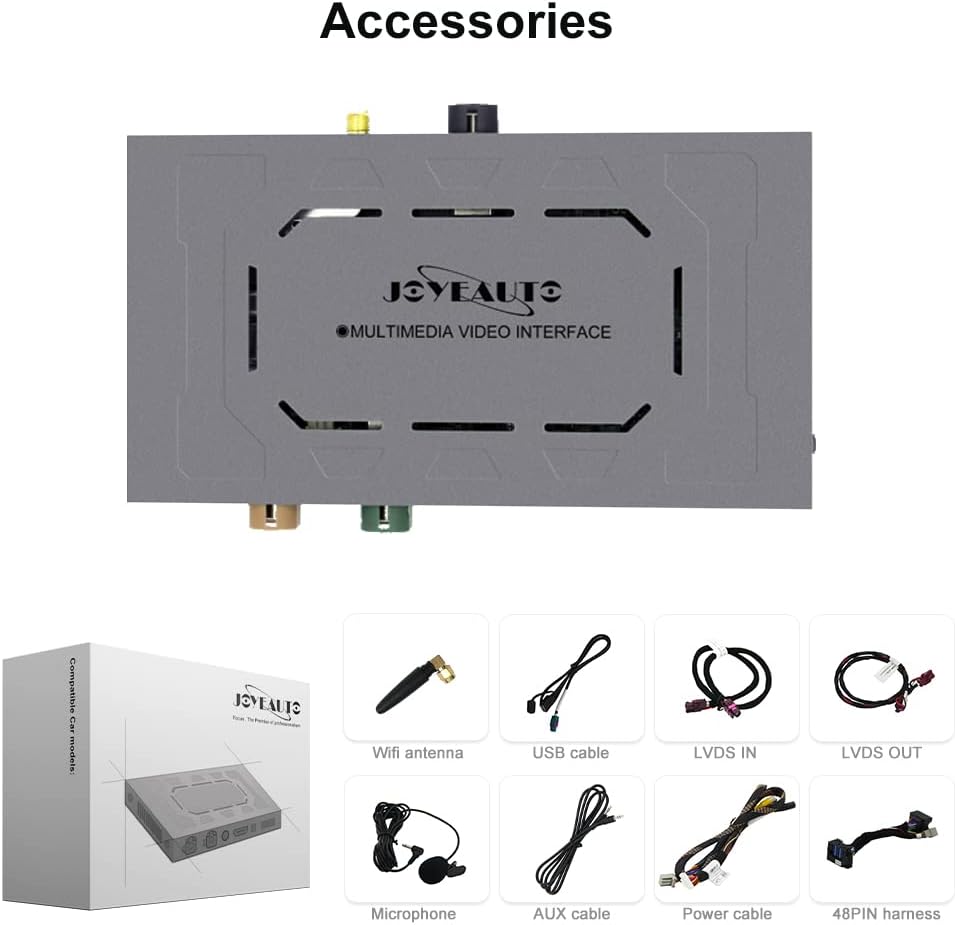
Figure 1: Included Accessories and Main Unit
This image displays the main multimedia video interface unit along with its accompanying accessories: a Wifi antenna, USB cable, LVDS IN cable, LVDS OUT cable, microphone, AUX cable, power cable, and a 48-pin harness. These components are essential for the installation and operation of the retrofit kit.
- JOYEAUTO Multimedia Video Interface Unit
- Wifi Antenna
- USB Cable
- LVDS IN Cable
- LVDS OUT Cable
- Microphone
- AUX Cable
- Power Cable
- 48PIN Harness
- Installation Diagram (printed)
Product Overview
The JOYEAUTO Wireless CarPlay Retrofit Kit is a sophisticated module designed to integrate modern smartphone connectivity into compatible Land Rover/Jaguar vehicles. The main unit features various ports for seamless integration with your car's existing system.

Figure 2: Main Unit and In-Car Integration
This image illustrates the JOYEAUTO multimedia video interface unit with its various labeled ports including LCD_OUT, MIC, MEDIA, TOUCH, and POWER. Below the unit, a car's dashboard is shown with the infotainment screen displaying the Apple CarPlay interface, and a smartphone held next to it, indicating wireless connectivity.
Key Features:
- Wireless/Wired CarPlay: Supports full-screen CarPlay functionality for Apple Maps, navigation, phone calls, and Spotify. Includes a built-in microphone for Siri and Bluetooth calls.
- Wired Android Auto: Connect via USB cable for Android Auto system access, including maps, phone calls, and online music.
- Camera Support: Compatible with aftermarket and original cameras, supporting front, rear, and 360-degree views with dynamic guidelines. Automatic camera activation upon reversing.
- Mirror Link: Supports Airplay for iPhone and Mirror Link for Android devices, allowing display of YouTube, photos, and HD videos.
- USB Drive Playback: Enables media playback from USB storage devices.
Setup and Installation
Installation of this retrofit kit requires technical proficiency and disassembly of your vehicle's display. It is highly recommended to consult a professional installer if you are not comfortable with the process. Do not attempt random installation, as it may damage the original car wiring and void your car's warranty.
Pre-Installation Checklist:
- Ensure your vehicle is compatible with the "For Harman" version of the kit (Discovery 5/Discovery Sport/F-space 2013-2018MY).
- Gather all necessary tools for car interior panel removal and reassembly.
- Review the provided installation diagram and video thoroughly before starting.
- Disconnect the vehicle's battery before beginning any electrical work.
Installation Steps (General Overview):
A detailed step-by-step installation video can be accessed by scanning the QR code on the product packaging. This video is crucial for guiding you through the specific disassembly and connection procedures for your vehicle model.
- Carefully remove the necessary trim panels and the vehicle's infotainment display unit.
- Connect the provided harnesses (e.g., 48PIN harness, LVDS IN/OUT cables) between the original car wiring and the JOYEAUTO interface unit.
- Connect the Wifi antenna, USB cable, microphone, and AUX cable to the JOYEAUTO unit.
- Important Note for AUX Connection: An extra AUX plug (without a wire) is included. This plug is designed to be inserted into the vehicle's AUX port in the middle console. This action signals the vehicle that the AUX input is in use, enabling the audio connection from the retrofit kit to function correctly.
- Before fully reassembling, perform a preliminary test of all features to ensure proper functionality.
- Carefully route and secure all cables to prevent pinching or interference.
- Mount the JOYEAUTO unit in a suitable, secure location within the dashboard, ensuring it does not obstruct any moving parts or ventilation.
- Reassemble all removed panels and the infotainment display.
- Reconnect the vehicle's battery.
Testing Before Final Assembly: It is highly recommended to test all features of the unit before fully reassembling the dashboard. This includes checking audio, video, CarPlay/Android Auto connectivity, and camera functions. If issues arise, it is easier to troubleshoot before everything is put back together.
Operating Instructions
Once installed, the JOYEAUTO retrofit kit allows you to seamlessly switch between your car's original system and the new CarPlay/Android Auto interface.

Figure 3: Switching to CarPlay/Android Auto
This image highlights the infotainment screen displaying the Apple CarPlay interface. An arrow indicates that a long press of the "MODE" button on the car's control panel is used to switch to the CarPlay system. The image also points out that the system supports touch screen control.
Switching Between Systems:
- To switch from your car's native system to the CarPlay/Android Auto interface, long press the "MODE" button on your vehicle's control panel.
- To return to the original car system, long press the "MODE" button again.
Using CarPlay (Wireless/Wired):

Figure 4: Wireless CarPlay Interface
This image shows the car's infotainment screen displaying the Apple CarPlay interface, featuring icons for Phone, Music, Maps, Messages, Now Playing, Settings, Podcasts, and Audiobooks. A smartphone is depicted wirelessly connected to the system, emphasizing the wireless CarPlay functionality.
- Wireless Connection: Enable Bluetooth and Wi-Fi on your iPhone. Pair your iPhone with the JOYEAUTO unit via Bluetooth. Follow the on-screen prompts to establish the wireless CarPlay connection.
- Wired Connection: Connect your iPhone to the USB port of the JOYEAUTO unit using a certified USB cable. CarPlay will launch automatically.
- Functions: Access Apple Maps for navigation, make and receive calls, send messages, stream music from Spotify or Apple Music, and use Siri voice commands via the built-in microphone.
Using Android Auto (Wired):

Figure 5: Wired Android Auto Interface
This image displays the car's infotainment screen showing the Android Auto interface, with icons for Maps, Spotify, YouTube Music, Phone, Audible, Calendar, Waze, and WhatsApp. A smartphone is shown connected via a USB cable, illustrating the wired Android Auto functionality.
- Connect your Android phone to the USB port of the JOYEAUTO unit using a certified USB cable. Android Auto will launch automatically.
- Functions: Utilize Google Maps for navigation, make calls, check messages, reply to texts, and use your favorite music apps.
Camera and Mirror Link Functions:
- Camera: The system automatically displays the rear view when the vehicle is put into reverse. It supports front, rear, and 360-degree cameras with dynamic guidelines.
- Mirror Link: For iPhone (Airplay) and Android devices, connect your phone to mirror its screen content, including videos from YouTube, photos, and other media.
Adjusting Audio Volume:
If the audio quality initially sounds poor or the volume is too high/low, navigate to the settings within the JOYEAUTO interface (not your car's native settings). Locate the master volume control and adjust it to a comfortable level, typically around 15-20, for optimal sound quality.
Maintenance
The JOYEAUTO Wireless CarPlay Retrofit Kit is designed for durability and minimal maintenance. Follow these guidelines to ensure its longevity:
- Keep the unit and connections free from dust and moisture.
- Avoid exposing the unit to extreme temperatures.
- Do not attempt to open or repair the unit yourself, as this will void the warranty.
- Ensure all cables are securely connected and not pinched or strained.
Troubleshooting
If you encounter issues with your JOYEAUTO Wireless CarPlay Retrofit Kit, refer to the following common problems and solutions:
| Problem | Possible Cause / Solution |
|---|---|
| No audio or poor sound quality from CarPlay/Android Auto. |
|
| Cannot switch between native car system and CarPlay/Android Auto. |
|
| CarPlay/Android Auto not connecting wirelessly/wired. |
|
| Backup camera not working or glitchy. |
|
| Steering wheel buttons not working with CarPlay/Android Auto. |
|
If troubleshooting steps do not resolve the issue, please contact customer support for further assistance. Do not attempt to repair the unit yourself.
Specifications
| Feature | Detail |
|---|---|
| Model Number | c6fbcd36-b36b-4ae3-bee4-959aa92fc9b5 |
| Package Dimensions | 10.55 x 8.82 x 3.82 inches |
| Item Weight | 2.46 pounds |
| Connectivity Technology | Bluetooth, USB |
| Controller Type | Android (refers to Android Auto compatibility) |
| Special Feature | Spotify (integration) |
| Compatible Devices | Smartphone (iPhone, Android) |
| Total HDMI Ports | 1 |
| Audio Output Mode | Surround |
| Surround Sound Channel Configuration | 5.1 |
| Video Encoding | RM |
| Manufacturer | JOYEAUTO |
| Country of Origin | China |
Warranty and Support
Warranty: The JOYEAUTO Wireless CarPlay Retrofit Kit comes with a 1-year warranty from the date of purchase. This warranty covers manufacturing defects. Please retain your proof of purchase for warranty claims.
Support: For any questions, installation assistance, or troubleshooting not covered in this manual, please contact JOYEAUTO customer support via Amazon message at any time. Do not complete the installation before testing all features are available. Any issue, please get help from us.
For additional resources and information, you may visit the JOYEAUTO Store on Amazon.