
1. Introduction
This manual provides comprehensive instructions for setting up, operating, maintaining, and troubleshooting your D-Link EXO WiFi 6 Router AX1500 (DIR-X1560-US). This router is designed to deliver high-speed, reliable wireless connectivity for your home or small office network, leveraging Wi-Fi 6 technology for enhanced performance and efficiency.
2. Package Contents
Verify that your package contains the following items:
- 1x D-Link EXO WiFi 6 Router (DIR-X1560-US)
- 1x Power Adapter
- 1x Ethernet cable
- 1x Quick Installation Guide (QIG)
- 1x Quick Installation Card (QIC)
- 1x Voice Assistant Guide
3. Product Overview
3.1. Features
- Exceptional Capacity: Connect more devices at faster speeds. Up to 4x greater capacity than 11ac, allowing more devices to connect simultaneously.
- Smart Home Optimization: Improved performance in device-dense environments. Up to 4 simultaneous streams deliver data to more devices with reduced latency.
- OFDMA Technology: Combines multiple small data packets into a single packet for greater efficiency, enabling multiple devices to receive data concurrently.
- Unprecedented Efficiency: Higher throughput and more efficient transmission. Target Wake Time (TWT) helps reduce battery consumption for smart home devices.
- D-Link Wi-Fi Mesh Technology: Compatible with D-Link Wi-Fi Mesh-enabled extenders to create a seamless mesh network that covers your entire home.
- Voice Control: Manage your network using voice commands with Google Assistant and Amazon Alexa.
3.2. Physical Description

Front view of the D-Link AX1500 Router, showing its sleek black design and four external antennas.

Angled view of the D-Link AX1500 Router, highlighting its compact form factor and antenna placement.
3.3. Ports and Indicators

Rear view of the D-Link AX1500 Router, displaying the WAN port (yellow), four Gigabit LAN ports (orange), power input, and reset button.
- Power LED: Indicates power status.
- Internet LED: Indicates internet connection status.
- Wi-Fi LEDs (2.4GHz & 5GHz): Indicate wireless network activity.
- WAN Port (Yellow): Connects to your modem for internet access.
- LAN Ports (Orange): Four Gigabit Ethernet ports for wired device connections.
- Reset Button: Used to restore factory default settings.
- WPS Button: For easy Wi-Fi Protected Setup connections.
- Power On/Off Button: To turn the router on or off.
- Power Input: Connects to the included power adapter.
4. Setup
Follow these steps to set up your D-Link AX1500 Router:
- Position the Router: Place the router in a central location in your home, away from obstructions and devices that may cause interference (e.g., cordless phones, microwaves).
- Connect to Power: Connect the included power adapter to the router's power input and plug it into a power outlet. Press the Power On/Off button if necessary.
- Connect to Modem: Use the included Ethernet cable to connect the yellow WAN port on the router to an available Ethernet port on your modem.
- Connect Devices:
- Wired: Connect your computer or other wired devices to any of the orange LAN ports on the router using Ethernet cables.
- Wireless: Locate the Wi-Fi network name (SSID) and password printed on the label at the bottom of your router. Connect your wireless devices (smartphones, tablets, laptops) to this network.
- Initial Configuration:
- Open a web browser on a connected device and enter
http://dlinkrouter.localor192.168.0.1in the address bar. - Follow the on-screen instructions of the D-Link setup wizard to configure your internet connection and Wi-Fi settings.
- Alternatively, download the D-Link Wi-Fi app from your device's app store for guided setup.
- Open a web browser on a connected device and enter
5. Operating the Router
Once set up, your D-Link AX1500 Router provides a robust wireless network. Here are key operational aspects:
5.1. Wi-Fi 6 Performance

Graphic illustrating that AX1500 (Wi-Fi 6) offers 38% faster speeds compared to 11AC (Wi-Fi 5).
The router supports Wi-Fi 6 (802.11ax) for enhanced speed and efficiency. It operates on dual bands (2.4 GHz and 5 GHz) to provide optimal performance for various devices and activities. The 5 GHz band is ideal for high-bandwidth applications like 4K streaming and online gaming, while the 2.4 GHz band offers wider coverage for general use.

An illustration depicting network efficiencies and improved performance within a home environment.
5.2. Multi-Device Connectivity

Image showing a router connecting to various devices like laptops, phones, and TVs, illustrating its exceptional capacity.
With features like MU-MIMO (Multi-User, Multiple-Input, Multiple-Output) and OFDMA (Orthogonal Frequency-Division Multiple Access), the router can communicate with multiple devices simultaneously, reducing congestion and improving overall network efficiency, especially in device-dense smart home environments.

A kitchen scene with smart home icons overlaid, indicating the router's suitability for smart home devices.

An animated graphic showing small data packets being combined into larger ones, representing OFDMA efficiency.
5.3. D-Link Wi-Fi Mesh Technology
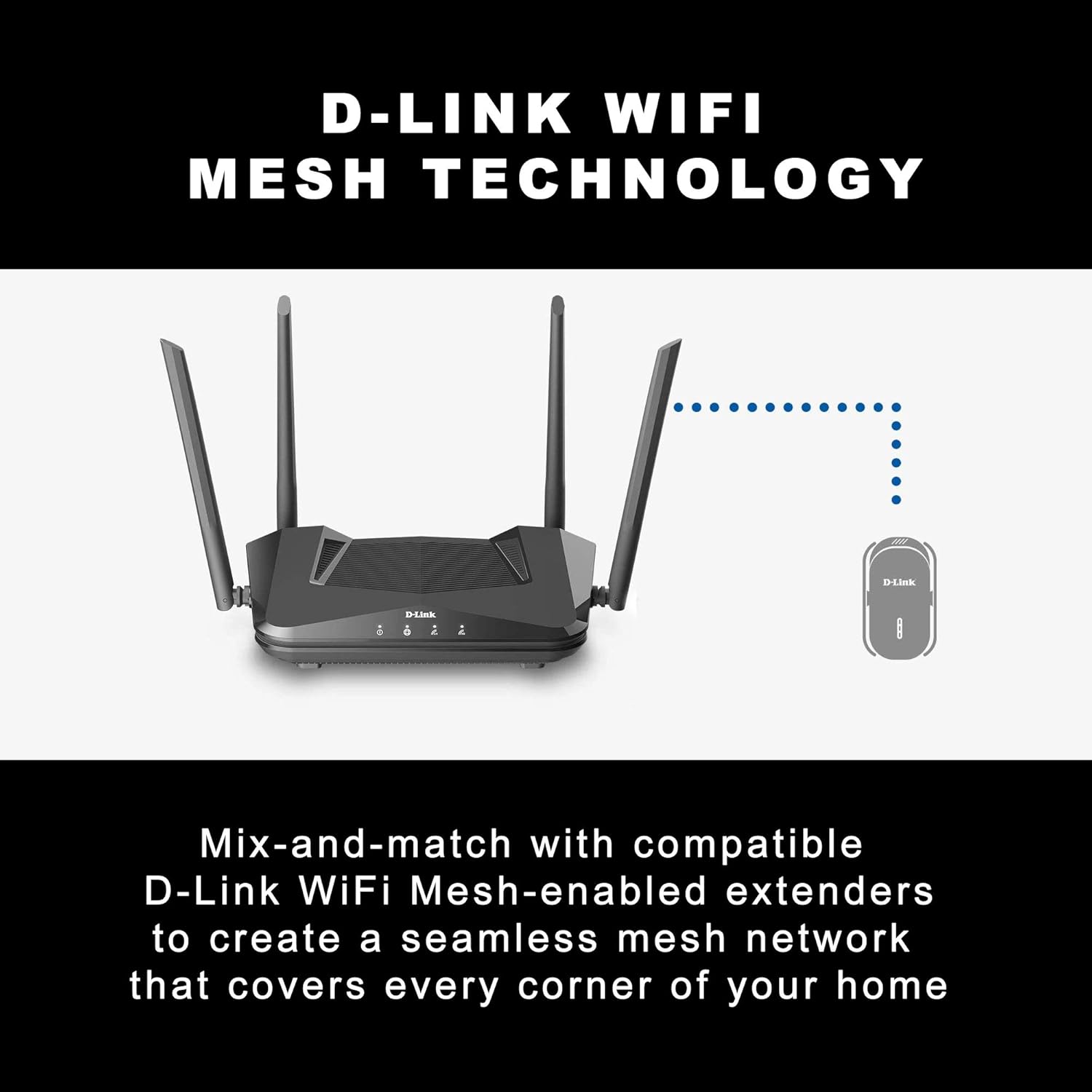
Illustration of a D-Link router connected to a D-Link Wi-Fi Mesh-enabled extender, demonstrating seamless mesh network expansion.
The router supports D-Link Wi-Fi Mesh technology, allowing you to expand your network coverage by adding compatible D-Link Wi-Fi Mesh-enabled extenders. This creates a unified, seamless Wi-Fi network throughout your home, eliminating dead zones.
5.4. Voice Control
The DIR-X1560-US router can be controlled using voice commands through Google Assistant and Amazon Alexa, providing convenient hands-free network management.
6. Maintenance
To ensure optimal performance and longevity of your D-Link router, consider the following maintenance practices:
- Firmware Updates: Regularly check for and install the latest firmware updates through the router's web interface or the D-Link Wi-Fi app. Firmware updates often include performance improvements, security patches, and new features.
- Regular Reboot: Periodically reboot your router (e.g., once a month) by unplugging the power adapter for 10-15 seconds and then plugging it back in. This can help clear temporary issues and refresh network connections.
- Physical Cleaning: Keep the router clean and free from dust. Use a soft, dry cloth to wipe the exterior. Ensure ventilation openings are not blocked to prevent overheating.
- Secure Placement: Ensure the router is placed in a stable location where it won't be easily knocked over or exposed to extreme temperatures or moisture.
7. Troubleshooting
If you encounter issues with your D-Link AX1500 Router, try the following troubleshooting steps:
- No Internet Connection:
- Check the Internet LED on the router. If it's off or amber, verify the connection between the router's WAN port and your modem.
- Reboot both your modem and router. Unplug their power adapters, wait 30 seconds, then plug the modem back in. Once the modem is fully online, plug the router back in.
- Contact your Internet Service Provider (ISP) to ensure there are no service outages in your area.
- Slow Wi-Fi Speed or Dropped Connections:
- Ensure your router is centrally located and not obstructed by large objects or walls.
- Check for interference from other electronic devices (e.g., microwaves, cordless phones, Bluetooth devices).
- Try connecting to the 5 GHz Wi-Fi band for faster speeds, especially for devices closer to the router.
- Update the firmware of your router.
- Reduce the number of active devices or bandwidth-intensive activities if the network is heavily loaded.
- Cannot Access Router Settings:
- Ensure your device is connected to the router's Wi-Fi network or via an Ethernet cable to a LAN port.
- Try using a different web browser.
- Clear your browser's cache and cookies.
- If you forgot your router's password, you may need to perform a factory reset (see Section 3.3 for Reset Button location). Note: A factory reset will erase all your custom settings.
For more detailed troubleshooting and advanced configurations, refer to the official Installation Manual (PDF) available at: D-Link DIR-X1560-US Installation Manual.
8. Specifications
| Brand | D-Link |
| Model Name | DIR-X1560-US |
| Wireless Type | 802.11ax (Wi-Fi 6) |
| Frequency Band Class | Dual-Band (2.4 GHz, 5 GHz) |
| Connectivity Technology | Ethernet |
| Item Weight | 1 pounds |
| Product Dimensions (LxWxH) | 5.38 x 9.69 x 2.13 inches |
| Color | Black |
| Special Feature | WPS |
| Compatible Devices | Personal Computer |
9. Warranty and Support
D-Link products typically come with a limited warranty. For specific warranty terms and conditions, please refer to the warranty card included with your product or visit the official D-Link website.
For technical support, FAQs, and additional resources, please visit the D-Link support portal or contact D-Link customer service. You can find contact information and support resources on the official D-Link website: D-Link Support.


