
Poly 215441-01
Poly Calisto 5300M Mobile Conference Speaker User Manual
Model: 215441-01
Product Overview
The Poly Calisto 5300M is a personal, portable Bluetooth speakerphone designed for professional audio quality in various work environments, including home, remote, or office settings. It provides clear audio for calls, video conferences, podcasts, and music.

Image: The Poly Calisto 5300M Mobile Conference Speaker, showcasing its compact design with control buttons for mute, volume, and call management.
Key Features
- Connectivity: Connects to PC and Mac via USB-A and smartphones via Bluetooth.
- Compatibility: Fully compatible with Microsoft Teams, Zoom, and other leading collaboration platforms.
- Audio Performance: Features rich, clear voice transmission and a 360-degree microphone for optimal sound pickup.
- Intelligent Features: Provides visual indicators and voice alerts for call status, with controls for answer/end, mute, and volume. Offers up to 16 hours of talk time.
- Customization: Settings can be customized using Plantronics Hub for desktop, allowing language preference, feature adjustments, and firmware updates.
Setup Guide
What's in the Box
- Poly Calisto 5300M Speakerphone
- Carrying Case
- USB-C Connection Cable (integrated)
- Bluetooth Stick BT600 (USB-A)
Initial Setup
- Charging the Device: Before first use, fully charge the Calisto 5300M. Connect the integrated USB-C cable to a powered USB port on your computer or a USB wall adapter. The charging time is approximately 3.5 hours.
- Powering On: Press and hold the power button until the indicator lights illuminate.
- Connecting to a Computer (USB-A):
For a wired connection, plug the integrated USB-C cable into your computer's USB-C port. If your computer only has USB-A ports, use the provided Bluetooth Stick BT600. Plug the BT600 into an available USB-A port on your computer. The speakerphone and BT600 are pre-paired.

Image: The Poly Calisto 5300M speakerphone positioned on a coffee table in a living room, demonstrating its use in a home office environment.
- Connecting to a Smartphone (Bluetooth):
- Ensure the Calisto 5300M is powered on.
- Activate Bluetooth on your smartphone.
- On the Calisto 5300M, press and hold the Bluetooth pairing button until the LED flashes blue and red.
- Select "Poly Calisto 5300" from the list of available devices on your smartphone.
- Once paired, the LED will turn solid blue.
Operating Instructions
Call Management
- Answer/End Call: Press the Call button () to answer an incoming call or end an active call.
- Mute/Unmute: Press the Mute button () to mute or unmute the microphone during a call.
- Volume Control: Use the Volume Up (+) and Volume Down (-) buttons to adjust the speaker volume.
LED Indicators
The Calisto 5300M features LED indicators that provide visual feedback on the device's status:
- Solid Blue: Connected via Bluetooth or USB.
- Flashing Blue/Red: Bluetooth pairing mode.
- Solid Red: Muted.
- Flashing Green: Incoming call.
- Solid White: Charging.
Using with Collaboration Platforms
The Calisto 5300M is optimized for use with popular collaboration platforms such as Microsoft Teams and Zoom. Ensure the Calisto 5300M is selected as the default audio device within your application's audio settings for optimal performance.
Maintenance
- Cleaning: Use a soft, dry cloth to clean the speakerphone. Avoid using abrasive cleaners or solvents.
- Storage: When not in use, store the speakerphone in its provided carrying case to protect it from dust and damage.
- Firmware Updates: Regularly check for firmware updates using the Plantronics Hub desktop application to ensure optimal performance and access to new features.
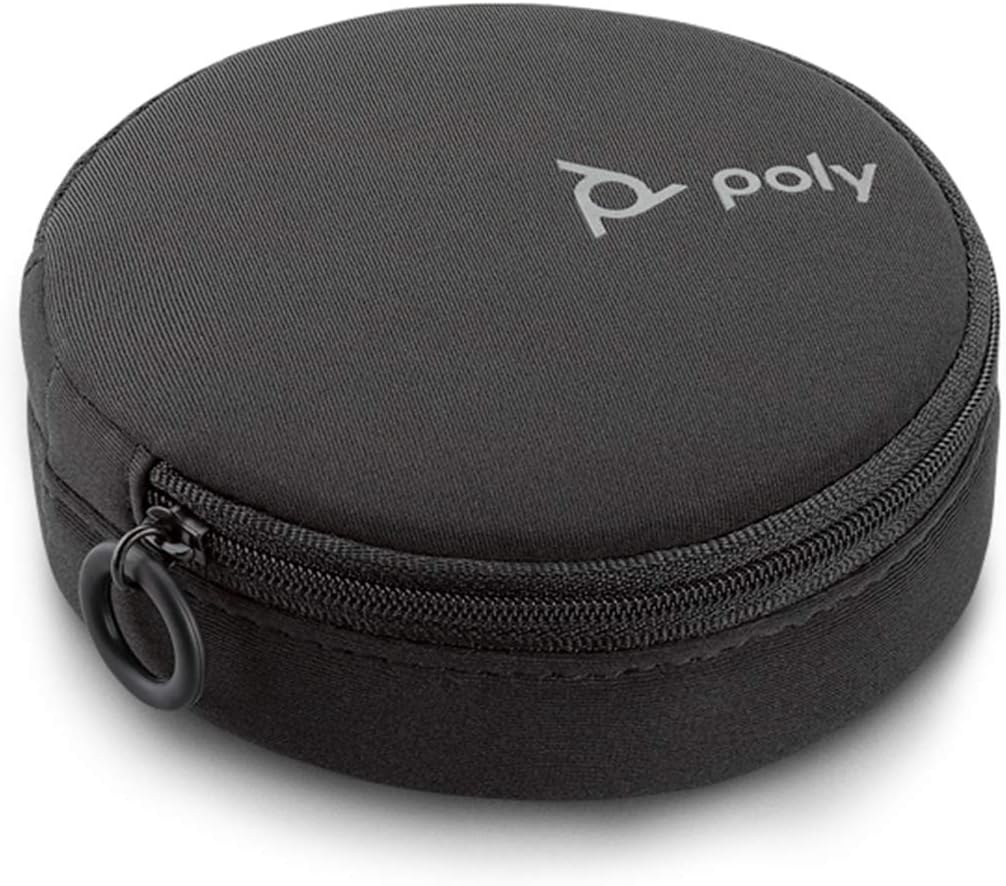
Image: The compact carrying case for the Poly Calisto 5300M, designed for portability and protection.
Troubleshooting
| Problem | Possible Solution |
|---|---|
| No audio from speakerphone. |
|
| Microphone not picking up sound. |
|
| Bluetooth connection issues. |
|
| Device not charging. |
|
Specifications
| Feature | Detail |
|---|---|
| Model Name | Calisto 5300 USB-A |
| Item Model Number | 215441-01 |
| Connectivity Technology | Bluetooth, USB-C |
| Wireless Communication Technology | Bluetooth |
| Bluetooth Range | 10 Meters |
| Speaker Type | Computer Speakerphone |
| Speaker Maximum Output Power | 120 Watts |
| Audio Driver Size | 50 Millimeters |
| Number of Microphones | 1 (360-degree pickup) |
| Battery Life | Up to 16 hours talk time |
| Charging Time | 3.5 Hours |
| Power Source | Corded Electric (via USB) |
| Product Dimensions | 7"D x 6"W x 2"H |
| Item Weight | 7.6 Ounces |
| Material | Plastic |
| Color | Black |
| Compatible Devices | Personal Computer, Smartphone |
| UPC | 017229171541 |
Warranty Information
The Poly Calisto 5300M Mobile Conference Speaker comes with a Limited Warranty. For specific terms and conditions, please refer to the warranty documentation included with your product or visit the official Poly website.
Support
For further assistance, technical support, or to download the Plantronics Hub software, please visit the official Poly support website. You can also find FAQs and additional resources there.
Note: The Plantronics Hub software is essential for customizing settings and keeping your device's firmware up-to-date.
Related documents215441-01


Ask a question about this manual
Ask about setup, troubleshooting, compatibility, parts, safety, or missing instructions. Manuals+ will review the question and use this page’s manual context to help answer it.