
1. Introduction
This manual provides comprehensive instructions for the Hxsj A867 Gaming Mouse. It covers setup, operation, maintenance, and troubleshooting to ensure optimal performance and longevity of your device. Please read this manual thoroughly before using the mouse.
2. Package Contents
Verify that all items are present in the package:
- Hxsj A867 Gaming Mouse
- User Manual (this document)
3. Product Overview
The Hxsj A867 is a wired optical gaming mouse designed for precision and comfort. It features 7 programmable buttons, adjustable DPI settings up to 6400, and customizable RGB backlighting.

Figure 3.1: Top-down view of the Hxsj A867 Gaming Mouse, showcasing its symmetrical design, scroll wheel, and DPI adjustment buttons. The RGB lighting is visible along the edges and around the logo.
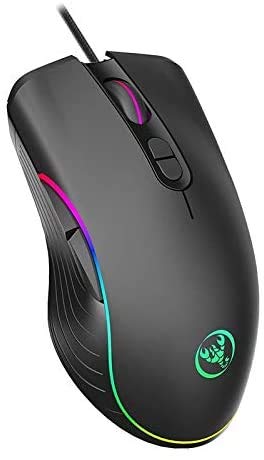
Figure 3.2: Angled view of the Hxsj A867 Gaming Mouse, highlighting the ergonomic curve and the two thumb buttons located on the left side. The vibrant RGB lighting strip is prominent along the base.
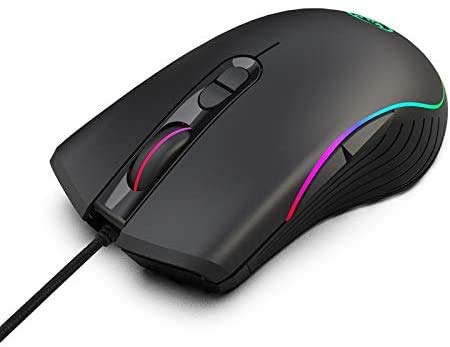
Figure 3.3: Side view of the Hxsj A867 Gaming Mouse, illustrating its contoured shape designed for comfortable grip. The scroll wheel and DPI buttons are visible from this perspective.

Figure 3.4: Another angled view of the Hxsj A867 Gaming Mouse, emphasizing the smooth surface and the integration of the RGB lighting into the mouse's design.
Button Functions:
- Left Click Button: Standard primary click function.
- Right Click Button: Standard secondary click function.
- Scroll Wheel: Scrolls content up/down. Can also be pressed for middle-click function.
- DPI Adjustment Buttons: Cycle through different DPI sensitivity levels.
- Forward Button: Navigates forward in web browsers or file explorers.
- Backward Button: Navigates backward in web browsers or file explorers.
4. Setup
4.1 Connecting the Mouse
- Locate an available USB port on your computer.
- Insert the USB connector of the Hxsj A867 Gaming Mouse into the USB port.
- The operating system will automatically detect and install the necessary drivers. This process may take a few moments.
- Once installation is complete, the mouse will be ready for use. The RGB lighting will illuminate.
4.2 Software Installation (Optional)
While the mouse is plug-and-play for basic functionality, advanced customization options (such as button remapping, macro creation, and detailed RGB lighting control) may require dedicated software. Please refer to the manufacturer's official website for software downloads, if available.
5. Operating Instructions
5.1 Adjusting DPI Sensitivity
The Hxsj A867 mouse features multiple DPI (Dots Per Inch) levels, allowing you to adjust cursor sensitivity on the fly. Use the dedicated DPI adjustment buttons (usually located below the scroll wheel) to cycle through the preset DPI settings. Each press will switch to the next DPI level, often indicated by a change in the mouse's RGB lighting color or pattern.
5.2 Customizing RGB Backlighting
The RGB backlighting can be customized to match your preferences. If dedicated software is installed, you can select from various lighting effects, colors, and brightness levels. Without software, the mouse typically cycles through default lighting modes automatically or via a specific button combination (refer to manufacturer's website for details if not covered here).
5.3 Using Programmable Buttons
The 7 buttons on the Hxsj A867 mouse can be programmed for various functions, macros, or key combinations using the optional software. This allows for personalized control and efficiency in gaming or productivity tasks.
6. Maintenance
6.1 Cleaning the Mouse
- Disconnect the mouse from your computer before cleaning.
- Use a soft, lint-free cloth lightly dampened with water or a mild cleaning solution to wipe the surface of the mouse.
- For optical sensor cleaning, use a cotton swab to gently remove any dust or debris. Avoid direct contact with the sensor lens.
- Do not use harsh chemicals, abrasive cleaners, or immerse the mouse in liquid.
6.2 Cable Management
Avoid sharp bends or excessive tension on the USB cable to prevent damage. Use cable ties if necessary to keep the cable organized and prevent tangles.
7. Troubleshooting
| Problem | Possible Cause | Solution |
|---|---|---|
| Mouse not responding | Loose USB connection; Faulty USB port; Driver issue | Ensure USB cable is securely plugged in. Try a different USB port. Restart your computer. Check Device Manager for driver status. |
| Cursor movement is erratic or jumpy | Dirty optical sensor; Unsuitable mouse pad surface | Clean the optical sensor. Use a clean, uniform mouse pad or surface. |
| RGB lighting not working | Software setting; Power issue | Check mouse software settings if installed. Ensure mouse is properly connected and receiving power. |
| Buttons not responding | Software conflict; Hardware malfunction | Test buttons on another computer. If using custom software, try resetting settings to default. |
8. Specifications
| Feature | Detail |
|---|---|
| Model | A867 |
| Brand | MAO YEYE |
| Connectivity Technology | USB Wired |
| Movement Detection Technology | Optical |
| Number of Buttons | 7 |
| DPI (Max) | 6400 DPI |
| Backlighting | RGB |
| Color | Black |
9. Warranty and Support
This product is covered by a standard manufacturer's warranty. For specific warranty terms, duration, and support inquiries, please refer to the documentation provided with your purchase or visit the official MAO YEYE website. Keep your proof of purchase for warranty claims.