
MAO YEYE A869
Hxsj A869 Gaming Mouse User Manual
Model: A869
Introduction
This manual provides detailed instructions for the setup, operation, maintenance, and troubleshooting of your Hxsj A869 6400DPI RGB Optical USB Wired Gaming Mouse. Please read this manual thoroughly before using the product to ensure optimal performance and longevity.
Product Overview
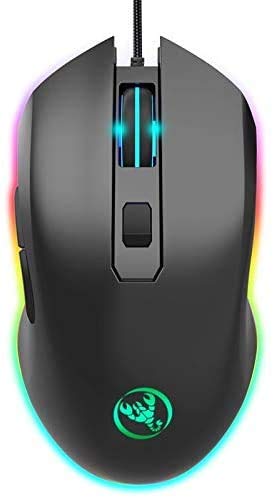
Figure 1: Front view of the Hxsj A869 gaming mouse, showcasing its ergonomic design and vibrant RGB lighting effects. The mouse features a scroll wheel and a DPI adjustment button.
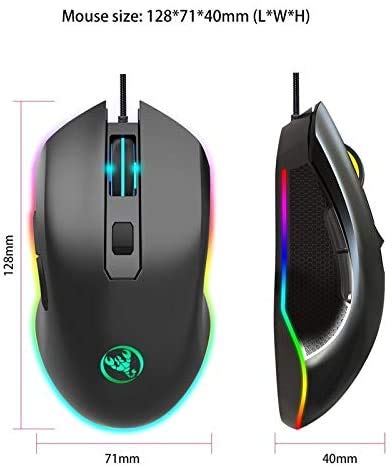
Figure 2: Dimensional view of the Hxsj A869 gaming mouse, indicating its length (128mm), width (71mm), and height (40mm). This image helps users understand the physical size of the mouse.
The Hxsj A869 is a high-performance wired gaming mouse designed for precision and comfort. It features a 6400 DPI optical sensor for accurate tracking, 6 programmable buttons for customizable control, and dynamic RGB lighting to enhance your gaming setup. Its ergonomic design ensures comfortable use during extended gaming sessions.
Key Features:
- High Precision Optical Sensor: Up to 6400 DPI for accurate and responsive tracking.
- 6 Programmable Buttons: Customize functions for enhanced control in games and applications.
- Dynamic RGB Lighting: Customizable lighting effects to personalize your setup.
- Ergonomic Design: Comfortable grip for prolonged use.
- Durable Build: Designed for longevity and consistent performance.
Setup Guide
Follow these steps to set up your Hxsj A869 gaming mouse:
- Unpack the Mouse: Carefully remove the mouse from its packaging. Ensure all components are present.
- Connect to Computer: Locate an available USB port on your computer. Insert the USB connector of the Hxsj A869 mouse firmly into the USB port.
- Driver Installation: The mouse is plug-and-play and typically does not require manual driver installation. Your operating system (Windows, macOS, Linux) should automatically detect and install the necessary drivers. This process may take a few moments.
- Verify Functionality: Once connected, the RGB lighting on the mouse should illuminate. Move the mouse to check cursor movement on your screen. Test the left and right click buttons, and the scroll wheel.
- Optional Software (if applicable): While not strictly necessary for basic functionality, some advanced features like button remapping or custom RGB effects might require dedicated software. Refer to the manufacturer's website for any available software downloads.

Figure 3: Angled view of the Hxsj A869 gaming mouse, highlighting the textured grip on the side and the two thumb buttons. These buttons are typically used for forward/backward navigation or can be programmed for other functions.
Operating Instructions
The Hxsj A869 gaming mouse is designed for intuitive use. Here's a guide to its primary functions:
Button Functions:
| Button | Default Function |
|---|---|
| Left Click | Primary action, selection, activation. |
| Right Click | Context menu, secondary action. |
| Scroll Wheel (Click) | Middle click, often used for opening links in new tabs or panning. |
| Scroll Wheel (Up/Down) | Scroll content vertically. |
| DPI Button | Cycles through preset DPI sensitivity levels. |
| Side Button 1 (Forward) | Navigate forward in web browsers or file explorers. |
| Side Button 2 (Backward) | Navigate backward in web browsers or file explorers. |
DPI Adjustment:
The DPI (Dots Per Inch) button, located behind the scroll wheel, allows you to instantly change the mouse's sensitivity. Pressing this button will cycle through different DPI settings, typically indicated by a change in the RGB lighting color or pattern. Higher DPI settings result in faster cursor movement across the screen for the same physical mouse movement, while lower DPI settings provide more precise control.
RGB Lighting Control:
The Hxsj A869 features dynamic RGB lighting. The lighting effects are usually pre-programmed and cycle automatically. If optional software is available, you may be able to customize lighting patterns, colors, and brightness through it.

Figure 4: Top-down angled view of the Hxsj A869 gaming mouse, showing the scroll wheel, DPI button, and the overall contour. This perspective highlights the placement of the main controls.
Maintenance
Proper maintenance will extend the lifespan of your Hxsj A869 gaming mouse and ensure consistent performance.
- Cleaning the Surface: Use a soft, dry, lint-free cloth to wipe the exterior of the mouse. For stubborn dirt, slightly dampen the cloth with water or a mild, non-abrasive cleaner. Avoid using harsh chemicals, solvents, or abrasive materials.
- Cleaning the Optical Sensor: Periodically inspect the optical sensor on the underside of the mouse for dust or debris. Use a cotton swab or a can of compressed air to gently clean the sensor area. Do not touch the sensor directly with your fingers.
- Cable Care: Avoid sharp bends or kinks in the USB cable. Do not pull the mouse by its cable. Store the cable neatly when not in use to prevent tangling and damage.
- Storage: When not in use for extended periods, store the mouse in a clean, dry environment away from direct sunlight and extreme temperatures.
Troubleshooting
If you encounter issues with your Hxsj A869 gaming mouse, refer to the following common problems and solutions:
Mouse Not Responding:
- Check USB Connection: Ensure the USB cable is securely plugged into a working USB port on your computer. Try a different USB port.
- Restart Computer: A simple restart of your computer can often resolve connectivity issues.
- Test on Another Computer: If possible, test the mouse on another computer to determine if the issue is with the mouse or your computer's setup.
- Check Device Manager (Windows): In Windows, open Device Manager and check under "Mice and other pointing devices" for any error indicators. You might need to update or reinstall the mouse driver.
Inconsistent Cursor Movement:
- Clean Optical Sensor: Dust or debris on the optical sensor can cause erratic movement. Refer to the Maintenance section for cleaning instructions.
- Mouse Pad Surface: Ensure you are using the mouse on a clean, uniform, non-reflective surface. Highly reflective or uneven surfaces can interfere with optical tracking.
- Adjust DPI: Experiment with different DPI settings using the DPI button to find the optimal sensitivity for your usage.
Buttons Not Functioning:
- Check for Physical Obstructions: Ensure no debris is lodged under the buttons.
- Software Conflicts: If you have installed any third-party mouse software or gaming software, try temporarily disabling it to see if it's causing a conflict.
RGB Lighting Not Working:
- Check USB Power: Ensure the USB port is providing sufficient power. Try a different USB port, especially a direct port on the motherboard if using a desktop.
- Software Settings: If you have installed any customization software, check its settings to ensure RGB lighting is enabled and configured correctly.
If these steps do not resolve your issue, please contact customer support for further assistance.
Specifications
| Feature | Detail |
|---|---|
| Model | A869 |
| Brand | MAO YEYE |
| Connectivity Technology | USB Wired |
| Movement Detection Technology | Optical |
| DPI (Max) | 6400 DPI |
| Number of Buttons | 6 |
| Lighting | RGB |
| Color | Black |
| Dimensions (L*W*H) | 128mm * 71mm * 40mm (Approximate) |
Warranty and Support
Warranty Information:
This product is covered by a standard manufacturer's warranty. Please refer to the product packaging or the retailer's website for specific warranty terms and conditions. Keep your proof of purchase for warranty claims.
Customer Support:
For technical assistance, troubleshooting beyond this manual, or warranty inquiries, please contact the manufacturer or your point of purchase. Contact information can typically be found on the product packaging or the official MAO YEYE website.
Related documentsA869

Ask a question about this manual
Ask about setup, troubleshooting, compatibility, parts, safety, or missing instructions. Manuals+ will review the question and use this page’s manual context to help answer it.