
1. Introduction
The TrustKey T110 is a hardware security key designed to enhance online account security through FIDO2 and U2F authentication standards. It provides a robust defense against phishing and unauthorized access by requiring a physical key for login verification. This manual provides essential information for setting up, operating, maintaining, and troubleshooting your TrustKey T110 security key.
The T110 is compatible with various operating systems, including Windows, macOS, Linux, and Android, and supports major web browsers such as Chrome, Firefox, and Edge.
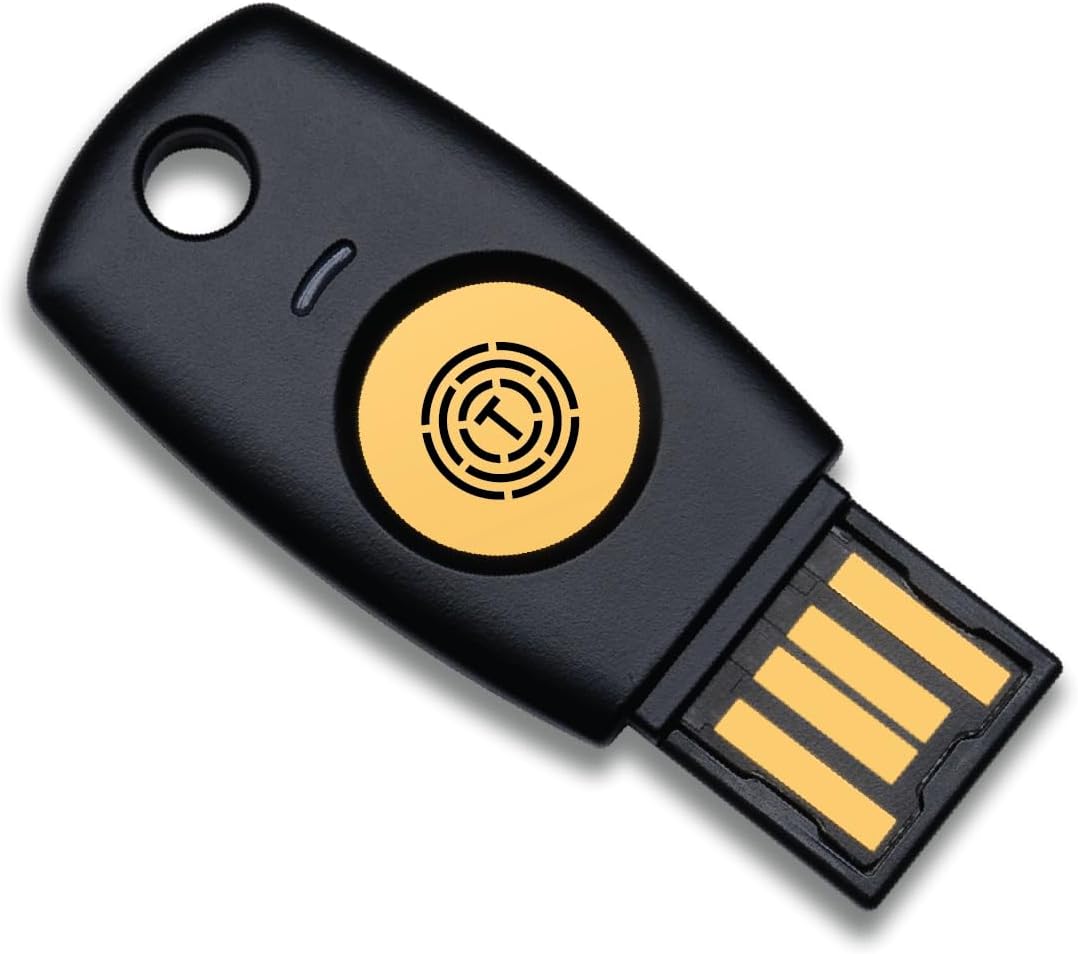
Image: The TrustKey T110 FIDO2 U2F Security Key, a black USB-A device with a gold circular touch sensor.

Image: Top view of the TrustKey T110 security key.

Image: Angled view of the TrustKey T110 security key.

Image: TrustKey T110 security key attached to a keychain with other keys.

Image: Front packaging of the TrustKey T110 security key.

Image: Back packaging of the TrustKey T110 security key showing a QR code and the website www.trustkeysolutions.com. The UPC is 8809636790048.
2. Setup Instructions
Before using your TrustKey T110, it is recommended to download and install the 'TrustKey Manager' software. This application allows you to manage your security key, including setting a PIN and performing a factory reset.
2.1. Initial Setup with TrustKey Manager
- Download TrustKey Manager: Visit the official TrustKey Solutions website at www.trustkeysolutions.com and download the 'TrustKey Manager' software compatible with your operating system.
- Install Software: Follow the on-screen instructions to install the 'TrustKey Manager' on your computer.
- Insert Security Key: Launch the 'TrustKey Manager' application. When prompted, insert your TrustKey T110 into an available USB-A port on your computer.
- Set a PIN: The application will detect your T110. Navigate to the setup options to create a Personal Identification Number (PIN) for your security key. This PIN adds an extra layer of security, requiring both the physical key and a known PIN for authentication.
- Register with Services: Once the PIN is set, you can proceed to register your security key with various online services that support FIDO2 or U2F authentication.

Image: TrustKey Manager software logo.

Image: TrustKey Manager screen prompting to insert the security key.

Image: TrustKey Manager displaying T110 serial number and firmware version.

Image: TrustKey Manager screen for changing PIN or resetting the security key.
3. Operating Instructions
Using your TrustKey T110 for two-factor authentication is a straightforward process once it has been registered with your online accounts.
3.1. Authentication Process
- Initiate Login: On a compatible website or service, enter your username and password as usual.
- Insert Key: When prompted for two-factor authentication, insert your TrustKey T110 into an available USB-A port on your device.
- Touch Sensor: Gently touch the capacitive sensor on the T110 when indicated by the service.
- Enter PIN (if required): If you have set a PIN for your security key, you may be prompted to enter it on your device.
- Access Granted: Upon successful verification, your login will be completed.

Image: A finger touching the capacitive sensor on the TrustKey T110 security key inserted into a laptop's USB-A port during authentication.
3.2. Supported Services
The TrustKey T110 is compatible with a wide range of online services that support FIDO2 or U2F authentication. This includes, but is not limited to:
- Microsoft
- GitHub
- Dropbox
- Apple
- eBay
- Binance
- Bank of America
- Salesforce
- DUO

Image: A collage showing the TrustKey T110 security key alongside logos of various supported online services like Google, Apple, Microsoft, Facebook, Twitter, GitHub, Dropbox, Salesforce, Bank of America, Coinbase, Binance, and eBay.
4. Maintenance
To ensure the longevity and proper functioning of your TrustKey T110 security key, follow these general maintenance guidelines:
- Keep Dry: Avoid exposing the security key to water or excessive moisture.
- Temperature: Store and use the key within normal operating temperatures. Avoid extreme heat or cold.
- Cleaning: If necessary, clean the exterior of the key with a soft, dry, lint-free cloth. Do not use harsh chemicals or abrasive materials.
- Physical Damage: Protect the key from physical impact or bending, especially the USB-A connector.
- Firmware Updates: Periodically check the TrustKey Solutions website (www.trustkeysolutions.com) for any available firmware updates for your T110. Updates can provide improved security and functionality.
5. Troubleshooting
If you encounter issues with your TrustKey T110, refer to the following troubleshooting steps:
5.1. Common Issues and Solutions
- Key Not Recognized:
- Ensure the key is fully inserted into a functional USB-A port.
- Try a different USB-A port on your device.
- Restart your computer or device.
- Check 'TrustKey Manager' to see if the key is detected there.
- Authentication Failure:
- Verify that you are touching the capacitive sensor on the key when prompted.
- Confirm that the online service you are using supports FIDO2/U2F authentication.
- Ensure the key is properly registered with the specific online account you are trying to access.
- If a PIN is required, ensure you are entering the correct PIN.
- Lost Security Key:
- It is crucial to set up alternative authentication methods (e.g., backup codes, phone authentication) for your accounts in advance.
- Consider using multiple security keys for critical accounts to provide redundancy.
- TrustKey Manager Software Issues:
- Ensure your operating system is compatible with the software version.
- Try reinstalling the 'TrustKey Manager' application.
For further assistance, please visit the TrustKey Solutions support page on their official website.
6. Product Specifications
| Model | T110 |
| Interface | USB-A |
| Authentication Standard | FIDO2, U2F |
| Dimensions (LxWxH) | 1.64 x 0.7 x 0.15 inches |
| Weight | 0.109 ounces (approx. 3.1 grams) |
| Color | Black |
| Special Feature | Lightweight |
| Compatible Devices | Personal Computer, Smartphone, Tablet |
| Manufacturer | Trustkey |
| Warranty Type | Limited |
7. Warranty Information
The TrustKey T110 security key is covered by a limited warranty provided by TrustKey. For complete details regarding warranty terms, conditions, and duration, please refer to the official TrustKey Solutions website or the documentation included with your product. Keep your proof of purchase for warranty claims.
8. Support
For additional support, frequently asked questions (FAQs), driver downloads, and the latest product information, please visit the official TrustKey Solutions website:
You may also find contact information for customer service on their website if direct assistance is required.

