
1. Product Overview
The cimetech Bluetooth Numeric Keypad is a slim, wireless 18-key device designed to extend the functionality of your laptop, desktop, or notebook. It connects via Bluetooth 3.0, offering a cable-free experience. Its ergonomic design provides comfort for extended use, particularly for data entry in spreadsheets and financial applications.

Image 1.1: The cimetech Bluetooth Numeric Keypad in a typical workspace setup, demonstrating its compact size next to a laptop, mouse, and tablet.
2. Package Contents
- 1 x cimetech Bluetooth Numeric Keypad (Model G1MINI-BK)
Note: 1 AAA battery is required for operation and is not included in the package.
3. Setup and Pairing
3.1 Battery Installation
- Locate the battery compartment on the back of the numeric keypad.
- Open the battery compartment cover.
- Insert one (1) AAA battery, ensuring correct polarity (+/-).
- Close the battery compartment cover securely.

Image 3.1: Detailed view of the battery compartment on the back of the keypad, illustrating the process of inserting a single AAA battery.
3.2 Bluetooth Pairing
The keypad uses Bluetooth 3.0 for connection and does not require a USB dongle.
- Ensure the keypad has a fresh AAA battery installed.
- On the keypad, simultaneously press and hold the NUM LOCK key and the Enter key for approximately 3 seconds.
- The green indicator light on the keypad will begin to flash, indicating it is in pairing mode.
- On your device (laptop, desktop, tablet, or smartphone), navigate to the Bluetooth settings.
- Search for available Bluetooth devices. The keypad should appear as "digital Keypad" or similar.
- Select "digital Keypad" from the list to initiate pairing.
- Once paired, the green indicator light on the keypad will stop flashing and remain solid for a moment, then turn off.
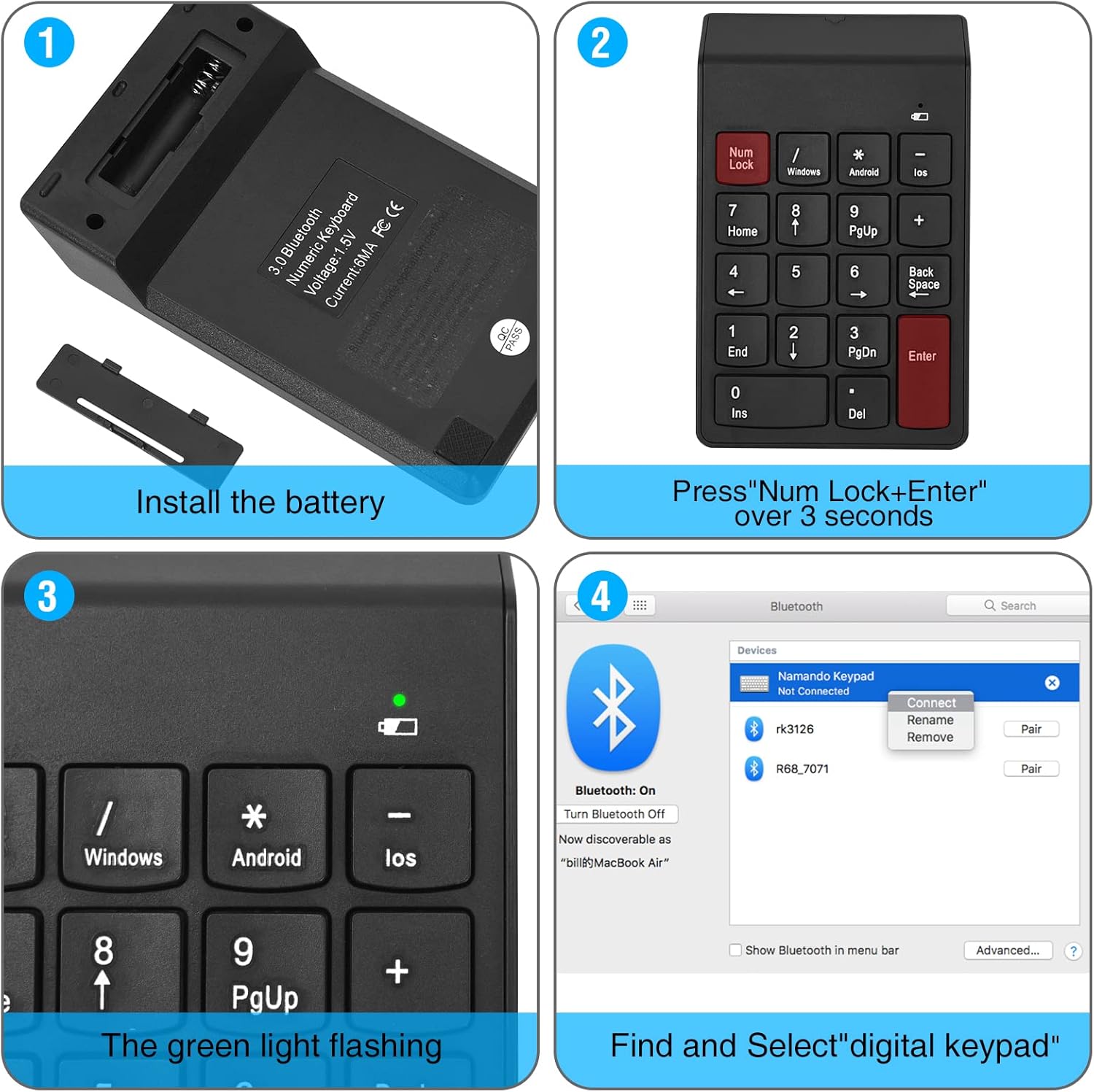
Image 3.2: Step-by-step visual guide for installing the battery and pairing the numeric keypad via Bluetooth to a computer.

Image 3.3: The keypad connects directly via Bluetooth, eliminating the need for a USB dongle for a clean, wireless setup.
4. Operation
4.1 Basic Keypad Use
After successful pairing, the numeric keypad functions like a standard 18-key numeric pad. Use the number keys for data entry and arithmetic operations. The Num Lock key toggles the numeric function of the keys.
4.2 Operating System Switching
The keypad supports Windows, Android, and iOS operating systems. To switch between modes, use the following key combinations:
- For Windows: Press Enter + / simultaneously.
- For Android: Press Enter + * simultaneously.
- For iOS: Press Enter + - simultaneously.
To reset the Num Lock function, press Enter + Num Lock simultaneously.

Image 4.1: Key combinations for switching operating system modes and resetting Num Lock on the keypad.
4.3 Battery Status Indicator
The keypad features a low voltage alarm. A red light will flash when the battery voltage drops below 0.9V, indicating that the AAA battery needs to be replaced soon.
4.4 Sleep Mode and Wake-up
To conserve battery life, the keypad enters standby mode after 3 seconds of inactivity and sleep mode after 10 minutes of inactivity. To wake the keypad from sleep mode, press any button.
5. Maintenance
5.1 Battery Replacement
When the low voltage indicator flashes, replace the AAA battery promptly to ensure uninterrupted operation. Refer to section 3.1 for battery installation instructions.
5.2 Cleaning
To clean the keypad, gently wipe the surface with a soft, dry cloth. Avoid using harsh chemicals or abrasive materials.
6. Troubleshooting
- Keypad not pairing:
- Ensure the battery is correctly installed and has sufficient charge.
- Confirm the keypad is in pairing mode (green light flashing) by pressing NUM LOCK + Enter for 3 seconds.
- Make sure Bluetooth is enabled on your device and it is discoverable.
- Try removing any previous pairings of "digital Keypad" from your device's Bluetooth list and attempt to pair again.
- Ensure the keypad is within the 10-meter operating range of your device.
- Keys not responding:
- Check if the keypad is properly paired and connected to your device.
- Verify the battery level; replace if low.
- Ensure the correct operating system mode is selected (Windows, Android, iOS) using the key combinations described in section 4.2.
- If the Num Lock function is not working as expected, try resetting it by pressing Enter + Num Lock.
- Keypad frequently disconnects:
- Replace the battery with a fresh one.
- Ensure there are no significant obstructions or sources of interference between the keypad and your device.
- Keep the keypad within the recommended 10-meter operating distance.
7. Specifications
| Model Number | G1MINI-BK |
| Connectivity Technology | Bluetooth 3.0 |
| Number of Keys | 18 |
| Switch Type | Membrane |
| Power Source | 1 x AAA Battery (not included) |
| Low Voltage Alarm | Red light flashes below 0.9V |
| Standby Time | Keyboard enters standby after 3 seconds of inactivity |
| Sleep Mode | After 10 minutes of inactivity |
| Wake Method | Press any button |
| Working Distance | Up to 10 meters (33 feet) |
| Dimensions (L x W x H) | 5.51" x 3.39" x 0.39" (140mm x 86mm x 10mm) |
| Material | Plastic |
| Color | BT-Black |
7.1 Compatibility
- Windows: Suggested above Windows 8.0
- macOS: Suggested above macOS 10.10
- Android: Suggested above Android 4.3

Image 7.1: The keypad features a 15-degree ergonomic tilt designed for comfortable use during extended periods of data entry.
8. Warranty Information
For detailed warranty information, please refer to the product packaging or contact cimetech customer support directly. Warranty terms may vary by region and retailer.
9. Customer Support
If you encounter any issues or have questions regarding your cimetech Bluetooth Numeric Keypad, please visit the official cimetech website or contact their customer service department for assistance. Contact information can typically be found on the product packaging or the manufacturer's website.