
EasySMX ESM-9013
EasySMX 2.4G Wireless Controller User Manual
Model: ESM-9013
Product Overview
The EasySMX 2.4G Wireless Controller is designed for a versatile gaming experience across multiple platforms. It features vibration feedback, precise controls, and a TURBO function for enhanced gameplay.

Image: Front view of the EasySMX 2.4G Wireless Controller, showcasing its white body with colorful splatter design and illuminated central button.

Image: The EasySMX 2.4G Wireless Controller displayed alongside its compact USB receiver, highlighting the wireless connectivity component.
Package Contents
- EasySMX 2.4G Wireless Controller
- USB Receiver
- User Manual (this document)
Controller Layout

Image: Detailed diagram of the EasySMX 2.4G Wireless Controller, labeling all buttons and components including analog sticks, D-pad, action buttons (X, Y, B, A), shoulder buttons (LB, RB), triggers (LT, RT), Home, Start, Back, TURBO, LED, and Player Indicators.
Familiarize yourself with the controller's buttons and their functions:
- Left Analog Stick & L3: Used for movement and camera control. Press down for L3.
- Right Analog Stick & R3: Used for camera control or specific in-game actions. Press down for R3.
- D-pad: Directional pad for precise directional input.
- A/B/X/Y Buttons: Action buttons for in-game commands.
- LB/RB Buttons: Left and Right Bumper buttons.
- LT/RT Triggers: Left and Right Analog Triggers for pressure-sensitive input.
- Home Button: Central button, typically for system menus or returning to home screen.
- Start Button: Used to pause games or access menus.
- Back Button: Used for various functions depending on the game or system.
- TURBO Button: Activates rapid fire for assigned buttons.
- LED/Player Indicators: Lights indicating connection status or player number.

Image: Close-up view highlighting the D-pad, A/B/X/Y buttons, and analog joysticks, emphasizing their high sensitivity and accuracy. Text indicates D-pad is pressure sensitive, A/B/X/Y are action buttons, and joysticks offer 360-degree movement without dead zones.
Setup Guide
1. Powering the Controller
The controller is powered by batteries. To install or replace batteries:
- Locate the battery compartment on the back of the controller.
- Press the button on the battery compartment and push backwards to open the cover.
- Insert the batteries, ensuring correct polarity.
- Close the battery compartment cover securely.

Image: Diagram showing the location of the battery compartment button and the action required to push the cover backwards to open it, with an inset showing the open compartment and battery insertion.
2. Connecting the Controller
The EasySMX 2.4G Wireless Controller connects via a USB receiver.
- Insert the USB receiver into an available USB port on your PC, PS3, Android TV Box, or Android device (OTG cable required for Android phones).
- Turn on the controller. The controller should automatically pair with the receiver.
- The player indicator LEDs on the controller will illuminate to show successful connection and player number.
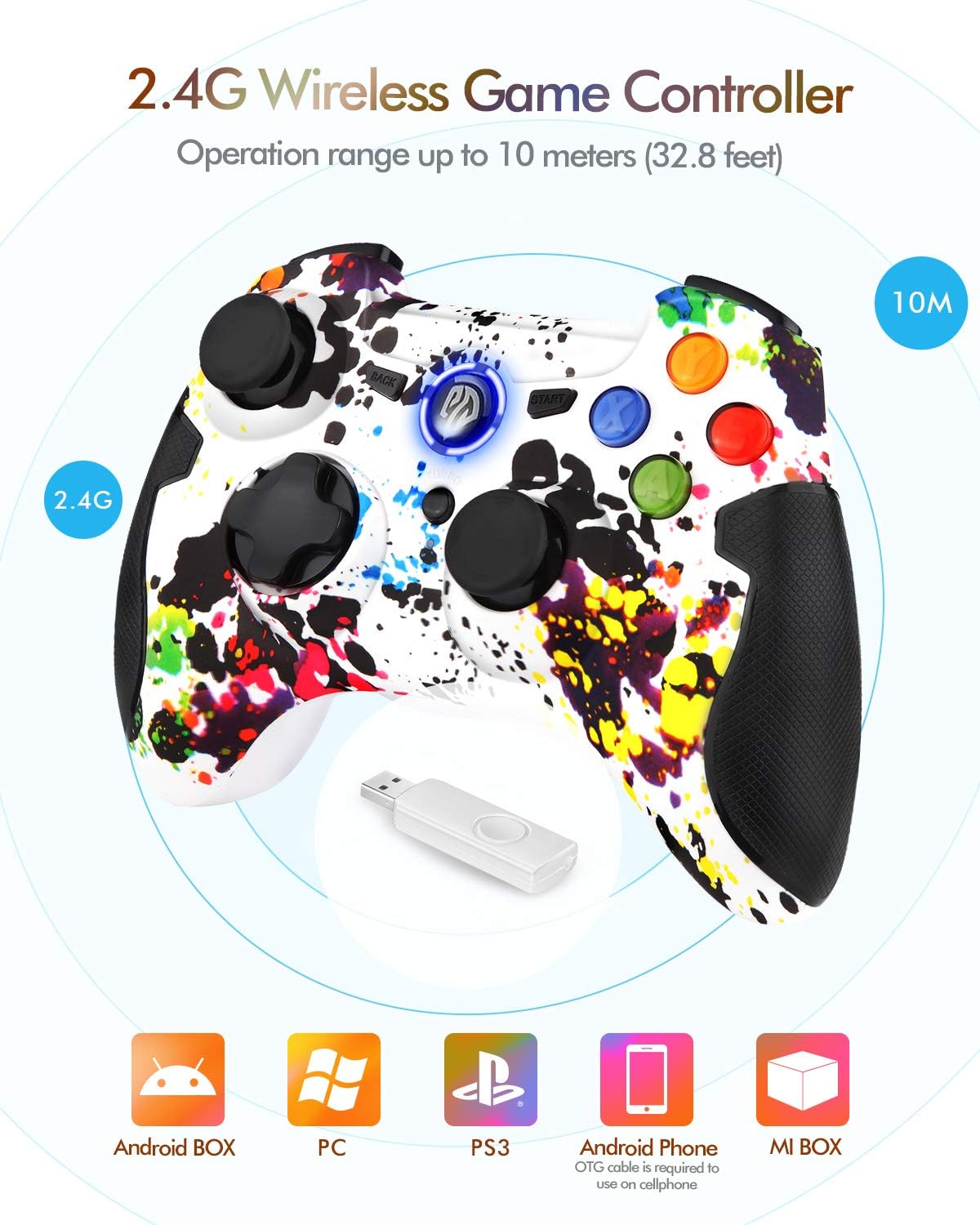
Image: Illustration demonstrating the 2.4G wireless range of up to 10 meters and compatibility icons for Android BOX, PC, PS3, Android Phone (with OTG cable), and MI BOX, indicating the controller's broad platform support.
Compatibility Notes:
- PC: Compatible with Windows XP / 7 / 8 / 8.1 / 10 / Steam. Games should support Xinput / DirectInput mode. Some games may require button mapping.
- Android: Version 4.0 or above, device must fully support OTG function. Games should support Android. Some games may require button mapping.
- PlayStation 3: Plug and play functionality.
- Unsupported Devices: This device does not support Xbox 360 / Xbox One / PS4 / MAC OS.
Operating Instructions
Basic Operation
Once connected, the controller functions as a standard gamepad. Use the analog sticks for movement and camera control, the D-pad for directional input, and the A/B/X/Y buttons for actions.
TURBO Function
The TURBO function allows for rapid firing of a selected button without repeated presses.
- Hold down the button you wish to set for rapid fire (e.g., A button).
- While holding the action button, press the TURBO button once.
- Release both buttons. The selected button will now fire rapidly when held down.
- To cancel the TURBO function for that button, hold the same action button and press the TURBO button again.
Vibration Feedback
The controller provides vibration feedback for an immersive gaming experience. This feature is automatically enabled when supported by the game.
Maintenance
- Keep the controller and USB receiver clean and dry.
- Wipe with a soft, dry cloth. Do not use harsh chemicals or abrasive cleaners.
- Avoid exposing the controller to extreme temperatures or direct sunlight.
- Store the controller in a safe place when not in use to prevent damage.
- Remove batteries if the controller will not be used for an extended period to prevent leakage.
Troubleshooting
Controller Disconnection Issues
If your controller frequently disconnects:
- Check Battery Status: Ensure the controller has sufficient battery power. Replace batteries if low.
- Wireless Interference: Check for other wireless devices operating nearby that might cause interference. Try moving closer to the USB receiver.
- Re-plug USB Receiver: Disconnect and re-insert the USB receiver into the port.
Controller Not Powering On
If you are unable to power on the controller:
- Battery Orientation: Verify that the batteries are inserted with the correct polarity (not upside down).
- Battery Contact: Gently lift the battery metal contact pieces slightly to ensure good contact with the batteries.
- Rechargeable Models: If your model is rechargeable, ensure it is fully charged.
Controller Not Recognized on PC
If the controller is not recognized or functioning correctly on Windows systems:
- Try installing the latest version of the Microsoft Xbox 360 Controller gamepad driver. This driver often provides compatibility for various PC gamepads.
Specifications
| Feature | Detail |
|---|---|
| Model Number | ESM-9013 |
| Connectivity | 2.4G Wireless (USB Receiver) |
| Wireless Range | Up to 10 meters (32.8 feet) |
| Compatible Platforms | PC (Windows XP/7/8/8.1/10/Steam), PlayStation 3, Android (4.0+ with OTG), Android TV Box |
| Power Source | Battery Powered |
| Dimensions (LxWxH) | 6.89 x 3.07 x 5.31 inches |
| Weight | 7.8 ounces |
| Manufacturer | HTQ US |
Warranty and Support
For product support or warranty inquiries, please contact EasySMX customer service. Refer to your purchase documentation for specific warranty terms and contact information.
If the product has any use problems, please inform the seller in advance.
You can also visit the official EasySMX store for more information: EasySMX Store
Related documentsESM-9013


Ask a question about this manual
Ask about setup, troubleshooting, compatibility, parts, safety, or missing instructions. Manuals+ will review the question and use this page’s manual context to help answer it.