
1. Introduction
The Darmoshark N1 Gaming Mouse is engineered for high-performance gaming, featuring a lightweight honeycomb shell design and an ultralight Ultraweave cable. This manual provides comprehensive instructions for setting up, operating, and maintaining your N1 gaming mouse to ensure optimal performance and longevity.
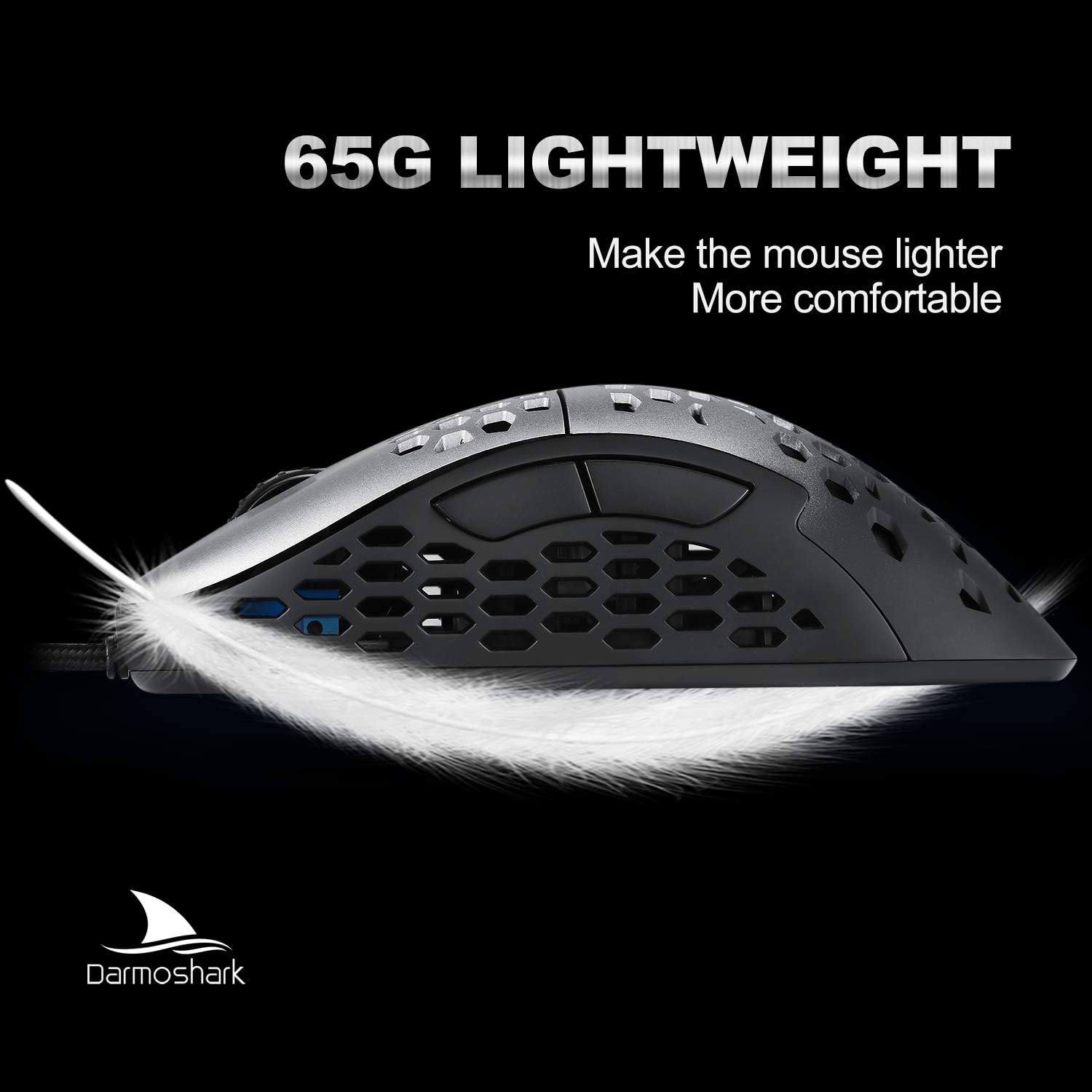
Image: Side view of the Darmoshark N1 Gaming Mouse, showcasing its lightweight honeycomb shell and ergonomic shape.
2. Setup
- Unpack the Mouse: Carefully remove the Darmoshark N1 Gaming Mouse from its packaging.
- Connect to Computer: Plug the USB connector of the mouse's Ultraweave cable into an available USB port on your computer.
- Driver Installation: The mouse is plug-and-play. Your operating system (PC Windows or Mac OS) will automatically detect and install the necessary drivers. No additional software installation is typically required for basic functionality.
- Placement: Place the mouse on a clean, flat surface or a mouse pad for optimal tracking.
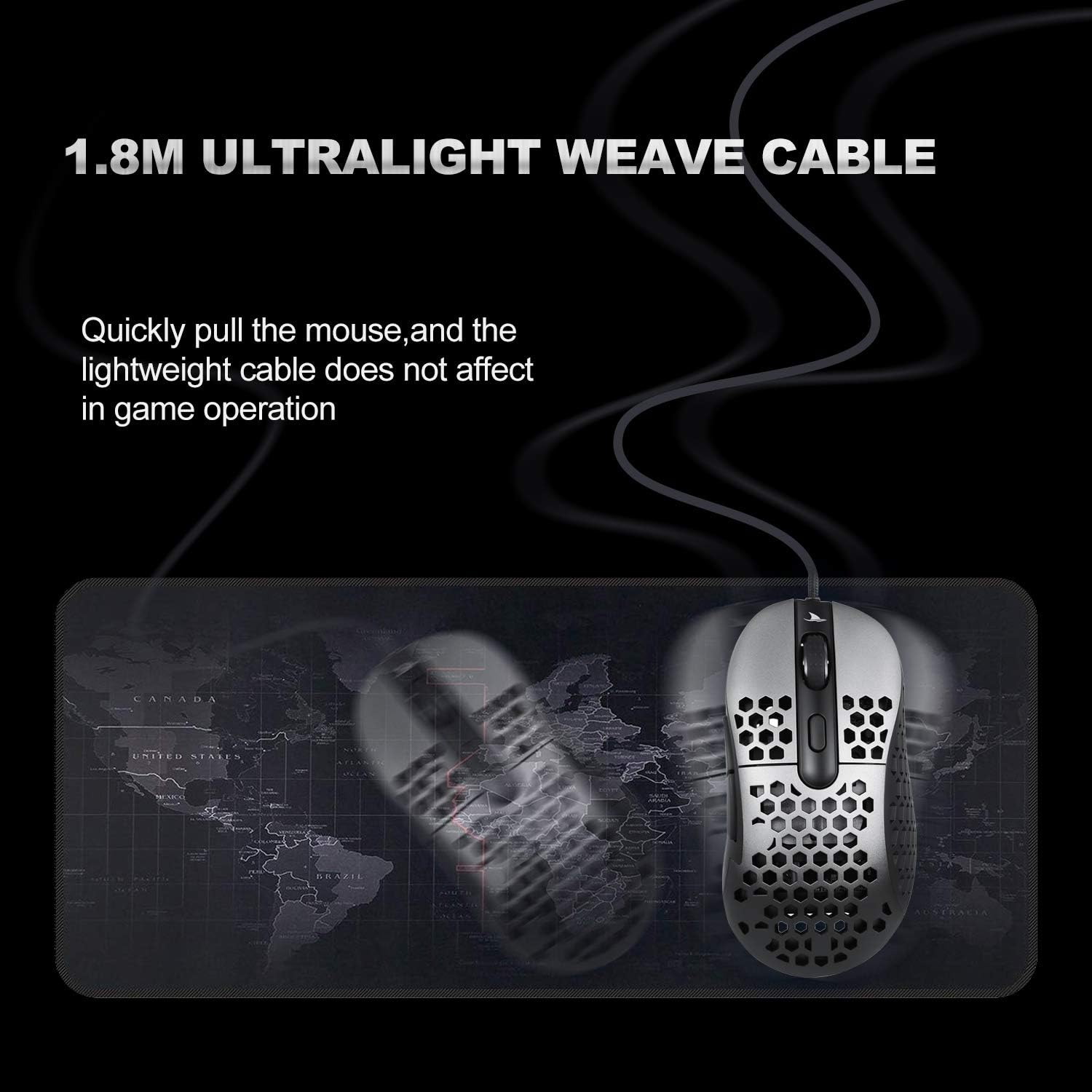
Image: The Darmoshark N1 Gaming Mouse connected via its ultralight Ultraweave cable, ready for use on a mouse pad.
3. Operating Instructions
3.1 DPI Adjustment
The Darmoshark N1 features a gaming-grade optical sensor with adjustable DPI settings. You can cycle through predefined DPI levels using the dedicated DPI button, typically located on the underside of the mouse or near the scroll wheel. The default DPI sections are: 400, 800, 1600, 3200, 4800, and 6400 DPI. The internal LED lighting may change color to indicate the current DPI setting.
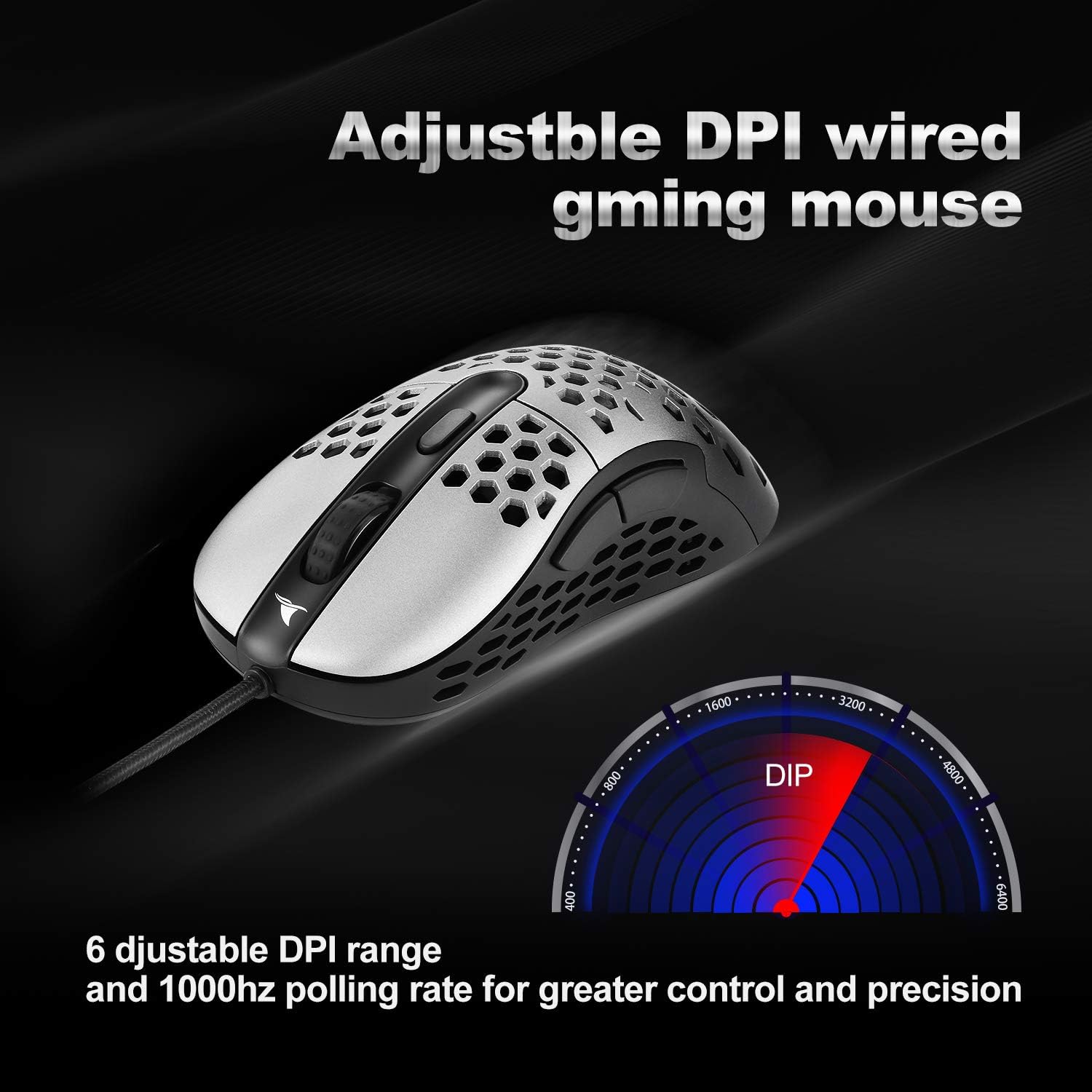
Image: Visual representation of the 6 adjustable DPI ranges (400-6400) and 1000Hz polling rate for the Darmoshark N1 Gaming Mouse.
3.2 Button Functions
The mouse is equipped with 8 programmable buttons, optimized for right-handed gaming. These include the standard left/right click, scroll wheel click, two side buttons, and the DPI adjustment button. The left and right click switches are rated for 20 million presses, ensuring durability.
3.3 Ergonomics and Comfort
The N1 mouse features an ergonomic, ambidextrous shape designed for comfort during extended use. The lightweight honeycomb shell helps reduce palm sweat and wrist fatigue.
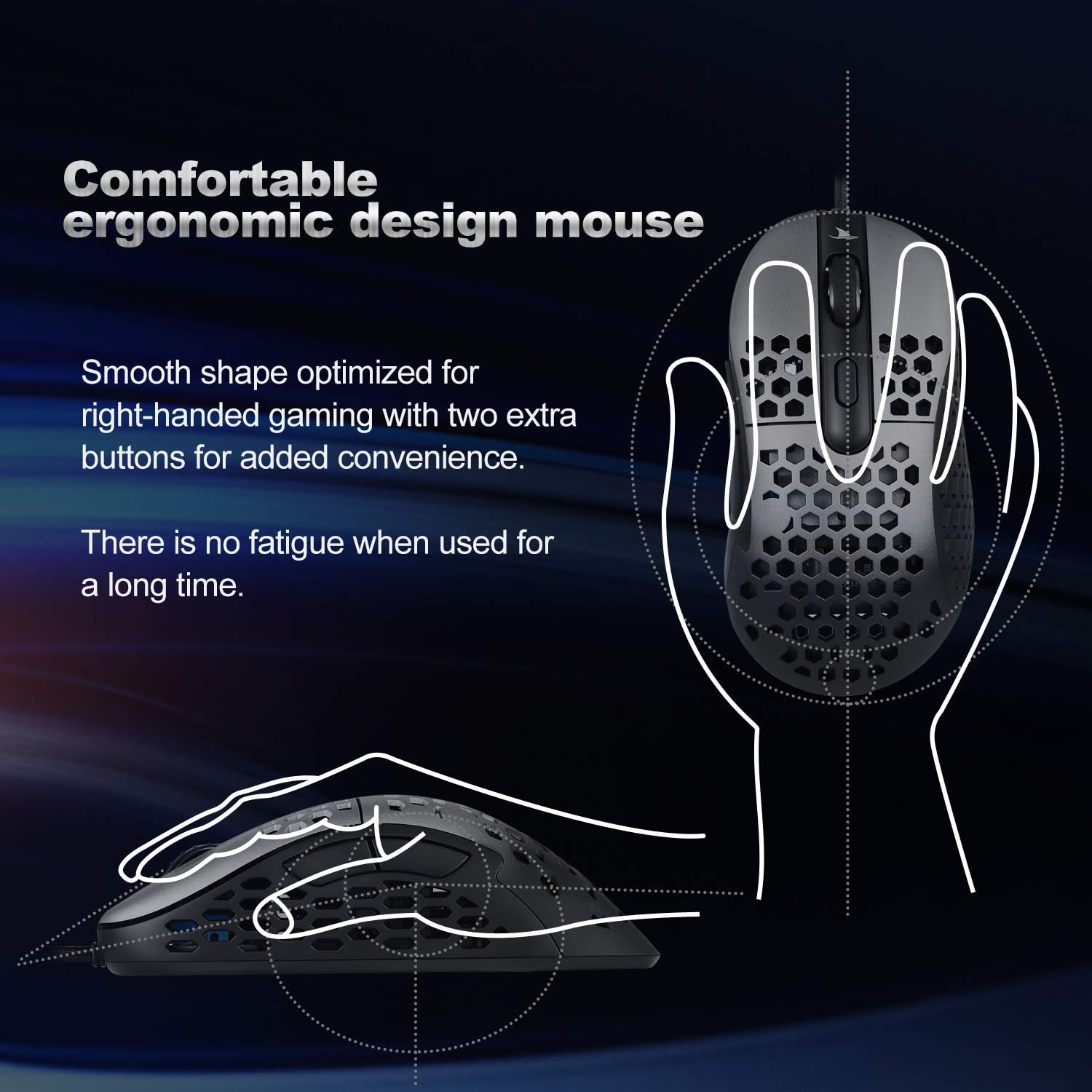
Image: Diagram highlighting the comfortable ergonomic design of the Darmoshark N1 Gaming Mouse, optimized for right-handed use with extra buttons.
3.4 Optical Sensor Performance
The advanced PMW 6400 optical gaming sensor provides exceptional tracking accuracy. Key performance metrics include:
- DPI Range: 400 to 6400 DPI
- FPS: 6200 FPS
- IPS: 220 IPS
- Polling Rate: 1000 Hz
- Acceleration: 20G
- Cursor Speed: 80 in/s

Image: Close-up view of the gaming-grade optical sensor (Pixart 6400) within the Darmoshark N1 Gaming Mouse, capable of 6400 DPI and high tracking speeds.
4. Maintenance
To ensure the longevity and optimal performance of your Darmoshark N1 Gaming Mouse, follow these simple maintenance guidelines:
- Cleaning the Surface: Use a soft, dry cloth to wipe the exterior of the mouse. For stubborn dirt, slightly dampen the cloth with water. Avoid using harsh chemicals or abrasive materials.
- Cleaning the Optical Sensor: Periodically inspect the optical sensor on the underside of the mouse for dust or debris. Use a cotton swab or compressed air to gently clean the sensor area.
- Cable Care: Avoid sharp bends or excessive pulling on the Ultraweave cable to prevent damage.
5. Troubleshooting
5.1 Mouse Not Responding
- Check USB Connection: Ensure the USB cable is securely plugged into a working USB port on your computer. Try a different USB port.
- Restart Computer: Sometimes a simple computer restart can resolve connectivity issues.
- Test on Another Computer: If possible, test the mouse on another computer to determine if the issue is with the mouse or your computer's setup.
5.2 DPI Settings Not Changing
- Press DPI Button Firmly: Ensure you are pressing the DPI adjustment button completely.
- Check for Software Conflicts: If you have any third-party mouse software installed, it might be overriding the mouse's native DPI settings. Try disabling or uninstalling such software.
5.3 Inaccurate Tracking or Cursor Jumps
- Clean Optical Sensor: Dust or debris on the optical sensor can cause tracking issues. Refer to the Maintenance section for cleaning instructions.
- Check Surface: Ensure the mouse is used on a clean, non-reflective, and uniform surface. Highly reflective or uneven surfaces can interfere with optical tracking.
6. Specifications
| Product Dimensions | 7.48 x 5.35 x 2.05 inches |
| Item Weight | 2.29 ounces (65g) |
| Item Model Number | DMN1-greyblack |
| Brand | Darmoshark |
| Connectivity Technology | USB (Wired) |
| Movement Detection Technology | Optical (Pixart 6400 Sensor) |
| DPI Range | 400 - 6400 DPI (Adjustable) |
| Polling Rate | 1000 Hz |
| Buttons | 8 Programmable Buttons |
| Switch Lifespan | 20 Million Clicks (Left/Right) |
7. Warranty and Support
The Darmoshark N1 Gaming Mouse comes with a 30-day money-back guarantee and a 2-year worry-free warranty. For technical support, warranty claims, or any product-related inquiries, please contact Darmoshark customer service through the retailer where the product was purchased or visit the official Darmoshark website for contact information.
8. Product Overview Video
Video: An official overview of the Darmoshark N1 Gaming Mouse, showcasing its design, features, and performance in action.