
Introduction
This manual provides essential instructions for the BoxWave DirectSync Cable. This cable is designed to facilitate both charging and high-speed data synchronization for compatible devices, such as the E&L D58. Please read this manual thoroughly to ensure proper use and optimal performance of your cable.
Product Features
- High-Speed Data Transfer: Supports USB 2.0 data transfers, enabling speeds of up to 480 Mbps for efficient file synchronization.
- Dual Functionality: Engineered to simultaneously charge your device and transfer data, offering convenience and efficiency.
- Durable Construction: Features a shielded cable design for enhanced protection against interference and increased longevity.
- Reinforced Strain Relief: Equipped with strong rubberized grommet strain reliefs at the connector points to prevent kinking and splitting, extending the cable's lifespan.
- Optimal Length: Provides a generous 3-foot (approximately 0.9 meters) length, offering flexibility and ease of use in various environments.
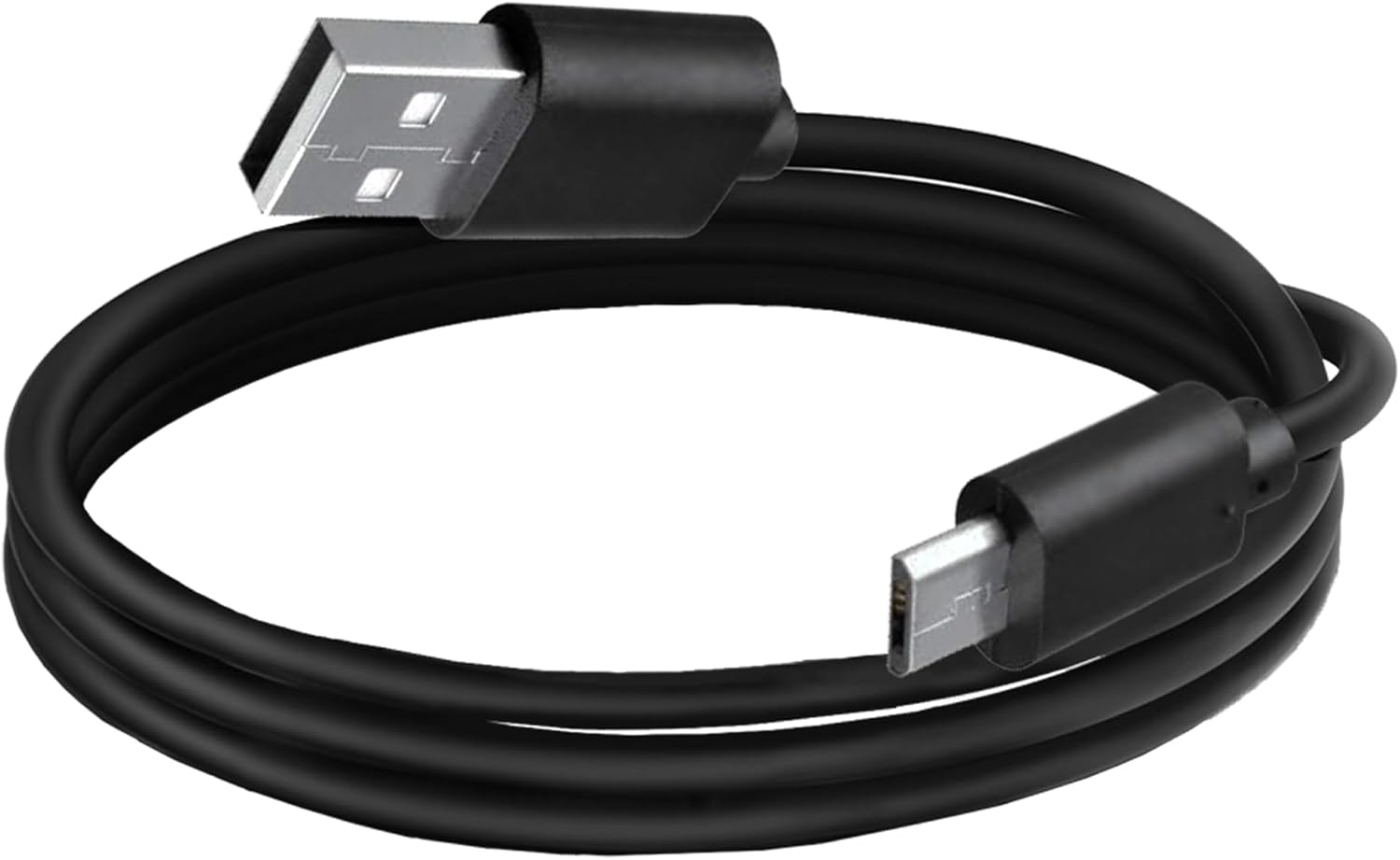
Image: The BoxWave DirectSync Cable, coiled for storage or transport. This cable features a standard USB-A connector on one end and a Micro USB connector on the other.
Setup
- Identify Ports: Locate the Micro USB port on your compatible device (e.g., E&L D58) and an available USB-A port on your charging adapter or computer.
- Connect to Device: Gently insert the Micro USB end of the DirectSync cable into your device's Micro USB port. Ensure it is fully seated and secure.
- Connect to Power/Data Source: Insert the standard USB-A end of the DirectSync cable into a compatible USB power source (such as a wall charger, power bank, or car charger) for charging, or into a computer's USB-A port for data transfer.

Image: The DirectSync cable connected between a laptop and a smartphone, illustrating its dual functionality for charging and data synchronization.
Operating Instructions
Charging Your Device
- After connecting the cable to a power source and your device as described in the Setup section, your device should automatically begin charging.
- Monitor your device's screen for the charging indicator to confirm that power is being received.
Data Synchronization
- When the cable is connected between your device and a computer, your device should be recognized by the computer's operating system.
- Depending on your device's settings, you may need to select a data transfer mode (e.g., File Transfer, MTP, PTP) on your device's screen.
- Follow the on-screen prompts on your computer or device to initiate and manage file transfers.
- Ensure the cable remains securely connected throughout the data transfer process to prevent corruption or interruption.
Maintenance
- Storage: Store the cable in a clean, dry place away from direct sunlight and extreme temperatures when not in use.
- Handling: Avoid sharp bends, kinks, or excessive pulling on the cable, especially near the connectors. This helps preserve the integrity of the internal wiring and the reinforced strain reliefs.
- Cleaning: If dust or debris accumulates on the connectors, gently wipe them with a dry, lint-free cloth. Do not use liquid cleaners directly on the connectors.

Image: A close-up view of the cable's connectors, highlighting the reinforced strain relief design which helps prevent damage from bending.
Troubleshooting
Device Not Charging
- Check Connections: Ensure both the Micro USB end and the USB-A end of the cable are fully and securely inserted into their respective ports.
- Verify Power Source: Try connecting the USB-A end to a different power source (e.g., another wall adapter, a different USB port on your computer, or a different power bank) to rule out an issue with the power supply.
- Inspect Ports: Visually inspect your device's charging port for any debris, lint, or damage that might obstruct the connection.
- Test Cable: If possible, test the DirectSync cable with another compatible device to determine if the issue lies with the cable or your original device.
Data Transfer Issues
- Secure Connections: Confirm that the cable is firmly connected to both your device and the computer.
- Restart Devices: Restart both your device and the computer, then attempt the data transfer again.
- Device Settings: Check your device's settings to ensure that data transfer mode is enabled and that it is not set to 'Charging only'.
- Alternate USB Port: Try connecting the USB-A end to a different USB port on your computer.
Specifications
| Model | DirectSync Cable |
| Connector Type | USB-A to Micro USB |
| Data Transfer Speed | Up to 480 Mbps (USB 2.0 Standard) |
| Cable Length | Approximately 3 feet (0.9 meters) |
| Item Weight | 1.7 ounces (approximately 48 grams) |
| Manufacturer | BoxWave |
Warranty and Support
For any product-related inquiries, technical assistance, or warranty information, please contact BoxWave Corporation directly. Refer to the product packaging or the official BoxWave website for the most current contact details and support resources.