
Introduction
This manual provides detailed instructions for the setup, operation, maintenance, and troubleshooting of your Trust TM-250 Wireless Mouse. Please read this manual carefully before using the product to ensure optimal performance and longevity.
Package Contents
Please verify that all items are present in your package:
- Trust TM-250 Wireless Mouse
- USB Micro Receiver
- User Manual (this document)
- Note: Batteries are not included and must be purchased separately.

Image: Top-down view of the Trust TM-250 Wireless Mouse, highlighting its symmetrical, ambidextrous shape and the Trust brand logo.
Setup
1. Installing Batteries
Locate the battery compartment on the underside of the mouse. Open the compartment cover. Insert the required batteries (typically AA or AAA, refer to the compartment label) ensuring correct polarity (+/-). Close the battery compartment cover securely.
2. Connecting the USB Receiver
Remove the USB micro receiver from its storage slot, usually located within the battery compartment or on the underside of the mouse. Plug the USB receiver into an available USB port on your computer. Your operating system should automatically detect and install the necessary drivers.
3. Powering On
Slide the power switch, located on the underside of the mouse, to the "ON" position. The mouse should now be ready for use.
Operating
Basic Functions
- Left Click: Primary button for selecting items and interacting with software.
- Right Click: Secondary button for context menus and additional options.
- Scroll Wheel: Used for scrolling through documents and web pages. Can also function as a middle click button.
DPI Adjustment
The Trust TM-250 mouse features a dedicated DPI (Dots Per Inch) button, typically located behind the scroll wheel. Pressing this button allows you to cycle through different cursor sensitivity settings: 800, 1200, and 1600 PPP (DPI). Select the sensitivity that best suits your preference and task.
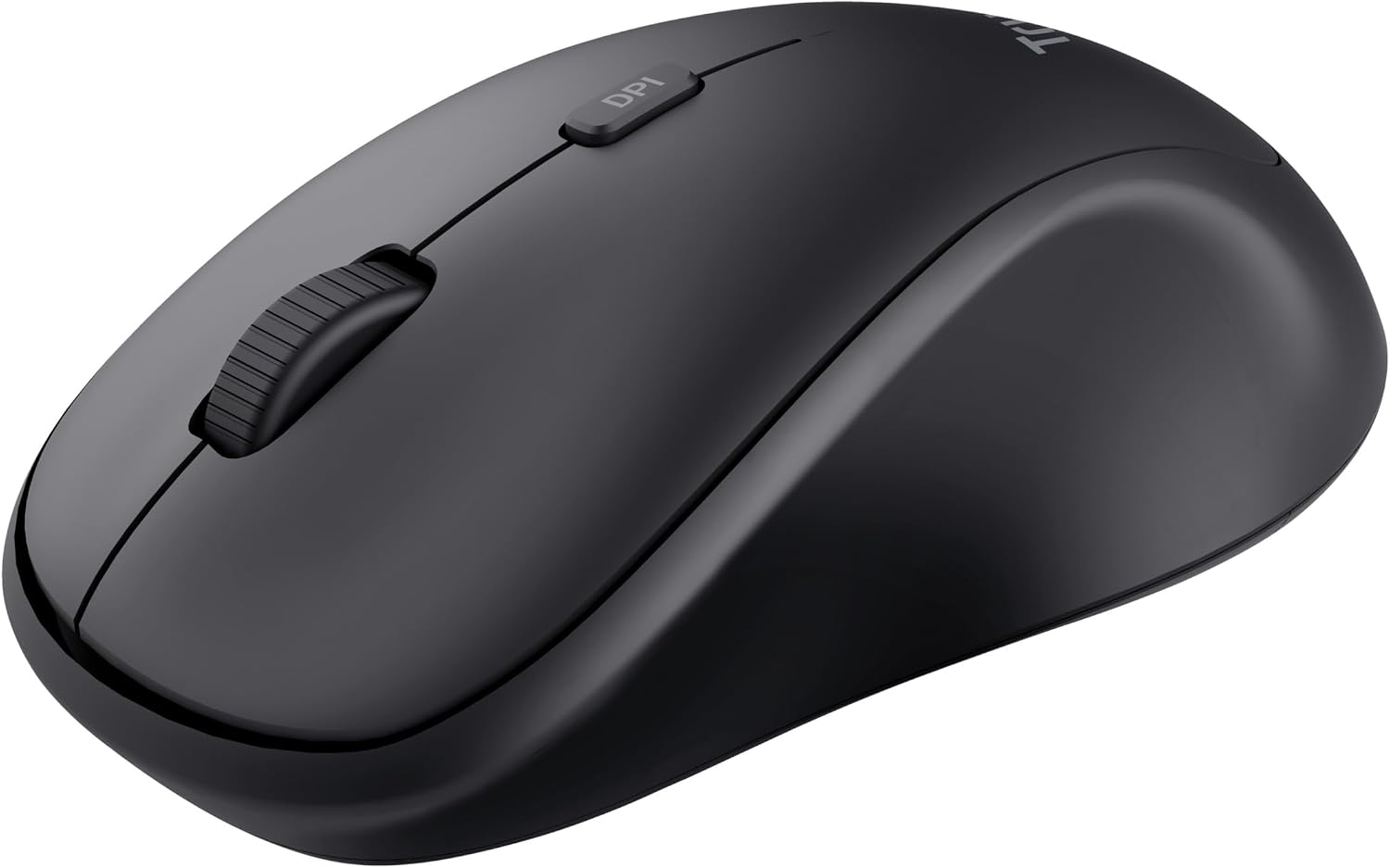
Image: Angled view of the Trust TM-250 Wireless Mouse, highlighting the scroll wheel and the DPI adjustment button located just behind it.
Ambidextrous Design
The symmetrical design of the Trust TM-250 makes it suitable for both left-handed and right-handed users, providing comfortable use regardless of your dominant hand.
Maintenance
Cleaning
To clean your mouse, gently wipe the surface with a soft, damp cloth. Avoid using harsh chemicals, abrasive cleaners, or excessive moisture. Ensure no liquid enters the mouse's internal components. Regularly clean the optical sensor on the underside to maintain accurate tracking.
Storage
When not in use for extended periods, turn off the mouse to conserve battery life. Store the USB receiver in its dedicated slot within the mouse to prevent loss. Keep the mouse in a dry, cool environment away from direct sunlight and extreme temperatures.
Troubleshooting
Mouse Not Responding
- Ensure the mouse is powered on.
- Check if the batteries are correctly installed and have sufficient charge. Replace if necessary.
- Verify that the USB receiver is securely plugged into a working USB port on your computer. Try a different USB port.
- Move the mouse closer to the USB receiver to rule out range issues (maximum 8 meters).
- Restart your computer.
Cursor Movement Issues
- Ensure the mouse is used on a suitable surface. Avoid highly reflective or transparent surfaces.
- Clean the optical sensor on the underside of the mouse with a soft, dry cloth.
- Adjust the DPI setting using the DPI button to see if a different sensitivity resolves the issue.
Specifications
| Brand | Trust |
| Model Number | 91187 (Part No. 23636) |
| Connectivity Technology | Wireless |
| DPI Settings | 800 / 1200 / 1600 PPP (Dots Per Inch) |
| Wireless Range | Up to 8 meters |
| Number of Buttons | 3 (Left, Right, Scroll Wheel/Middle Click) |
| Hand Orientation | Ambidextrous |
| Sensor Technology | Optical |
| Power Source | Battery Powered (Batteries not included) |
| Color | Black |
| Compatible Devices | Personal Computer |
Warranty and Support
For information regarding warranty coverage, technical support, or spare parts, please refer to the official Trust website or contact their customer service. Keep your proof of purchase for warranty claims.
You can visit the Trust Brand Store for more product information.


