
Aputure LS 300X
Aputure LS 300X LED Video Light Instruction Manual
Model: LS 300X
Introduction
This manual provides comprehensive instructions for the safe and effective use of your Aputure LS 300X LED Video Light. Please read this manual thoroughly before operating the device and retain it for future reference.
Key Features
- Bi-Color Output: Adjustable color temperature from 2700K to 6500K.
- High Color Accuracy: CRI & TLCI scores of 95+, Tungsten SSI: 85; D55 SSI: 74.
- Bowens-S Mount: Compatible with various optical modifiers like Fresnel 2X and Spotlight.
- Multiple Control Options: Control wheel, 2.4Ghz Aputure Wireless remote, and Sidus Link App via Bluetooth mesh network.
- Built-in Lighting Effects: 9 customizable FX including Paparazzi, Strobe, Lightning, Faulty Bulb, TV, Pulsing, Fireworks, Explosion, and Fire.
- DMX512 Compatibility: Professional control integration.
- Quiet Operation: Ultra-quiet dual-fan cooling system at 18dB.
- Flexible Power: Supports single/dual V-mount batteries (12-16.8V, ≥15A) or AC power (100-240V).
What's in the Box
Verify that all items listed below are included in your package:

Image: Diagram showing the contents of the Aputure LS 300X package, numbered for easy identification.
- Carrying Box x1
- LS 300X Lamp x1
- Control Box x1
- Standard Cover x1
- Quick-Release Clamp x1
- Remote Control (VA-remote RC1+) x1
- Power Cable (Neutrik power CON cable) x1
- Connect Cable (5-pin male-to-female XLR) x1
- Cross Back Strap x1
- Coin Cell Battery x1
- Hanging Wire Post x1

Image: The Aputure LS 300X light kit neatly packed inside its carrying case, showing the main light unit, control box, and cables.
Setup
1. Mounting the Light
- Attach the Quick-Release Clamp to a light stand or appropriate support.
- Secure the Control Box to the Quick-Release Clamp.
- Mount the LS 300X Lamp onto the light stand via its yoke.

Image: The Aputure LS 300X control box securely attached to a light stand using the quick-release clamp.

Image: Close-up of the Aputure LS 300X light's yoke, illustrating its 360-degree rotation capability for flexible positioning.
2. Connecting Power
The LS 300X supports multiple power options:
- AC Power: Connect the Neutrik power CON cable to the control box and a standard AC outlet (100-240V).
- Dual Lithium Battery Power: Insert two V-mount batteries (12-16.8V, ≥15A) into the battery plates on the control box. Ensure batteries are within the specified voltage and current requirements to prevent damage.
- Single Lithium Battery Power: For single battery operation, use the right-side battery interface on the control box. Note that output power will be approximately half compared to dual battery or AC power. The left-side interface does not support single battery power.

Image: Visual guide demonstrating the three power supply methods for the Aputure LS 300X: single V-mount battery, dual V-mount batteries, and AC power connection.

Image: Close-up showing the AC power input port and battery plates on the Aputure LS 300X control box.
3. Attaching Modifiers
The LS 300X features a Bowens-S mount for attaching light modifiers. Align the modifier with the mount and twist to secure it.
Operating Instructions
1. Power On/Off
Locate the power switch on the control box and toggle it to turn the light on or off.
2. Control Methods
The Aputure LS 300X offers multiple ways to control its settings:
- Control Box: Use the integrated control wheel and buttons on the control box for direct adjustments.
- 2.4Ghz Aputure Wireless Remote (RC1+): The included remote allows for wireless control of various functions.
- Sidus Link App: Download the Sidus Link App to your smartphone or tablet to control the light via Bluetooth mesh network. This provides advanced control options and scene programming.
- DMX512: For professional lighting setups, the LS 300X is DMX512 compatible.

Image: The Aputure LS 300X control box display, showing options for remote control, app control via Sidus Link, and DMX integration.

Image: A visual representation of the three primary control methods: Sidus Link App interface, the physical remote control, and a DMX lighting console.

Image: A hand operating the control wheel and buttons on the Aputure LS 300X control box to adjust settings.
3. Adjusting Color Temperature (CCT) and Brightness
Use the control wheel or corresponding buttons on the remote/app to adjust the color temperature from 2700K (warm) to 6500K (cool) and the light intensity (brightness).
The light includes preset buttons for common CCT values: 2700K, 3200K, 4300K, 5500K, and 6500K.

Image: The Aputure LS 300X light unit positioned against a background of various color swatches, illustrating its bi-color capabilities.

Image: The Aputure LS 300X light emitting a warm, golden glow, illuminating a room with a mirror.
4. Dimming Curves
The LS 300X features four dimming curves for precise control over light transitions:
- Linear
- Exponential
- Logarithmic
- S-Curve
5. Special Effects (FX)
Access the 9 built-in lighting effects via the control box, remote, or Sidus Link App. These effects can often be customized with CCT control.
- Paparazzi
- Strobe
- Lightning
- Faulty Bulb
- TV
- Pulsing
- Fireworks
- Explosion
- Fire

Image: The Aputure LS 300X light with an overlay illustrating the 9 built-in lighting effects, each with an icon and name (Paparazzi, Lightning, Explosion, Strobe, Fireworks, Faulty Bulb, Pulse, TV, Fire).
Maintenance
1. Cleaning
- Ensure the device is powered off and unplugged before cleaning.
- Use a soft, dry cloth to wipe the exterior surfaces.
- Do not use harsh chemicals, solvents, or abrasive cleaners.
- Keep the ventilation openings clear of dust and debris.
2. Storage
- Store the light in its original carrying case or a protective bag when not in use.
- Keep the device in a cool, dry place, away from direct sunlight and extreme temperatures.
- Remove batteries if storing for extended periods to prevent leakage.
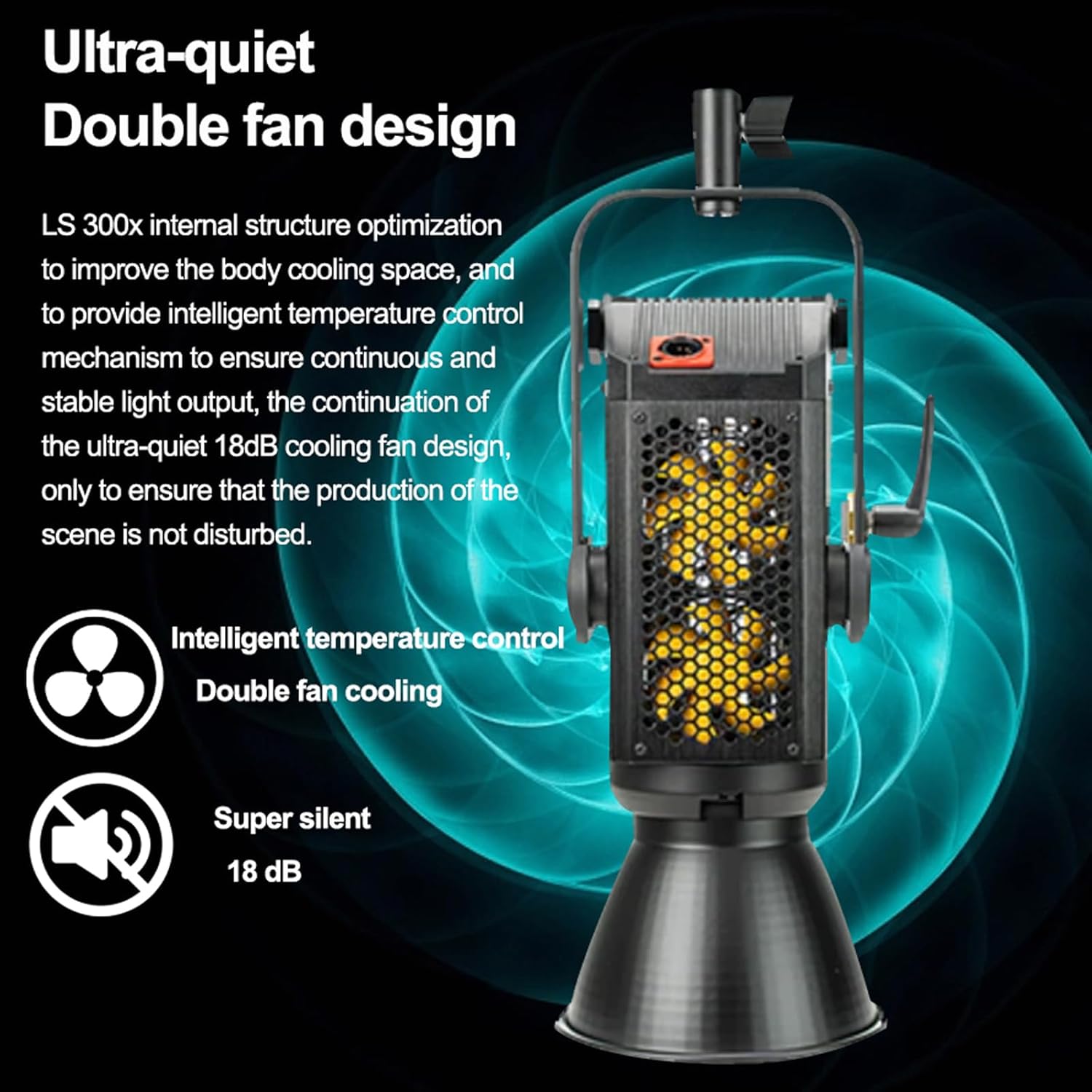
Image: The Aputure LS 300X control box, highlighting its internal structure optimization and ultra-quiet 18dB dual-fan cooling system for intelligent temperature control.

Image: A graphic illustrating the dual-fan, ultra-silent (18 dB) cooling system of the Aputure LS 300X.
Troubleshooting
| Problem | Possible Cause | Solution |
|---|---|---|
| Light does not power on. | No power, loose cable, depleted battery. | Check AC power connection or battery charge. Ensure all cables are securely connected. |
| Remote control not responding. | Remote battery depleted, out of range, interference. | Replace remote battery. Ensure remote is within operating range. Minimize obstructions. |
| Sidus Link App cannot connect. | Bluetooth off, app not updated, device too far. | Ensure Bluetooth is enabled on your device. Update the app. Move closer to the light. |
| Light output is lower than expected. | Single battery power, incorrect battery specifications. | Ensure dual batteries are used or AC power is connected for full output. Verify batteries meet 12-16.8V, ≥15A requirements. |
Specifications
| Feature | Detail |
|---|---|
| Model Number | LS 300X |
| Color Temperature | 2700K-6500K |
| CRI & TLCI | 95+ |
| Tungsten SSI | 85 |
| D55 SSI | 74 |
| Mount Type | Bowens-S Mount |
| Control Methods | Control Wheel, 2.4Ghz Remote, Sidus Link App (Bluetooth), DMX512 |
| Power Supply | AC 100-240V, Dual V-Mount Batteries (12-16.8V, ≥15A) |
| Product Dimensions | 11.42 x 25.2 x 12.99 inches |
| Item Weight | 25 pounds |
Warranty and Support
For warranty information, technical support, or service inquiries, please refer to the official Aputure website or contact their customer service department.
Official Website: www.aputure.com
Please retain your proof of purchase for warranty claims.
Related documentsLS 300X


Ask a question about this manual
Ask about setup, troubleshooting, compatibility, parts, safety, or missing instructions. Manuals+ will review the question and use this page’s manual context to help answer it.