
Cooler Master MFX-B2DN-18NPC-R1
Cooler Master SickleFlow 120 V2 RGB Square Frame Fan User Manual
Model: MFX-B2DN-18NPC-R1
Brand: Cooler Master
1. Introduction
Product Overview
The Cooler Master SickleFlow 120 V2 RGB is a high-performance square frame fan designed to provide efficient air cooling for computer cases and liquid radiators. It features a rejuvenated RGB design, offering customizable lighting effects to enhance your system's aesthetics. The fan incorporates a revised curve blade design for improved airflow and air pressure, along with a refreshed frosted blade for enhanced light dispersion. Its enhanced frame structure reduces turbulent flow and noise, contributing to better efficiency. A sealed and secured fan bearing prevents dust and lubricating oil leakage, increasing the fan’s operational stability and lifespan.
Key Features
- RGB Lighting: Signature cooling performance with an RGB design, offering fully customizable lighting effects.
- New Blade Design: Revised curve blade design to improve airflow and air pressure. Features a refreshed frosted blade for improved lighting and vibrant effects.
- Enhanced Fan Frame: Reinforced square frame structure with added rib-support minimizes turbulent flow and noise for boosted efficiency.
- Sealed Bearing Structure: Sealed and secured fan bearing prevents dust and lubricating oil leakage, increasing the fan’s operation stability and life span.

Figure 1: Cooler Master SickleFlow 120 V2 RGB Fan showcasing its vibrant lighting.

Figure 2: Close-up of the fan's luminescent RGB light, highlighting its customizable nature and 4-pin RGB connector.

Figure 3: Illustration of the new blade design, emphasizing improved airflow (62 CFM) and air pressure (2.5 mmH2O) and the fan's dimensions (120x120x25mm).
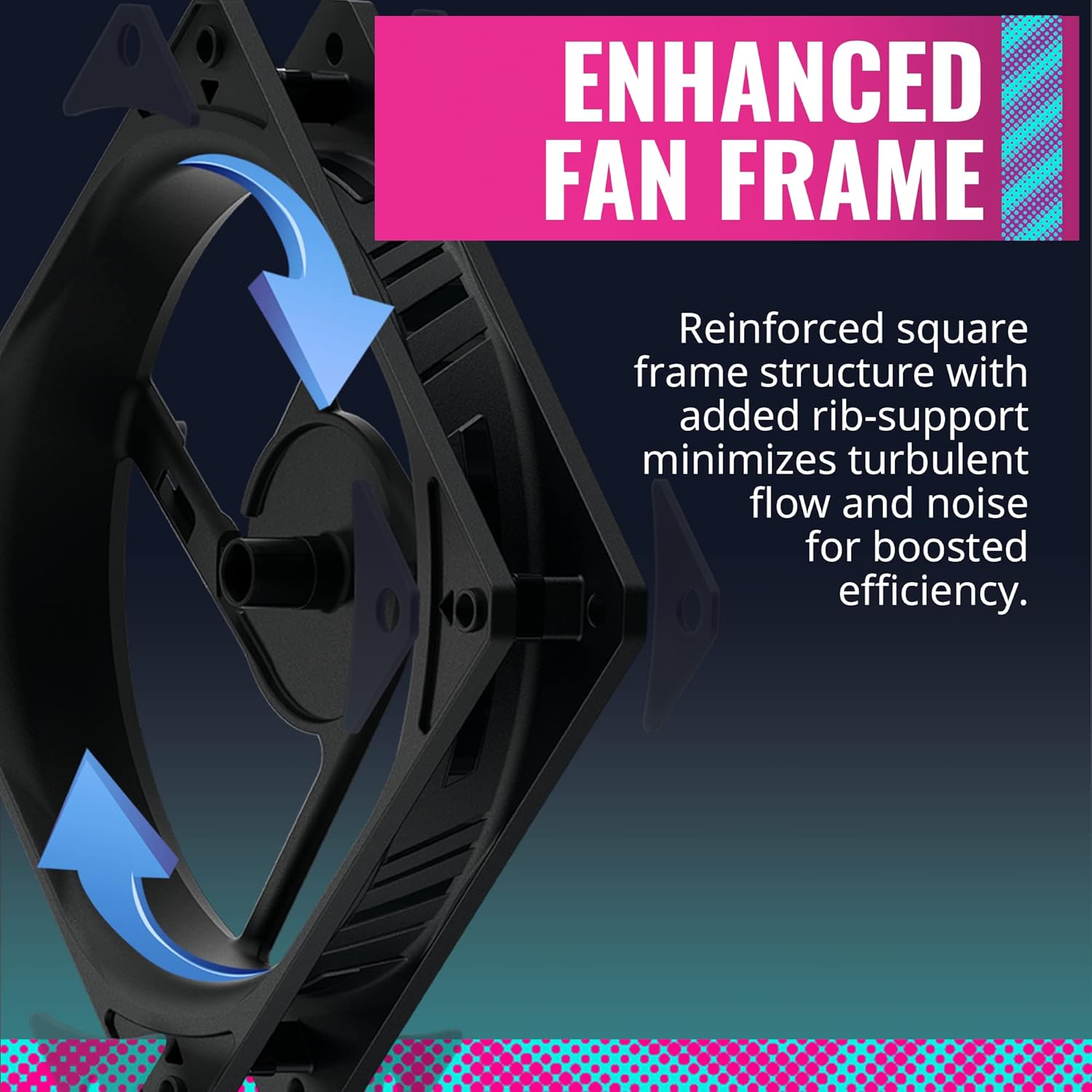
Figure 4: Depiction of the enhanced fan frame, showing how its reinforced structure minimizes turbulent flow and noise for increased efficiency.
Video 1: Official product video showcasing the Cooler Master SickleFlow 120 V2 RGB fan's features and lighting effects.
2. What's in the Box
The Cooler Master SickleFlow 120 V2 RGB package includes the following items:
- SickleFlow 120 V2 RGB Fan
- Mounting Screws
3. Specifications
| Feature | Detail |
|---|---|
| Product Dimensions | 4.72 x 4.72 x 0.98 inches (120 x 120 x 25 mm) |
| Item Model Number | MFX-B2DN-18NPC-R1 |
| Brand | Cooler Master |
| Power Connector Type | 4-Pin PWM |
| Voltage | 12 Volts |
| Wattage | 1.8 watts |
| Cooling Method | Fan |
| Compatible Devices | Desktop Computers |
| Noise Level | 27 dB (Max) |
| Material | Copper (Bearing components) |
| Maximum Rotational Speed | 1800 RPM |
4. Setup and Installation
Before beginning installation, ensure your computer is powered off and unplugged from the wall outlet. It is recommended to wear an anti-static wrist strap to prevent damage to components from static discharge.
Installation Steps:
- Identify Mounting Location: Determine where you want to install the fan (e.g., front, rear, top of case, or on a liquid radiator). Ensure there is sufficient space and appropriate mounting holes.
- Secure the Fan: Align the fan with the mounting holes. Use the provided mounting screws to secure the fan to the case or radiator. Do not overtighten the screws.
- Connect Power (PWM): Locate an available 4-pin fan header on your motherboard. Connect the fan's 4-pin PWM cable to this header. This allows for dynamic speed control.
- Connect RGB: Locate an available 4-pin RGB header (12V-G-R-B) on your motherboard. Connect the fan's 4-pin RGB cable to this header. If daisy-chaining multiple RGB fans, connect them sequentially and then connect the last fan's RGB cable to the motherboard header.

Figure 5: Diagram illustrating the secure connection mechanism for fan cables, ensuring stable and reliable power and RGB connections.
5. Operation
Fan Speed Control (PWM)
The SickleFlow 120 V2 RGB fan utilizes a 4-pin PWM (Pulse Width Modulation) connector, allowing your motherboard or a dedicated fan controller to dynamically adjust the fan speed. This enables optimization between cooling performance and noise levels. You can typically configure fan curves through your motherboard's BIOS/UEFI settings or through software provided by your motherboard manufacturer.

Figure 6: Visual representation of PWM fan control, showing dynamic speed adjustment from 650 RPM to 1800 RPM to minimize noise or maximize airflow.
RGB Lighting Control
The RGB lighting of the SickleFlow 120 V2 RGB fan can be controlled via your motherboard's RGB software (e.g., ASUS Aura Sync, GIGABYTE RGB Fusion, MSI Mystic Light Sync, ASRock Polychrome Sync) or a compatible RGB controller. Ensure your motherboard has a 4-pin RGB header (12V-G-R-B) to utilize this feature. This allows for synchronization of lighting effects across compatible components and customization of colors and patterns.
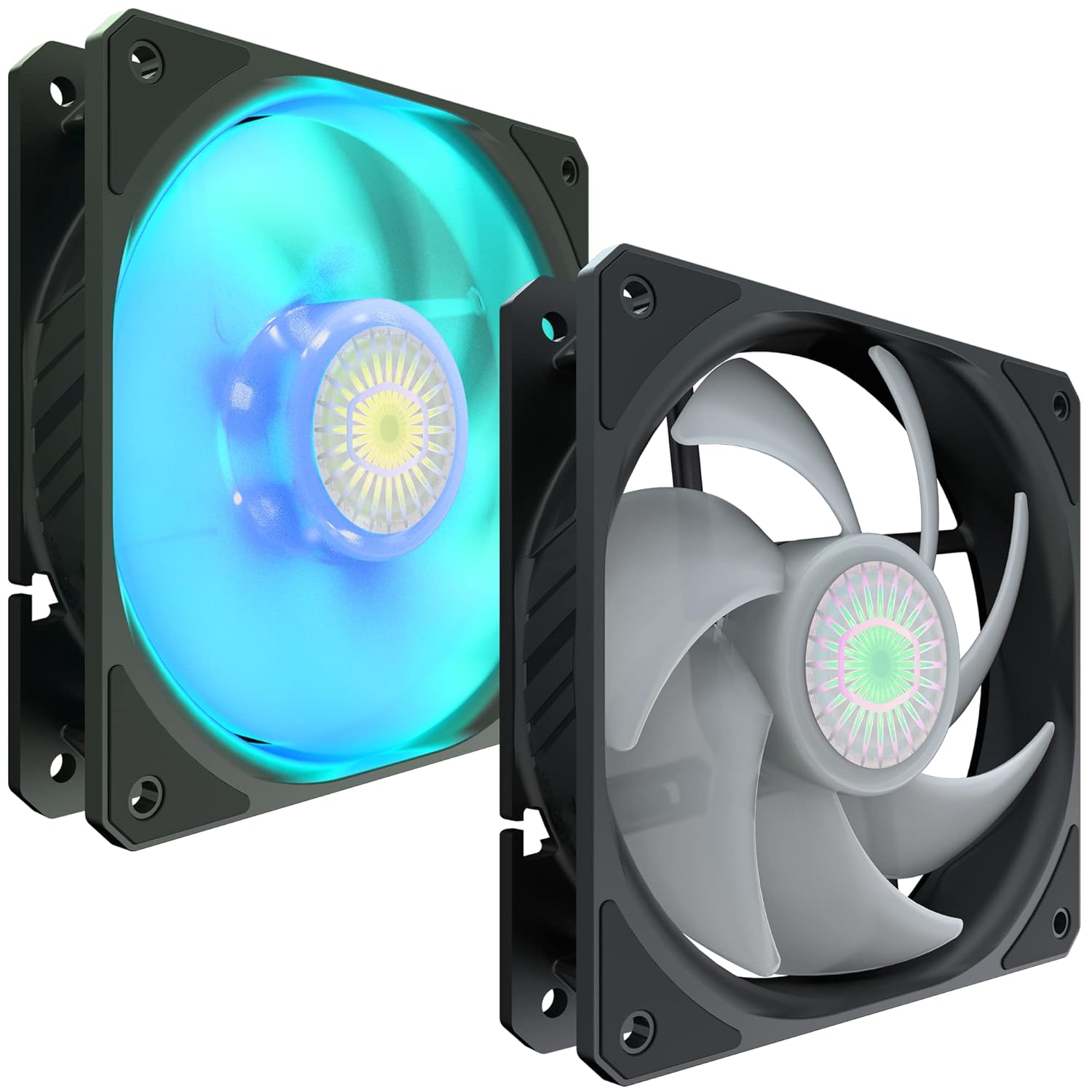
Figure 7: The SickleFlow fan illuminated with blue RGB lighting, demonstrating its visual appeal.
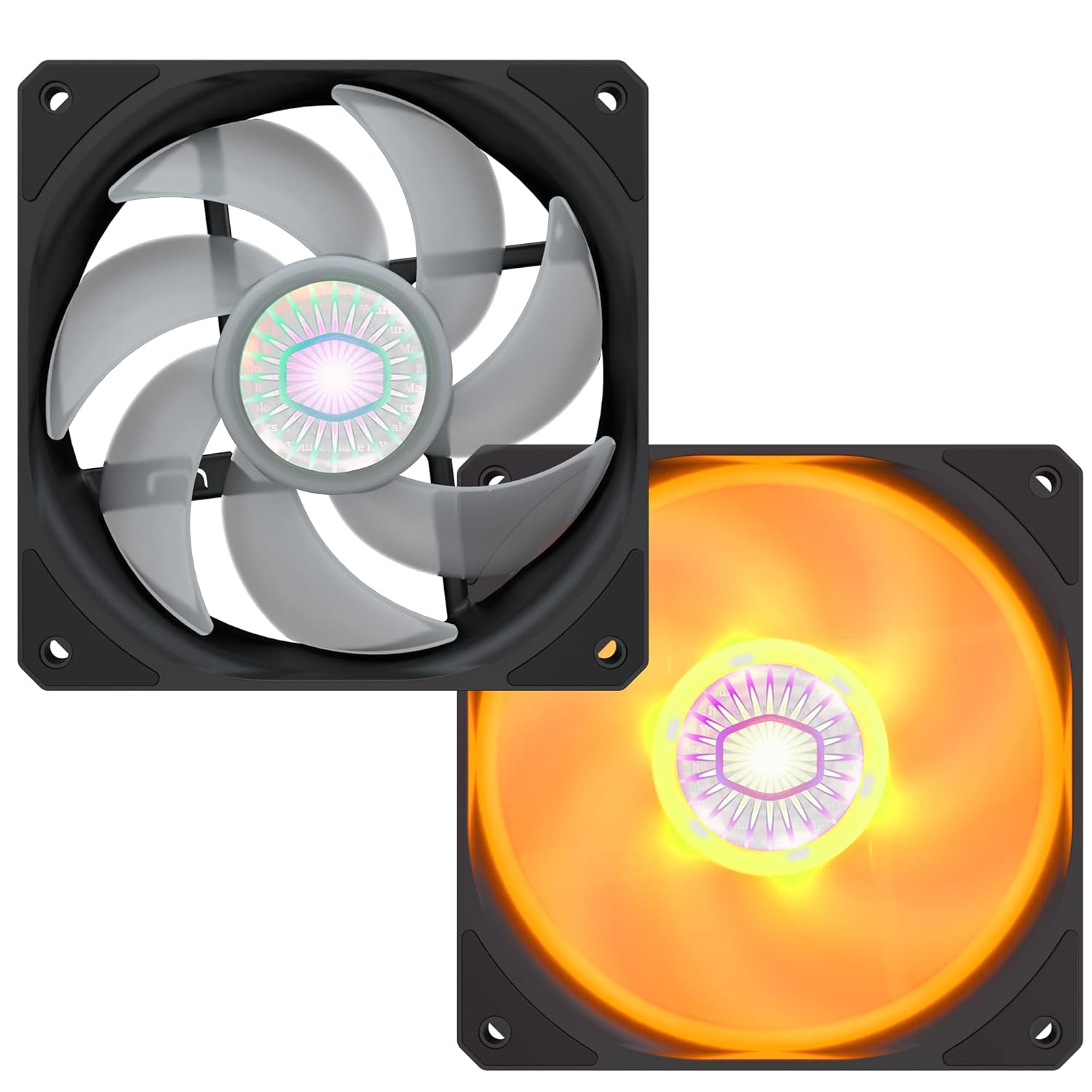
Figure 8: The SickleFlow fan illuminated with orange RGB lighting, showcasing another color option.
6. Maintenance
Cleaning
To maintain optimal performance and airflow, it is recommended to regularly clean dust from your fan blades and frame. Use compressed air or a soft, dry cloth to gently remove dust buildup. Ensure the fan is powered off and disconnected from the power supply before cleaning.
Bearing Maintenance
The SickleFlow 120 V2 RGB fan features a sealed and secured bearing structure designed to prevent dust ingress and lubricating oil leakage. This design ensures long-term stability and lifespan without requiring user maintenance or lubrication.

Figure 9: Cross-section view illustrating the two-tier sealing mechanism of the fan's bearing, designed to prevent dust and oil leakage and enhance lifespan.
7. Troubleshooting
| Problem | Possible Cause | Solution |
|---|---|---|
| Fan not spinning | Incorrect or loose power connection. | Ensure the 4-pin PWM cable is securely connected to the motherboard fan header. Check BIOS settings to ensure the fan header is enabled and configured correctly. |
| RGB lighting not working | Incorrect or loose RGB connection; incompatible RGB header; software issue. | Verify the 4-pin RGB cable is securely connected to a 12V-G-R-B RGB header on your motherboard. Ensure your motherboard's RGB software is installed and updated. Confirm the header is enabled in BIOS. |
| Fan is too loud | Fan running at maximum speed; dust buildup. | Adjust the fan speed curve in your motherboard's BIOS/UEFI or fan control software to a lower RPM. Clean any dust from the fan blades and frame. |
| Insufficient cooling performance | Fan speed too low; improper airflow direction; dust buildup. | Increase fan speed through BIOS/software. Ensure the fan is oriented correctly for optimal airflow (intake or exhaust). Clean the fan and surrounding area. |
8. Warranty and Support
Cooler Master products are backed by a manufacturer's warranty. For detailed information regarding warranty terms, conditions, and duration, please refer to the official Cooler Master website or the warranty card included with your product.
For technical support, product inquiries, or to download the latest drivers and software, please visit the official Cooler Master support page:
You can also find a PDF version of the user manual for this product here: User Manual (PDF)
Related documentsMFX-B2DN-18NPC-R1


Ask a question about this manual
Ask about setup, troubleshooting, compatibility, parts, safety, or missing instructions. Manuals+ will review the question and use this page’s manual context to help answer it.