
1. Introduction
Thank you for choosing the iClever GKA2-01B Wireless Keyboard. This manual provides comprehensive instructions to help you set up, operate, and maintain your new keyboard. Please read this manual carefully before use to ensure optimal performance and longevity of your device.
2. Package Contents
- iClever GKA2-01B Wireless Keyboard
- USB Cable
- 2.4G USB Receiver
- User Manual (this document)
3. Product Overview
Key Features
- MAC & WINDOWS LAYOUT: Fully compatible with Windows and Mac systems. Easily switch between modes.
- SILENT WIRELESS KEYBOARD: Advanced scissor switch quiet keys design for comfortable and smooth typing with reduced noise.
- STABLE 2.4G WIRELESS CONNECTION: Reliable connection up to 10m (33 feet) with plug-and-play functionality.
- LASTING RECHARGEABLE BATTERY: Up to 3 months of use on a 2-hour charge, with an automatic sleep mode for battery saving.
- ULTRA-THIN DESIGN: 0.63 inch ultra-thin stainless steel design, space-saving and portable, with a built-in number pad.
Physical Components

Figure 3.1: Top view of the iClever GKA2-01B Wireless Keyboard and its 2.4G USB receiver.

Figure 3.2: Side and top view illustrating the ultra-slim design and dimensions of the keyboard (0.63 inches thick, 14.68 inches wide, 5.09 inches deep).
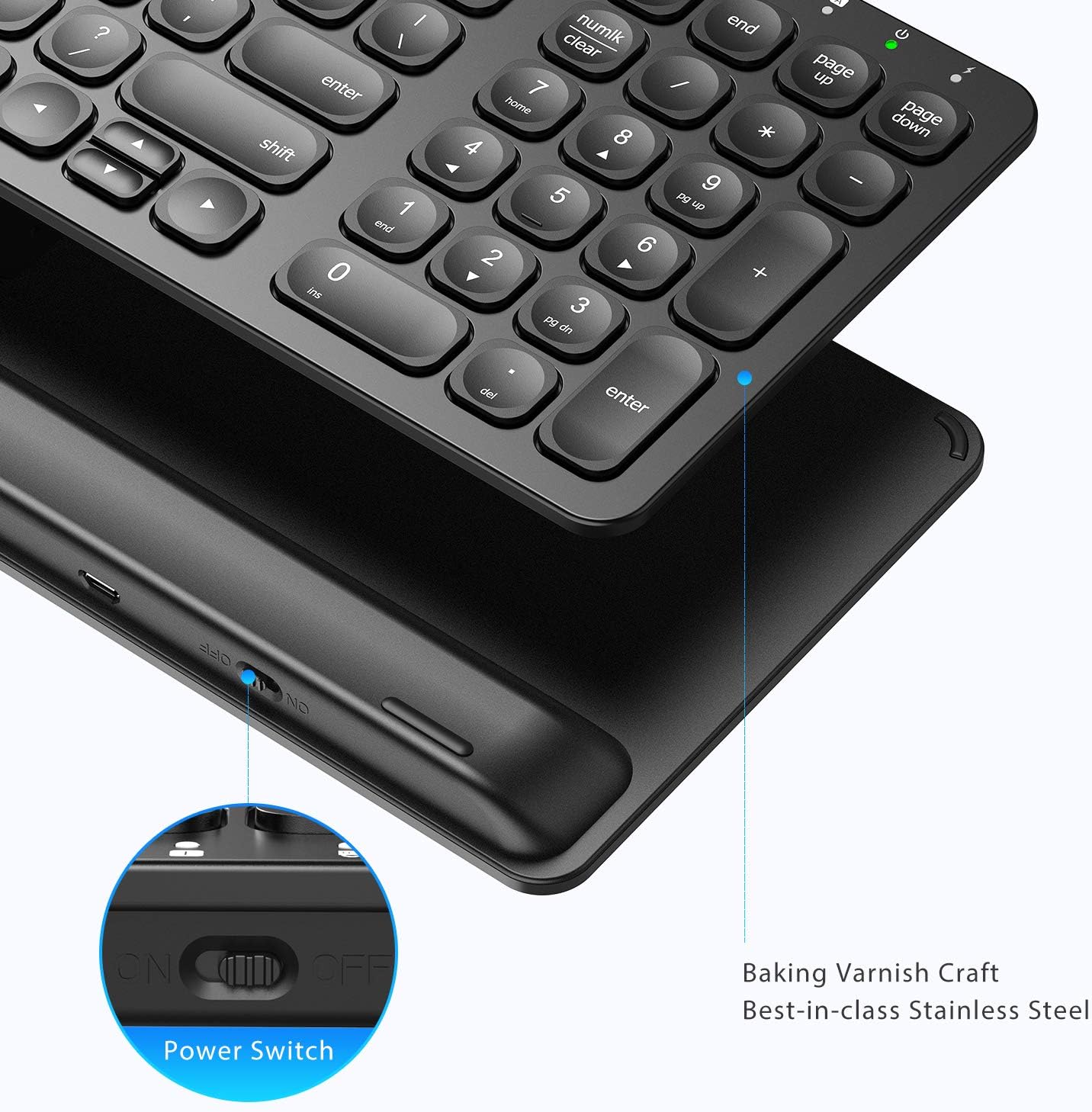
Figure 3.3: Close-up of the power switch (ON/OFF) and Micro-USB charging port located on the side of the keyboard.
4. Setup
4.1 Initial Charging
Before first use, it is recommended to fully charge the keyboard. Connect the provided USB cable to the keyboard's charging port and the other end to a USB power source (e.g., computer USB port, USB wall adapter). The charging indicator light will illuminate during charging and turn off when fully charged. A full charge typically takes about 2 hours.
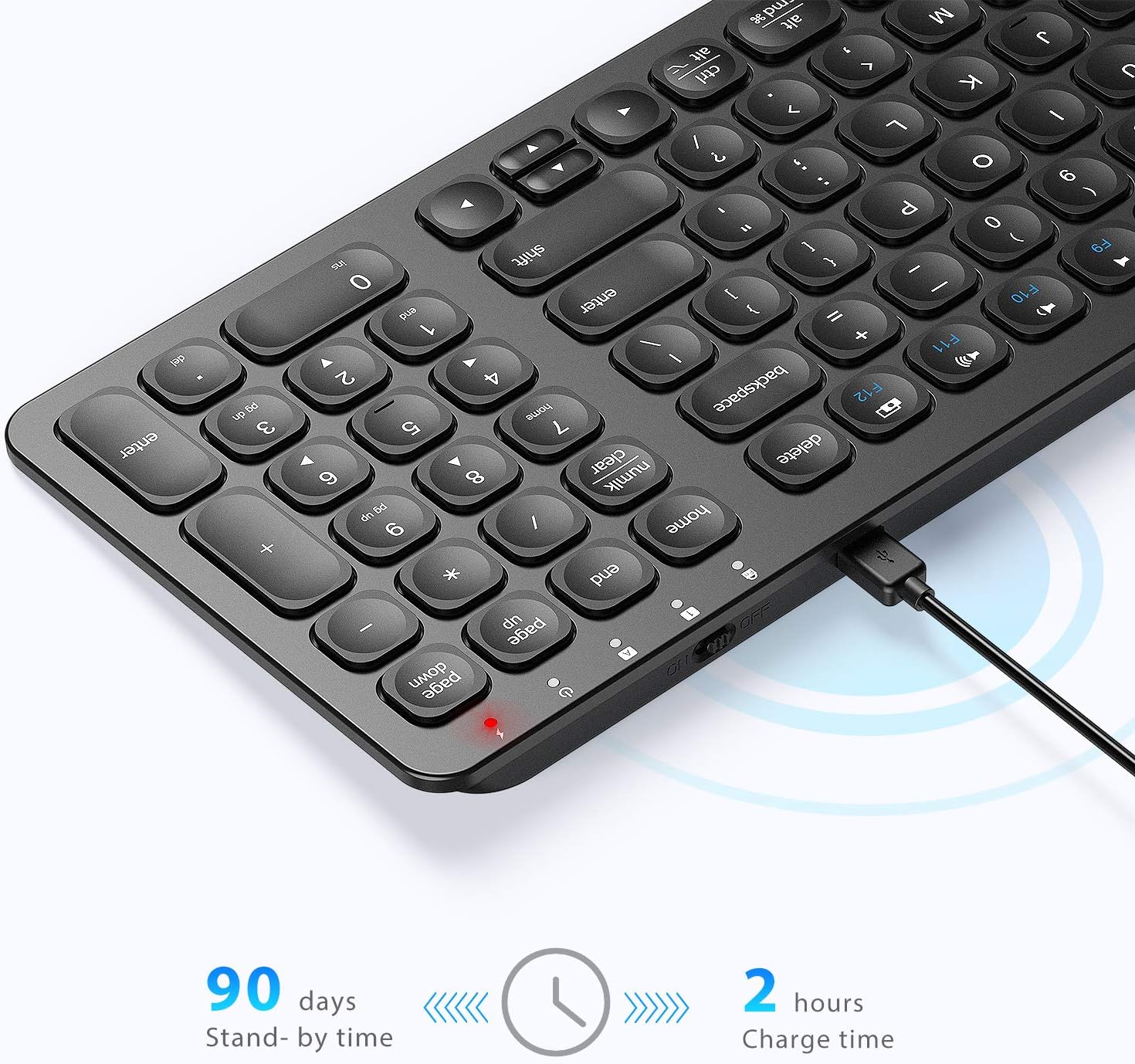
Figure 4.1: The keyboard connected via USB cable for charging. A 2-hour charge provides approximately 90 days of standby time.
4.2 Connecting the Keyboard
- Locate the 2.4G USB receiver included in the package.
- Plug the USB receiver into an available USB port on your computer (PC, laptop, desktop, iMac).
- Turn on the keyboard by sliding the power switch (located on the side) to the 'ON' position.
- The keyboard should automatically connect to your computer. No additional drivers or software are required.
4.3 Switching Operating System Layouts
The keyboard supports both Windows and Mac operating systems. To switch between layouts:
- For Windows layout: Press the Fn + Q keys simultaneously. This activates the Windows layout, enabling standard Windows key functions.
- For Mac layout: Press the Fn + W keys simultaneously. This activates the Mac layout, enabling Mac-specific key functions (e.g., Option, Command).
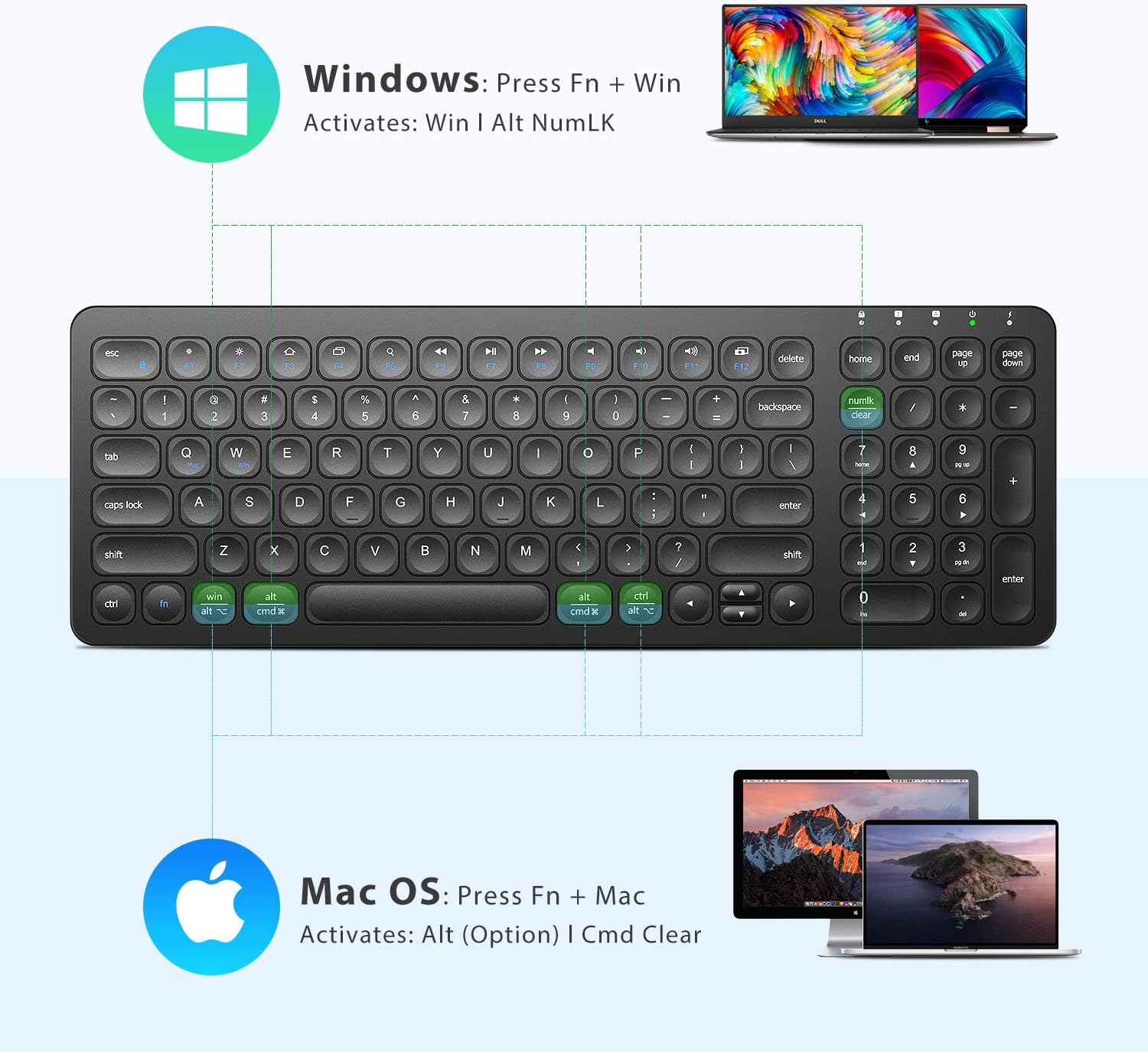
Figure 4.2: Instructions for switching between Windows (Fn + Win) and Mac OS (Fn + Mac) layouts.
5. Operating Instructions
5.1 General Use
Once connected, the keyboard functions like a standard full-size keyboard. Simply begin typing. The scissor-switch keys provide a comfortable and quiet typing experience.
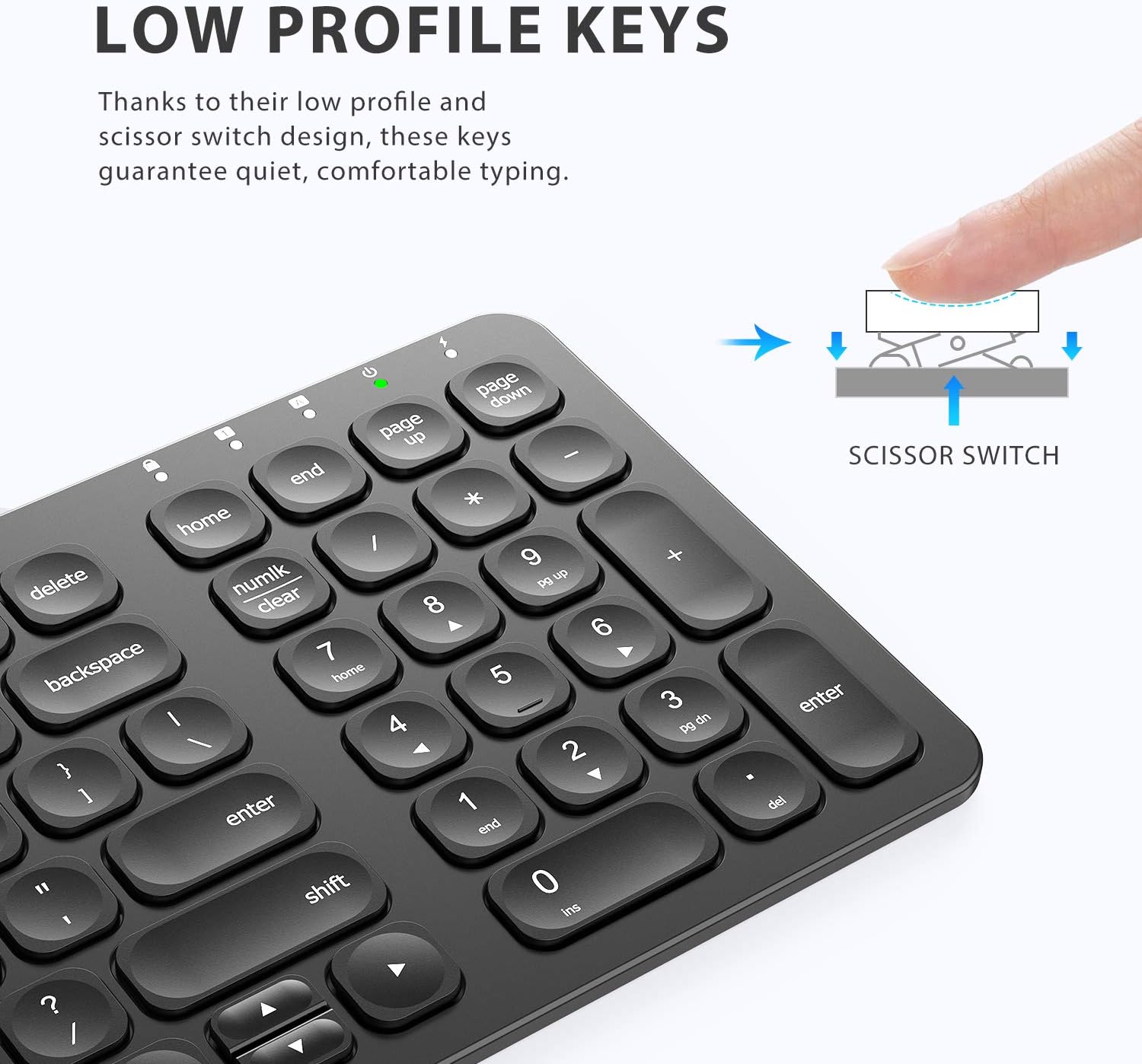
Figure 5.1: Illustration of the low-profile keys and the scissor switch mechanism, designed for quiet and comfortable typing.
5.2 Function Keys (F1-F12)
The top row of keys (F1-F12) also serves as multimedia and shortcut keys. To use their secondary functions, press the Fn key simultaneously with the desired function key.
- Fn + F1: Home
- Fn + F2: Search
- Fn + F3: Select All
- Fn + F4: Copy
- Fn + F5: Paste
- Fn + F6: Cut
- Fn + F7: Previous Track
- Fn + F8: Play/Pause
- Fn + F9: Next Track
- Fn + F10: Mute
- Fn + F11: Volume Down
- Fn + F12: Volume Up
5.3 Power Saving Mode
To conserve battery life, the keyboard will automatically enter a sleep mode after 10 minutes of inactivity. To wake it up, simply press any key. The keyboard will reconnect automatically.
6. Maintenance
6.1 Cleaning
- Turn off the keyboard before cleaning.
- Use a soft, dry, lint-free cloth to wipe the surface of the keyboard.
- For stubborn dirt, slightly dampen the cloth with water or a mild, non-abrasive cleaner. Avoid excessive moisture.
- Do not use harsh chemicals, abrasive cleaners, or solvents.
6.2 Storage
- Store the keyboard in a cool, dry place away from direct sunlight and extreme temperatures.
- If storing for an extended period, ensure the keyboard is fully charged and turned off.
7. Troubleshooting
| Problem | Possible Cause | Solution |
|---|---|---|
| Keyboard not responding | Low battery; Keyboard is off; USB receiver not connected; Out of range. | Charge the keyboard; Turn on the keyboard; Ensure USB receiver is securely plugged in; Move keyboard closer to receiver (within 10m). |
| Keys not working correctly | Incorrect OS layout selected; Software conflict. | Ensure correct OS layout (Fn+Q for Windows, Fn+W for Mac); Restart your computer. |
| Lag or delayed input | Interference from other wireless devices; Low battery; Too far from receiver. | Move keyboard away from other wireless devices; Charge the keyboard; Move closer to the USB receiver. |
| Keyboard disconnects frequently | Weak signal; Battery low. | Ensure no obstructions between keyboard and receiver; Charge the keyboard. |
8. Specifications
| Feature | Detail |
|---|---|
| Model | GKA2-01B |
| Connectivity Technology | 2.4G Wireless |
| Compatible Devices | Laptop, PC, Desktop, iMac (Windows 7/8/10, Mac OS) |
| Keyboard Description | Wireless, Full Size, Slim, Silent, Ergonomic |
| Number of Keys | 102 |
| Special Feature | Rechargeable Battery, Number Pad, Scissor Switch Keys |
| Battery Life | Up to 3 months on a 2-hour charge |
| Operating Range | Up to 10m (33 feet) |
| Item Weight | 1.1 pounds |
| Package Dimensions | 15.31 x 5.39 x 1.14 inches |
| Color | Black |
9. Warranty and Support
iClever products are designed for reliability and performance. This product comes with a standard manufacturer's warranty. For specific warranty terms and conditions, please refer to the warranty card included with your purchase or visit the official iClever website.
If you encounter any issues or have questions regarding your iClever GKA2-01B Wireless Keyboard, please contact iClever customer support for assistance. You can typically find contact information on the product packaging or the official iClever website.