
1. Introduction
The PQWT-M100 Underground Water Detector is a portable, high-precision instrument designed for efficient groundwater exploration and well drilling assistance. It utilizes advanced technology to automatically map geological sections in real-time, providing accurate data without requiring network connectivity or complex registration processes. This manual provides detailed instructions for the proper setup, operation, and maintenance of your PQWT-M100 device.
2. Safety Information
Please read and understand all safety instructions before operating the device. Failure to do so may result in injury or damage to the equipment.
- Always operate the device in accordance with local regulations and safety standards.
- Ensure all connections are secure before powering on the device.
- Do not expose the device to extreme temperatures, moisture, or direct sunlight for prolonged periods. The operating temperature range is -20°C to +50°C.
- Keep the device away from strong electromagnetic fields.
- Use only the provided accessories and power adapter.
- Do not attempt to disassemble or repair the device yourself. Contact qualified personnel for service.
- Handle electrodes with care to avoid injury.
3. Package Contents
Verify that all items listed below are included in your package:
- Host machine (PQWT-M100)
- Cable
- Electrode (Copper and Alloy)
- Belt
- Charger
- User Manual

Image: The PQWT-M100 package contents, neatly arranged in a protective aluminum case. Visible components include the host machine, orange cables, copper and alloy electrodes, a belt, and a charger.

Image: Close-up view of the PQWT-M100 host machine, orange cables, and electrodes, highlighting the main components.
4. Setup
4.1 Mobile App Installation
The PQWT-M100 operates via a mobile application. Follow these steps to install the app:
- Scan the QR code located on the side of the host machine using a WeChat app or any QR code scanner.
- Open the download link through your browser.
- Install the package named "PQWT water finder".

Image: The PQWT-M100 host machine displaying a QR code for mobile application installation. The QR code links to http://www.pqwtcs.com/download/PQWT_MobileAPP_PRO.APK.

Image: The PQWT-M100 device next to a smartphone showing the mobile application interface, illustrating the device's connectivity with the app. The QR code on the device links to http://www.pqwtcs.com/download/PQWT_MobileAPP_PRO.APK.
4.2 Instrument Assembly
Follow these steps to assemble the electrodes and connect them to the host machine:
- Pass the copper electrode through the copper hole of the measuring wire.
- Tighten the alloy electrode rod.
- Push the main line of the measuring cable and lock it to the host machine terminal.
- Connect the antenna to the host machine.
- Press and hold the ON/OFF switch button to turn on the device.
Video: This video demonstrates the assembly of the PQWT-M100, including connecting the electrodes and cables to the host machine, and powering it on. It also shows the initial app setup and connection process.

Image: A detailed view of the PQWT-M100 host machine, showing the antenna connection point, the "TEST" button, LED indicators, and the ON/OFF switch.
5. Operating Instructions
5.1 Connecting to the Mobile App
- Open the "PQWT Water Finder" software on your mobile device.
- Allow Bluetooth access when prompted.
- The app will scan for devices. Select "PQWT-M100" from the scan list to connect. The signal name defaults to PQWT-M100.
- Once connected, the app interface will show "Connected".
5.2 Performing a Profile Survey
After preparation, you can begin the measurement process:
- In the app, click "Settings".
- Choose "Profile Survey" mode.
- Set the measurement line ("Lines") to "1". The gain is set to "0" by default; no need to set it again. Click "OK".
- Wire the cable and use a 50-meter tape measure to pull the tape in a straight line at the location where detection is needed. Mark the starting point.
- Before measurement, put two connected electrodes (M and N) together.
- Press and hold the "TEST" line detection button on the host. A green test light indicates the line is normal.
- Insert the M pole near the end of the host machine into the 0m position of the tape measure.
- Insert the N pole at the other end into the 10m position of the tape measure.
- Click the "Record" button in the app to measure the first point.
- After data measurement is completed, the mobile phone interface will prompt "Record completed" with a sound.
- Move the two electrodes one meter away at the same time. Click the "Record" button to perform the second point of data acquisition. Repeat this process for subsequent points.
- Each measurement point is at the midpoint of the two electrodes. For example, the first point is at the 5-meter tape position (midpoint of 0m and 10m).
Video: This video demonstrates the assembly of the PQWT-M100, including connecting the electrodes and cables to the host machine, and powering it on. It also shows the initial app setup and connection process.

Image: Two people are shown in a grassy field, setting up the PQWT-M100 device for a survey. One person is holding the host machine and a smartphone, while the other is extending a measuring tape and placing electrodes.
5.3 Data Analysis and Interpretation
The mobile phone interface will generate graphs and profiles in real-time. According to the curve and profile map, you can analyze the geological structure and determine aquifer formation.
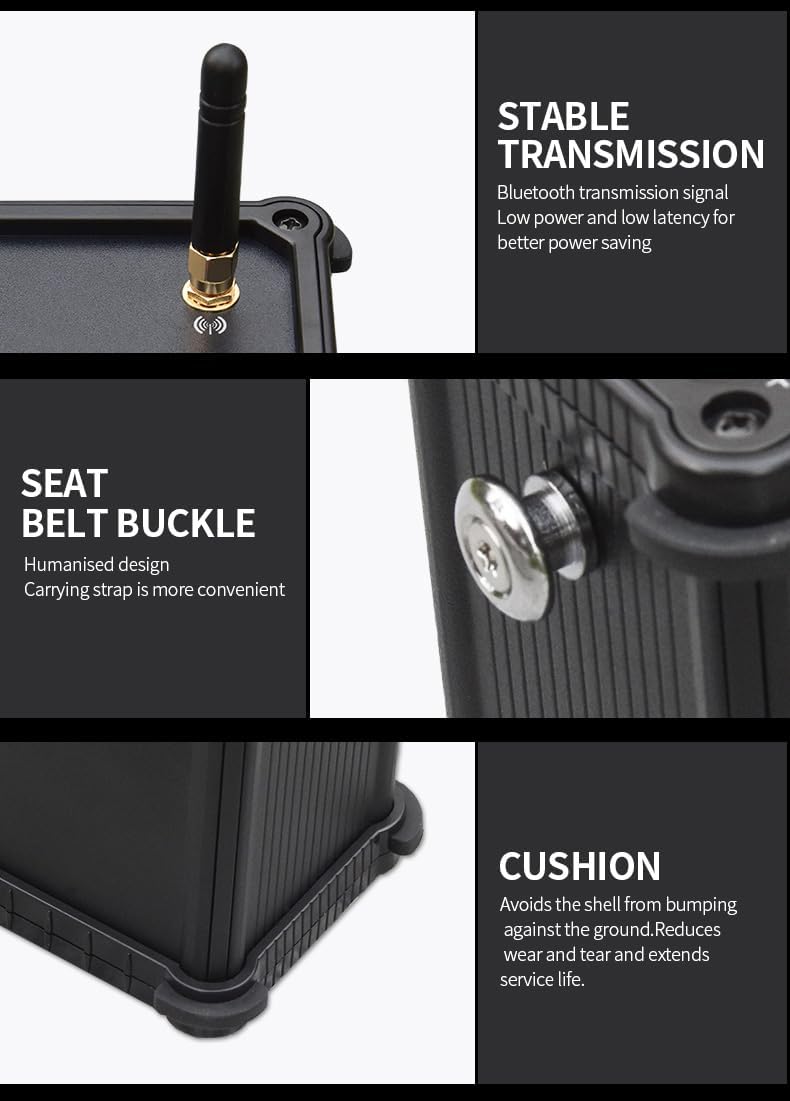
Image: The mobile application interface displaying real-time geological mapping data, including graphs and a color-coded profile map indicating potential water sources.
Video: This video shows the PQWT-M100 in action, demonstrating how it helps find groundwater sources. It includes footage of drilling operations and the device's interface displaying geological data.
6. Technical Specifications
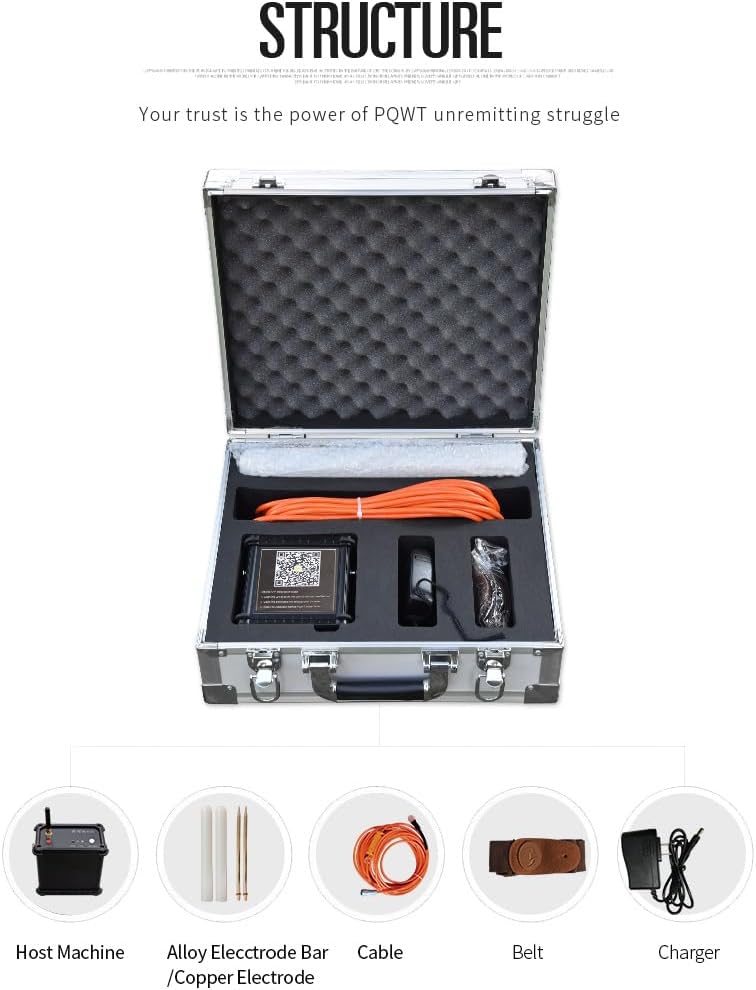
Image: A table detailing the technical specifications of the PQWT-M100, including product model, measuring depth, measurement data unit, measuring range, measuring channel, channel gain, measurement frequency, weight, power, display, A/D conversion, input impedance, relative humidity, power consumption, and working environment temperature.
| Parameter | Value |
|---|---|
| Product Model | PQWT-M100/200/400 |
| Measuring Depth | 100/200/400 meters |
| Measurement Data Unit | electric field component of different frequencies of the earth electromagnetic field ΔVs (mV) |
| Measuring Range | 0mV-1000mV, the instrument automatically converts the range. Measurement accuracy: 0.001mV |
| Measuring Channel | 4 / 6 / 8 channels |
| Channel Gain | 1~200,000 times |
| Measurement Frequency | 30/36/48 frequency |
| Weight (Host) | 0.55kg |
| Power | 18650*2 3000mAh rechargeable lithium battery |
| Display | LED indicator |
| A/D Conversion | 8-bit 1Msps |
| Input Impedance | ≥10MΩ |
| Relative Humidity | ≤85% |
| Power Consumption | about 1W |
| Working Environment Temperature | -20°C ~ +50°C |
7. Maintenance
- Cleaning: Wipe the device and accessories with a soft, dry cloth after each use. Do not use abrasive cleaners or solvents.
- Storage: Store the device in its protective case in a cool, dry place when not in use. Avoid areas with high humidity or extreme temperatures.
- Battery Care: Recharge the lithium batteries regularly, even if the device is not in frequent use, to maintain battery health. Avoid fully discharging the batteries for extended periods.
- Electrode Care: Clean electrodes after use to remove soil and debris. Ensure they are dry before storage to prevent corrosion.
8. Troubleshooting
If you encounter issues with your PQWT-M100, refer to the following common problems and solutions:
- Device not powering on:
- Ensure the batteries are charged.
- Check if the ON/OFF button is pressed and held correctly.
- Unable to connect to the mobile app:
- Ensure Bluetooth is enabled on your mobile device.
- Verify the host machine is powered on.
- Restart both the host machine and the mobile app.
- Check if the mobile app has necessary permissions (e.g., Bluetooth, location).
- No data acquisition or abnormal readings:
- Check all cable and electrode connections for tightness and proper insertion.
- Perform the "TEST" line detection on the host machine; ensure the green light indicates a normal connection.
- Verify that the electrodes are properly inserted into the ground.
- Ensure the measurement parameters in the app settings are correct for your survey type.
- App crashes or freezes:
- Ensure your mobile device meets the app's system requirements.
- Clear the app's cache or reinstall the app.
- Ensure your mobile device's operating system is up to date.
9. Warranty and Support
PQWT is committed to providing reliable products and excellent customer service. Your PQWT-M100 comes with:
- Expert Remote Support: Access expert remote assistance to accurately fix well positions and enhance exploration efficiency.
- Privacy Protection: The instrument strictly protects your mobile phone privacy. It does not access chat content, communication records, bank account information, or track your usage location.
- Online Community: Users can join our institute's WeChat App group, named "PQWT User Group", to discuss and communicate with experts in our institute online.
For further assistance or inquiries, please contact PQWT customer support.
Video: This video showcases the PQWT-M100's case and highlights its features, including the mobile app interface and the ability to receive expert remote assistance and join user groups for support.


