1. Introduction
This user manual provides detailed instructions for the safe and efficient operation of your TCL 32S615 32-inch HD LED TV. Please read this manual thoroughly before using the television and retain it for future reference. This television features a 32-inch HD display, Android TV operating system, Wi-Fi connectivity, and HDR10 support.
2. Safety Information
Always observe the following safety precautions to avoid electric shock, fire, or damage to the television.
- Power Source: Ensure the power supply voltage matches the rating on the TV's label. Use only the provided power cord.
- Ventilation: Do not block ventilation openings. Allow adequate space around the TV for proper airflow.
- Water and Moisture: Do not expose the TV to rain or moisture. Do not place objects filled with liquids, such as vases, on the TV.
- Cleaning: Unplug the TV before cleaning. Use a soft, dry cloth. Do not use liquid or aerosol cleaners.
- Placement: Place the TV on a stable, level surface. Avoid placing it in direct sunlight or near heat sources.
- Lightning: During lightning storms or when unused for long periods, unplug the TV from the wall outlet and disconnect the antenna.
3. Package Contents
Verify that all items are included in your package:
- TCL 32S615 32-inch HD LED TV
- Remote Control
- Power Cord
- TV Stand (2 pieces)
- Screws for Stand Installation
- User Manual (this document)
- Quick Start Guide
4. Setup
4.1 Unpacking
Carefully remove the TV from its packaging. It is recommended to keep the original packaging materials for future transport or service needs.
4.2 Stand Installation
If you are not wall-mounting the TV, attach the included stand:
- Place the TV face down on a soft, flat surface to prevent screen damage.
- Align each stand piece with the corresponding slots on the bottom of the TV.
- Secure the stands with the provided screws.

Figure 4.1: Front view of the TCL 32S615 TV with its stand installed.
4.3 Wall Mounting (Optional)
This TV is VESA compatible (100 x 100 mm). Use a compatible wall mount bracket (not included) and follow the instructions provided with the wall mount. Ensure proper ventilation when wall-mounted.

Figure 4.2: Side profile of the TCL 32S615 TV, illustrating its design and potential for wall mounting.
4.4 Connecting Devices
Your TV offers various connection ports:
- HDMI (x2): For connecting Blu-ray players, game consoles, cable/satellite boxes, etc. Supports HDMI 1.4.
- USB 2.0 (x1): For connecting USB storage devices to play media files.
- RF (x2): For connecting an antenna or cable TV.
- RJ45 (Ethernet LAN): For wired internet connection.
- CI+ (Common Interface Plus): For conditional access modules (CAM).
- Optical Digital Audio Output: For connecting to a soundbar or home theater system.
- Headphone Output: For connecting headphones.
Connect your devices to the appropriate ports on the back of the TV.
4.5 Initial Power On
After connecting all necessary cables, plug the power cord into a wall outlet. The TV will power on and guide you through the initial setup process, including language selection, network connection (Wi-Fi or Ethernet), and channel scanning.
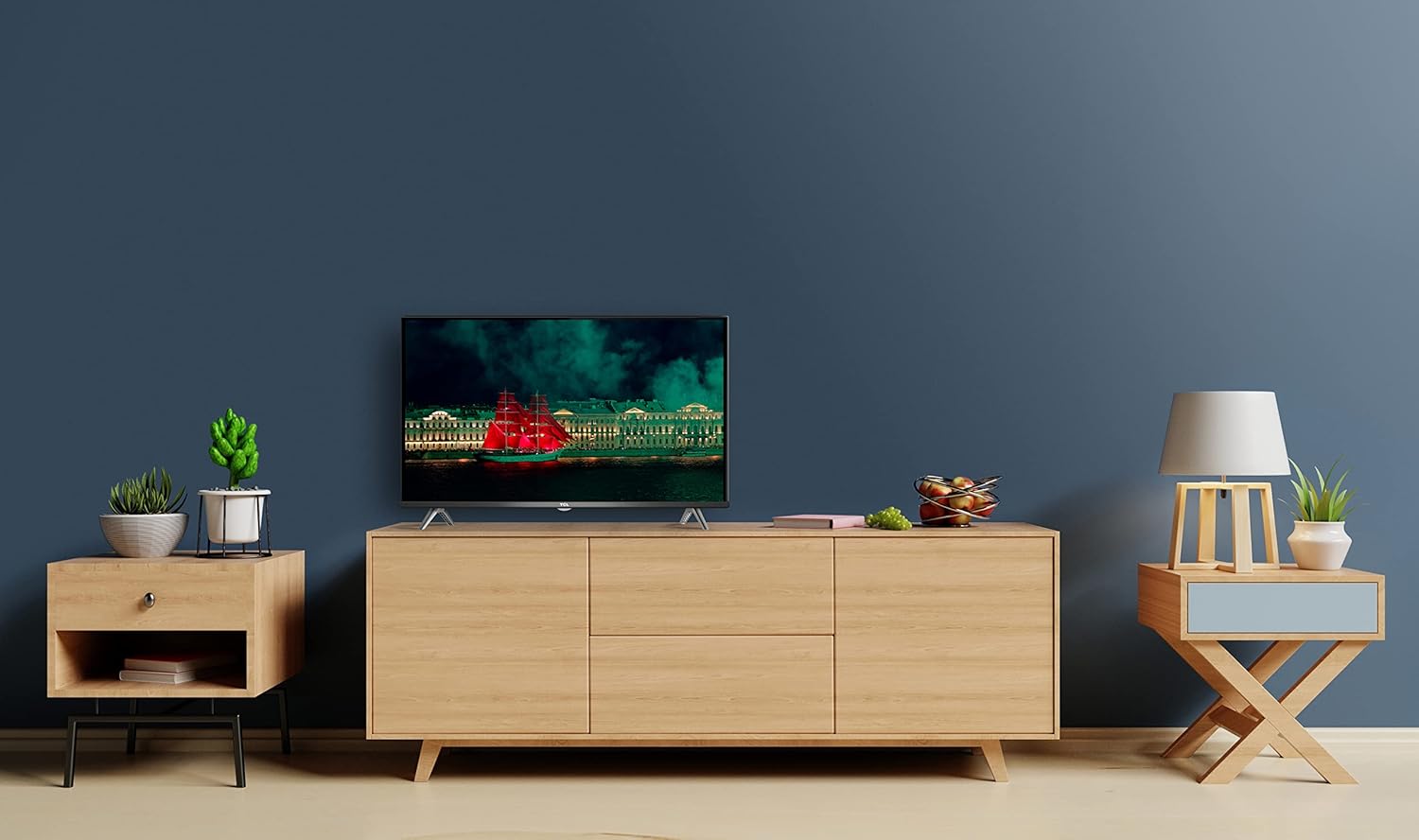
Figure 4.3: The TCL 32S615 TV integrated into a home environment, showcasing its display quality.
5. Operating Your TV
5.1 Remote Control Overview
The included remote control allows you to navigate the TV's features. Familiarize yourself with the buttons for power, volume, channel, input selection, and smart TV functions.
- Power Button: Turns the TV on or off.
- Volume Up/Down: Adjusts the sound level.
- Channel Up/Down: Changes TV channels.
- Input Button: Switches between connected input sources (HDMI, USB, TV).
- Navigation Buttons (Arrow Keys, OK): Navigate menus and select options.
- Home Button: Accesses the Android TV home screen.
- Netflix/YouTube/Spotify Buttons: Direct access to popular streaming applications.
5.2 Smart TV Features (Android TV)
Your TCL 32S615 runs on Android TV, providing access to a wide range of apps and services via Wi-Fi or Ethernet connection.
- App Access: Download and install apps from the Google Play Store. Pre-installed apps include Netflix, YouTube, and Spotify.
- Wi-Fi Connectivity: Connect to your home wireless network for internet access.
- Google Assistant: Use voice commands for search, control, and information (requires compatible remote, not necessarily included with standard package).
- HDR10: Experience enhanced contrast and color with HDR10 compatible content.
- HbbTV: Access interactive services and catch-up TV from broadcasters (where available).
5.3 Picture and Sound Settings
Customize your viewing and listening experience through the TV's settings menu.
- Picture Modes: Select from various preset modes (e.g., Standard, Dynamic, Movie, Sport) or customize brightness, contrast, color, and sharpness.
- Sound Modes: Choose from sound presets (e.g., Standard, Music, Movie, Clear Voice) or adjust equalizer settings.
- Dolby Digital Plus: Enjoy enhanced audio quality with Dolby Digital Plus support.
6. Maintenance
6.1 Cleaning Your TV
To clean the screen and cabinet:
- Unplug the TV from the power outlet.
- Gently wipe the screen with a soft, lint-free cloth. For stubborn marks, use a screen cleaner specifically designed for TVs, applied to the cloth, not directly to the screen.
- Wipe the cabinet with a soft, dry cloth.
Do not use abrasive cleaners, waxes, or solvents.
6.2 Software Updates
Your Android TV may receive software updates periodically. It is recommended to keep your TV connected to the internet to receive these updates, which can improve performance and add new features. You can check for updates manually in the TV's settings menu.
7. Troubleshooting
If you encounter issues with your TV, refer to the table below for common problems and solutions.
| Problem | Possible Cause / Solution |
|---|---|
| No power | Check if the power cord is securely plugged into the TV and the wall outlet. Try a different outlet. |
| No picture, but sound is present | Ensure the correct input source is selected. Check cable connections to external devices. |
| No sound, but picture is present | Check volume level and mute status. Ensure audio cables are connected correctly. Check TV's audio output settings. |
| Remote control not working | Check batteries and ensure they are inserted correctly. Point the remote directly at the TV's IR sensor. |
| Cannot connect to Wi-Fi | Ensure Wi-Fi is enabled on the TV. Check your router and internet connection. Re-enter Wi-Fi password. |
| Apps are slow or crashing | Restart the TV. Clear app cache/data in settings. Ensure sufficient internet speed. |
If the problem persists, please contact TCL customer support.
8. Specifications
| Feature | Description |
|---|---|
| Model | TCL 32S615 |
| Screen Size | 32 inches (81.3 cm diagonal) |
| Display Technology | LED, DLED, LCD, Direct-LED |
| Resolution | HD Ready (1366 x 768 pixels) |
| Refresh Rate | 60 Hz (50 Hz) |
| Operating System | Android TV |
| Connectivity | Wi-Fi, Ethernet LAN, Bluetooth |
| HDMI Ports | 2 (HDMI 1.4) |
| USB Ports | 1 (USB 2.0) |
| Audio Output | Optical Digital, Headphone |
| Audio Technology | Dolby Digital, Dolby Digital Plus |
| Special Features | Smart TV, HDR10, HbbTV, Noise Reduction, Teletext, Automatic Channel Search, Subtitle Function, Hotel Mode, Ambient Lighting |
| VESA Compatibility | 100 x 100 mm |
| Power Consumption | 29 kWh (typical), 45 kWh (max), 0.31 kWh (standby) |
| Energy Class | F |
| Dimensions (with stand) | Approx. 13D x 83W x 51H cm |
9. Warranty and Support
Your TCL 32S615 TV comes with a 2-year manufacturer's warranty. Please retain your proof of purchase for warranty claims.
For technical support, service, or warranty inquiries, please visit the official TCL support website or contact their customer service hotline in your region. Refer to the documentation included with your TV for specific contact details.
Online Resources: For the latest drivers, firmware updates, and additional support, visit the official TCL website: www.tcl.com