
Introduction
Thank you for choosing the UGREEN 60W USB C to USB C 90-Degree Cable. This cable is designed for efficient charging and data transfer between compatible USB-C devices. Its unique 90-degree connector offers enhanced convenience and durability in various usage scenarios. Please read this manual carefully to ensure proper use and optimal performance of your cable.
Setup
Setting up your UGREEN USB C cable is straightforward. Follow these steps to begin charging or transferring data:
- Connect to Power Source: Insert one end of the USB C cable into a compatible USB-C power adapter (not included) or a USB-C port on a computer. Ensure the power adapter supports Power Delivery (PD 3.0) and PPS for optimal fast charging.
- Connect to Device: Insert the other end of the USB C cable, featuring the 90-degree connector, into the USB-C port of your device (e.g., smartphone, tablet, laptop, gaming console). The 90-degree design allows for a more comfortable grip and reduces strain on the cable and device port, especially when using your device during charging.
- Verify Connection: Confirm that both ends of the cable are securely connected. Your device should indicate that it is charging or connected for data transfer.

Image: The 90-degree connector provides a convenient and ergonomic connection, ideal for use in tight spaces like car interiors or while gaming.
Operating Instructions
The UGREEN 60W USB C cable supports both fast charging and data transfer functionalities.
Charging
This cable supports Power Delivery (PD 3.0) and PPS protocols, enabling fast charging for compatible devices up to 60W. For example, an iPhone 15 can be charged from 0% to 60% in approximately 30 minutes when paired with a suitable fast charger.

Image: A smartphone connected to a UGREEN 60W USB C cable and charger, demonstrating fast charging capabilities.
Data Transfer
The cable facilitates data transfer at speeds up to 480 Mbps. This allows for quick synchronization of photos, music, and other files between your USB-C devices.
Important Note: This cable does not support video output or monitor extension (DP-Alt Mode).

Image: A smartphone connected to a laptop, illustrating data transfer at 480 Mbps using the UGREEN USB C cable.
Maintenance
To ensure the longevity and optimal performance of your UGREEN USB C cable, follow these maintenance guidelines:
- Handle with Care: Avoid excessive bending, twisting, or pulling of the cable, especially near the connectors. The cable is designed to withstand over 10,000 bend tests, but extreme force can still cause damage.
- Keep Connectors Clean: Periodically inspect the USB-C connectors for dust, lint, or debris. Use a soft, dry cloth or a small brush to gently clean them if necessary. Avoid using liquids or abrasive materials.
- Store Properly: When not in use, coil the cable loosely and store it in a clean, dry place away from direct sunlight and extreme temperatures. Avoid tangling the cable with other items.
- Safety Features: The cable features a built-in tinned copper wire core and multiple shields to protect your devices from overheating during fast charging. Do not attempt to modify or disassemble the cable.
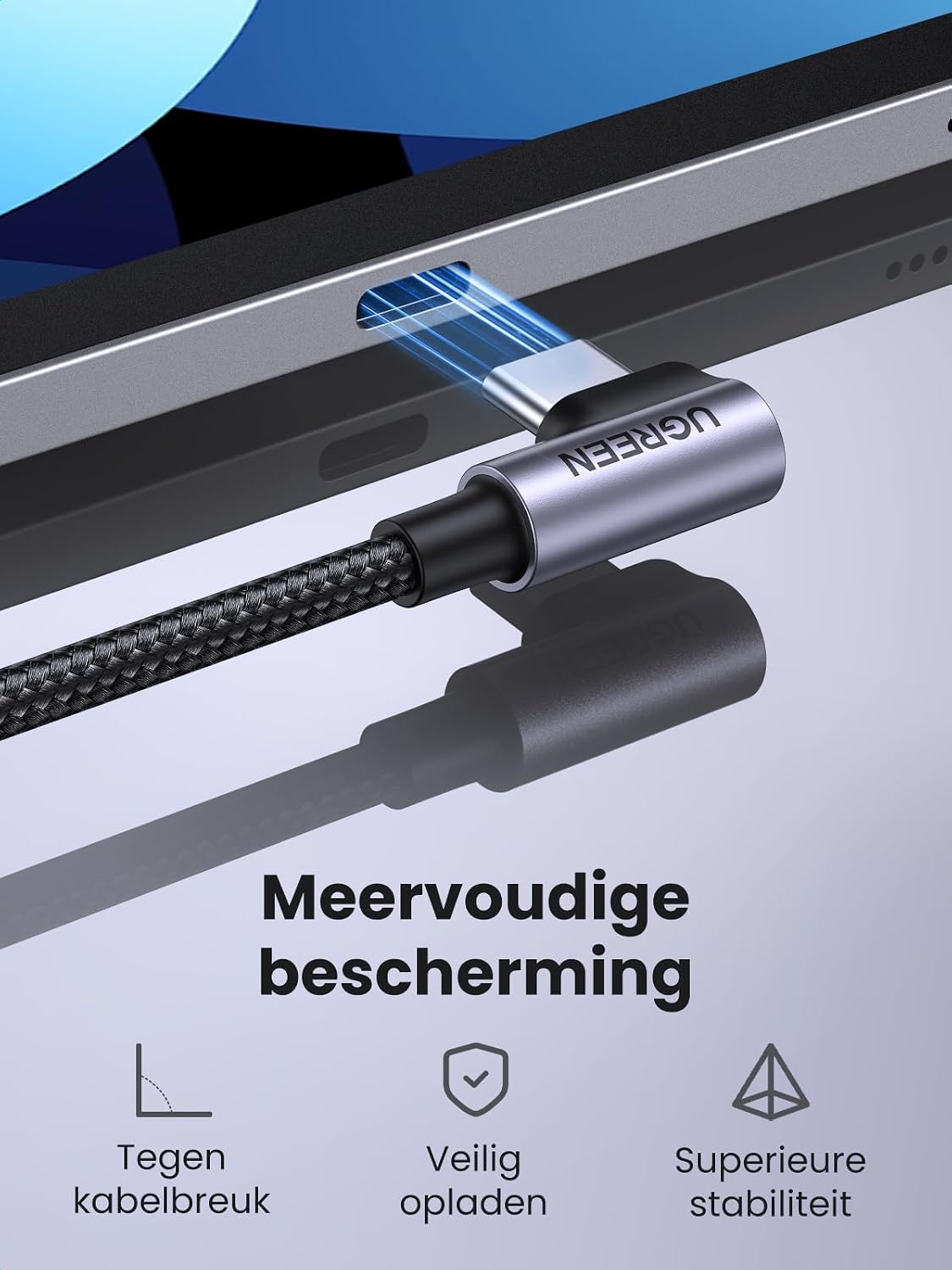
Image: An illustration of the cable's internal structure, emphasizing its multiple layers of protection and braided nylon exterior for enhanced durability and safe charging.
Troubleshooting
If you encounter issues with your UGREEN USB C cable, refer to the following common troubleshooting steps:
- Device Not Charging:
- Ensure both ends of the cable are fully inserted into the device and power adapter.
- Verify that the power adapter is functioning correctly and is compatible with your device's charging requirements.
- Test the cable with another compatible device and power adapter to isolate the issue.
- Slow Charging:
- Confirm that your power adapter supports fast charging (e.g., PD 3.0, PPS) and provides sufficient wattage for your device.
- Ensure your device also supports fast charging protocols.
- Avoid using the device intensively while charging, as this can slow down the charging process.
- Data Transfer Issues:
- Check that your device is set to data transfer mode (e.g., 'File Transfer' or 'MTP') when connected to a computer.
- Ensure your computer's USB-C port is functioning correctly.
- Restart both your device and computer.
- Cable Damage: If the cable shows visible signs of damage (fraying, exposed wires, bent connectors), discontinue use immediately to prevent potential hazards and damage to your devices.
Specifications
| Model Number | 50122 |
| Connector Type | USB Type C (Male-to-Male) |
| Special Features | 90-degree angled design, Data Transfer, Braided, Fast Charging |
| Wattage | Up to 60W |
| Maximum Current | 3 Ampere |
| Maximum Voltage | 20 Volt |
| Data Transfer Speed | 480 Megabytes per second (480 Mbps) |
| Cable Type | USB |
| Outer Material | Nylon |
| Product Dimensions | 21 x 15 x 4 cm; 10 g |
| Compatible Devices | Galaxy S24/S23/S22/S21/S20, iPhone 15 series, Z Fold5, Z Flip5, A54, A34, A14, A53, A52, A33, A32, A13, Pixel 7, Xperia 10 III; iPad Pro 12.9 (2021/2020/2018), iPad Pro 11 (2021/2020/2018), iPad Mini 6, iPad Air 5, MacBook Air M2, Galaxy Book Flex/S/Pro 360, Tab S8/S7, Switch consoles, Steam Deck, Watch Series9/Ultra 2, AirPods Pro (2nd Gen); Surface Pro X/7, Surface Laptop Go/4/3, Surface Go, Surface Book 3, ThinkPad, etc. |

Image: An overview of compatible devices, highlighting the cable's versatility across smartphones, tablets, laptops, and gaming systems.
Warranty and Support
UGREEN products are designed and manufactured to the highest quality standards. For information regarding warranty coverage, technical support, or any product-related inquiries, please refer to the official UGREEN website or contact UGREEN customer service directly. Contact details can typically be found on the product packaging or the UGREEN official support page.


