
DIGITNOW V305
DIGITNOW! AV to HDMI Adapter
User Manual
1. Introduction
Thank you for purchasing the DIGITNOW! AV to HDMI Adapter. This device is designed to convert analog RCA composite video and audio signals into a digital HDMI output, allowing you to connect older devices with RCA outputs (such as VCRs, DVD players, gaming consoles, and set-top boxes) to modern HD televisions, monitors, or projectors that only have HDMI inputs. It supports both 1080p and 720p HDMI output resolutions.

Image: The DIGITNOW! AV to HDMI Adapter with its included USB power cable, illustrating its function as an AV to HDMI converter.
2. Safety Information
Please read and understand the following safety precautions before using the device:
- Keep the device away from water, moisture, and extreme temperatures.
- Do not attempt to disassemble or modify the device. This will void the warranty and may cause damage.
- Use only the provided USB power cable and a compatible 5V power source.
- Ensure proper ventilation around the device to prevent overheating.
- Disconnect the power supply if the device is not in use for an extended period.
3. Package Contents
The package should contain the following items:
- 1x DIGITNOW! AV to HDMI Adapter
- 1x USB Power Cable
If any items are missing or damaged, please contact customer support.
4. Product Overview
The DIGITNOW! AV to HDMI Adapter is a compact device designed for ease of use. It features standard RCA input ports for composite video and stereo audio, a USB power input, and an HDMI output port. A switch is also present to select the desired output resolution.

Image: A clear view of the DIGITNOW! AV to HDMI Adapter, showing its compact size and port labels.

Image: Top-down perspective of the adapter, highlighting the RCA input ports (yellow for video, white for left audio, red for right audio), the USB power input, and the 720P/1080P resolution switch.
5. Setup
Follow these steps to connect your DIGITNOW! AV to HDMI Adapter:
- Connect RCA Cables: Plug the yellow RCA cable (video) from your source device (e.g., DVD player, VCR, game console) into the yellow 'CVBS' input port on the adapter. Connect the white RCA cable (left audio) to the white 'L' input port and the red RCA cable (right audio) to the red 'R' input port on the adapter.
- Connect HDMI Cable: Connect one end of an HDMI cable (not included) to the 'OUTPUT' HDMI port on the adapter. Connect the other end of the HDMI cable to an available HDMI input port on your HD TV, monitor, or projector.
- Connect USB Power: Plug the small end of the included USB power cable into the 'USB/POWER' port on the adapter. Plug the standard USB-A end into a 5V USB power source (e.g., a USB wall adapter, a USB port on your TV, or a computer USB port). The adapter requires external power to function.
- Select Input on Display: Turn on your TV/monitor and select the correct HDMI input source that the adapter is connected to.

Image: A detailed diagram illustrating the connection process, showing RCA cables from a source device connecting to the adapter's input, the USB power cable connected, and an HDMI cable connecting the adapter's output to a display.

Image: A visual representation of the signal flow, demonstrating various input devices (VCR, PS4, HD Player, Set-top Box) connecting to the adapter's AV input, and the HDMI output connecting to different display types (Digital TV, Projector, HD Monitor).
6. Operating Instructions
Once the adapter is set up, operating it is straightforward:
- Power On Devices: Ensure your source device (e.g., DVD player) and your display (TV/monitor) are powered on.
- Select Output Resolution: The adapter has a switch labeled '720P' and '1080P'. Slide this switch to select your desired HDMI output resolution. Most modern HD TVs support both, but 1080p generally provides a sharper image if supported by your display.
- Play Content: Start playing content on your source device. The video and audio should now be displayed on your HDMI-connected screen.
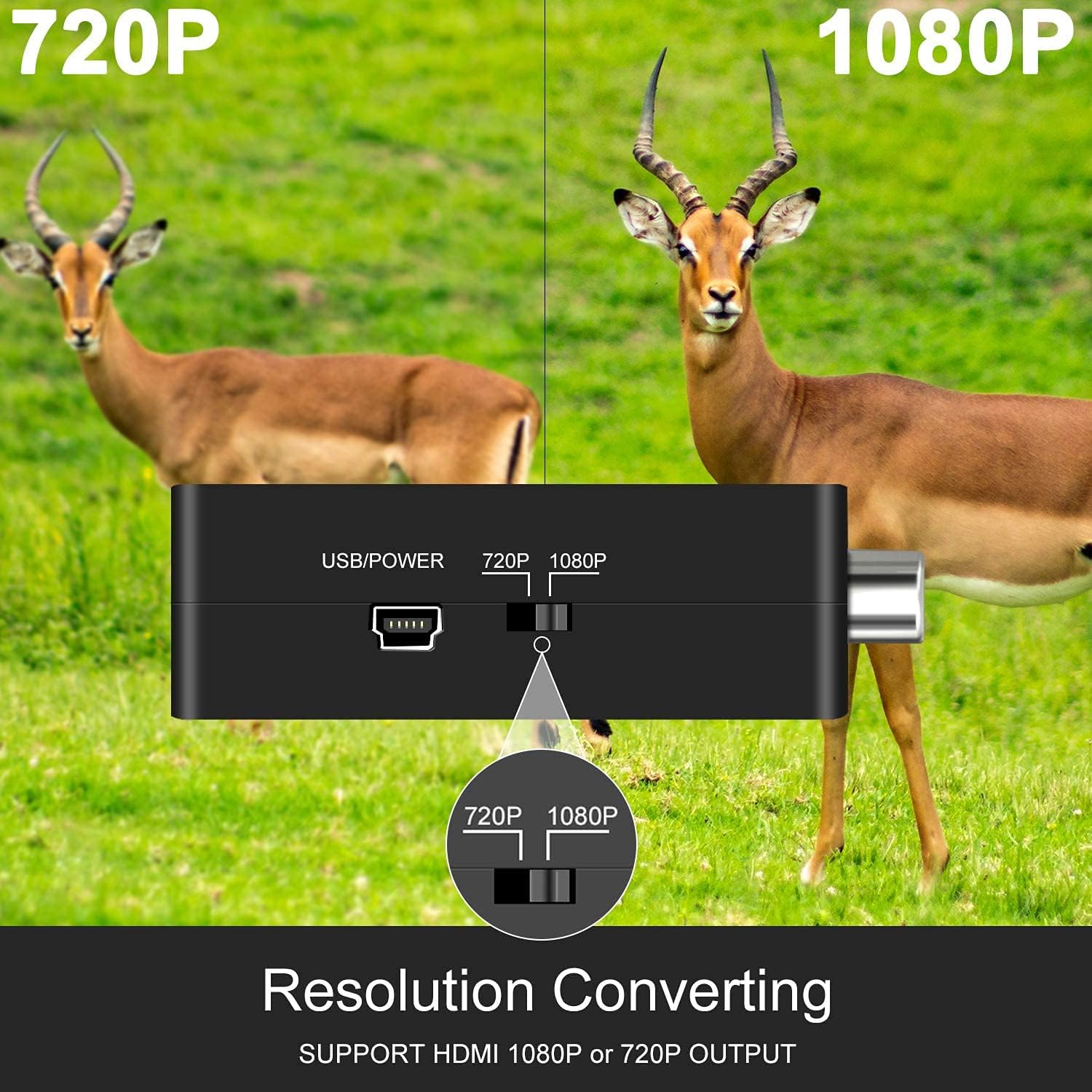
Image: A close-up view of the adapter's side, clearly showing the switch for selecting between 720P and 1080P output resolutions.
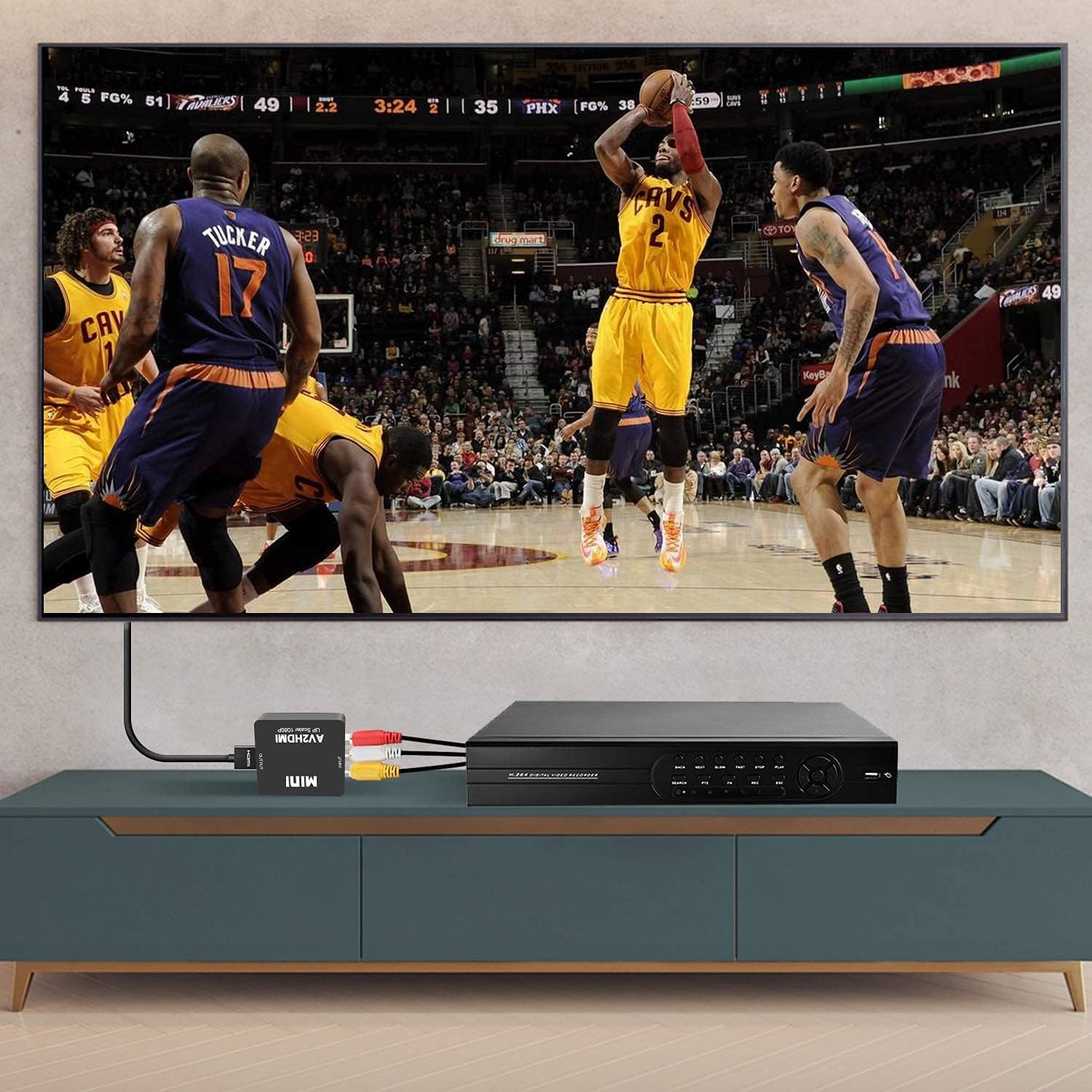
Image: The adapter connected to a VCR player via RCA cables and to a television via an HDMI cable, demonstrating a typical setup for converting analog video to digital for display.
7. Troubleshooting
If you encounter issues, refer to the following common problems and solutions:
| Problem | Possible Cause | Solution |
|---|---|---|
| No picture/No signal on TV | Incorrect input selected on TV, loose cables, no power to adapter, incompatible resolution. | Ensure TV is on the correct HDMI input. Check all cable connections (RCA, HDMI, USB power). Verify the USB power cable is connected to a 5V source. Try switching the 720P/1080P resolution on the adapter. |
| No audio | Loose audio RCA cables, TV audio settings. | Check white and red RCA audio cable connections. Ensure TV volume is up and not muted. |
| Poor picture quality/Distorted image | Poor quality source signal, damaged cables, resolution mismatch. | The adapter converts the signal but does not improve the original source quality. Ensure RCA cables are not damaged. Try switching the 720P/1080P resolution. |
| Image delay/Lag | Processing delay, specific to certain source devices or displays. | This can sometimes occur due to the conversion process. Ensure all connections are secure. Some TVs have a 'Game Mode' which can reduce input lag. |
8. Specifications
| Feature | Detail |
|---|---|
| Model | V305 |
| Input Ports | 1x RCA (Yellow, White, Red) |
| Output Ports | 1x HDMI |
| Power Input | USB 5V |
| Supported Input Formats | PAL, NTSC3.58, NTSC4.43, SECAM, PAL/M, PAL/N |
| HDMI Output Resolution | 1080p (60Hz) or 720p (60Hz) |
| Dimensions | 6 x 2 x 7 cm |
| Weight | 60 g |
| Compatible Devices | PC, Laptop, Xbox, PS4, PS3, TV, VCR, Camera, DVD players, N64, WII, STB |
9. Maintenance
To ensure the longevity and optimal performance of your adapter:
- Cleaning: Use a soft, dry cloth to clean the exterior of the device. Do not use liquid cleaners or aerosols.
- Storage: Store the adapter in a cool, dry place away from direct sunlight and extreme temperatures when not in use.
- Handling: Avoid dropping the device or subjecting it to strong impacts.
10. Warranty and Support
The DIGITNOW! AV to HDMI Adapter comes with a standard manufacturer's warranty. For specific warranty terms and conditions, please refer to the product packaging or contact your retailer.
If you experience any issues or have questions regarding your product, please contact DIGITNOW! customer support through the retailer's platform or the official DIGITNOW! website. Please have your product model number (V305) and purchase information ready when contacting support.
Related documentsV305


Ask a question about this manual
Ask about setup, troubleshooting, compatibility, parts, safety, or missing instructions. Manuals+ will review the question and use this page’s manual context to help answer it.