
HENEX HC-2000
HENEX HC-2000 Barcode Scanner User Manual
Model: HC-2000 | Brand: HENEX
Introduction
This user manual provides comprehensive instructions for the operation, maintenance, and troubleshooting of your HENEX HC-2000 Handheld Wired 2D Barcode Scanner. Designed for efficiency and ease of use, this scanner is ideal for various commercial and industrial applications, including retail, warehousing, and logistics. Please read this manual carefully before using the device to ensure optimal performance and longevity.
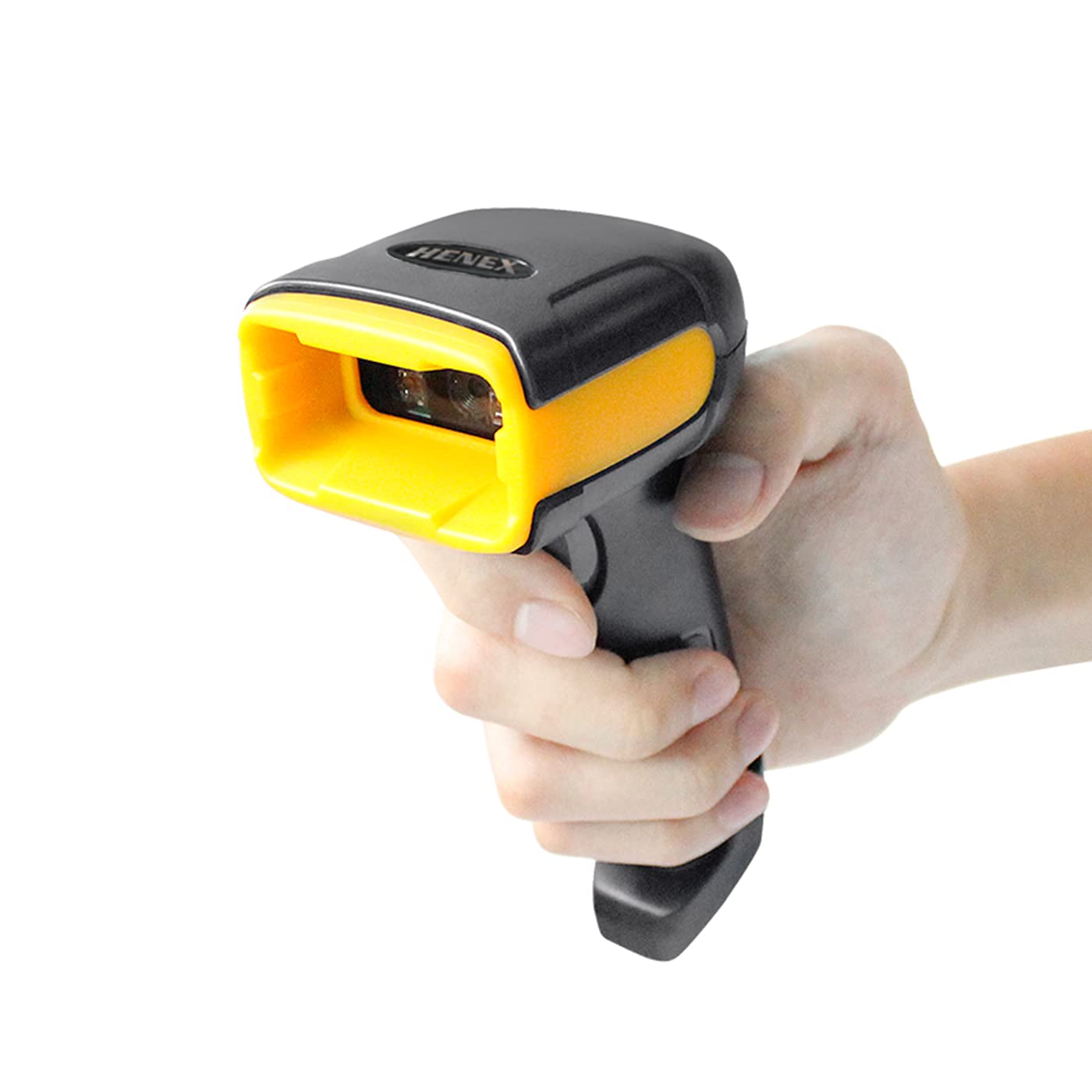
Image: The HENEX HC-2000 barcode scanner, a black and yellow handheld device, shown from the front, ready for use.
Product Overview
Key Features
- Versatile Decoding: Capable of scanning both 1D and 2D barcodes, including UPC, EAN-13, Code 39, Code 128, PDF417, Data Matrix, Maxicode, and QR Code. It can read barcodes from mobile phone screens and PC screens.
- High Performance: Features a scanning and decoding speed of 100 scans per second with a resolution of 640x480, enabling efficient reading of barcodes as small as 5mil and up to 13mil.
- Wide Compatibility: Supports various operating systems including Windows XP, Windows 7, Windows 8, Windows 10, and Mac OS. (Note: Does not work with Square POS systems).
- Plug and Play: Simple USB connectivity ensures quick setup without the need for complex driver installations.
- Durable Design: Ergonomically designed for comfortable long-term use and built to withstand drops from up to 1.5 meters, offering anti-shock and anti-fall protection.
- Broad Application: Suitable for a wide range of environments such as supermarkets, convenience stores, warehouses, libraries, bookstores, and apparel stores.
What's in the Box
Upon opening the package, please verify that all the following items are included:
- HENEX HC-2000 Barcode Scanner Unit
- USB Connection Cable
- Quick Set-Up Guide (Version 2.0)

Image: The HENEX HC-2000 scanner, its USB cable, and the Quick Set-Up Guide, laid out to show package contents.
Setup
The HENEX HC-2000 scanner is designed for simple plug-and-play operation, requiring no complex driver installations for most compatible systems.
- Connect the USB Cable: Insert the USB connector of the scanner's cable into an available USB port on your computer (desktop or laptop).
- System Recognition: Your operating system (Windows XP/7/8/10 or Mac OS) will automatically detect and install the necessary generic drivers for the scanner. This process usually takes a few seconds.
- Ready for Use: Once the system indicates that the device is ready, the scanner is prepared for operation. You can test it by opening a text editor (like Notepad or Word) and scanning any barcode; the data should appear in the document.

Image: A visual representation of the scanner's easy setup, showing the USB cable connecting the scanner to a computer monitor, emphasizing "No Installation Required."

Image: Icons representing various operating systems (Windows 7, 8, 10, XP, and Mac OS) to highlight the scanner's wide compatibility with different ERP systems.
Operating Instructions
The HENEX HC-2000 barcode scanner is designed for intuitive and efficient scanning across various applications.
Basic Scanning Procedure
- Prepare for Scan: Ensure the scanner is connected to your computer and the application where you want the barcode data to appear (e.g., a POS system, spreadsheet, or text document) is active and ready to receive input.
- Aim the Scanner: Point the scanner's window towards the barcode you wish to read. Ensure the entire barcode is within the scanner's field of view.
- Initiate Scan: Press and hold the trigger button located on the handle of the scanner. A red scanning line or light will emit from the scanner's window.
- Confirm Scan: Once the barcode is successfully read, the scanner will typically emit an audible beep and/or a visual indicator (e.g., a green light) to confirm the scan. The barcode data will then be transmitted to your connected device.
Supported Barcode Types
The HC-2000 is capable of decoding a wide range of 1D and 2D barcode symbologies, including those found on physical labels and digital screens.
- 1D Barcodes: UPC, EAN-13, EAN-8, Codabar, Code 39, Code 128, ISBN, ISSN.
- 2D Barcodes: PDF417, MicroPDF417, Data Matrix, Maxicode, QR Code.

Image: A visual guide illustrating the different types of 1D and 2D barcodes that the scanner can read, such as QR codes, Data Matrix, and various linear barcodes, including incomplete and high-density codes.

Image: The HENEX HC-2000 scanner in action, demonstrating its ability to scan QR codes from a mobile phone screen, highlighting its versatility for various scanning needs.
Typical Usage Scenarios
The HC-2000 is suitable for a variety of professional environments:
- Retail: Supermarkets, convenience stores, and apparel stores for point-of-sale (POS) and inventory management.
- Logistics & Warehousing: For tracking inventory, managing shipments, and streamlining warehouse operations.
- Libraries & Bookstores: For cataloging and checkout processes.
- Pharmacies: For managing pharmaceutical products and prescriptions.

Image: A collage depicting the diverse environments where the HENEX HC-2000 barcode scanner can be effectively utilized, including retail, hospitality, and logistics.
Maintenance
Proper maintenance ensures the longevity and optimal performance of your HENEX HC-2000 barcode scanner.
Cleaning
- Exterior: Use a soft, dry, lint-free cloth to wipe the exterior of the scanner. For stubborn dirt, slightly dampen the cloth with water or a mild, non-abrasive cleaner. Avoid using harsh chemicals, solvents, or abrasive materials, as these can damage the scanner's casing.
- Scanning Window: Gently clean the scanning window with a soft, clean microfiber cloth. If necessary, use a small amount of lens cleaner designed for optical surfaces. Ensure no dust or debris remains on the window, as this can affect scanning accuracy.
Storage
- When not in use, store the scanner in a clean, dry place away from direct sunlight, extreme temperatures, and high humidity.
- Avoid placing heavy objects on the scanner to prevent damage.
Durability
The HC-2000 is designed with a robust construction to withstand typical operational impacts. It features 1.5-meter anti-shock and anti-fall protection, reducing the risk of damage from accidental drops.

Image: A graphic representation of the scanner's durability, showing it in a falling motion with impact effects, emphasizing its 1.5-meter anti-shock and anti-fall capabilities.
Troubleshooting
If you encounter issues with your HENEX HC-2000 barcode scanner, please refer to the following common problems and their solutions:
| Problem | Possible Cause | Solution |
|---|---|---|
| Scanner not recognized by computer. | Loose USB connection, faulty USB port, or system driver issue. |
|
| Scanner does not read barcodes. | Barcode damaged, incorrect scanning angle, dirty scanning window, or scanner settings. |
|
| Scanned data is incorrect or incomplete. | Partial scan, interference, or incorrect keyboard layout settings. |
|
| Scanner does not work with Square POS. | Incompatibility with Square POS system. | This model is explicitly noted as not compatible with Square POS systems. No workaround is available for this specific incompatibility. |
If the problem persists after trying these solutions, please contact HENEX customer support for further assistance.
Specifications
Detailed technical specifications for the HENEX HC-2000 Barcode Scanner:
| Brand | HENEX |
| Model Name | HC-2000 |
| Dimensions (L x W) | 162mm x 64mm (6.37in x 2.51in) |
| Item Weight | 190 g (0.41 lb) |
| Operating System Compatibility | Windows XP, Windows 7, Windows 8, Windows 10, Mac OS |
| Scan Rate | 100 frames per second (fps) |
| Resolution | 640*480 |
| Minimum Barcode Resolution | 5 mil |
| Maximum Barcode Resolution | 13 mil |
| Connector Type | USB Cable |
| Power Source | Corded (USB powered) |
| Special Features | Ergonomic design, decoding capability for multiple barcode types, wide industry applicability, plug and play. |

Image: A technical drawing illustrating the physical dimensions (length and width) and weight of the HENEX HC-2000 scanner.
Warranty and Support
Warranty Information
Information regarding the product warranty is typically provided with your purchase documentation or can be obtained directly from the manufacturer or authorized seller. Please retain your proof of purchase for warranty claims.
Customer Support
For technical assistance, troubleshooting beyond this manual, or inquiries about your HENEX HC-2000 barcode scanner, please contact HENEX customer support. Refer to the contact information provided on the product packaging or the official HENEX website.
You can also visit the official HENEX brand store for more information and products: HENEX Brand Store
Related documentsHC-2000

Ask a question about this manual
Ask about setup, troubleshooting, compatibility, parts, safety, or missing instructions. Manuals+ will review the question and use this page’s manual context to help answer it.