
1. Introduction
Thank you for choosing the Xiaomi Mi 55-inch 4K UHD Smart Android TV. This manual provides essential information for the safe and efficient use of your television. Please read it thoroughly before operating the device and retain it for future reference.

Image 1.1: Front view of the Xiaomi Mi 55-inch 4K UHD Smart Android TV.
2. Safety Information
To ensure safe operation and prevent damage, observe the following precautions:
- Do not expose the TV to rain or moisture.
- Do not block ventilation openings.
- Ensure proper grounding for the power plug.
- Avoid placing the TV on unstable surfaces.
- Keep the TV away from direct sunlight, heat sources, and open flames.
- Unplug the TV during lightning storms or when unused for long periods.
- Refer all servicing to qualified service personnel.
3. Package Contents
Verify that all items are present in the package:
- 1 × Xiaomi Mi 55-inch TV
- 1 × Remote control with voice control
- 1 × Remote control batteries
- 1 × Power cable
- 1 × User manual (this document)
- 1 × Support legs
- 4 × Screws for support legs
4. Setup
4.1. Physical Installation
Your TV can be installed on a stand or wall-mounted. The TV is VESA mounting standard compatible.
4.1.1. Stand Installation
- Carefully place the TV face-down on a soft, flat surface to prevent screen damage.
- Attach the support legs to the designated slots at the bottom of the TV using the provided screws. Ensure they are securely fastened.
- Place the TV on a stable, level surface.
4.1.2. Wall Mounting (Optional)
If you choose to wall-mount your TV, use a VESA-compatible wall mount kit (sold separately) and follow the instructions provided with the wall mount. Ensure the wall can support the weight of the TV.
4.2. Connecting Peripherals
Connect your external devices to the TV's ports:
- HDMI: Connect Blu-ray players, game consoles, or set-top boxes to the HDMI ports (3 available). HDMI ARC is supported for audio return channel functionality.
- USB: Connect USB storage devices for media playback (2 available).
- LAN: For a wired internet connection, connect an Ethernet cable to the LAN port.
- Digital Audio Out (Optical): Connect to an external audio system for high-quality digital sound.
4.3. Initial Power On
- Connect the power cable to the TV and then to a power outlet.
- Press the power button on the remote control or on the TV.
- Follow the on-screen instructions to complete the initial setup, including language selection, network connection (Wi-Fi or Ethernet), and Google account sign-in.
5. Operating Instructions
5.1. Remote Control
The included remote control allows you to navigate the TV's features. It supports voice control for convenient interaction with Google Assistant.
- Power Button: Turns the TV on or off.
- Navigation Pad (Up/Down/Left/Right/OK): Navigates menus and selects options.
- Volume Buttons: Adjusts the sound level.
- Channel Buttons: Changes TV channels.
- Google Assistant Button: Activates voice control.
- Home Button: Returns to the Android TV home screen.
- Back Button: Returns to the previous screen.
- App Buttons: Dedicated buttons for popular apps like Netflix and YouTube.
5.2. Smart TV Features (Android TV)
Your TV runs on Android TV (version 9), providing access to a wide range of smart features:
- Google Assistant: Use voice commands to search for content, control smart home devices, and get information.
- Google Play Store: Download and install various apps, games, and streaming services.
- Built-in Chromecast: Cast content from your smartphone, tablet, or computer directly to the TV.
- Pre-installed Apps: Access Netflix, YouTube, and a web browser directly.
- SmartThings App Support: Integrate with other compatible smart home devices.
5.3. Picture and Sound Settings
Adjust picture and sound settings to optimize your viewing experience:
- Picture Modes: Select from various presets (e.g., Standard, Vivid, Movie, Game) or customize brightness, contrast, color, and sharpness.
- HDR: The TV supports HDR for enhanced contrast and color with compatible content.
- Sound Modes: Choose from presets like Standard, Music, Movie, or customize equalizer settings.
- DTS/Dolby Audio: The TV supports DTS and Dolby audio technologies for immersive sound.
6. Maintenance
6.1. Cleaning
To clean your TV:
- Always unplug the TV before cleaning.
- Use a soft, dry cloth to wipe the screen and cabinet.
- For stubborn marks, lightly dampen the cloth with water or a specialized screen cleaner. Never spray cleaner directly onto the screen.
- Avoid using abrasive cleaners or solvents.
6.2. Software Updates
Periodically check for software updates to ensure your TV has the latest features and performance improvements. Updates can usually be found in the TV's settings menu under 'About' or 'System Update'.
7. Troubleshooting
If you encounter issues, refer to the following common problems and solutions:
| Problem | Possible Solution |
|---|---|
| No power | Check if the power cable is securely connected and the power outlet is working. Try a different outlet. |
| No picture, but sound is present | Ensure the correct input source is selected. Check cable connections to external devices. |
| No sound, but picture is present | Check volume level and mute settings. Verify audio cable connections. If using external audio, ensure it's powered on and correctly configured. |
| Remote control not working | Replace batteries. Ensure there are no obstructions between the remote and the TV. Re-pair the remote if it's a Bluetooth remote. |
| Cannot connect to Wi-Fi | Check if the Wi-Fi router is on and working. Re-enter the Wi-Fi password. Try restarting the TV and router. |
| Apps are slow or crashing | Close unused apps. Clear app cache. Restart the TV. Ensure sufficient internet speed. |
If the problem persists, contact customer support.
8. Specifications
| Feature | Detail |
|---|---|
| Model Number | L55M5-5ASP |
| Screen Size | 55 inches |
| Display Technology | LED |
| Resolution | 3840 x 2160 (4K UHD) |
| Refresh Rate | 60Hz |
| Viewing Angle | 178 degrees |
| Video Features | HDR support |
| Operating System | Android TV (Android 9) |
| RAM | 2GB |
| Storage Capacity | 8GB |
| Audio Output | 2 x 10W speakers |
| Audio Technologies | DTS/Dolby Audio |
| Smart Features | Google Assistant, Google Play, Web Browser, SmartThings app support, YouTube, Netflix (subscription not included), Chromecast built-in, DVB-T2 + DVB-C tuner |
| Connectivity | 3 x HDMI (with ARC), 2 x USB, 1 x LAN (Ethernet 100Mbps), 1 x Digital Optical Audio Out, Built-in Wi-Fi (2.4G/5G), Bluetooth 4.2 |
| Aspect Ratio | 16:9 |
| Mounting Standard | VESA compatible |
| Product Dimensions (W x D x H) | 124.2 x 24.5 x 78 cm (with stand) |
| Product Weight | 13 kg |
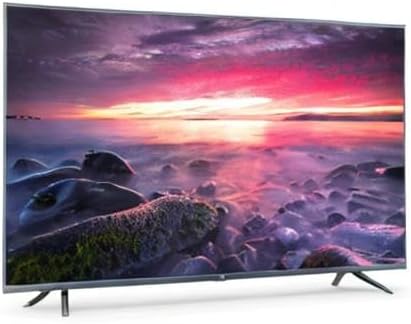
Image 8.1: Energy efficiency label for the Xiaomi Mi 55-inch TV.
9. Warranty and Support
For warranty information, please refer to the warranty card included with your product or visit the official Xiaomi website for your region. Keep your purchase receipt as proof of purchase.
For technical support, troubleshooting assistance beyond this manual, or service inquiries, please contact Xiaomi customer service through their official channels.


