
1. Introduction
The Kinter A7BT is a compact 2-channel mini amplifier designed for various audio applications, including home, automotive, and motorcycle setups. It features Bluetooth connectivity, USB and TF card playback, FM radio, and multiple control options. This manual provides detailed instructions for the proper installation, operation, and maintenance of your A7BT amplifier.
2. Package Contents
Verify that all items listed below are included in your package. If any items are missing or damaged, please contact Kinter customer support.
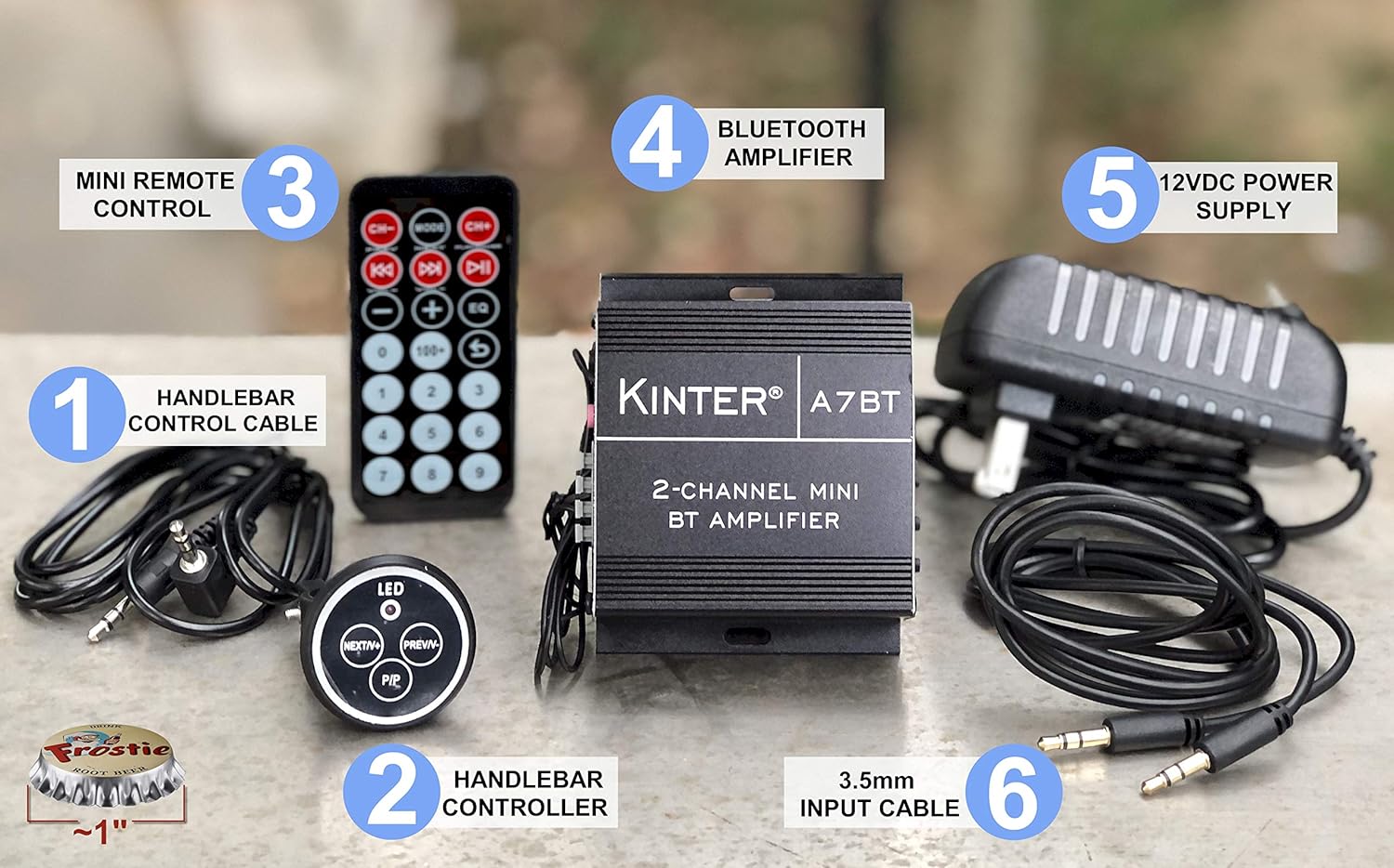
Image: Kinter A7BT amplifier, handlebar controller, IR remote, 12V power supply, and cables.
- Kinter A7BT 2-Channel Mini Bluetooth Amplifier
- Wired Handlebar Controller
- Wireless Infrared (IR) Remote Control
- 3.5mm Audio Input Cable (59 inches length)
- 12V DC Power Supply (34 inches length)
3. Product Overview
3.1 Front and Rear Panels
Familiarize yourself with the various controls and connections on the amplifier.
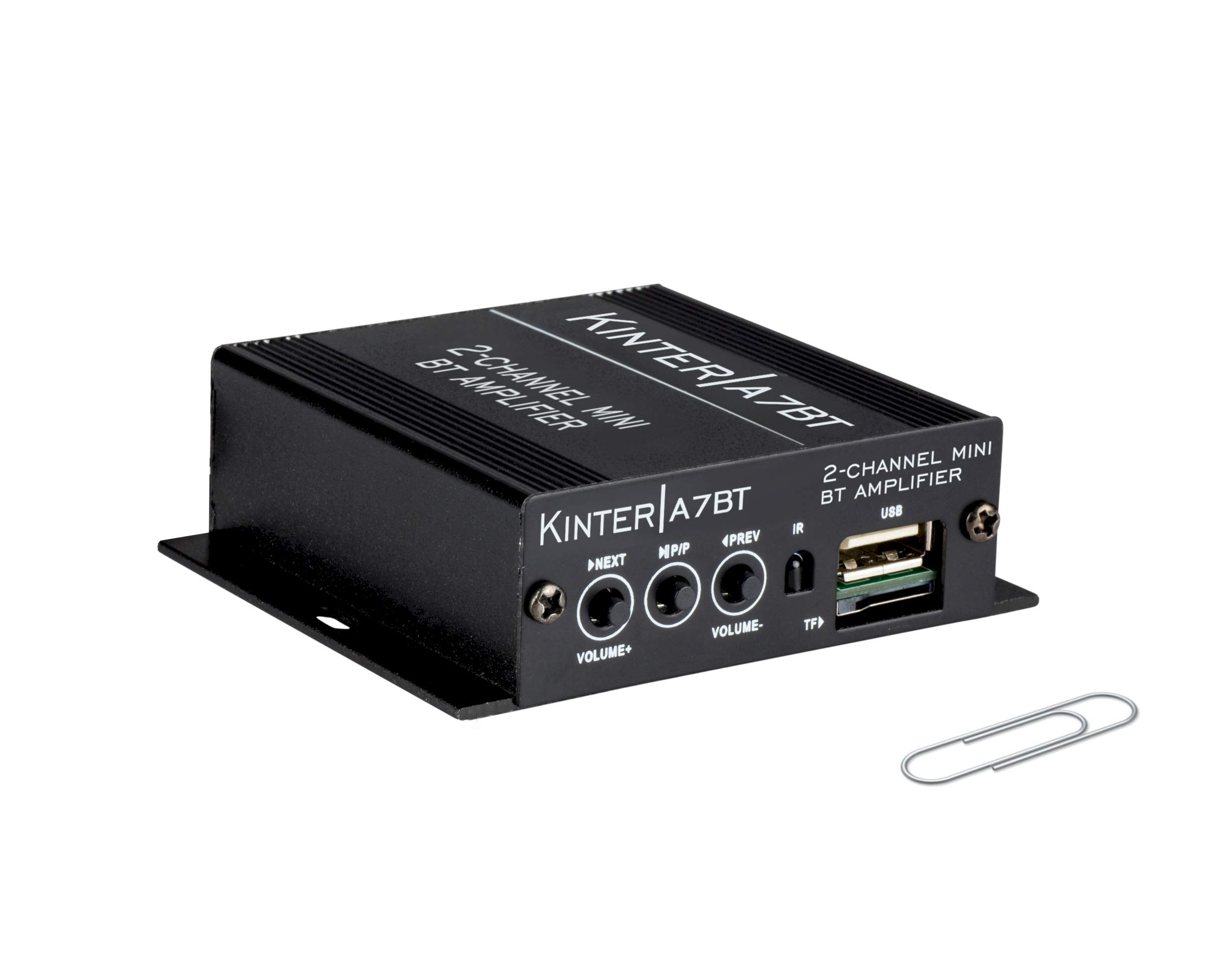
Image: Detailed diagram showing the front and rear panels of the Kinter A7BT amplifier with numbered components.
- NEXT/P (Next Song / Volume Up): Short press for next track, long press for volume up.
- M/P/P (Mode / Play / Pause): Short press for play/pause, long press to change input mode (Bluetooth, AUX, USB/TF, FM).
- PREV/V (Previous Song / Volume Down): Short press for previous track, long press for volume down.
- IR (Infrared Receiver): For wireless remote control signals.
- TF (TransFlash / Micro SD Card Slot): For playing audio files from a TF card.
- USB (USB Port): For playing audio files from a USB flash drive. Note: This is not a charging port.
- AUX IN (3.5mm Stereo Audio Input Jack): For connecting external audio devices via a 3.5mm cable.
- FM ANTENNA: Connection point for the FM antenna wire.
- REMOTE LINE IN: Input for the wired handlebar remote control.
- SPEAKER OUT (R/L): Terminals for connecting passive speakers (Right and Left channels).
- DC12V (12V DC Power Input): For connecting the 12V DC power supply.
- Bluetooth Operation Indicator: LED indicator for Bluetooth status.
3.2 Handlebar Controller
The wired handlebar controller provides convenient access to essential functions.
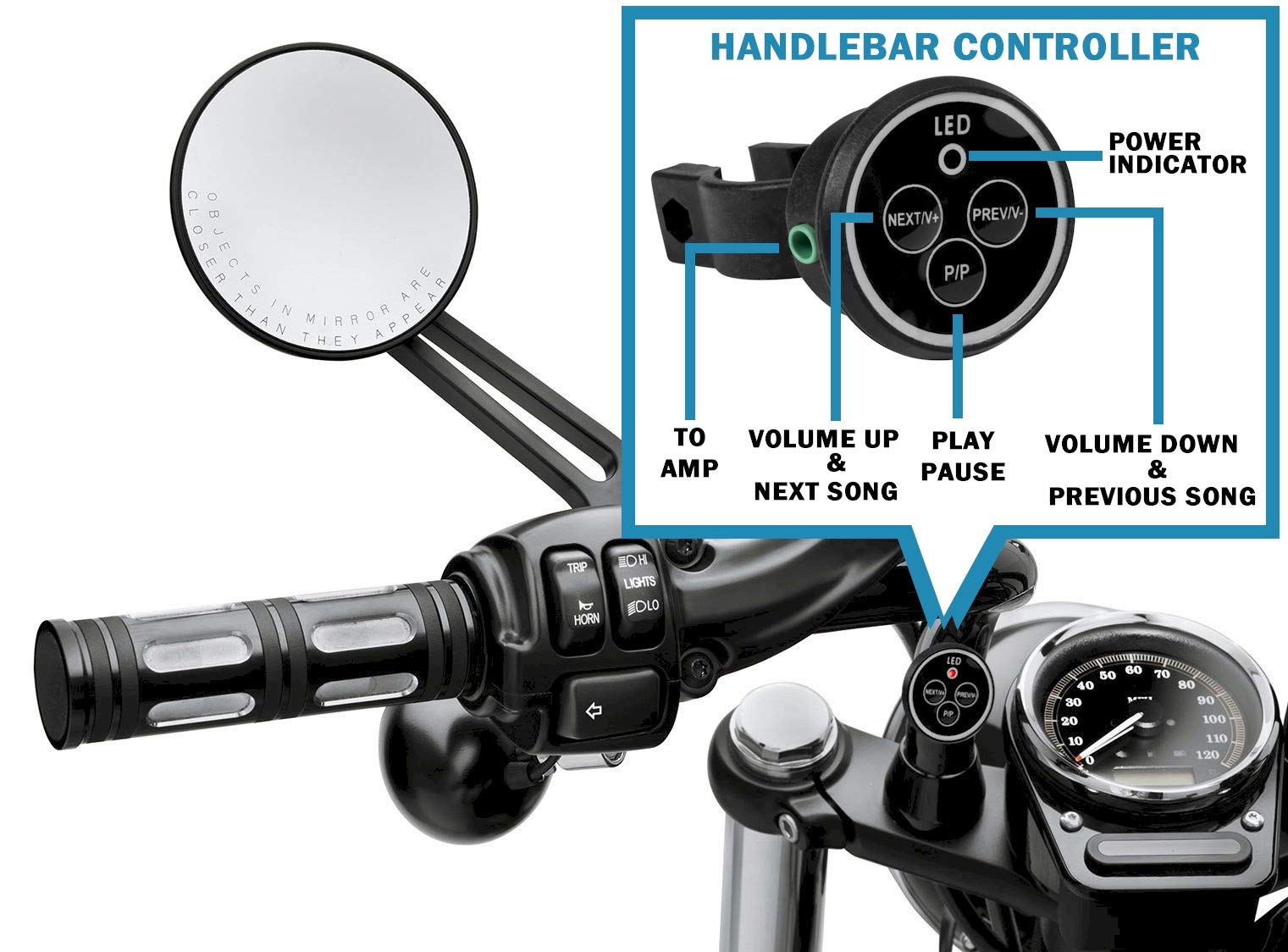
Image: Close-up of the handlebar controller showing LED power indicator, Next/Volume Up, Previous/Volume Down, and Play/Pause buttons.
- LED: Power Indicator.
- NEXT/V+: Next Song / Volume Up.
- PREV/V-: Previous Song / Volume Down.
- P/P: Play / Pause.
4. Setup
4.1 Power Connection
Connect the included 12V DC power supply to the DC12V input on the amplifier. Plug the power supply into a standard wall outlet.
For automotive or motorcycle applications, you can hardwire the amplifier to a 12V battery system. Use the included PSU's wire and connector. Strip the wire as shown in the diagram below. The white wire is POSITIVE (+), and the bare wire is GROUND (-). It is recommended to install a 2 Amp fuse inline (not included) for protection.
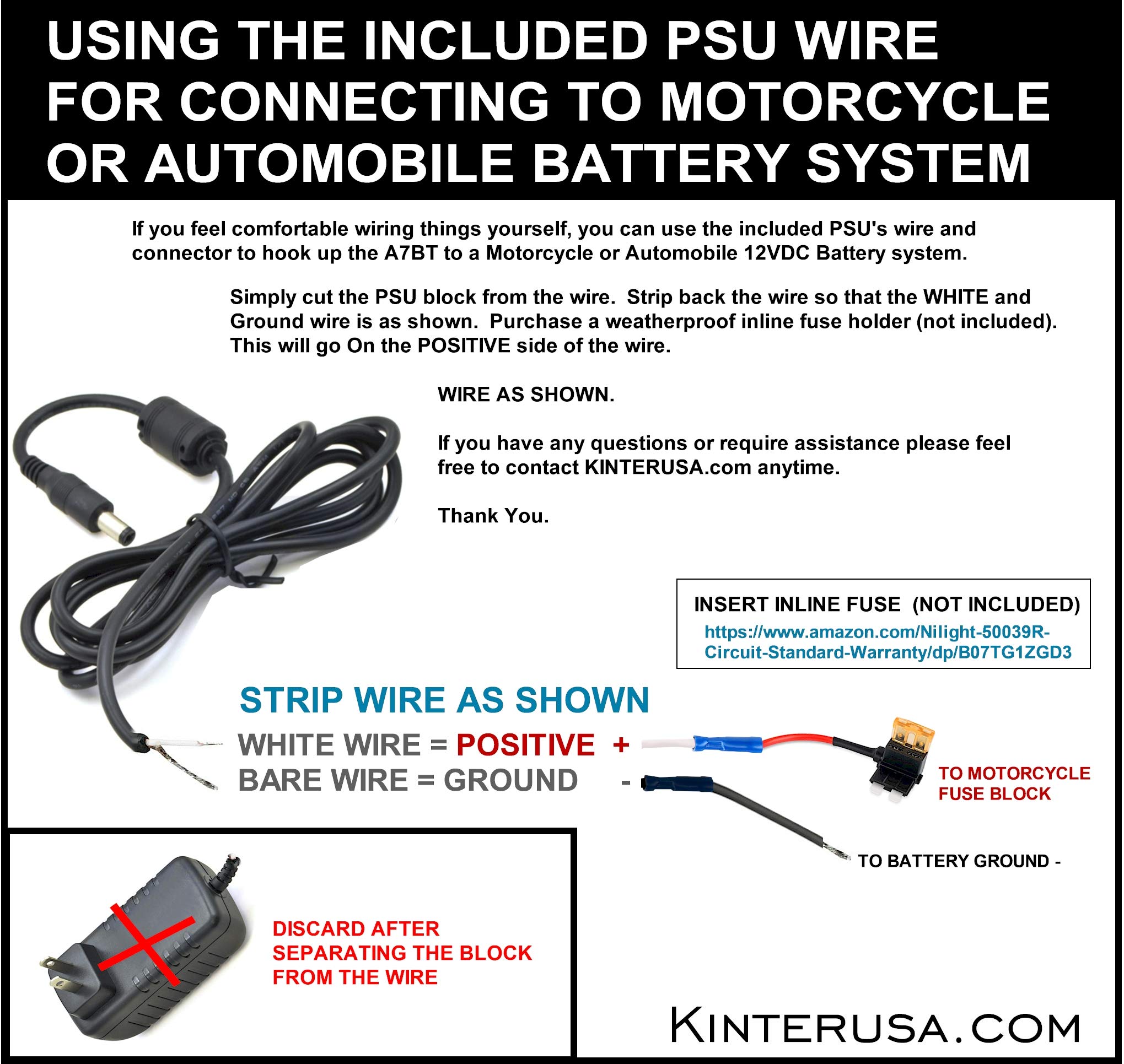
Image: Instructions for connecting the amplifier to a motorcycle or automobile battery, including wire stripping and fuse recommendation.
4.2 Speaker Connection
Connect your passive speakers to the SPEAKER OUT terminals on the rear panel. Ensure correct polarity (positive to positive, negative to negative) for each channel (Left and Right). Use a small screwdriver to press the terminal tabs, insert the speaker wire, and then release the tab to secure the wire.
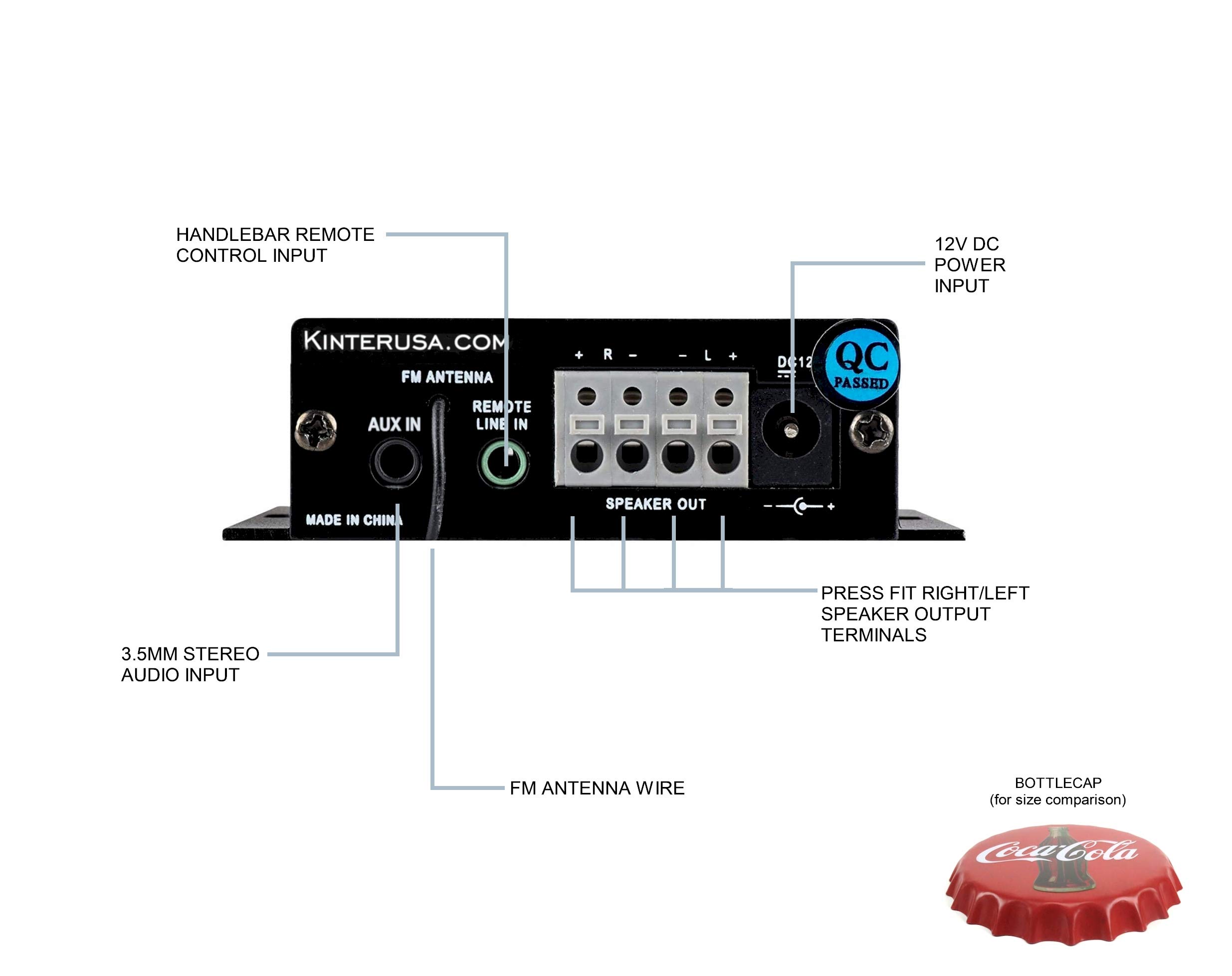
Image: A finger pressing a speaker terminal tab while inserting a speaker wire.
Note: Avoid using excessively large speaker wire that may cause shorts. Soldering the ends of the speaker wires can prevent stray strands and improve connection reliability.
4.3 Audio Input Connections
- AUX Input: Connect external audio devices (e.g., smartphone, MP3 player) using the included 3.5mm audio cable to the AUX IN jack.
- USB/TF Card: Insert a USB flash drive or a TF (Micro SD) card containing MP3 audio files into the respective ports. The amplifier will automatically detect and play compatible files.
- FM Antenna: Connect the FM antenna wire to the FM ANTENNA input for radio reception.
4.4 Remote Control Connection
- Wired Handlebar Controller: Plug the handlebar controller cable into the REMOTE LINE IN jack on the amplifier's rear panel.
- Wireless IR Remote: Ensure the IR receiver on the front panel (labeled 'IR') has a clear line of sight to the remote control.
5. Operation
5.1 Power On/Off
The Kinter A7BT amplifier does not have a dedicated power on/off button. It powers on automatically when connected to a 12V DC power source and powers off when the power source is disconnected.
5.2 Mode Selection
Press and hold the M/P/P button on the front panel or the 'MODE' button on the IR remote to cycle through the available input modes: Bluetooth, AUX, USB, TF, and FM radio.
5.3 Volume Control
Adjust the volume using the:
- Front Panel: Long press the NEXT/P button for Volume Up, and long press the PREV/V button for Volume Down.
- Handlebar Controller: Use the NEXT/V+ button for Volume Up, and PREV/V- button for Volume Down.
- IR Remote: Use the dedicated Volume Up and Volume Down buttons.
5.4 Playback Control
Control audio playback using the:
- Front Panel: Short press NEXT/P for next track, short press PREV/V for previous track, short press M/P/P for play/pause.
- Handlebar Controller: Use NEXT/V+ for next track, PREV/V- for previous track, and P/P for play/pause.
- IR Remote: Use the dedicated track skip and play/pause buttons.
5.5 Bluetooth Pairing
When the A7BT amplifier is powered on, it is ready for Bluetooth pairing. Follow these steps:
- Ensure Bluetooth is enabled on your audio device (e.g., smartphone, tablet).
- Open your device's Bluetooth settings.
- Scan for new devices.
- Select "A7BT" from the list of available devices to connect.
- Once connected, the Bluetooth operation indicator will confirm the status.
5.6 FM Radio Operation
In FM mode, use the track skip buttons on the front panel, handlebar controller, or IR remote to scan for and select radio stations.
5.7 USB/TF Card Playback
When a USB drive or TF card is inserted, the amplifier will automatically switch to the corresponding mode and begin playing audio files. The unit will resume playback from where it left off when powered off and on again. Fast-forwarding within a song is not supported.
6. Maintenance
To ensure optimal performance and longevity of your Kinter A7BT amplifier, observe the following maintenance guidelines:
- Ventilation: Ensure the amplifier is placed in a well-ventilated area. The aluminum casing acts as a heatsink, and proper airflow is crucial to prevent overheating. Avoid enclosing the unit in tight spaces without ventilation.
- Cleaning: Use a soft, dry cloth to clean the amplifier's exterior. Do not use liquid cleaners or solvents.
- Environment: Avoid exposing the amplifier to extreme temperatures, direct sunlight, high humidity, or dusty environments.
- Connections: Periodically check all cable connections to ensure they are secure and free from corrosion.
7. Troubleshooting
If you encounter issues with your Kinter A7BT amplifier, refer to the following common problems and solutions:
| Problem | Possible Cause | Solution |
|---|---|---|
| No power | Power supply not connected or faulty; vehicle battery issue. | Check power supply connection and outlet. If hardwired, check battery connection and inline fuse (if installed). |
| No sound | Incorrect input mode; speaker wires loose or incorrectly connected; volume too low; faulty audio source. | Verify correct input mode. Check speaker wire connections and polarity. Increase volume. Test with a different audio source. |
| Bluetooth not connecting | Amplifier not in Bluetooth mode; device too far; device already paired to another unit. | Ensure amplifier is in Bluetooth mode. Move device closer. Forget "A7BT" on your device and re-pair. |
| USB/TF card not playing | Unsupported file format; card/drive not inserted correctly; corrupted files. | Ensure files are MP3 format. Reinsert card/drive. Try a different card/drive. |
| Amplifier overheats | Poor ventilation; impedance mismatch with speakers. | Ensure adequate airflow around the unit. Verify speaker impedance matches amplifier specifications. |
| Remote control not working | IR receiver blocked; remote battery low (for wireless IR remote); wired remote connection loose. | Ensure clear line of sight to IR receiver. Replace remote battery. Check wired remote connection. |
8. Specifications
Detailed technical specifications for the Kinter A7BT amplifier.
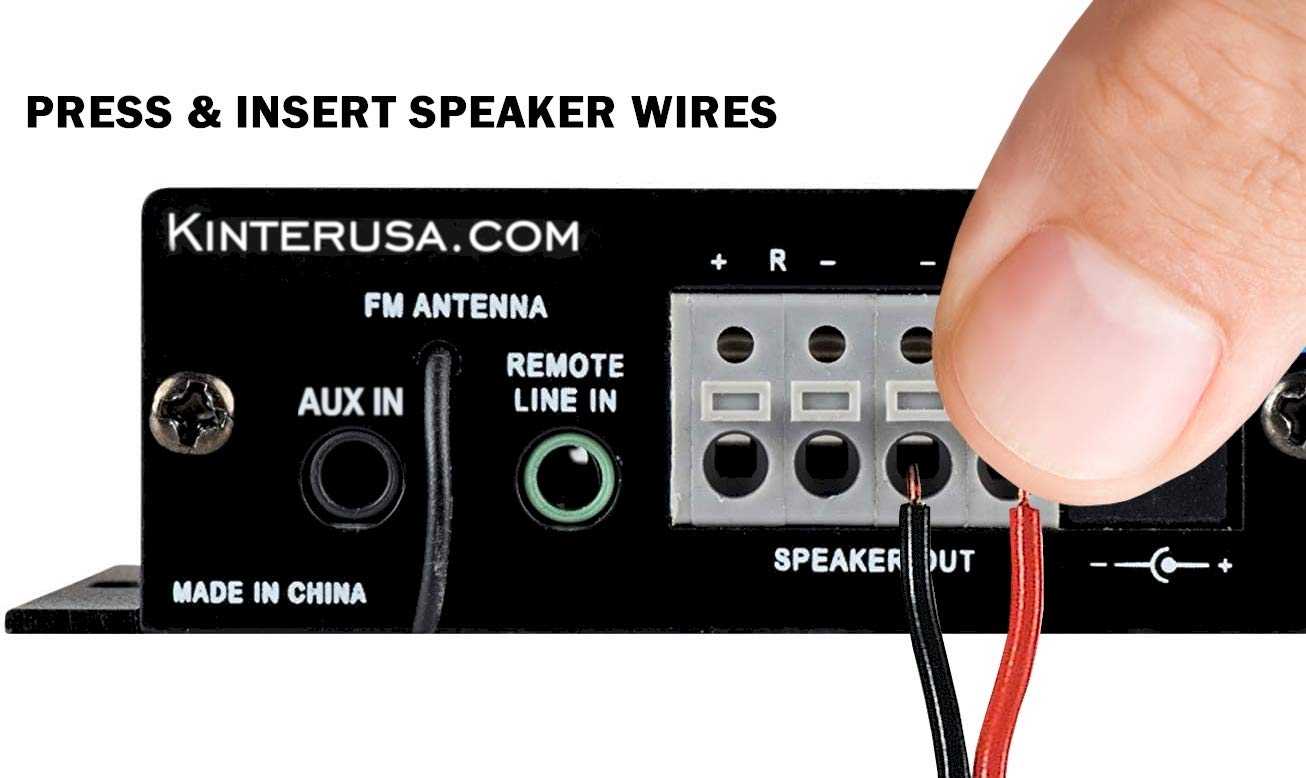
Image: The Kinter A7BT amplifier with its length, width, and height dimensions indicated.
| Feature | Specification |
|---|---|
| Model Number | A7BT |
| Number of Channels | 2 |
| Output Power | 2 x 20W (4Ω, 10% THD Max) |
| Input Voltage | 9-14.4V DC |
| Rated Input Voltage | 12 Volts |
| Rated Input Current | ≤3A |
| Frequency Response | 20Hz-20KHz |
| Output Impedance | 4-8 Ohms |
| Signal-to-Noise Ratio (SNR) | ≥80dB |
| Total Harmonic Distortion (THD) | ≤0.02% 4W |
| FM Frequency Range | 87.5-108.0MHz |
| Input Impedance (FM) | 47K Ohms |
| External Control | Infrared remote control |
| Operating Temperature | 0-46°C (32-115°F) |
| Storage Temperature | 0-60°C (32-140°F) |
| Humidity | 10-85% (Operating), 10-95% (Storage) |
| Item Dimensions (L x W x H) | 6.4 x 6.4 x 2.5 Centimeters (2.5 x 2.5 x 1 inches approx.) |
9. Warranty and Support
The Kinter A7BT amplifier comes with a one-year warranty from the date of purchase. This warranty covers manufacturing defects under normal use. It does not cover damage caused by misuse, accidents, unauthorized modifications, or improper installation.
For technical support, warranty claims, or any questions regarding your Kinter A7BT amplifier, please visit the official KinterUSA website or contact their customer service directly.


