
Introduction
The Logitech for Creators Mevo Start is a wireless live streaming camera designed to deliver professional-quality video in stunning 1080p HD resolution. It offers versatile streaming options via Wi-Fi, Ethernet, or your smartphone's 4G/5G network. Control your Mevo Start wirelessly through an intelligent app, enabling features like Auto-Director and multi-camera setups. Capture clear audio with built-in microphones or external sources, and stream to popular platforms like YouTube, Twitch, and Facebook. Mevo Start also supports Webcam Mode, RTMP, and NDI|HX protocols for seamless integration into various setups.
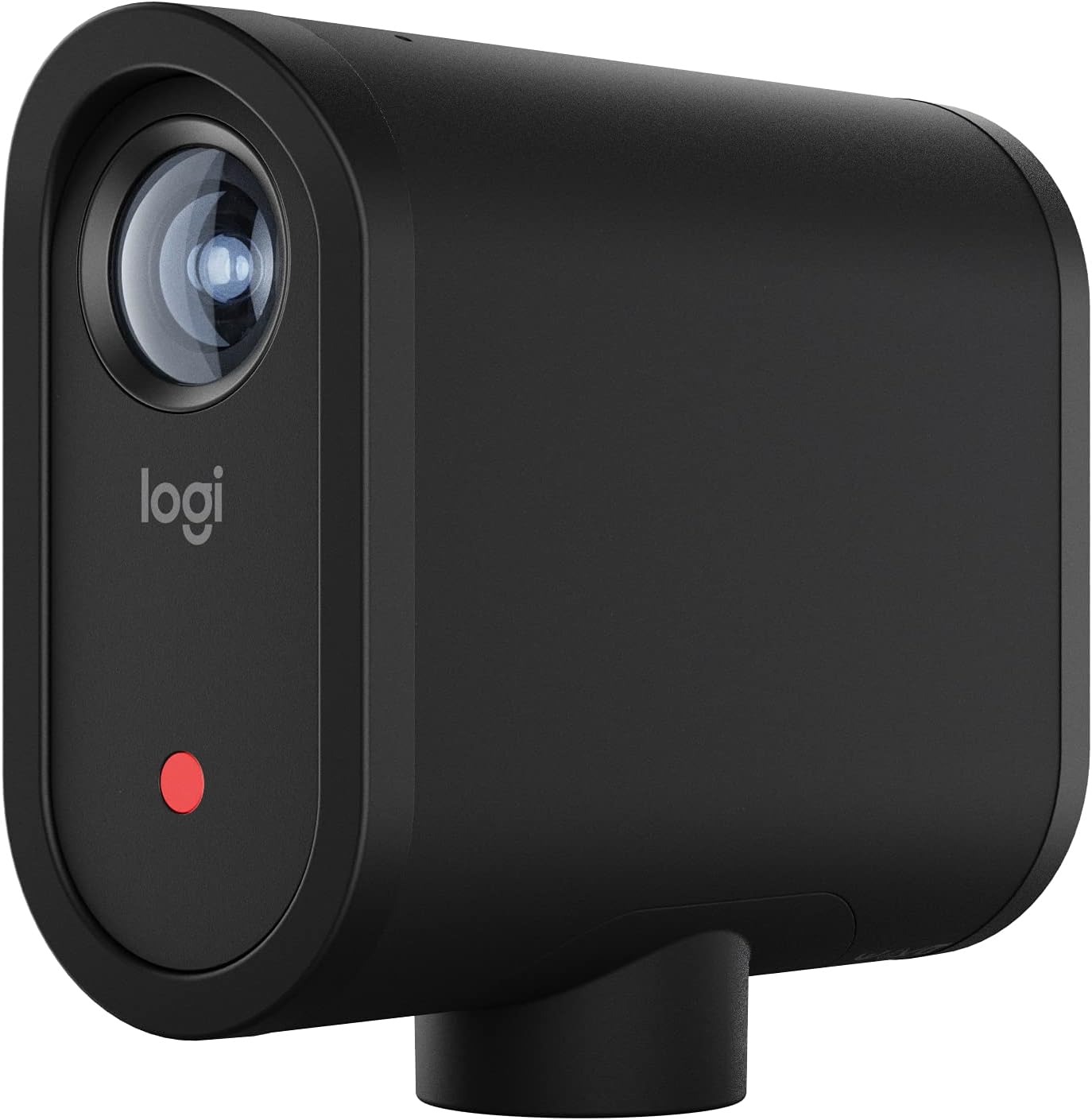
Image: Logitech Mevo Start camera, a compact black device with a lens and indicator light, standing on a flat surface.
What's in the Box
- Mevo Start Camera
- USB-C Cable with QuickCharge
- Microfiber Cloth
- Quickstart Guide

Image: The Mevo Start camera, a USB-C cable, a microfiber cloth, and a quickstart guide laid out next to the product box.
Video: An unboxing video of the Mevo Start camera, showing the contents of the package.
Setup
- Charge the Camera: Before first use, fully charge your Mevo Start camera using the provided USB-C cable.
- Download the App: Download the "Logitech Mevo Multicam" app from your device's app store (iOS or Android). This app is essential for controlling multiple Mevo cameras.
- Power On: Press and hold the power button on the back of the Mevo Start camera until the indicator light illuminates.
- Connect to Wi-Fi: Open the Mevo Multicam app and follow the on-screen instructions to connect your camera(s) to your local Wi-Fi network. A 5GHz Wi-Fi network is recommended for optimal performance.
- Firmware Update: The app may prompt you to update the camera's firmware. It is recommended to perform all available firmware updates to ensure optimal performance and access to the latest features.

Image: The back of the Mevo Start camera, highlighting the power button, 3.5mm TRS audio input, USB-C port, and MicroSD slot.
Operating Instructions
Basic Controls & App Integration
- Wireless Control: Use the Logitech Mevo Multicam app on your smartphone or tablet to wirelessly control all camera functions.
- Digital Zoom & Cropping: The app allows you to digitally zoom and crop into your 1080p HD video feed, creating dynamic shots from a single camera.
- Auto-Director: Utilize the Auto-Director feature within the app for intelligent, automated shot selection during your live stream.

Image: A smartphone showing the Mevo Multicam app, with a live view from the Mevo Start camera and controls for digital zoom and cropping.
Audio Management
- Built-in Microphone: Mevo Start features an advanced onboard microphone for capturing clean, clear audio.
- External Audio Input: Connect external audio sources via the 3.5mm TRS jack for advanced audio setups. The camera supports both mic-level and line-level inputs.

Image: A Mevo Start camera mounted on a tripod, with a blurred background, emphasizing its audio input port.
Streaming & Recording
- Direct Streaming: Simultaneously stream to platforms like YouTube, Twitch, and Facebook directly from the app.
- Local Recording: Record your streams directly to a MicroSD card inserted into the camera's slot. This allows for post-production editing or backup.

Image: A Mevo Start camera with logos of Facebook, Twitter, Twitch, YouTube, and LinkedIn, along with RTMP and NDI|HX icons, illustrating its versatile streaming capabilities.
Video: A demonstration of the Mevo Start camera being used in a kitchen setting to capture cooking, showcasing its multi-camera and cropping features.
Advanced Features
- Multicam Setup: Connect up to three Mevo Start cameras to create broadcast-quality streams from multiple angles, easily switching between them via the app.
- Webcam Mode: Integrate Mevo Start seamlessly into any setup using Webcam Mode for video conferencing or other applications.
- RTMP & NDI|HX: Utilize RTMP and NDI|HX protocols for advanced streaming workflows and integrations with professional broadcasting software.
- Video Source Latency: Adjust latency settings within the app (Ultra Low, Low, Standard, High) to optimize performance based on your network conditions.

Image: A kitchen counter with multiple Mevo Start cameras on stands, demonstrating a multi-camera setup for live streaming.
Video: An overview of the Mevo Start camera's features and capabilities, including its use in various streaming scenarios.
Maintenance
- Cleaning: Use the provided microfiber cloth to gently clean the camera lens and body. Avoid abrasive materials or harsh chemicals.
- Battery Care: For optimal battery life, avoid fully discharging the camera frequently. Store the camera with a partial charge if not used for extended periods.
- Storage: Store the Mevo Start in a cool, dry place away from direct sunlight and extreme temperatures.
Troubleshooting
- Connectivity Issues: Ensure your Mevo Start is within range of a strong 5GHz Wi-Fi signal. Restart both the camera and your controlling device if connection problems persist.
- Firmware Updates: Regularly check the Mevo Multicam app for available firmware updates, as these often resolve bugs and improve performance.
- Image Quality: If experiencing degraded image quality, check your Wi-Fi signal strength and consider adjusting the video source latency settings in the app.
Specifications
| Product Dimensions | 3.43 x 1.34 x 2.97 inches |
| Item Weight | 8.2 ounces |
| Item Model Number | 961-000498 |
| Batteries | 1 Lithium Ion batteries required (included) |
| Photo Sensor Technology | CMOS |
| Video Capture Resolution | 1080p |
| Maximum Focal Length | 3.6 Millimeters |
| Maximum Aperture | 2 f |
| Flash Memory Type | Micro SD |
| Video Capture Format | MP4 |
| Supported Audio Format | AAC |
| Connectivity Technology | Ethernet, Wi-Fi |
| Color | black |
Warranty and Support
For warranty information and technical support, please refer to the official Logitech for Creators website or contact their customer service. Keep your purchase receipt for warranty claims. The product typically comes with a manufacturer's warranty covering defects in materials and workmanship.


