
1. Introduction
Thank you for choosing the WOSTOKE Android 10 Car Stereo DVD GPS Navigation Radio. This advanced in-dash system is designed to enhance your driving experience in BMW Mini Cooper R56 models from 2006 to 2013. Featuring an Android 10 operating system, 4GB RAM, and 64GB internal storage, this unit provides robust navigation, multimedia, and connectivity options. This manual provides essential information for installation, operation, and maintenance to ensure optimal performance and longevity of your device.
2. Safety Information
- Professional Installation Recommended: Due to the complexity of vehicle electronics, professional installation is strongly advised to prevent damage to the unit or your vehicle.
- Driving Safety: Always prioritize safe driving. Do not operate the device in a way that distracts you from the road. Adjust settings or input navigation destinations only when the vehicle is stationary.
- Power Supply: Ensure the unit is connected to a 12V DC power supply. Incorrect voltage can cause damage.
- Temperature: Avoid exposing the unit to extreme temperatures or direct sunlight for prolonged periods.
- Moisture: Keep the unit dry. Exposure to moisture can lead to malfunction or electrical hazards.
3. Package Contents
Please verify that all items are present in the package:
- WOSTOKE Android 10 Car Stereo Unit
- GPS Antenna
- Main Power Harness
- USB Cables
- AV Output/Input Cables
- External Microphone (if included)
- Canbus Decoder (if required for vehicle integration)
4. Setup and Installation
This unit is designed for specific BMW Mini Cooper R56 models (2006-2013). While it features a 'plug and play' design, professional installation is highly recommended to ensure correct wiring and vehicle integration, especially concerning CANBUS systems and steering wheel controls.
4.1. Compatibility Check
Before installation, confirm that your vehicle's dashboard configuration matches the compatible design. Refer to the images below for visual guidance.

Image: Dashboard compatibility comparison. The top image shows a compatible dashboard for installation, while the bottom image indicates an incompatible dashboard configuration.
4.2. Original Radio Unit
The new unit replaces the original radio system. Familiarize yourself with the original unit's appearance before removal.

Image: Front view of the original radio unit typically found in BMW Mini Cooper R56 models.
4.3. Main Unit Overview
The main unit integrates the display and control panel. Ensure careful handling during installation.

Image: The WOSTOKE Android 10 Car Stereo main unit, showing the integrated display and control buttons.
4.4. Wiring Connections
- Connect the main power harness to the vehicle's wiring. Ensure all connections are secure.
- Attach the GPS antenna and position it for optimal signal reception (e.g., on the dashboard, away from obstructions).
- Connect USB cables for external devices or data transfer.
- If applicable, connect the CANBUS decoder to enable steering wheel controls and other vehicle-specific functions.
- Connect AV input/output cables as needed for external cameras or displays.
5. Operating Instructions
This unit runs on Android 10, offering a familiar smartphone-like interface.
5.1. Basic Operation
- Power On/Off: Press and hold the PWR button to turn the unit on or off. A short press may mute/unmute audio.
- Volume Control: Use the VOL knob or steering wheel controls to adjust the audio volume.
- Touchscreen: Navigate the interface by tapping, swiping, and pinching on the capacitive multi-touch screen.
5.2. Android 10 Interface
The home screen provides access to various applications and settings.
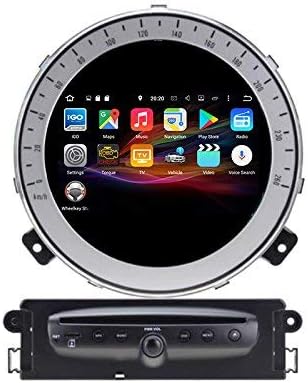
Image: Android 10 home screen displaying various applications including navigation, music, and media players.

Image: Another view of the Android 10 home screen, featuring a clock widget and shortcuts to music, video, and navigation.

Image: Android 10 home screen showing access to system settings, gallery, and other utility applications.

Image: Android 10 home screen displaying a wider range of applications, including Bluetooth, browser, and calculator.
5.3. Navigation (GPS)
- Tap the 'NAV' button or the Navigation app icon on the screen to launch the GPS application.
- Input your destination using the on-screen keyboard.
- Follow voice prompts and on-screen directions for guidance.
5.4. Multimedia Playback
- DVD/CD: Insert a disc into the slot. The unit will automatically detect and play compatible media (DVD, DVD-R, DVD-RW, HDVD, DVCD, CD-R, CD-RW, VCD).
- USB/SD: Connect a USB drive or insert an SD card into the designated port. Use the File Browser or Music/Video apps to access media files (MP4, H.264, WMV, AVI, RM/RMVB, VOB, MP3, WMA, WAV, JPEG).
- Radio: Tap the 'BAND' button or Radio app icon. Use the touchscreen to scan for stations (FM/AM) and save up to 30 presets. RDS functionality is available.
5.5. Bluetooth Connectivity
- Go to the Bluetooth settings on the unit.
- Enable Bluetooth on your mobile device and search for available devices.
- Select the unit's name (e.g., 'WOSTOKE Car Stereo') and pair.
- Once paired, you can make hands-free calls and stream audio from your phone.
5.6. Steering Wheel Control
If properly installed with the CANBUS decoder, the unit supports your vehicle's original steering wheel controls. This allows you to adjust volume, change tracks, and answer calls without taking your hands off the wheel. Configuration may be required in the unit's settings menu.
5.7. Mirror Link
The built-in dual-way mirror link function allows you to display your smartphone's screen on the unit and control it from the unit's touchscreen. Refer to the specific Mirror Link application on the unit for connection instructions (e.g., via USB or Wi-Fi).
5.8. Optional Features
- OBD: Support for external OBD devices (optional). Connect an OBD dongle via Bluetooth or USB to monitor vehicle diagnostics.
- 3G Modem: Support for external 3G modems (optional) for internet connectivity.
- Digital TV: Support for DVB-T, ISDB, ATSC digital TV tuners (optional).
- CarPlay: Optional CarPlay functionality may be available with an additional adapter.
6. Maintenance
- Cleaning: Use a soft, dry cloth to clean the screen and unit exterior. Avoid abrasive cleaners or solvents.
- Software Updates: Periodically check for software updates from the manufacturer to ensure optimal performance and access to new features. Updates can typically be performed via Wi-Fi or USB.
- Data Backup: Regularly back up important data or settings if possible, especially before major software updates.
7. Troubleshooting
If you encounter issues, refer to the following common troubleshooting steps:
- No Power: Check all power connections and the vehicle's fuse box. Ensure the ignition is on.
- No Sound: Check volume levels, audio source selection, and speaker connections. Ensure the unit is not muted.
- GPS Signal Loss: Ensure the GPS antenna is properly connected and has a clear view of the sky. Move the antenna if necessary.
- Touchscreen Unresponsive: Try restarting the unit. If the issue persists, a factory reset (found in system settings) might be necessary, but this will erase all user data.
- Bluetooth Connection Issues: Ensure Bluetooth is enabled on both the unit and your mobile device. Try unpairing and re-pairing the devices.
- Disc Read Error: Ensure the disc is clean and free of scratches. Try a different disc.
- System Slow/Freezing: Close unnecessary applications. Clear cache or perform a system restart. If persistent, consider a factory reset.
For complex issues not resolved by these steps, please contact customer support.
8. Specifications
| Feature | Specification |
|---|---|
| Operating System | Android 10 (PX5 Chips) |
| RAM | 4GB DDR3 |
| Internal Storage (Flash) | 64GB |
| Display Size | 7 Inches |
| Resolution | 1024 x 600 |
| Connectivity | Wi-Fi, Bluetooth, USB, Aux Input |
| Special Features | Bluetooth, Touchscreen, GPS Function, Built-in DVR (USB camera), Mirror Link |
| Audio Output Mode | Stereo |
| Maximal Power Output | 4*50W |
| Compatible Disc Formats | DVD, DVD-R, DVD-RW, HDVD, DVCD, MP3, MP4, CD-R, CD-RW, VCD, DIVX, WMA |
| Supported Video Formats | MP4, H.264, WMV, AVI, RM/RMVB, VOB |
| Supported Audio Formats | MP3, WMA, WAV |
| Radio Tuner | FM/AM (30 stations), RDS |
| AV Output/Input | 2 Video Out, 4 Audio Output, 2 Video Input, 2 Audio Input |
| Subwoofer Output | Yes |
| Item Weight | 9.48 pounds |
| Product Dimensions | 13.78 x 11.02 x 8.66 inches |
9. Warranty and Support
This product comes with a standard manufacturer's warranty. For specific warranty terms and conditions, please refer to the documentation provided with your purchase or contact the seller directly.
For technical support, installation assistance, or any product-related inquiries, please contact WOSTOKE customer service or the retailer from whom you purchased the unit. Providing your product model (B0865KTNWG) and a detailed description of the issue will help expedite support.