
OCOOPA D602
OCOOPA Small USB Desk Fan Instruction Manual
Model: D602 | Brand: OCOOPA
Introduction
Thank you for choosing the OCOOPA Small USB Desk Fan. This compact and powerful fan is designed to provide strong airflow with quiet operation, making it ideal for home, office, bedroom, or desktop use. This manual provides essential information for the safe and efficient use of your new fan.
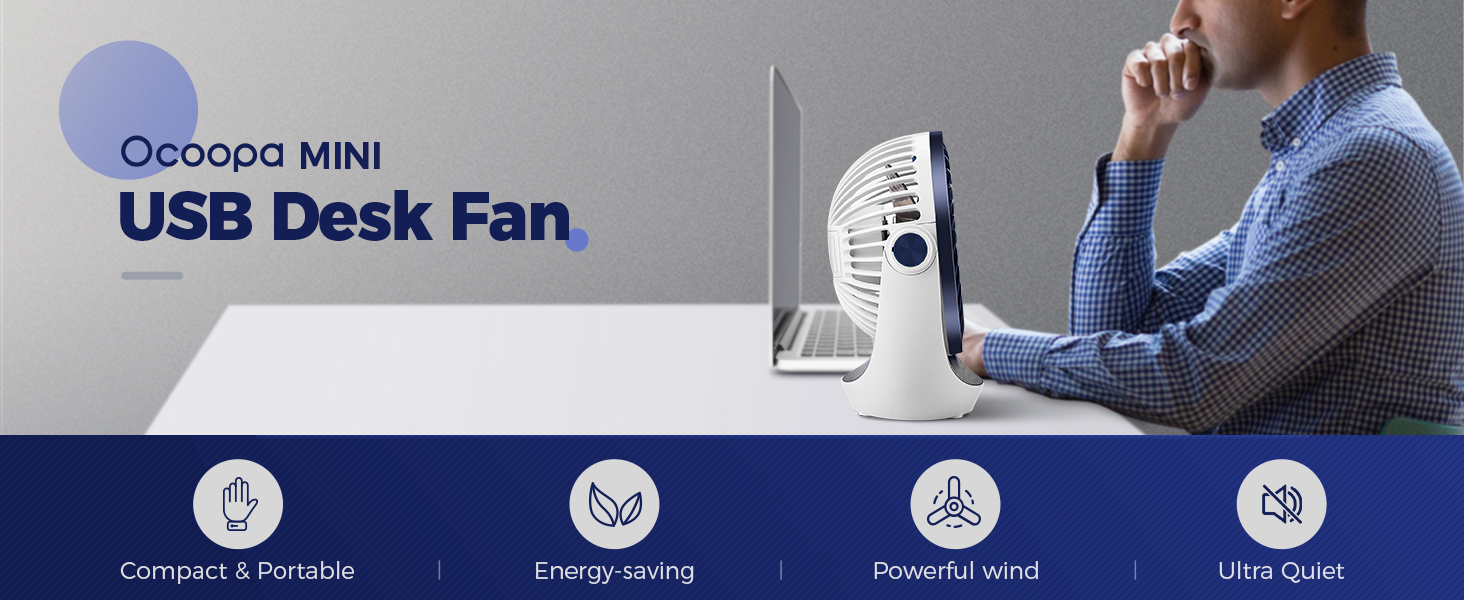
The OCOOPA Mini USB Desk Fan is compact, energy-saving, provides powerful wind, and operates quietly.
Safety Instructions
Please read all safety instructions carefully before using the fan and keep this manual for future reference.
- Do not insert fingers or any objects into the fan grille when it is operating.
- Keep the fan away from water or other liquids to prevent electric shock.
- Do not use the fan in excessively humid or dusty environments.
- Ensure the power cord is not damaged or pinched.
- Unplug the fan from the USB power source before cleaning or when not in use for extended periods.
- This appliance is not intended for use by persons (including children) with reduced physical, sensory or mental capabilities, or lack of experience and knowledge, unless they have been given supervision or instruction concerning use of the appliance by a person responsible for their safety.
Product Overview
Components
- Fan Unit (with integrated motor and blades)
- Protective Grille (front and back)
- Stable Base with Anti-Vibration Rubbers
- USB Power Cable (attached)
- Power Button / Speed Control

The OCOOPA Small USB Desk Fan, featuring its compact design and Diamond Blue color.
Key Features
- Strong Wind: Inbuilt copper brushless motor for powerful airflow.
- USB Powered: Compatible with various USB power sources.
- 3 Speed Adjustable: Easily switch between low, medium, and high speeds.
- Quiet Operation: Low noise level, especially at lower speeds.
- 360° Rotatable Head: Adjust the fan direction as needed.
- Sturdy Base: Four rubber pads reduce vibration and increase stability.
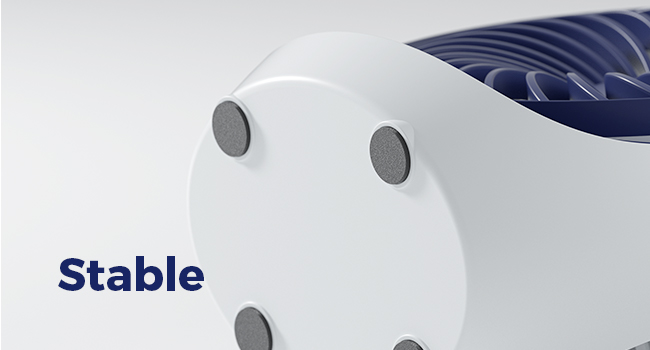
The fan's stable base with anti-slip rubber feet ensures it stays firmly in place.
Setup
Unboxing
- Carefully remove the fan from its packaging.
- Check for any visible damage. If damaged, do not use and contact customer support.
- Ensure all components listed in the Product Overview are present.
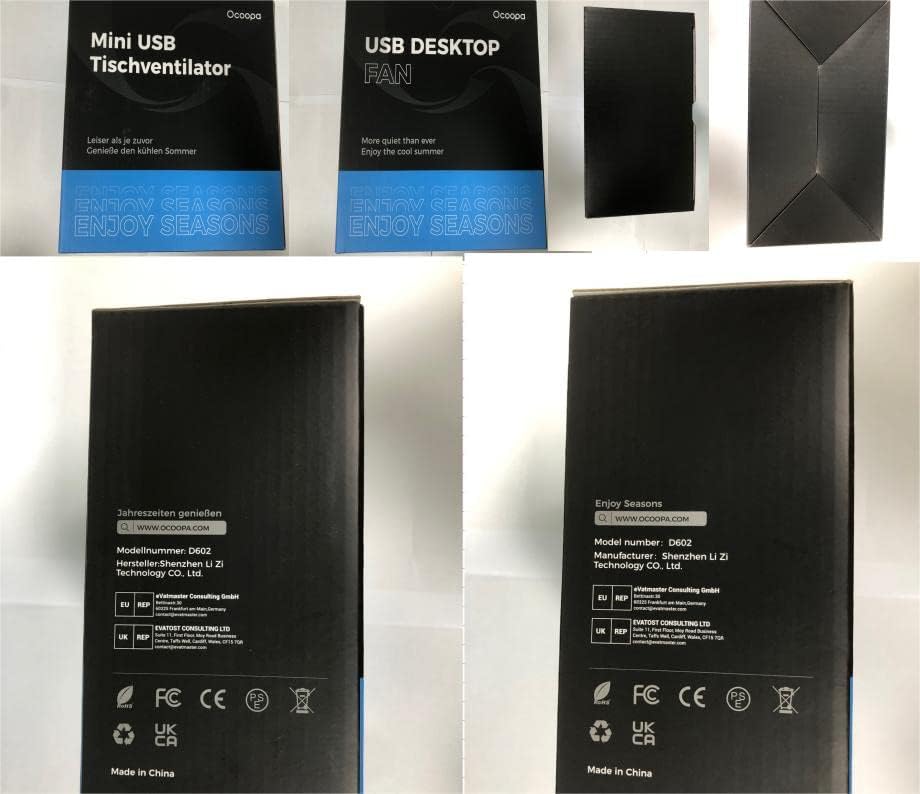
The OCOOPA USB Desktop Fan packaging.
Placement
Place the fan on a stable, flat surface. Ensure there is adequate space around the fan for optimal airflow and to prevent obstruction of the grilles.
Power Connection
- Locate the integrated USB power cable.
- Plug the USB connector into any compatible USB power source, such as a computer/laptop USB port, power bank, wall charger (USB adapter not included), or car charger.
- The fan is designed for continuous operation when connected to a power source.

The OCOOPA fan can be powered by various USB sources for convenience.
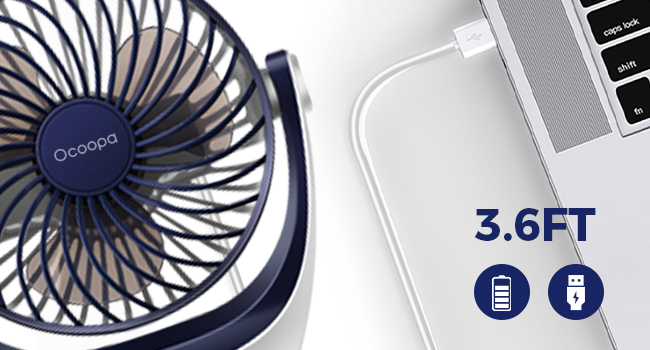
The fan comes with a 3.6ft USB cable for flexible placement.
Operating Instructions
Powering On/Off and Speed Adjustment
The fan features a single power button that also controls the speed settings.
- To Turn On (Speed 1 - Natural Wind): Press the power button once. The fan will start at the lowest speed, providing a gentle breeze (approximately 1200 RPM).
- To Adjust to Speed 2 (Gentle Breeze): Press the power button a second time. The fan speed will increase (approximately 1400 RPM).
- To Adjust to Speed 3 (Strong Winds): Press the power button a third time. The fan will operate at its highest speed, providing powerful airflow (approximately 1600 RPM).
- To Turn Off: Press the power button a fourth time. The fan will stop operating.

Easily cycle through the three speed settings with a single button.
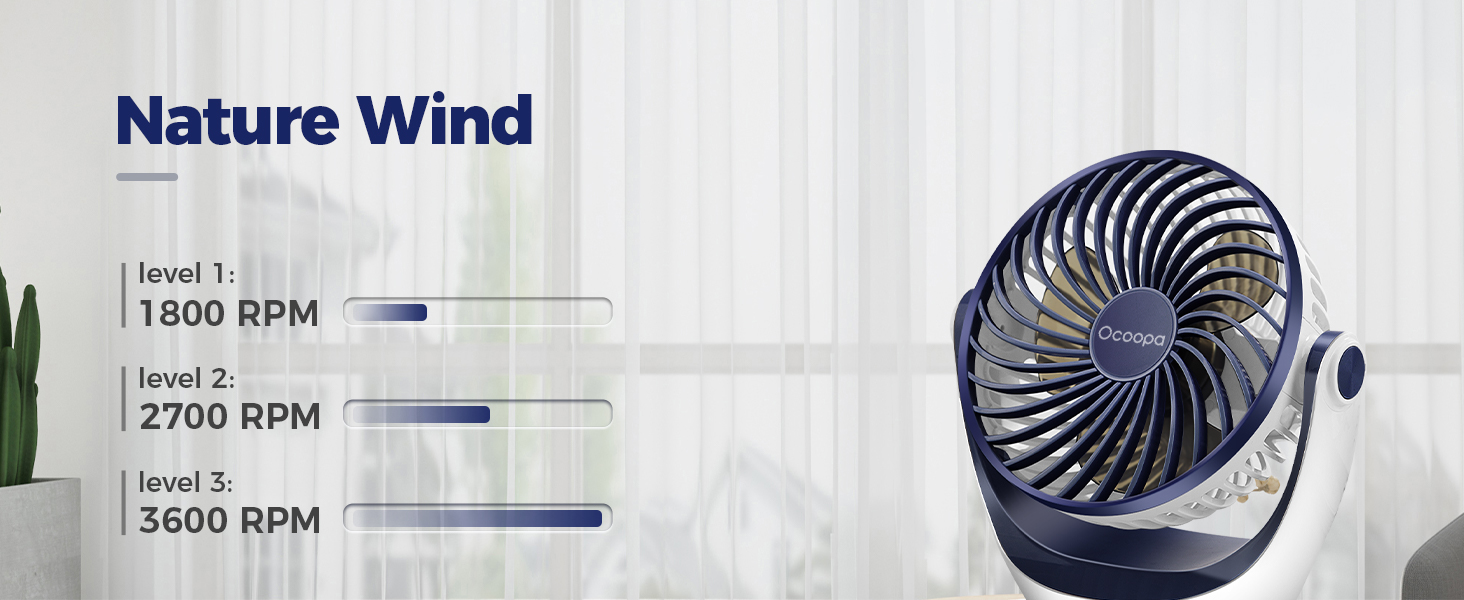
The fan provides varying levels of airflow, from a gentle breeze to strong wind.
Adjusting Fan Direction
The OCOOPA Desk Fan features a 360° rotatable head, allowing you to direct the airflow precisely where you need it.
- Gently hold the fan unit and tilt it up or down, or rotate it left or right, to achieve the desired angle.
- The fan will hold its position once adjusted.

The 360° adjustable head allows you to direct the airflow precisely.
Quiet Operation
The fan is designed for quiet operation, with noise levels below 45dB at high speed, making it suitable for various environments including sleeping or studying.
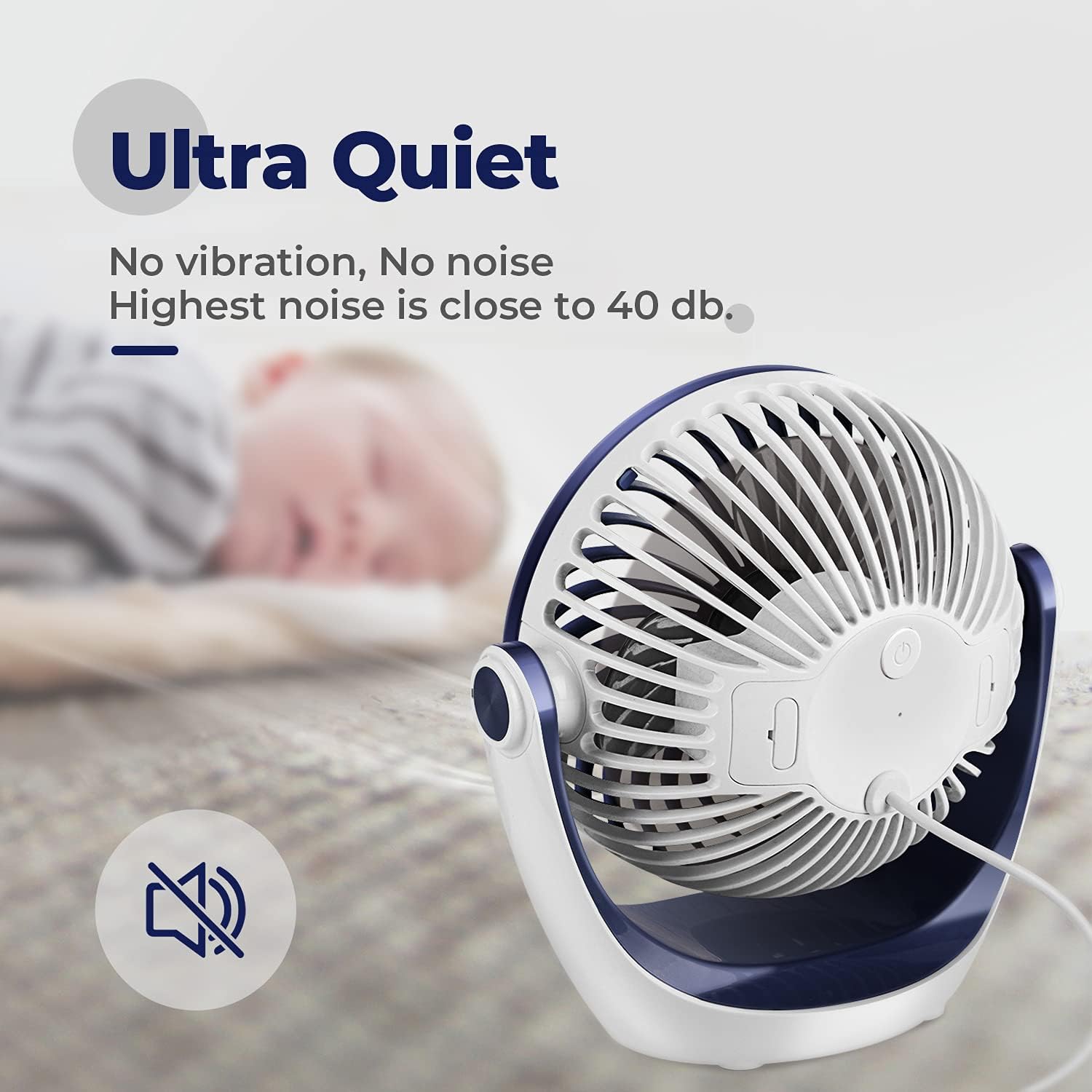
Enjoy a peaceful environment with the fan's ultra-quiet operation.
Maintenance
Cleaning
- Always unplug the fan from the power source before cleaning.
- Use a soft, dry cloth to wipe the exterior surfaces of the fan.
- To clean the fan blades, the front grille can be carefully removed. Gently twist or unclip the front grille (refer to product diagrams if available for specific removal instructions).
- Wipe the blades with a dry or slightly damp cloth. Do not use abrasive cleaners or solvents.
- Ensure all parts are completely dry before reassembling the grille and plugging the fan back in.
Storage
When not in use for extended periods, store the fan in a cool, dry place, away from direct sunlight and excessive dust. It is recommended to store it in its original packaging to protect it from damage.
Troubleshooting
If you encounter any issues with your OCOOPA Small USB Desk Fan, please refer to the following common problems and solutions:
| Problem | Possible Cause | Solution |
|---|---|---|
| Fan does not turn on. | No power supply; faulty USB cable/port. | Ensure USB cable is securely plugged into a working USB port. Try a different USB port or power source. |
| Weak airflow. | Fan is on low speed; grilles are obstructed; dust accumulation on blades. | Increase fan speed by pressing the power button. Clear any obstructions from the grilles. Clean the fan blades as per maintenance instructions. |
| Fan makes unusual noise. | Dust accumulation; fan not on a stable surface; internal issue. | Clean the fan blades. Ensure the fan is on a flat, stable surface. If noise persists, contact customer support. |
| Fan shuts off on highest speed. | Potential overheating protection; insufficient power from USB source. | Ensure the fan is not obstructed and has proper ventilation. Try connecting to a different, more robust USB power source (e.g., a dedicated wall adapter instead of a laptop port). If the issue persists, use lower speed settings or contact customer support. |
Specifications
| Feature | Detail |
|---|---|
| Brand | OCOOPA |
| Model Number | D602 |
| Colour | Diamond Blue |
| Product Dimensions | 8.99 x 16 x 16.99 cm (3.54 x 6.3 x 6.69 inches) |
| Item Weight | 320 g (0.71 lbs) |
| Power/Wattage | 3.75 watts |
| Voltage | 2.3E+2 Volts (Note: This seems to be a typo in source data, typically 5V for USB) |
| Material | Copper (for motor) |
| Number of Speeds | 3 |
| Noise Level | 45 dB |
| Special Features | Portable, 360° Rotatable Head |
| Power Source | Corded Electric (USB) |

The fan's compact size makes it highly portable.
Warranty & Support
OCOOPA products are manufactured to high-quality standards. For information regarding warranty coverage, please refer to the product packaging or the official OCOOPA website. If you experience any issues or have questions not covered in this manual, please contact OCOOPA customer support through their official channels.
For the most up-to-date support information, please visit the OCOOPA store on Amazon or their official website.
Manufacturer: OCOOPA
Place of Business: Dongguan Ling Yi Technology Co., Ltd.
Related documentsD602


Ask a question about this manual
Ask about setup, troubleshooting, compatibility, parts, safety, or missing instructions. Manuals+ will review the question and use this page’s manual context to help answer it.