
TP-Link Deco X20(3-pack)
TP-Link Deco WiFi 6 Mesh System (Deco X20) Instruction Manual
Model: Deco X20 (3-pack) | Brand: TP-Link
Introduction
The TP-Link Deco X20 is a state-of-the-art Wi-Fi 6 Mesh System designed to provide comprehensive and reliable internet coverage throughout your home. This system is engineered to eliminate Wi-Fi dead zones and buffering, offering seamless high-performance Wi-Fi 6 across large areas. Each Deco X20 unit features multiple Gigabit Ethernet ports, supporting wired Ethernet backhaul for enhanced speeds and stability. It is capable of connecting numerous devices simultaneously without compromising performance, making it an ideal solution for modern, connected households.
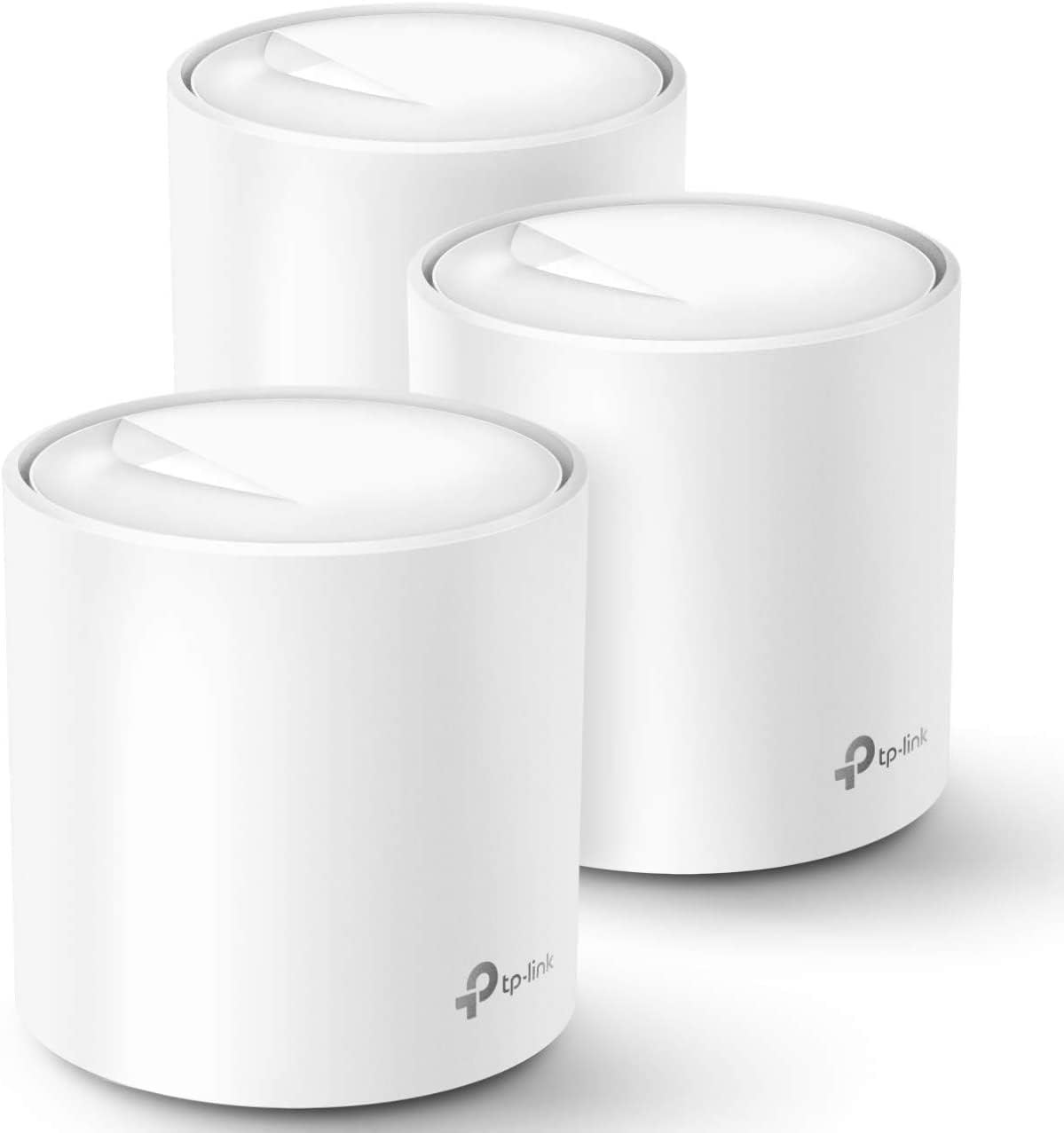
Image: Three TP-Link Deco X20 units, showcasing their compact and modern design.
What's in the Box
Your TP-Link Deco X20 (3-pack) system includes the following components:
- 3 x Deco X20 Units
- 3 x Power Adapters
- 1 x Ethernet Cable
- 1 x Quick Installation Guide
Setup Guide
Setting up your TP-Link Deco X20 system is a straightforward process guided by the Deco app. Follow these steps for a quick and easy installation:
- Download and Launch the Deco App: Search for "TP-Link Deco" in your device's app store and install it.
- Register or Log In: Open the Deco app. If you don't have a TP-Link ID, register for one. Otherwise, log in with your existing credentials.
- Choose Your Deco Model: Select the Deco X20 model from the list within the app.
- Prepare Your Modem: Power off your existing modem and remove its backup battery if it has one. Disconnect your old router from the modem before proceeding.
- Connect and Power On Deco: Plug the Ethernet cable into the LAN port of your modem or router. Plug the other end into either of the two ports on your Deco unit. Then, power on your Deco unit.
- Wait for LED to Pulse Blue: The Deco unit's LED will pulse blue when it's ready for setup. This may take a few minutes.
- Connect to Deco's Wi-Fi: Go to your phone or tablet's Wi-Fi settings and connect to the Deco's default Wi-Fi network. The default SSID is printed on the product label.
- App Auto-Connect: After connecting to the Deco's Wi-Fi, return to the Deco app. The app will scan for your Deco and automatically connect to it. The LED will turn solid blue once connected.
- Choose Placement: Select the location where you have placed this Deco unit (e.g., Living Room, Bedroom).
- Provide Internet Information: Follow the app's instructions to provide necessary internet connection details, such as connection type (e.g., Dynamic IP) and MAC address settings.
- Create Your Wi-Fi Network: Set up your new Wi-Fi network by entering a Network Name (SSID) and a strong Password.
- Connect to New Wi-Fi: Go back to your device's Wi-Fi settings and connect to your newly created Deco Wi-Fi network using the password you just set.
- Final Connection: Return to the Deco app and wait for the final connection to establish. Once connected, the Deco's LED will turn solid green.
- Add Additional Decos: If you have multiple Deco units, you can add them by tapping the "Add Another Deco" option in the app and repeating the process.

Image: Visual guide illustrating the simple three-step setup process for the Deco system.
Setup Video Guide
Video: A comprehensive guide on how to set up your TP-Link Deco X20 whole home mesh Wi-Fi system.
Operating Your Deco System
The TP-Link Deco X20 system is designed for optimal performance and ease of use. Here are its key operational features:
- Wi-Fi 6 Mesh Wi-Fi: Experience next-gen AX1800 whole home mesh Wi-Fi that effectively eliminates weak Wi-Fi signals.
- Whole Home Wi-Fi Coverage: Cover up to 5800 square feet with seamless, high-performance Wi-Fi 6, eliminating dead zones and buffering. This is a significant improvement over traditional Wi-Fi boosters.
- Connect More Devices: The Deco X20 (3-pack) is robust enough to connect up to 150 devices with strong and reliable Wi-Fi. Compatible with iOS 9.0 or later and Android 4.4 or later.
- Easy Setup and Management: The Deco app provides clear visual guidance for setup and allows you to manage your network even when you are away from home. It also works with Alexa for voice commands, such as turning Guest Wi-Fi on or off.
- Peace of Mind with Parental Controls: Manage, limit, and monitor internet usage with customizable profiles for every person and device in your home.
- TP-Link HomeShield: This premium security service offers cutting-edge network and IoT protection. Free features include Basic Network Security (Security Scan, IoT Device Identification), Basic Parental Controls, Quality of Service, and Basic Weekly/Monthly Reports.
- Universal Compatibility: Works with all internet service providers (ISPs) such as AT&T, Verizon, Xfinity, Spectrum, RCN, Cox, CenturyLink, Frontier, etc. (a modem is required for most ISPs). Ideal for any internet plan up to 1 Gbps.

Image: Diagram illustrating seamless Wi-Fi coverage up to 5,800 sq. ft. with the Deco X20 system.
System Overview Video
Video: An official overview of the TP-Link Deco Mesh Wi-Fi system, highlighting its whole-home solution capabilities.
Maintenance
To ensure the longevity and optimal performance of your Deco X20 system, consider the following maintenance tips:
- Keep Clean: Regularly wipe the units with a soft, dry cloth to prevent dust buildup, which can affect performance.
- Ensure Ventilation: Place Deco units in well-ventilated areas, away from obstructions that might block airflow.
- Avoid Extreme Conditions: Do not expose the units to extreme temperatures, direct sunlight, or high humidity.
- Firm Connections: Periodically check that all power and Ethernet cables are securely connected to the units and the modem/router.
Troubleshooting
If you encounter issues with your Deco X20 system, try the following basic troubleshooting steps:
- Restart Devices: Power cycle your modem, the main Deco unit, and any affected client devices. Wait a few minutes before powering them back on.
- Check Connections: Ensure all Ethernet cables are properly plugged in and not damaged.
- Verify LED Status: Refer to the Deco app or the Quick Installation Guide to understand the meaning of the LED light on your Deco units. A solid green light indicates a healthy connection.
- Relocate Deco Units: If you experience weak signals in certain areas, try repositioning your Deco units to optimize coverage.
- Consult Deco App: The Deco app often provides diagnostic tools and suggestions for common issues.
- Factory Reset: As a last resort, you can perform a factory reset on your Deco units. Refer to the user manual for instructions, as this will erase all settings.
Specifications
| Feature | Detail |
|---|---|
| Product Dimensions | 4.33 x 4.33 x 4.49 inches |
| Item Weight | 5.15 pounds |
| Item Model Number | Deco X20(3-pack) |
| Brand | TP-Link |
| Model Name | Deco X20 V3 |
| Special Features | Beamforming, QoS, Guest Mode, Parental Control |
| Frequency Band Class | Dual-Band |
| Wireless Communication Standard | 802.11ax |
| Compatible Devices | All WiFi Enabled Devices |
| Frequency | 5 GHz |
| Recommended Uses | Home, Gaming |
| Connectivity Technology | Wi-Fi, Ethernet |
| Manufacturer | TP-Link |
| Country of Origin | Vietnam |
| Date First Available | March 26, 2020 |
Important Information
Legal Disclaimer
1. Use of Wi-Fi 6 and other features including OFDMA, MU-MIMO, 1024-QAM, and BSS Color require clients to also support the corresponding features. 2. Maximum wireless signal rates are the physical rates derived from IEEE Standard 802.11 specifications. Actual wireless data throughput and wireless coverage, and quantity of connected devices are not guaranteed and will vary as a result of network conditions, client limitations, and environmental factors, including building materials, obstacles, volume and density of traffic, and client location. 3. Clients need to support 802.11k/v/r and may require additional set up. Performance may vary depending on the client device. 4. HomeShield includes the Free Basic Plan. Fees apply for the Pro Plan. Visit tp-link.com/homeshield for more information. 5. Actual network speed may be limited by the rate of the product's Ethernet WAN or LAN port, the rate supported by the network cable, Internet service provider factors and other environmental conditions.
Warranty and Support
For detailed warranty information and further technical support, please refer to the official documentation:
TP-Link provides comprehensive customer support for its products. Please visit the official TP-Link website or contact their support channels for any specific inquiries not covered in this manual.
Related documentsDeco X20(3-pack)


Ask a question about this manual
Ask about setup, troubleshooting, compatibility, parts, safety, or missing instructions. Manuals+ will review the question and use this page’s manual context to help answer it.