Introduction
The ONIKUMA K2-PRO Stereo Gaming Headset is designed to provide an immersive audio experience for various gaming platforms. Featuring a noise-cancelling microphone, 3D surround sound, and comfortable memory foam ear pads, this headset is engineered for extended gaming sessions. This manual provides essential information for setup, operation, maintenance, and troubleshooting to ensure optimal performance of your K2-PRO headset.

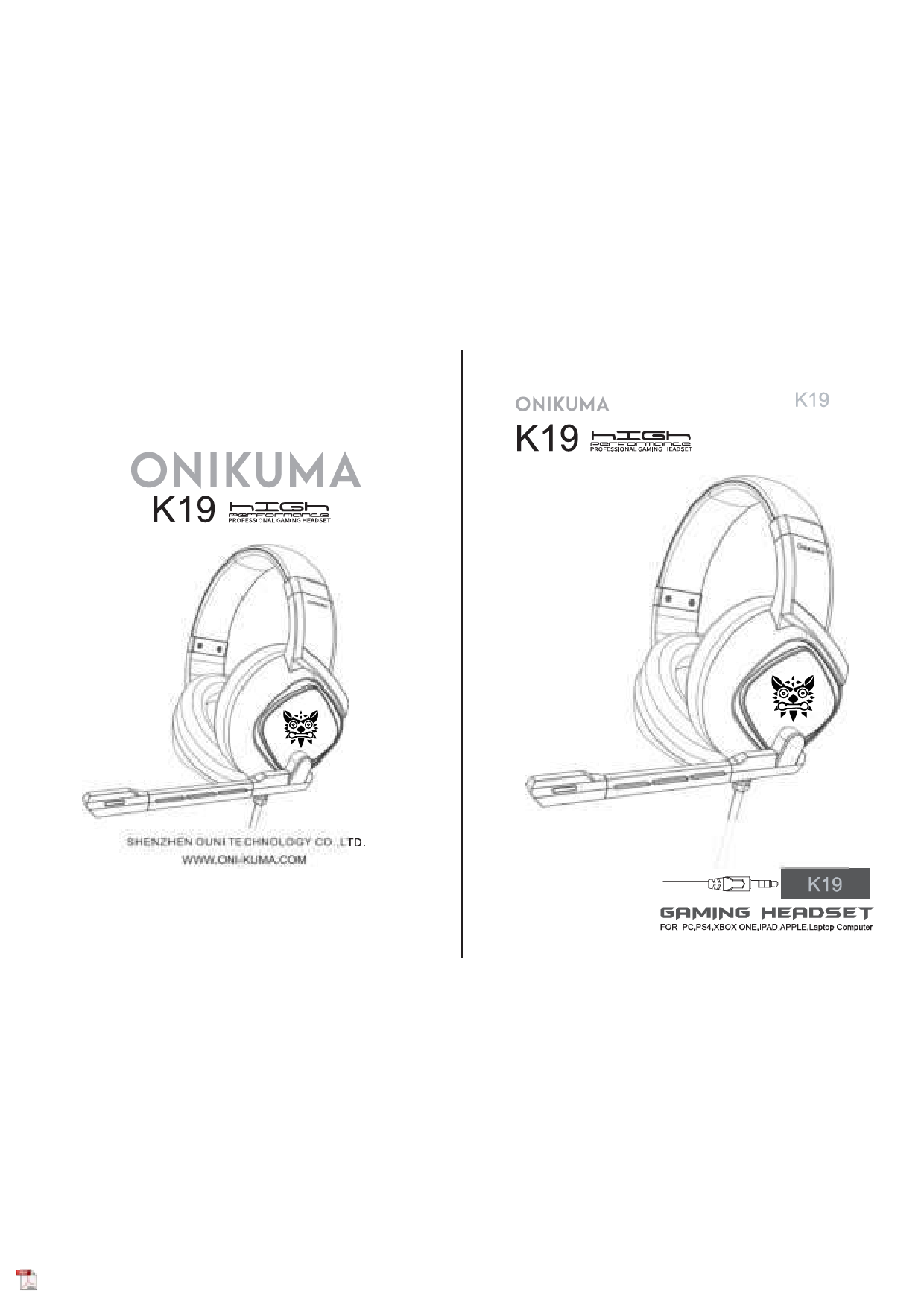
This image illustrates the ONIKUMA K2-PRO Gaming Headset in use, emphasizing its key audio features like 3D stereo surround sound and 40mm drivers, along with the noise-cancelling microphone and LED lighting.
Features
- Immersive 3D Stereo Surround Sound: Experience rich, detailed audio for an enhanced gaming environment.
- 50mm Neodymium Magnet Drivers: Delivers powerful and clear sound reproduction.
- Adjustable Noise-Cancelling Microphone: Reduces background noise for clear communication and can be positioned for optimal voice pickup.
- Integrated RGB LED Lighting: Enhances the gaming atmosphere with dynamic lighting effects, powered via USB.
- Comfortable Design: Features an adjustable headband, soft memory protein earmuffs, and a soft memory protein headpad for long-term comfort.
- Inline Audio Controller: Conveniently adjust volume and mute the microphone.
- Multi-Platform Compatibility: Compatible with PlayStation 4, Xbox One, PC, Nintendo Switch, and mobile devices.
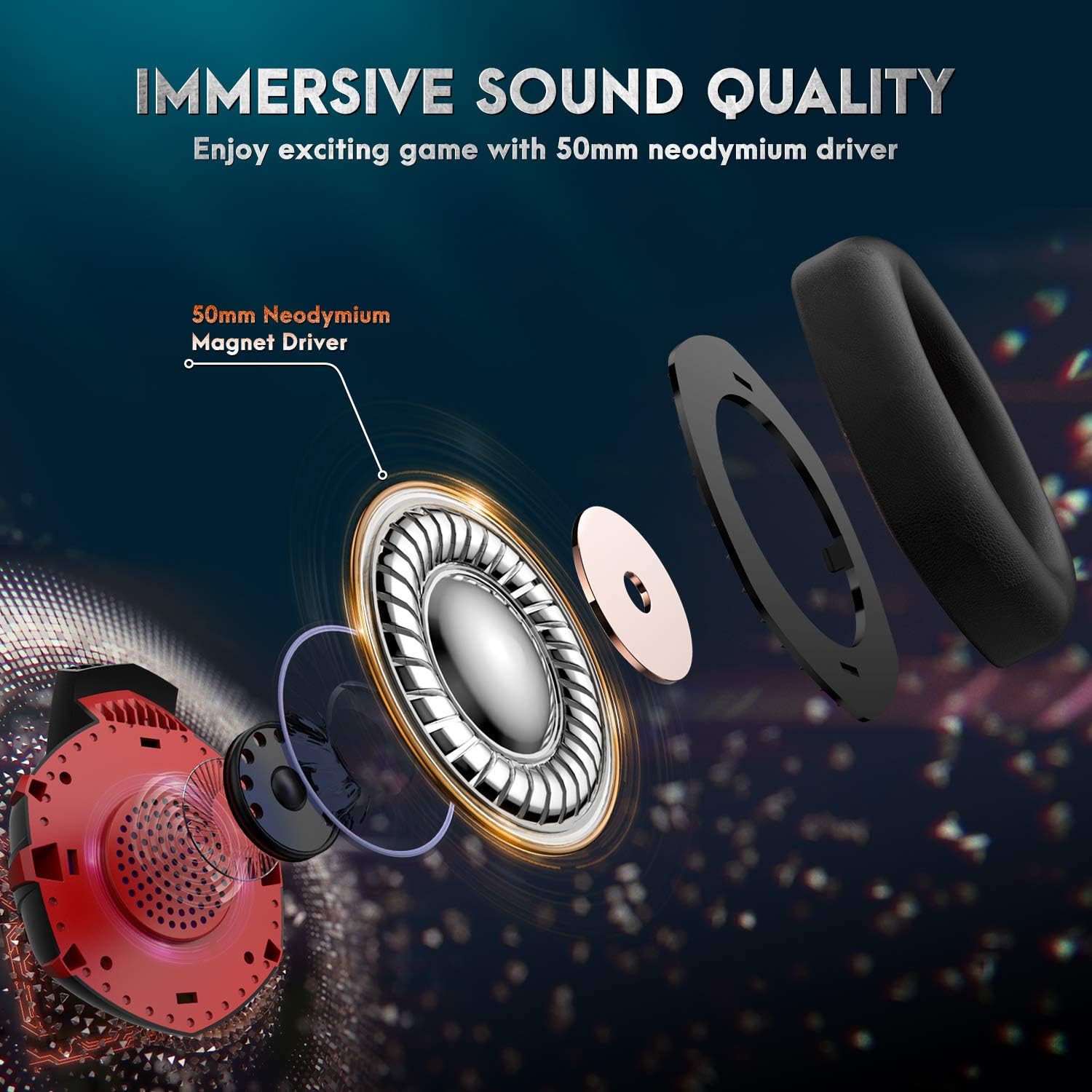
A detailed view of the headset's internal components, showcasing the 50mm neodymium magnet driver responsible for high-quality, immersive audio.
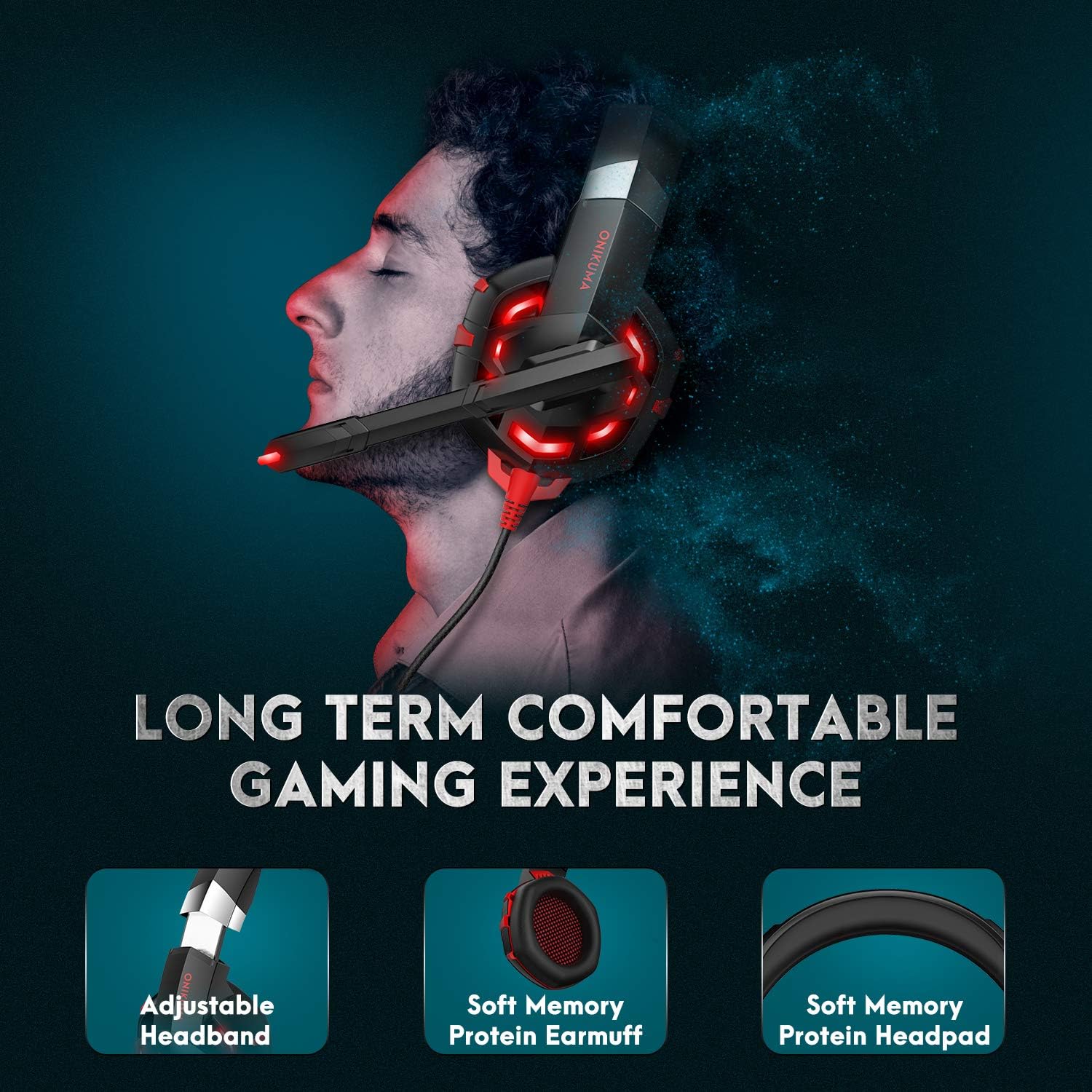
This image demonstrates the ergonomic design of the headset, focusing on the adjustable headband and soft memory protein ear cushions and headpad for extended comfort.
Package Contents
- ONIKUMA K2-PRO Gaming Headset
- 1-to-2 Audio Splitter Cable (for PC with separate audio/mic jacks)
- User Manual
Setup Instructions
The ONIKUMA K2-PRO headset connects via a 3.5mm audio jack for sound and microphone, and a USB connector for LED lighting. Follow the steps below for your specific device:
- For PlayStation 4 (PS4 / PS4 Pro / PS4 Slim):
- Plug the 3.5mm jack of the headset into the controller.
- Go to System Settings > Devices > Audio Devices.
- Set "Output to Headphones" to "All Audio".
- Adjust microphone level as needed.
- Plug the USB connector into a free USB port on the console for LED lighting.
- For Xbox One (Xbox One / Xbox One S / Xbox One X):
- Plug the 3.5mm jack of the headset into the Xbox One controller. (Note: Older Xbox One controllers may require a Microsoft Stereo Headset Adapter, not included).
- Go to System > Settings > Display & Sound > Audio Output.
- Adjust headset volume and microphone monitoring.
- Plug the USB connector into a free USB port on the console for LED lighting.
- For PC / Laptop:
- If your PC/laptop has separate audio (green) and microphone (pink) jacks, use the included 1-to-2 audio splitter cable. Connect the headset's 3.5mm jack to the splitter, then connect the splitter's audio and mic plugs to the corresponding ports on your computer.
- If your PC/laptop has a single combined 3.5mm audio jack, plug the headset's 3.5mm jack directly into it.
- Plug the USB connector into a free USB port on your PC/laptop for LED lighting.
- Ensure the headset is selected as the default audio input/output device in your operating system's sound settings.
- For Nintendo Switch / New 3DS XL / 3DS / 3DS XL:
- Plug the 3.5mm jack of the headset directly into the device's audio port.
- The USB connector is not typically used for these devices unless a USB power source is available for LED lighting.
- For Smartphone / Android / iOS / Tablet:
- Plug the 3.5mm jack of the headset directly into your mobile device's audio port.
- The USB connector is not typically used for mobile devices unless a USB power source is available for LED lighting.

A comprehensive diagram detailing how to connect the ONIKUMA K2-PRO headset to various gaming platforms and devices, including PlayStation, Xbox, PC, Nintendo Switch, and mobile phones.
Operating Instructions
Volume Control
The headset features an inline controller on the cable. Use the scroll wheel on this controller to adjust the audio volume up or down to your preferred level.
Microphone Usage
The microphone is adjustable and features noise-cancelling technology. You can bend the microphone arm to position it closer to your mouth for clearer voice pickup. To mute the microphone, use the switch located on the inline controller.

This image highlights the flexible, noise-cancelling microphone and the convenient inline controller, allowing for easy adjustments during gameplay.
LED Lighting
The headset's RGB LED lighting is powered by the USB connector. Ensure the USB is plugged into a powered USB port on your device (console, PC, etc.) for the lights to function.
Maintenance
- Cleaning: Use a soft, dry cloth to wipe down the headset. For ear cushions, a slightly damp cloth can be used, but avoid excessive moisture. Do not use harsh chemicals or abrasive cleaners.
- Storage: Store the headset in a cool, dry place away from direct sunlight and extreme temperatures. Avoid placing heavy objects on the headset.
- Cable Care: Avoid sharp bends or excessive pulling on the cable to prevent damage.
Troubleshooting
- No Sound:
- Ensure the 3.5mm audio jack is fully plugged into the device.
- Check the inline volume control and increase the volume.
- Verify that the headset is selected as the default audio output device in your device's sound settings.
- Test the headset on another device to rule out a device-specific issue.
- Microphone Not Working:
- Ensure the 3.5mm audio jack is fully plugged into the device.
- Check that the microphone mute switch on the inline controller is not engaged.
- Verify that the headset microphone is selected as the default input device in your device's sound settings.
- For PC, ensure the 1-to-2 splitter is correctly connected if your PC has separate audio/mic ports.
- Test the microphone on another device.
- LED Lights Not Working:
- Ensure the USB connector is securely plugged into a powered USB port.
- Try a different USB port.
Specifications
| Brand Name | ONIKUMA |
| Model Number | ONIKUMA-K2R |
| Model Name | ONIKUMA K2-PRO Red LED Light |
| Color | Red K2 |
| Headphone Form Factor | Over Ear |
| Connectivity Technology | Wired (3.5mm audio, USB for LED) |
| Noise Control | Active Noise Cancellation (Microphone) |
| Special Features | Volume Control, Adjustable Microphone, LED Lighting |
| Included Components | Headset, 1-to-2 Splitter Cable |
| Material | Plastic |
| Item Weight | 560 grams |
| Age Range Description | Adult |
| ASIN | B085XZCYRC |
Warranty and Support
The ONIKUMA K2-PRO Gaming Headset comes with a local warranty. For specific warranty terms and conditions, please refer to the documentation provided with your purchase or contact your local retailer.
For technical support or further assistance, please visit the official ONIKUMA website or contact their customer service department. Keep your purchase receipt or proof of purchase handy for any warranty claims.