
1. Introduction
The eero 6 mesh WiFi system is designed to provide fast, reliable Wi-Fi 6 coverage throughout your home. This system supports internet plans up to 500 Mbps and can cover up to 3,000 sq. ft., connecting over 75 devices simultaneously. It features TrueMesh technology to optimize your network and includes a built-in Zigbee smart home hub.
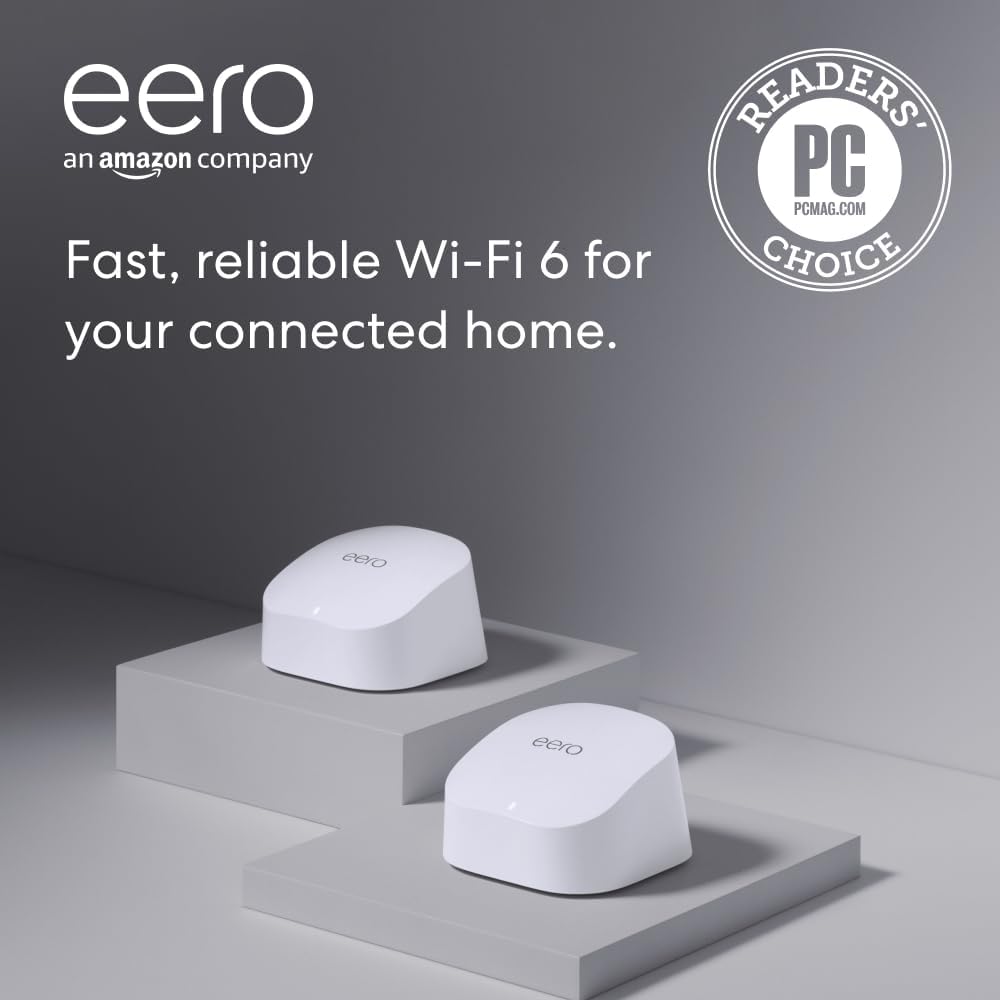
Image: The eero 6 mesh WiFi system, featuring two white units (one router, one extender).
2. What's in the Box
- 1 x eero 6 Router
- 1 x eero 6 Extender
- 2 x Power Adapters
- 1 x Ethernet Cable
- Quick Start Guide
3. Setup Guide
3.1. Preparation
- Download the eero app for iOS or Android from your device's app store.
- Ensure you have an active internet service (with a cable or DSL modem, if required).
3.2. Connect the eero 6 Router
- Unplug your existing modem and any connected routers.
- Connect one end of the provided Ethernet cable to an Ethernet port on your modem.
- Connect the other end of the Ethernet cable to either Ethernet port on your eero 6 Router.
- Plug the eero 6 Router into a power outlet using its power adapter.

Image: Rear view of the eero 6 router, showing two Ethernet ports and a USB-C power port.
3.3. App-Guided Setup
- Open the eero app on your smartphone.
- Follow the on-screen instructions to create an eero account or log in with your Amazon account.
- The app will guide you through detecting your eero 6 Router and setting up your new Wi-Fi network name and password.

Image: Screenshot of the eero app displaying network setup steps.
3.4. Place the eero 6 Extender
- Once your main eero 6 Router is set up, the app will prompt you to add your eero 6 Extender.
- Place the extender in a central location within your home, ideally halfway between your main eero 6 Router and areas with weak Wi-Fi signal.
- Plug the eero 6 Extender into a power outlet. The LED indicator will show its status during setup.
- Follow the app's instructions to add the extender to your network.
Video: An overview of the eero 6 mesh WiFi system, highlighting its features and ease of setup.
4. Operating Instructions
4.1. Network Management with the eero App
The eero app provides comprehensive tools for managing your network:
- Status Indicator: View the overall status of your network.
- Connected Devices: See a list of all devices connected to your network.
- Speed Test: Run speed tests to check your internet performance.
- Bandwidth Usage: Monitor which devices are using the most bandwidth.
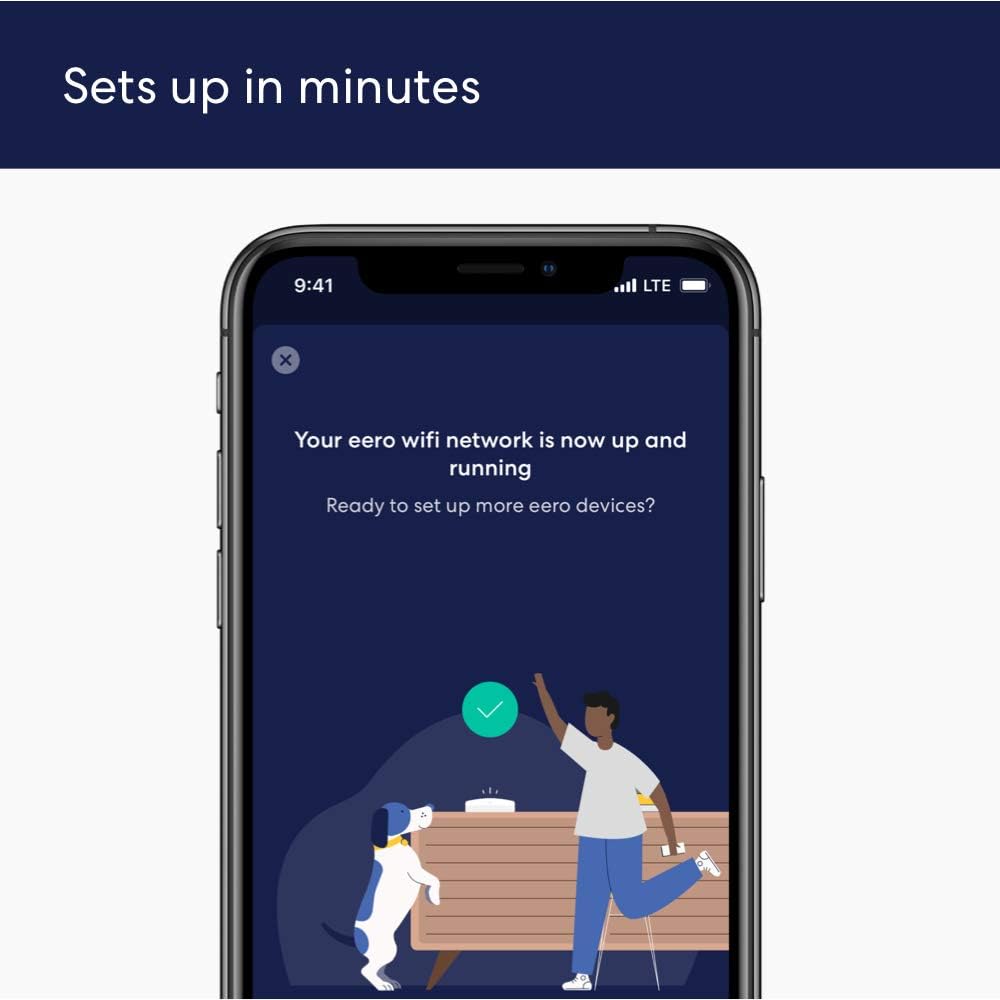
Image: Screenshot of the eero app displaying network activity, including download/upload speeds and connected devices.
4.2. Guest Network
Easily create a separate guest network for visitors. You can assign a unique name and password, generate a QR code for quick connection, and receive notifications when new clients connect.
4.3. Parental Controls
Basic parental controls allow you to block specific websites or schedule internet access times for certain devices.
4.4. Smart Home Hub
The eero 6 doubles as a Zigbee smart home hub, allowing you to connect and control compatible devices on your network using Alexa.
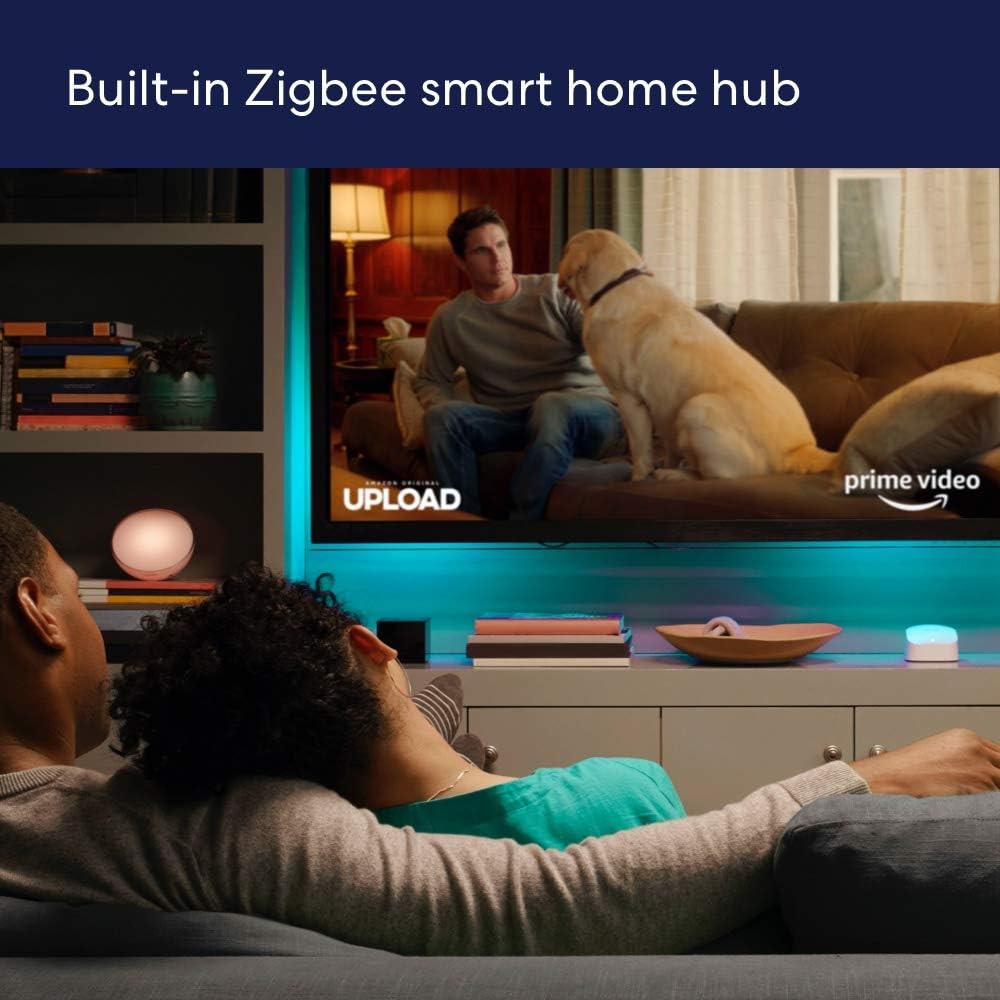
Image: An eero 6 unit placed in a living room setting, demonstrating its role as a smart home hub.
5. Specifications
| Feature | Detail |
|---|---|
| Model | eero 6 |
| Wi-Fi Coverage | Up to 3,000 sq. ft. (2-pack) |
| Supported Speeds | Up to 500 Mbps |
| Wi-Fi Connectivity | Wi-Fi 6 dual-band concurrent 2:2 (802.11ax), compatible with older Wi-Fi standards |
| Wired Connectivity | Two auto-sensing gigabit Ethernet ports |
| Speed Rating | AX1800 |
| Smart Home Connectivity | Works with Alexa, Amazon Frustration Free Setup, 802.15.4 radio (Zigbee, Thread), Bluetooth Low Energy 5.0 |
| Processor | 1.2 GHz quad-core processor |
| Memory & Storage | 512MB RAM, 4 GB flash storage |
| Network Security | WPA3 (eero Labs feature), WPA2, TLS v1.2+, VPN passthrough, IPv6, NAT, UPnP, port forwarding, DHCP, static IP, cloud connectivity |
| Dimensions | 3.9 in x 3.8 in x 2.4 in (99.4 mm x 97 mm x 61.4 mm) |
6. Troubleshooting
- No Internet Connection: Check if your modem is working correctly. Ensure all Ethernet cables are securely connected.
- Weak Signal: Reposition your eero 6 Extender to a more central location. Avoid placing units near large metal objects or appliances that can cause interference.
- Device Not Connecting: Restart the device you are trying to connect. Ensure your Wi-Fi password is correct.
- Restarting eero: If issues persist, unplug your eero units from power for 30 seconds, then plug them back in.
- Factory Reset: If all else fails, a factory reset can resolve many issues. Refer to the eero app for instructions on how to perform a factory reset.
7. Warranty and Support
The eero 6 mesh WiFi system comes with a 1-year limited warranty. Free customer support is available 7 days a week. For assistance, you can contact eero support directly.
Automatic software updates are provided to keep your network safe and secure, ensuring you always have the latest features and security enhancements.


