
1. Introduction
This user manual provides detailed instructions for the setup, operation, and maintenance of your FIFINE USB Podcast Microphone K678. Designed for recording, streaming, gaming, and vocal applications, the K678 offers high-quality audio capture with convenient controls and broad compatibility. Please read this manual thoroughly before using the microphone to ensure optimal performance and longevity.
2. Package Contents
Verify that all items listed below are included in your package:
- FIFINE USB Podcast Microphone K678
- Adjustable Desk Stand
- USB Cable (6.56 ft / 2m)
- 5/8-inch Male to 3/8-inch Female Mic Thread Screw Adapter
- User Manual (this document)

Figure 2.1: Contents of the FIFINE K678 package, including the microphone, stand, USB cable, and screw adapter.
3. Product Overview
The FIFINE K678 microphone features a robust design with intuitive controls for ease of use.
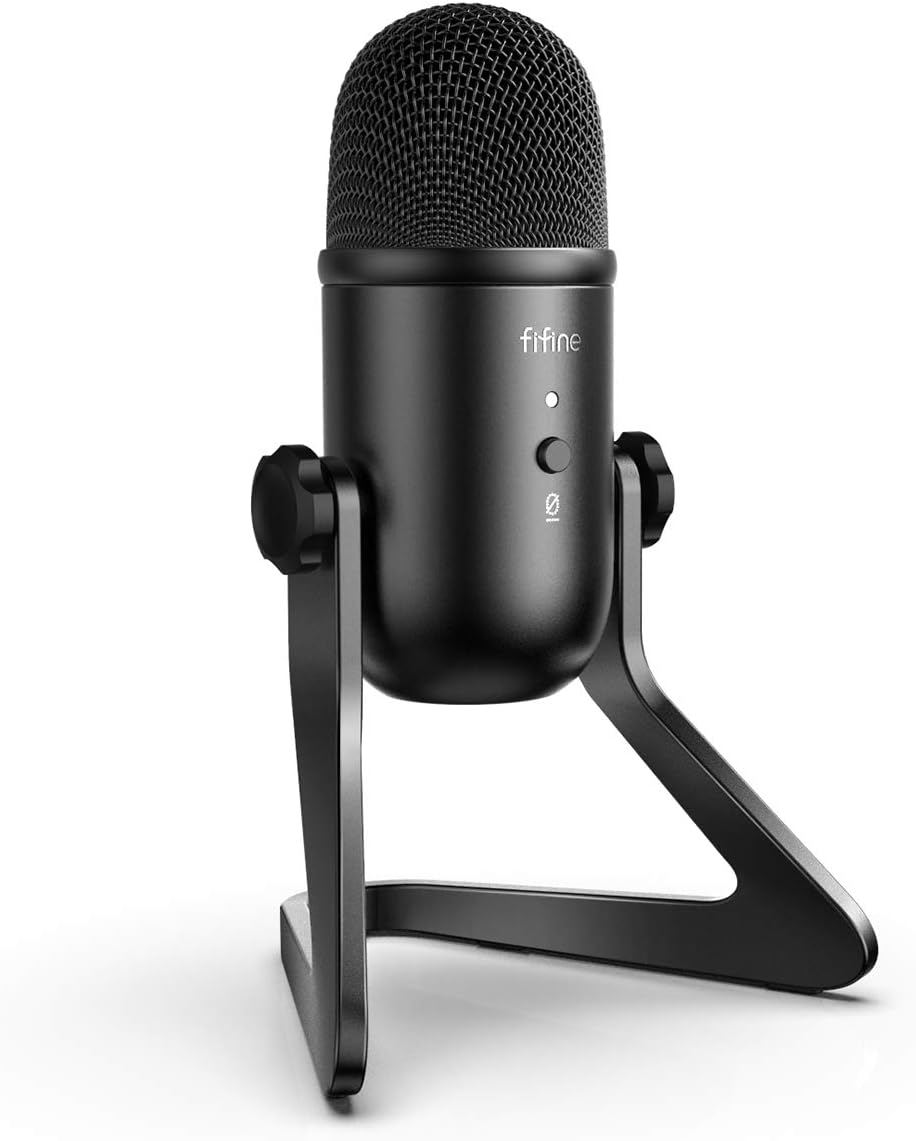
Figure 3.1: Front view of the FIFINE K678 microphone on its desk stand.
3.1 Key Features and Components

Figure 3.2: Detailed view of the microphone's controls and ports.
- Microphone Gain Knob: Adjusts the microphone's input sensitivity. Turn clockwise to increase gain, counter-clockwise to decrease.
- Headphone Volume Knob: Controls the volume of the 3.5mm headphone output for direct monitoring.
- Mute Button: Press to mute or unmute the microphone.
- LED Indicator:
- Green: Microphone is active.
- Red: Microphone is muted.
- 3.5mm Headphone Jack: For real-time, zero-latency monitoring of your audio.
- USB-B Port: Connects the microphone to your computer using the provided USB cable.
- Desk Stand: Provides stable support and allows for angle adjustment.
3.2 Polar Pattern
The K678 features a cardioid polar pattern, which primarily picks up sound from the front of the microphone, reducing unwanted noise from the sides and rear. This is ideal for vocal recordings, streaming, and podcasting where isolating the main sound source is crucial.

Figure 3.3: Diagram illustrating the cardioid pickup pattern of the microphone.
4. Setup
The FIFINE K678 is designed for simple plug-and-play operation with Windows and Mac OS.
4.1 Assembling the Microphone
- Unpack all components from the box.
- Attach the microphone to the adjustable desk stand. Ensure it is securely fastened. The stand allows for angle adjustment to optimize sound capture.

Figure 4.1: The FIFINE K678 microphone assembled on its desk stand, ready for connection.
4.2 Connecting to Your Computer
- Connect the Mini-B end of the provided USB cable to the USB-B port on the bottom of the microphone.
- Connect the USB-A end of the cable to an available USB port on your computer (PC or Mac).
- The LED indicator on the microphone will illuminate green, indicating it is powered on and ready for use.

Figure 4.2: Illustrates connecting the USB cable from the microphone to a computer.
4.3 System Settings (Windows/Mac)
After connecting, your computer should automatically recognize the microphone. If not, follow these steps:
For Windows:
- Go to Settings > System > Sound.
- Under "Input," select "FIFINE K678" as your input device.
- Adjust the input volume as needed.
For Mac OS:
- Go to System Preferences > Sound.
- Select the "Input" tab.
- Choose "FIFINE K678" from the list of devices.
- Adjust the input volume using the "Input volume" slider.
Note: The FIFINE K678 is incompatible with Xbox, phones, and iPads.
5. Operating Instructions
5.1 Adjusting Microphone Gain
The Microphone Gain Knob on the front of the K678 controls the sensitivity of the microphone. Turn it clockwise to increase the input level for quieter sources or to capture sound from further away. Turn it counter-clockwise to decrease the input level to prevent distortion when recording loud sources.
5.2 Using the Mute Function
Press the Mute Button to instantly mute or unmute the microphone. The LED indicator will change color to show the microphone's status:
- Green LED: Microphone is active and picking up sound.
- Red LED: Microphone is muted.
5.3 Headphone Monitoring
Connect your headphones to the 3.5mm Headphone Jack on the microphone for direct, zero-latency monitoring of your audio. This allows you to hear exactly what the microphone is picking up without any delay. Adjust the headphone volume using the Headphone Volume Knob.
Figure 5.1: Illustration of the microphone gain, headphone volume, and mute button controls.
5.4 Optimal Microphone Placement
For best results, position the microphone directly in front of the sound source (e.g., your mouth) within a few inches. The cardioid pattern will help to reject off-axis sounds. Experiment with distance and angle to find the optimal sound for your specific application.

Figure 5.2: The adjustable stand allows for tilting the microphone to achieve optimal angle for sound capture.
6. Maintenance
To ensure the longevity and optimal performance of your FIFINE K678 microphone, follow these maintenance guidelines:
- Cleaning: Use a soft, dry cloth to wipe down the microphone body and stand. Do not use liquid cleaners, aerosols, or solvents, as they may damage the finish or internal components.
- Storage: When not in use, store the microphone in a clean, dry place away from extreme temperatures, humidity, and direct sunlight.
- Handling: Avoid dropping the microphone or subjecting it to strong impacts, as this can damage the internal capsule or external casing.
- Cable Care: Do not bend or crimp the USB cable excessively. Store it neatly to prevent tangles and damage.
7. Troubleshooting
If you encounter issues with your FIFINE K678 microphone, refer to the following common problems and solutions:
| Problem | Possible Cause | Solution |
|---|---|---|
| No sound output from microphone. |
|
|
| Sound is distorted or too loud. |
|
|
| No sound from headphones. |
|
|
| Microphone not recognized by computer. |
|
|
8. Specifications
| Feature | Detail |
|---|---|
| Brand | FIFINE |
| Model | K678 |
| Connectivity Technology | USB |
| Connector Type | USB, 3.5 mm Jack |
| Polar Pattern | Unidirectional (Cardioid) |
| Compatible Devices | MacBook, Laptop, Personal Computer, PS4/5 |
| Recommended Uses | Meeting, Online Course, Gaming, Streaming, Recording, Voice-Over, Podcasting |
| Item Weight | 2.2 Pounds (approx. 1 kg) |
| Cable Length | 6.56 ft (2 meters) |
9. Warranty & Support
FIFINE provides friendly technical support for its products. For warranty information, technical assistance, or customer service inquiries, please visit the official FIFINE website or contact their support team directly.
Official FIFINE Website: Visit the FIFINE Store on Amazon (or refer to the official FIFINE website for direct support contact information).
Please retain your proof of purchase for warranty claims.

