
1. Product Overview
The ProCase Wireless Keyboard (Model PC-08362168) is a compact and portable Bluetooth keyboard designed for multi-device compatibility. It offers a comfortable typing experience with low-profile, quiet keys and an ergonomic design, suitable for use with iOS, Android, and Windows operating systems.

Image: The ProCase Wireless Keyboard, a slim black keyboard with a standard QWERTY layout, designed for portability and multi-device use.
2. Package Contents
- ProCase Wireless Keyboard (Model PC-08362168)
- User Manual (this document)
Note: 2x AAA batteries are required for operation and are not included in the package.
3. Setup Guide
3.1. Battery Installation
- Locate the battery compartment on the back of the keyboard.
- Open the battery compartment cover.
- Insert two (2) AAA batteries, ensuring correct polarity (+/-).
- Close the battery compartment cover securely.

Image: Underside of the keyboard showing the ON/OFF switch, Connect button, and the battery compartment for two AAA batteries.
3.2. Powering On/Off
Slide the ON/OFF switch, located on the back of the keyboard, to the "ON" position to power on the device. Slide it to "OFF" when not in use to conserve battery life.
3.3. Bluetooth Pairing
- Ensure the keyboard is powered on.
- Press the "Connect" button on the back of the keyboard. The Bluetooth indicator light (usually blue) on the keyboard will start blinking, indicating it is in pairing mode.
- On your device (tablet, smartphone, computer), navigate to its Bluetooth settings.
- Enable Bluetooth and search for available devices.
- Select "ProCase Keyboard" (or similar name) from the list of found devices.
- Follow any on-screen prompts to complete the pairing process. A successful connection will be indicated by the Bluetooth light on the keyboard turning solid or turning off, depending on the model.

Image: Diagram illustrating wide compatibility with Android, Windows, and iOS devices, including iPads, Android tablets, Microsoft Surface, and smartphones. It also notes that a USB drive is not included and only Bluetooth connection is supported.
4. Operating Instructions
4.1. Basic Typing
The keyboard features a standard QWERTY layout. Simply begin typing after successful pairing with your device.
4.2. Function Keys (F1-F12) and Hot Keys
The top row of keys serves dual functions: standard F-keys (F1-F12) and special hot keys for media control, volume, and other system functions. To use the F-keys (F1, F2, etc.), you must hold down the Fn key simultaneously with the desired F-key. Pressing the key without holding Fn will activate its associated hot key function.
- Fn + F1: Home
- Fn + F2: Search
- Fn + F3: Select All
- Fn + F4: Copy
- Fn + F5: Paste
- Fn + F6: Cut
- Fn + F7: Previous Track
- Fn + F8: Play/Pause
- Fn + F9: Next Track
- Fn + F10: Mute
- Fn + F11: Volume Down
- Fn + F12: Volume Up

Image: Close-up view of a keyboard key, illustrating the scissor-cross mechanism for comfortable and responsive keystrokes.

Image: A person typing on the ProCase Wireless Keyboard, positioned next to a tablet, highlighting the comfortable and quiet typing experience.
5. Maintenance
5.1. Cleaning
To clean the keyboard, gently wipe the surface with a soft, dry, lint-free cloth. For stubborn dirt, slightly dampen the cloth with water or a mild cleaning solution. Avoid excessive moisture and do not spray cleaners directly onto the keyboard.
5.2. Storage
When not in use for extended periods, power off the keyboard to conserve battery life. Store it in a cool, dry place away from direct sunlight and extreme temperatures.
6. Troubleshooting
- Keyboard not connecting:
- Ensure the keyboard is powered on and has fresh batteries.
- Press the "Connect" button on the back of the keyboard to enter pairing mode.
- Verify Bluetooth is enabled on your device and try re-pairing.
- Move the keyboard closer to your device.
- Restart both the keyboard (power off/on) and your device.
- Keys not responding:
- Check battery level and replace if necessary.
- Ensure the keyboard is properly connected via Bluetooth.
- Clean any debris from around the keys.
- Function (F) keys not working as expected:
- Remember that to activate F1-F12 functions, you must hold down the Fn key simultaneously. Without holding Fn, the keys will activate their assigned hot key functions (e.g., media control). This behavior cannot be changed.
- Short battery life:
- Ensure the keyboard is powered off when not in use.
- The keyboard features a sleep mode to conserve power during inactivity.
- Use high-quality AAA batteries.
7. Specifications
| Feature | Detail |
|---|---|
| Model Number | PC-08362168 |
| Dimensions (L x W x H) | 11.5 x 4.7 x 0.29 inches (29.2 x 11.9 x 0.74 cm) |
| Weight | 10 ounces (283.5 grams) |
| Connectivity | Bluetooth Wireless |
| Power Source | 2 x AAA Batteries (not included) |
| Material | Acrylonitrile Butadiene Styrene (ABS) |
| Color | Black |
| Compatible Operating Systems | iOS, Android, Windows (Note: Does not support Windows 8 Mobile) |
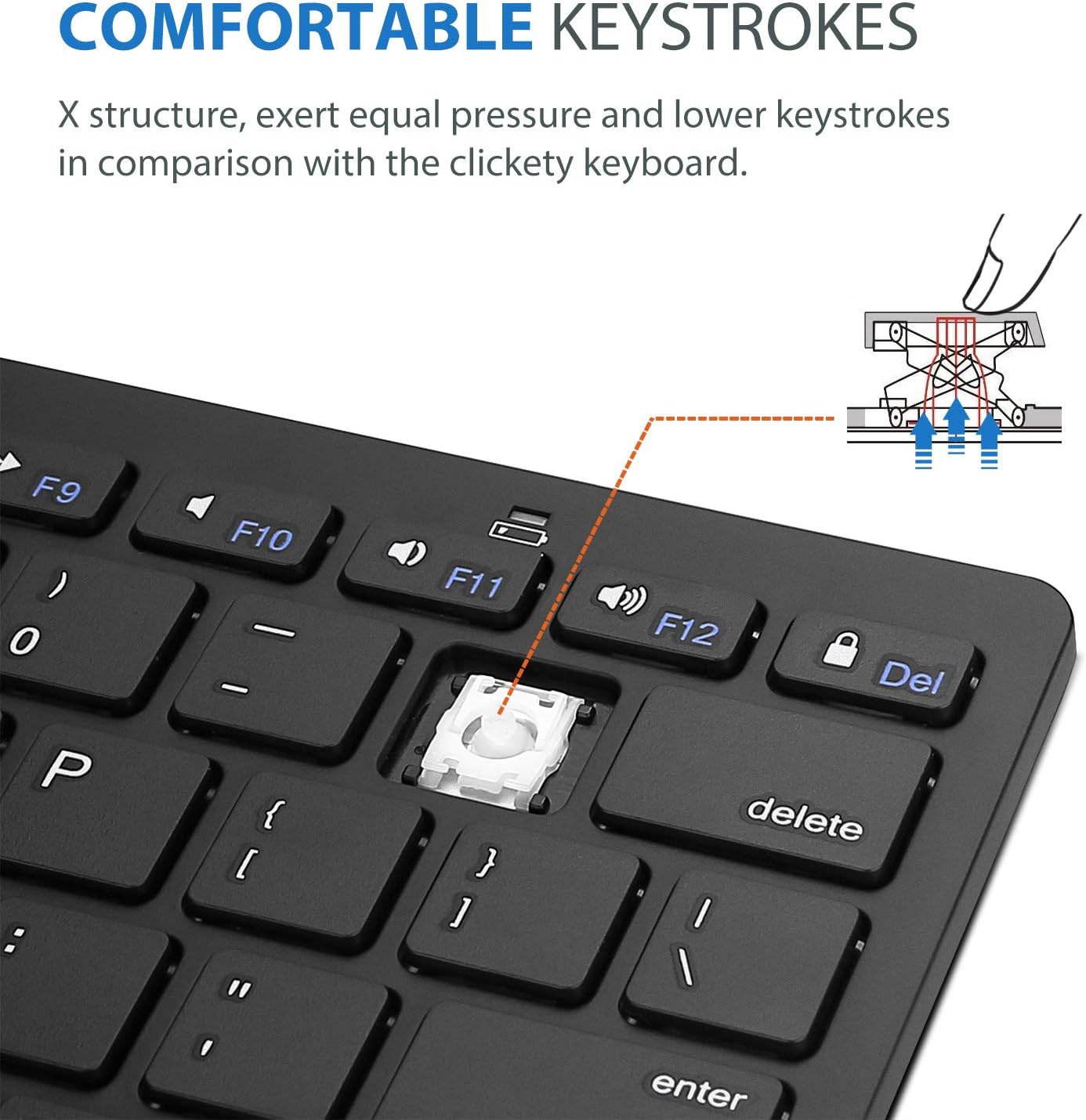
Image: Diagram showing the ultra-slim design and dimensions of the ProCase Wireless Keyboard, measuring 11.2 inches in length, 4.7 inches in width, and 0.19 inches in thickness.
8. Warranty and Support
8.1. Warranty Information
ProCase products are designed for reliability and performance. For specific warranty details regarding your ProCase Wireless Keyboard, please refer to the warranty card included with your purchase or visit the official ProCase website. Keep your proof of purchase for warranty claims.
8.2. Customer Support
If you encounter any issues or have questions not covered in this manual, please contact ProCase customer support. You can find contact information on the official ProCase website or through your purchase platform.
For more information, visit the ProCase Store on Amazon.
