1. Introduction
This manual provides detailed instructions for the installation, operation, and maintenance of your Redragon Sidewipe GC-601 Mid Tower PC Case. Please read this manual thoroughly before beginning assembly to ensure proper setup and to maximize the lifespan of your components.
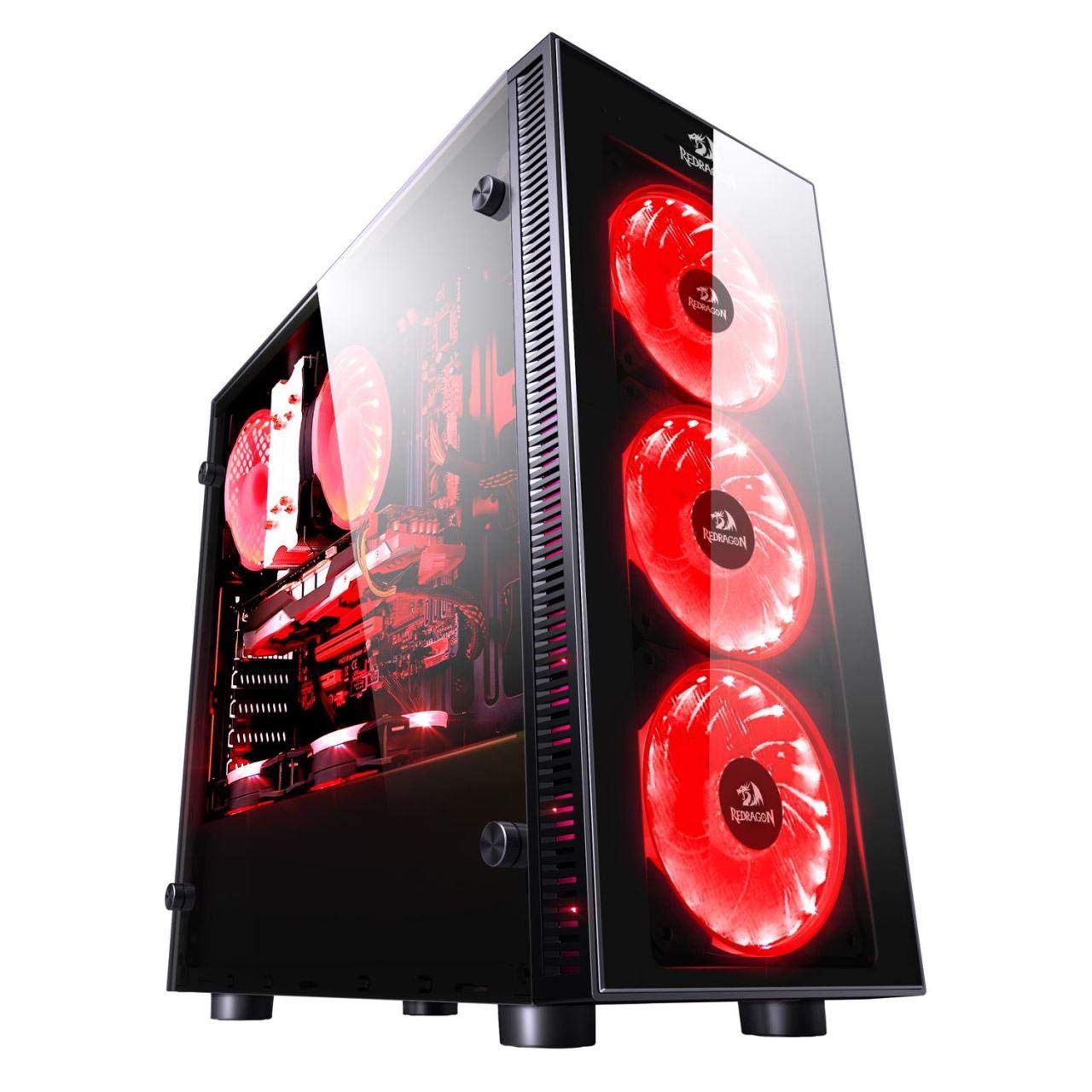
Figure 1: Redragon Sidewipe GC-601 Mid Tower PC Case. This image shows the front and side panel of the black PC case, highlighting its design and form factor.
2. Setup and Installation
2.1 Unpacking
Carefully remove the PC case from its packaging. Inspect the case for any signs of damage during transit. Retain the packaging materials for future transport or storage.
2.2 Component Identification
Familiarize yourself with the various parts of the PC case:
- Main Chassis: The primary structure of the case.
- Side Panels: Removable panels for accessing internal components.
- Front I/O Panel: Includes power button, reset button, audio jacks, and USB ports (2x USB 2.0).
- Accessory Box: Contains screws, cable ties, and other small parts for installation.
2.3 Motherboard Installation
- Open the side panel(s) of the case.
- Install the I/O shield provided with your motherboard into the rear opening of the case.
- Align your Micro ATX motherboard with the standoffs inside the case.
- Secure the motherboard using the appropriate screws from the accessory box. Do not overtighten.
2.4 Power Supply Installation
The Redragon Sidewipe GC-601 supports a rear-mounted power supply unit (PSU).
- Position your PSU at the rear bottom of the case, ensuring the fan faces the correct direction for optimal airflow (usually downwards or inwards, depending on case design).
- Secure the PSU to the case using the screws provided with your power supply.
2.5 Fan Installation
The case supports 120mm fans for cooling.
- Identify the fan mounting locations (e.g., front, rear, top).
- Mount the 120mm fans using the screws provided with the fans or from the case accessory box. Ensure correct airflow direction (intake or exhaust).
- Connect the fan power cables to your motherboard or a fan controller.
2.6 Connecting Front I/O Cables
Connect the front panel cables to your motherboard:
- USB 2.0: Connect the USB 2.0 header cable(s) to the corresponding USB 2.0 headers on your motherboard. This case features two USB 2.0 ports.
- Audio: Connect the HD Audio cable to the audio header on your motherboard.
- Power/Reset/LEDs: Connect the small individual cables (Power SW, Reset SW, HDD LED, Power LED) to the front panel header pins on your motherboard according to your motherboard manual.
3. Operating Instructions
3.1 Powering On
After all components are installed and cables are connected, close the side panels. Connect your monitor, keyboard, mouse, and power cable to the PSU. Press the power button on the front I/O panel to start your computer.
3.2 Airflow Management
Proper airflow is crucial for component longevity. Ensure that intake fans draw cool air into the case and exhaust fans expel hot air. The Redragon Sidewipe GC-601 is designed for air cooling, so maintaining clear pathways for air movement is important.
4. Maintenance
4.1 Cleaning the Case
Regular cleaning helps maintain optimal performance and appearance.
- Exterior: Use a soft, damp cloth to wipe down the exterior surfaces. Avoid abrasive cleaners.
- Interior: Periodically open the side panels and use compressed air to remove dust from components and fan blades.
- Dust Filters: If your case includes dust filters, remove and clean them regularly (e.g., rinse with water and let dry completely, or vacuum).
4.2 Airflow Optimization
Ensure that cables are neatly managed to prevent obstruction of airflow. Regularly check that all fans are spinning freely and quietly.
5. Troubleshooting
This section addresses common issues you might encounter.
| Problem | Possible Cause | Solution |
|---|---|---|
| Computer does not power on. | Loose power cable, PSU switch off, front panel power switch not connected correctly. | Check all power connections. Ensure PSU switch is ON. Verify front panel power switch connection to motherboard. |
| Fans are not spinning. | Fan cables disconnected, faulty fan. | Check fan power connections to motherboard or controller. Test fans individually if possible. |
| USB ports not working. | Front panel USB cable disconnected from motherboard. | Ensure the USB 2.0 header cable is securely connected to the motherboard's USB header. |
| System overheating. | Poor airflow, dust buildup, insufficient cooling. | Clean dust filters and internal components. Ensure proper fan orientation for airflow. Consider adding more fans or upgrading cooling solutions. |
6. Specifications
Below are the technical specifications for the Redragon Sidewipe GC-601 PC Case:
| Feature | Detail |
|---|---|
| Brand | Redragon |
| Model Number | Redragon Sidewipe GC-601 |
| Case Type | Mid Tower |
| Color | Black |
| Product Dimensions | 38 x 18.5 x 42.5 cm |
| Item Weight | 7.16 Kilograms |
| Motherboard Support | Micro ATX |
| USB 2.0 Ports | 2 |
| Power Supply Mounting | Rear Mount |
| Cooling Method | Air |
| Fan Size Support | 120 mm |
| Recommended Use | Gaming Computers |
7. Warranty and Support
For warranty information and technical support, please refer to the documentation provided with your purchase or visit the official Redragon website. Specific warranty terms may vary by region and retailer.


