
1. Introduction
Welcome to the user manual for your new Realme 6 smartphone. This guide provides essential information to help you set up, operate, maintain, and troubleshoot your device. The Realme 6 is designed to deliver a smooth and powerful user experience with its 90Hz Ultra Smooth Display, MediaTek Helio G90T processor, and a versatile 64MP AI Quad Camera system.
2. What's in the Box
Upon unboxing your Realme 6, please ensure all the following items are present:
- Realme 6 Smartphone
- Adapter (30W Fast Charge)
- USB Type-C Cable
- SIM Ejector Tool
- Protective Case
- Screen Protector (pre-applied)
- Quick Start Guide
- Warranty Card
3. Product Overview
Familiarize yourself with the physical components of your Realme 6.

Figure 3.1: Realme 6 overall view, showcasing the Comet Blue finish and camera module.
3.1 Front View

Figure 3.2: Front view of the Realme 6, highlighting the 6.5-inch Fullscreen display with a punch-hole selfie camera in the upper left corner.
The front of the device features a 6.5-inch Fullscreen display with a punch-hole design for the 16MP In-display Selfie Camera. The earpiece is located at the top edge of the display.
3.2 Rear View
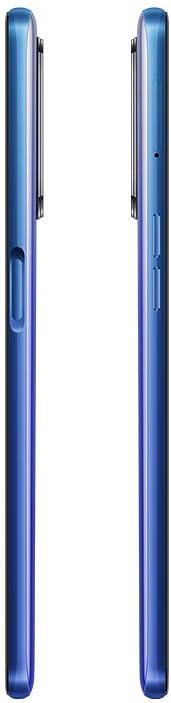
Figure 3.3: Rear view of the Realme 6, showing the vertical AI Quad Camera setup and the realme branding.
The rear panel houses the 64MP AI Quad Camera system, arranged vertically on the upper left side, along with the LED flash. The realme logo is positioned at the bottom left.
3.3 Side Views and Ports

Figure 3.4: Left side view of the Realme 6, showing the volume up and down buttons.

Figure 3.5: Right side view of the Realme 6, featuring the power button which also integrates the fingerprint sensor.
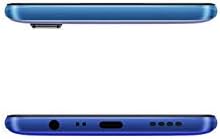
Figure 3.6: Top and bottom view of the Realme 6. The bottom edge includes the 3.5mm headphone jack, USB Type-C port, microphone, and speaker grille.
The left side of the device contains the volume up and down buttons. The right side features the power button, which doubles as a side-mounted fingerprint sensor for quick and secure unlocking. The bottom edge includes the 3.5mm headphone jack, USB Type-C charging port, primary microphone, and loudspeaker grille. The top edge is clean.
4. Setup
4.1 Inserting SIM and SD Card
- Locate the SIM card tray on the left side of the phone.
- Insert the SIM ejector tool into the small hole on the tray and press gently until the tray pops out.
- Place your Nano-SIM card(s) and/or microSD card into the designated slots on the tray, ensuring the gold contacts face downwards.
- Carefully push the tray back into the phone until it is flush with the side.
4.2 Initial Power On and Setup
- Press and hold the Power button on the right side until the realme logo appears.
- Follow the on-screen instructions to select your language, region, connect to Wi-Fi, and set up your Google account.
- You will be prompted to set up a screen lock (PIN, pattern, password, or fingerprint). It is recommended to set up the fingerprint sensor for convenient unlocking.
4.3 Charging the Device
The Realme 6 supports 30W Fast Charge. Use the provided adapter and USB Type-C cable for optimal charging speed.
- Connect the USB Type-C cable to the charging port at the bottom of the phone.
- Plug the adapter into a power outlet.
- The charging indicator will appear on the screen.
It takes approximately 55 minutes to fully charge the 4300mAh battery from 0% to 100% with the 30W Fast Charge adapter.
5. Operating Instructions
5.1 Basic Navigation
- Touch: Tap an icon to open an app or select an item.
- Swipe: Slide your finger across the screen to scroll through pages, lists, or switch between home screens.
- Pinch: Use two fingers to zoom in or out on photos and web pages.
- Long Press: Press and hold an item to reveal more options or move icons.
5.2 Camera Usage
The Realme 6 features a 64MP AI Quad Camera system on the rear and a 16MP In-display Selfie Camera on the front.
- Open the Camera app from your home screen or app drawer.
- Switch between camera modes (Photo, Video, Portrait, Night, 64MP, Macro, Ultra Wide) by swiping left or right on the mode selector.
- Tap the shutter button to take a photo or start/stop video recording.
- Tap the camera switch icon to toggle between the front and rear cameras.
5.3 Connectivity
- Wi-Fi: Go to Settings > Wi-Fi to connect to available wireless networks.
- Bluetooth: Go to Settings > Bluetooth to pair with Bluetooth devices like headphones or speakers.
- Mobile Data: Ensure your SIM card is inserted and mobile data is enabled in Settings > SIM card & Mobile Data. The Realme 6 supports 4G LTE bands: 1, 2, 3, 4, 5, 7, 8, 20, 28, 38, 40, 41.
5.4 Display Settings
The 90Hz Ultra Smooth Display provides a fluid visual experience.
- To adjust the refresh rate, go to Settings > Display & Brightness > Screen Refresh Rate. You can choose between 60Hz and 90Hz.
- Adjust brightness, color temperature, and enable Eye Comfort mode in Display & Brightness settings.
6. Maintenance
6.1 Cleaning Your Device
- Use a soft, lint-free cloth to wipe the screen and back panel.
- Avoid using harsh chemicals, abrasive materials, or aerosol sprays.
- For stubborn smudges, slightly dampen the cloth with water or a screen cleaner designed for electronics.
6.2 Software Updates
Regular software updates provide new features, security patches, and performance improvements.
- Go to Settings > Software Update to check for and install available updates.
- Ensure your device has sufficient battery (at least 50%) and is connected to Wi-Fi before performing an update.
6.3 Battery Care
To prolong the lifespan of your 4300mAh battery:
- Avoid extreme temperatures.
- Do not let the battery drain completely before recharging frequently.
- Use the original 30W Fast Charge adapter and cable.
7. Troubleshooting
This section addresses common issues you might encounter with your Realme 6.
7.1 Device Not Powering On
- Ensure the battery is charged. Connect the charger and wait a few minutes before attempting to power on.
- Press and hold the Power button for at least 10-15 seconds to force a restart.
7.2 Screen Unresponsive
- Force restart the device by holding the Power button.
- If the issue persists, try a factory reset (note: this will erase all data). Back up your data before proceeding.
7.3 Network Connectivity Issues
- Check if Airplane Mode is off.
- Ensure your SIM card is properly inserted.
- Restart the device.
- Reset network settings: Settings > System settings > Back up and reset > Reset phone > Reset network settings.
7.4 Battery Drains Quickly
- Check battery usage in Settings > Battery to identify power-hungry apps.
- Reduce screen brightness and disable unnecessary features like GPS, Bluetooth, or Wi-Fi when not in use.
- Close background apps.
8. Specifications
Detailed technical specifications for the Realme 6 (Model: RMX2001).
| Feature | Specification |
|---|---|
| Model Name | 6 (RMX2001) |
| Display | 6.5 Inch Fullscreen, 2400x1080 FHD+, 90Hz Ultra Smooth Display |
| Operating System | Android 10.0 |
| RAM | 4 GB |
| Internal Storage | 64 GB |
| Rear Camera | 64MP (f/1.8) + 8MP (f/2.3) + 2MP (f/2.4) + 2MP (f/2.4) AI Quad Camera |
| Front Camera | 16MP (f/2.0) In-display Selfie Camera |
| Battery Capacity | 4300mAh |
| Charging | 30W Fast Charge |
| Connectivity | 4G LTE (Bands: 1, 2, 3, 4, 5, 7, 8, 20, 28, 38, 40, 41), Wi-Fi, Bluetooth, GPS |
| Ports | USB Type-C, 3.5mm Headphone Jack |
| Dimensions | 6.38 x 2.94 x 0.35 inches (162.1 x 74.8 x 8.9 mm) |
| Weight | 6.7 ounces (191 grams) |
| Item Model Number | 5976125 |
9. Warranty and Support
Your Realme 6 comes with a standard manufacturer's warranty. Please refer to the warranty card included in your product box for specific terms and conditions, including warranty period and coverage details. Keep your proof of purchase for warranty claims.
For further assistance, technical support, or to find service centers, please visit the official realme support website or contact their customer service. You can often find support information on the brand's official store page: realme Store on Amazon.


