
1. Introduction
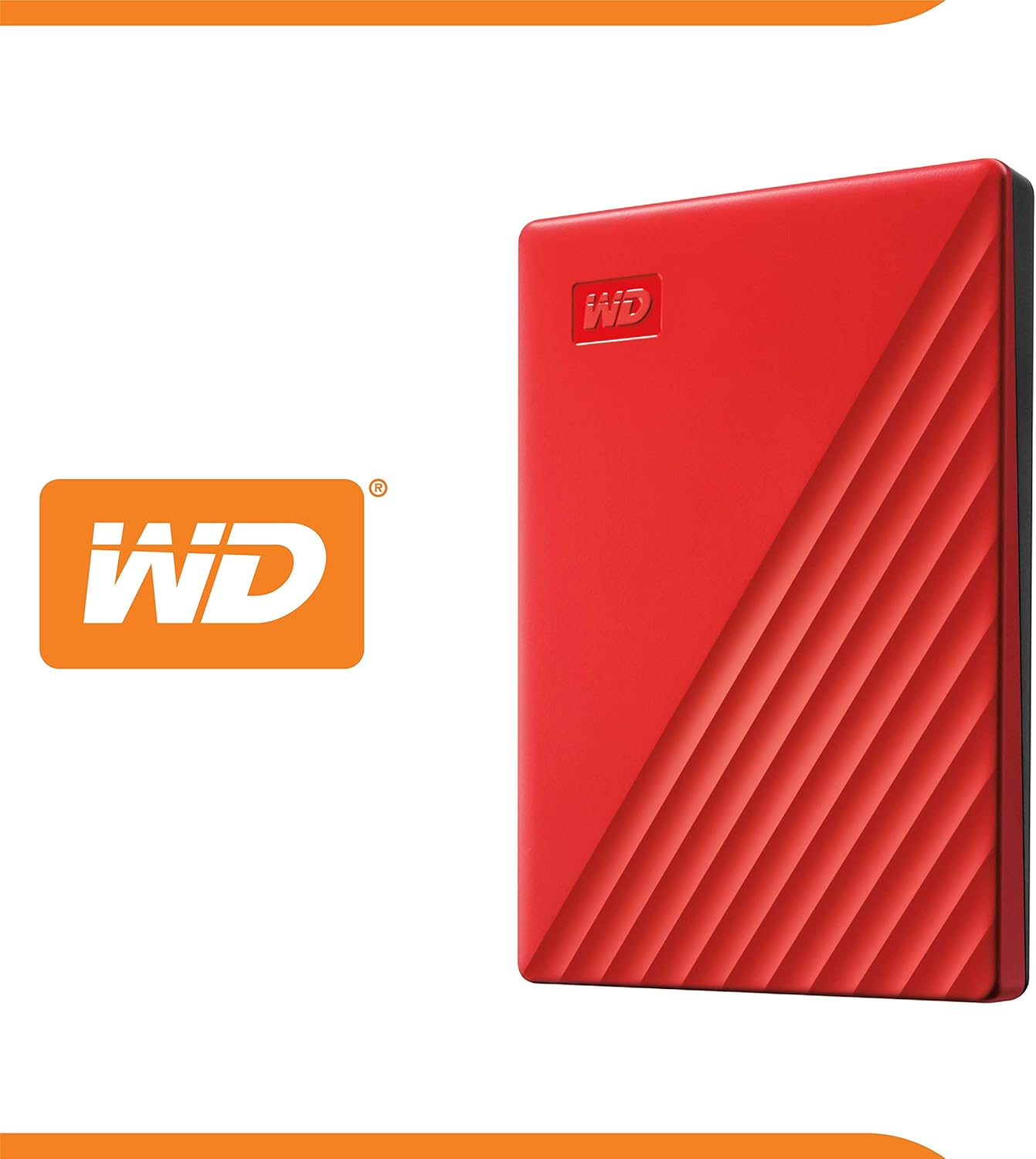
The WD My Passport 5TB Portable External Hard Drive is designed to help safeguard your cherished memories and important files while on-the-move. This high-capacity storage device offers seamless USB connectivity for easy access to your data anytime, anywhere. It includes Acronis True Image for Western Digital software for secure data backup, fortified with robust protection against ransomware threats, and features password protection with hardware encryption.
Key features include:
- Slim, durable design for portability.
- Vast 5TB capacity for photos, videos, music, and documents.
- Included device management software with ransomware defense.
- Password protection and 256-bit AES hardware encryption.

2. Setup
2.1 What's in the Box
- My Passport portable hard drive
- SuperSpeed USB-A cable (5Gbps)
- Software for device management and backup with password protection
- Quick Start Guide
2.2 Connecting Your Drive
To connect your WD My Passport drive, use the included SuperSpeed USB-A cable. Plug the smaller end of the cable into the drive's USB port and the larger end into an available USB-A port on your computer (desktop, laptop, or tablet). The drive is compatible with both USB 3.1 and USB 3.0 ports for optimal performance.
2.3 Initial Setup and Software Installation
Upon connecting the drive, your computer should recognize it automatically. For full functionality, including backup and security features, install the included software. Follow the on-screen instructions provided by the Quick Start Guide to install Acronis True Image for Western Digital. This software enables automatic backups and ransomware defense.
3. Operating Instructions
3.1 File Transfer
Once connected, your WD My Passport drive will appear as an external drive on your computer. You can transfer files by simply dragging and dropping them into the drive's folder. For larger transfers, ensure your computer's USB ports are SuperSpeed compatible for faster performance.
3.2 Automatic Backup
Utilize the Acronis True Image for Western Digital software to set up automatic backups. This allows you to schedule regular backups of your important files, ensuring your data is always protected. Refer to the software's user interface for detailed instructions on configuring backup schedules and selecting specific files or folders.

3.3 Password Protection and Hardware Encryption
Enhance your data security by enabling password protection and leveraging the built-in 256-bit AES hardware encryption. This feature is managed through the included software. Set a strong password to prevent unauthorized access to your files. The hardware encryption provides an additional layer of security, protecting your data even if the drive is physically accessed by others.

4. Maintenance
4.1 General Care
To ensure the longevity of your WD My Passport drive, keep it clean and free from dust. Avoid exposing it to extreme temperatures, direct sunlight, or high humidity. Handle the drive with care to prevent physical damage from drops or impacts.
4.2 Safe Ejection
Always safely eject the drive from your computer before disconnecting the USB cable. This prevents data corruption and ensures the drive's integrity. On Windows, right-click the drive icon in 'This PC' and select 'Eject'. On macOS, drag the drive icon to the Trash or click the Eject button next to the drive name in Finder.
5. Troubleshooting
5.1 Drive Not Recognized
- Check Connections: Ensure the USB cable is securely plugged into both the drive and your computer. Try a different USB port.
- Restart Computer: Sometimes a simple restart can resolve recognition issues.
- Check Device Manager (Windows) / Disk Utility (macOS): Verify if the drive appears in your system's device management tools. It might need to be initialized or formatted if it's a new drive or if the file system is incompatible.
5.2 Slow Transfer Speeds
- Use USB 3.0/3.1 Port: For optimal speeds, connect the drive to a SuperSpeed USB 3.0 or 3.1 port on your computer. USB 2.0 ports will result in slower transfers.
- Avoid Other USB Devices: Disconnect other high-bandwidth USB devices during large transfers.
- Check Cable: Ensure you are using the original SuperSpeed USB cable provided with the drive.
5.3 Software Issues
If you encounter issues with the included backup or security software, refer to the software's help documentation or visit the official WD support website for specific troubleshooting guides and updates.
6. Specifications
| Feature | Detail |
|---|---|
| Hard Drive Type | 5 TB Mechanical Hard Disk |
| Brand | WD |
| Series | My Passport External Hard Drive |
| Model Number | WDBPKJ0050BRD-WESN |
| Hardware Platform | Mac |
| Operating System Compatibility | mac_os, windows |
| Item Weight | 7.4 ounces |
| Product Dimensions (LxWxH) | 4.22 x 2.95 x 0.75 inches |
| Color | Red |
| Digital Storage Capacity | 5 TB |
| Hard Disk Interface | USB 2.0/3.0 |
| Connectivity Technology | USB |
| Special Features | Hardware Encryption, Portable |
| Hard Disk Form Factor | 2.5 Inches |
| Hard Disk Description | Mechanical Hard Disk |
| Compatible Devices | Desktop, Laptop, Tablet |
| Installation Type | External Hard Drive |
7. Warranty and Support
7.1 Product Warranty
For detailed warranty information, please refer to the warranty statement included with your product or visit the official Western Digital support website. Keep your proof of purchase for any warranty claims.
7.2 Optional Data Recovery Plans
Optional data recovery plans are available for purchase to provide additional peace of mind. These plans can help recover data in case of accidental deletion, corruption, or physical damage to the drive. For more information on available plans, please visit the WD Store or contact customer support.
7.3 Customer Support
If you require further assistance, technical support, or have questions regarding your WD My Passport drive, please visit the official WD Support website: www.westerndigital.com/support. You can find FAQs, troubleshooting guides, and contact information for customer service.


