
FOXWELL NT510 Elite fit for Ford
FOXWELL NT510 Elite OBD2 Scanner User Manual
Model: NT510 Elite fit for Ford
Brand: FOXWELL
Introduction
The FOXWELL NT510 Elite is a professional-grade diagnostic scan tool designed for Ford, Lincoln, and Mercury vehicles. It offers comprehensive system diagnostics, advanced bidirectional control, and various maintenance reset services, making it an essential tool for both professional technicians and automotive enthusiasts. This manual provides detailed instructions for setup, operation, and maintenance of your NT510 Elite scanner.

Image: FOXWELL NT510 Elite OBD2 Scanner, showing the main unit with its display and buttons.
What's in the Box
Upon opening the package, please verify that all the following items are included:
- 1 * NT510 Elite fit for Ford Scan Tool
- 1 * Quick Start Guide
- 1 * USB Cable
- 1 * Carton Box

Image: The FOXWELL NT510 Elite scanner, its carrying case, USB cable, and quick start guide, all neatly arranged with the product box.
Setup
- Power On: Connect the NT510 Elite scanner to your vehicle's OBD-II port. The device will power on automatically.
- Initial Language Setting: Upon first use, you may be prompted to select your preferred language. Navigate using the arrow keys and confirm with the ENTER button.
- Software Update (Recommended): Before first use, it is highly recommended to update the software to ensure you have the latest vehicle coverage and functions. Connect the device to a computer via the provided USB cable and use the "FoxAssist" software (available from foxwelltech.us) to perform updates.
- Vehicle Connection: Ensure the vehicle's ignition is in the ON position (engine off or running, depending on the diagnostic task).

Image: The FOXWELL NT510 Elite scanner displaying a software update screen, indicating available updates for various car brands via WiFi.
Operating the NT510 Elite Scanner
1. OE-Level Full System Diagnostic Tool
The NT510 Elite is designed to read and clear trouble codes from all available systems in your Ford, Lincoln, or Mercury vehicle. This includes, but is not limited to, the Engine, ABS, SRS/Airbag, Transmission, BMS, TPMS, SAS, HVAC, and DPF Regeneration systems. This comprehensive diagnostic capability allows for thorough inspection and identification of current or potential issues.

Image: A transparent diagram of a car highlighting various systems like Engine, ABS, Airbag, Transmission, and more, indicating the scanner's ability to diagnose all systems.
Video: An official product video demonstrating the OE-Level All System Diagnostic capabilities of the FOXWELL NT510 Elite scanner for Ford vehicles. It shows the scanner in use, highlighting its ability to diagnose various car systems and perform active tests like turning mirrors and wipers on/off.
2. Powerful Bidirectional Control & Active Test
This feature allows the NT510 Elite to send commands to vehicle systems and components to test their working status. This is crucial for fault finding and enables re-calibration, adaptation, or configuration of specific components after repairs or replacements. Examples include testing exterior mirrors, windshield wipers, headlights, cylinder deactivation, and more.

Image: A diagram illustrating the bidirectional control function, where the scanner interacts with the car's control unit, sensors, and actuators to perform active tests, such as activating brake pads.
3. Advanced Battery Registration Function
The NT510 Elite simplifies battery registration with a one-click function, ensuring proper communication with the vehicle's battery management system after a new battery installation. This helps maintain battery safety and longevity.
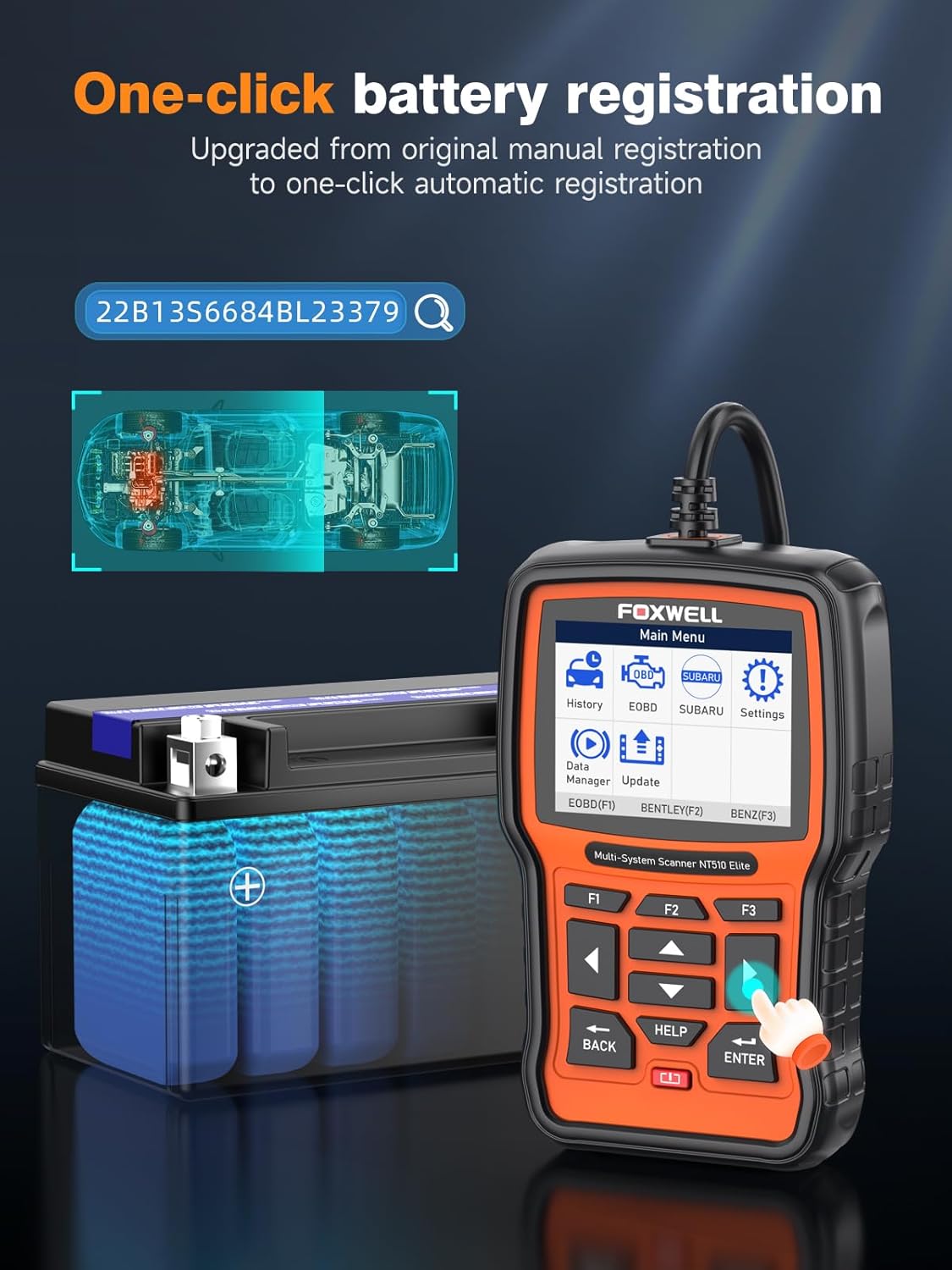
Image: The FOXWELL NT510 Elite scanner displaying the one-click battery registration feature, showing a car battery and a vehicle chassis diagram.
4. All Maintenance Reset Service
This scanner supports a wide range of maintenance reset services, including ABS Bleeding, Oil Light Reset, Control Service Interval Reset, Brake Deactivation, Traction/Throttle body Adjustment, DPF Regeneration, A/C troubleshooting, and SAS Calibration. This helps keep your vehicle in optimal condition.

Image: A mechanic working on a car, with icons representing various maintenance services supported by the scanner, such as Oil Light Reset, One-Click Battery Registration, Air Suspension, SAS, EPB, Crankshaft Relearn, Throttle Position Relearn, ABS Bleeding, and TPMS.
5. Full OBDII Functions
The NT510 Elite provides all 10 functions of OBDII testing, including Live PCM Data Stream (in graphics and text), Read/Clear DTCs, Smog Check (I/M readiness), O2 sensor tests, Freeze Frame Data, EVAP system test, and vehicle information retrieval. It also displays Malfunction Indicator Light (MIL) status and real-time battery voltage.
6. Add More Vehicle Software
The NT510 Elite is customizable. You can add software for additional vehicle models to meet the diagnostic needs of multi-vehicle households. This can be done via the "FoxAssist" software from foxwelltech.us.

Image: The FOXWELL NT510 Elite scanner displaying its main menu, with various car models shown in the background, illustrating the ability to customize the device with software for diverse vehicle brands.
7. All-In-One Auto-VIN
The device features AutoVIN Scan, which automatically retrieves the vehicle's VIN for easier diagnostics. It also allows graphing, recording, and replaying live data streams, saving history data, and offers a user-friendly interface with comfortable buttons and fast response.
Maintenance
Software Updates
The FOXWELL NT510 Elite offers lifetime free software updates. To update your device, connect it to a computer using the provided USB cable and use the "FoxAssist" software. Regular updates ensure your scanner has the latest vehicle compatibility and diagnostic functions.
Physical Care
The device is equipped with a durable cover to protect it from damage during use. Keep the device clean by wiping it with a soft, dry cloth. Avoid exposing it to extreme temperatures or moisture.

Image: The back of the FOXWELL NT510 Elite scanner, showing its durable, textured casing and product label with specifications like input voltage and operating temperature.
Troubleshooting
- Device Not Powering On: Ensure the OBD-II cable is securely connected to both the scanner and the vehicle's OBD-II port. Check the vehicle's ignition status.
- Communication Error: Verify that the vehicle's ignition is ON. Check for loose connections. Ensure the correct vehicle software is installed and updated. If issues persist, try connecting to a different compatible vehicle to rule out a vehicle-specific problem.
- Software Update Issues: Ensure a stable internet connection and that the "FoxAssist" software is running correctly on your computer. Temporarily disable any antivirus or firewall software that might interfere with the update process.
- Incorrect Readings/Functions: Ensure the software is up-to-date. Confirm that the correct vehicle make, model, and year are selected in the scanner's menu.
For more detailed troubleshooting or persistent issues, please refer to the official FOXWELL support resources or contact customer service.
Specifications
| Brand | FOXWELL |
| Model | NT510 Elite fit for Ford |
| Item Weight | 1.32 pounds |
| Product Dimensions | 5.71 x 1.26 x 3.7 inches |
| Operating System | Linux |
| Display Resolution | 800x600 |
| First Available Date | March 9, 2020 |
Warranty and Support
FOXWELL provides ongoing support for its products. For any questions or assistance, please contact FOXWELL customer service through Amazon Messages or visit their official website for support resources and the latest software downloads.
Legal Disclaimer: The use of Ford/Lincoln/Mercury brand names is for compatibility description only. FOXWELL is not affiliated with these manufacturers. If returning the product, please mark it as "unsellable" to prevent resale of used items.
For detailed warranty information, please refer to the documentation included with your product or contact FOXWELL directly.
Related documentsNT510 Elite fit for Ford


Ask a question about this manual
Ask about setup, troubleshooting, compatibility, parts, safety, or missing instructions. Manuals+ will review the question and use this page’s manual context to help answer it.