
Introduction
This manual provides essential instructions for the safe and effective use of your ION Projector Plus IPA119. Please read this guide thoroughly before operating the device and retain it for future reference. The ION Projector Plus is a versatile, battery-powered unit combining a color LED projector with a powerful Bluetooth speaker, designed for both indoor and outdoor entertainment.
Product Overview
The ION Projector Plus IPA119 integrates a projector, speaker, and various input options into a single portable unit. Below are images illustrating the product and its key features as depicted on its packaging.

Figure 1: Front view of the ION Projector Plus IPA119 product packaging, highlighting the projector and speaker components.
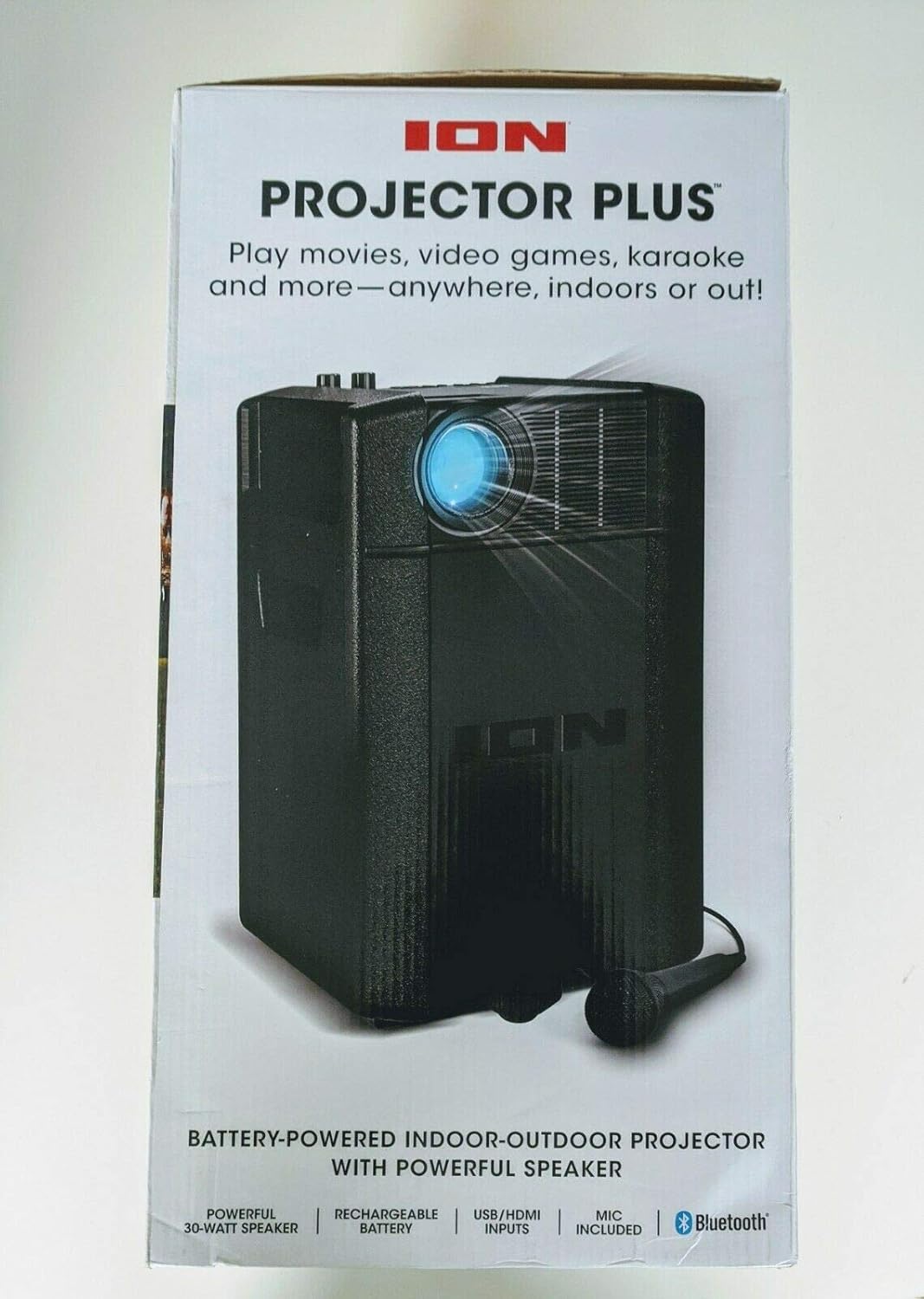
Figure 2: Angled view of the ION Projector Plus IPA119 product packaging, showing the projector lens and speaker grille.

Figure 3: Rear view of the ION Projector Plus IPA119 product packaging, detailing various features and connectivity options.
Setup
1. Unpacking
Carefully remove all components from the packaging. Ensure all items listed in the product contents are present. Retain packaging for storage or transport.
2. Charging the Battery
The Projector Plus features a rechargeable battery. For optimal performance, fully charge the unit before first use. Connect the power adapter to the unit's power input and then to a wall outlet. The charging indicator will illuminate.
3. Connecting Power
For continuous operation or when the battery is low, connect the included power adapter to the unit and a power source. The unit can operate while charging.
4. Microphone Connection
Connect the included high-quality microphone to the designated microphone input jack on the unit. For karaoke duets, a second microphone can be connected to the additional microphone input.
Operating the Projector Plus
1. Power On/Off
Press and hold the Power button located on the unit's control panel to turn the Projector Plus on or off.
2. Adjusting Image
The projector can display images sized from 30 inches to 150 inches diagonally. Adjust the focus using the focus knob on the unit to achieve a clear image. Position the unit at an appropriate distance from the projection surface to achieve the desired image size.
3. Connecting Video Sources
- HDMI Input: Connect an HDMI cable from your video source (e.g., laptop, gaming console, streaming device) to the HDMI input port on the Projector Plus.
- USB Input: Insert a USB thumb drive containing video files into the USB port. The unit supports playback of various video formats.
4. Bluetooth Audio Streaming
- Ensure your Bluetooth-enabled device is within range.
- Power on the Projector Plus. It will automatically enter Bluetooth pairing mode.
- On your device, navigate to Bluetooth settings and select "ION Projector Plus" from the list of available devices.
- Once paired, audio from your device will stream wirelessly through the Projector Plus speaker.
5. Karaoke Function
With the microphone connected, you can use the Projector Plus for karaoke. Adjust the microphone volume and apply the echo effect for enhanced vocal performance using the controls on the unit.
6. Using the Remote Control
The included remote control allows for convenient operation of various functions, including power, volume, input selection, and playback controls. Ensure the remote has working batteries and is pointed towards the unit's IR receiver.
Maintenance
1. Cleaning
Wipe the exterior of the unit with a soft, dry cloth. Do not use abrasive cleaners or solvents. For the projector lens, use a specialized lens cleaning cloth and solution to avoid scratches.
2. Battery Care
To prolong battery life, avoid fully discharging the battery frequently. Recharge the unit regularly, even if not in use, to maintain battery health. Store in a cool, dry place.
3. Storage
When not in use for extended periods, store the Projector Plus in a dry environment, away from extreme temperatures and direct sunlight. It is recommended to use the original packaging for protection.
Troubleshooting
- No Power: Ensure the power adapter is securely connected to both the unit and a working power outlet. If operating on battery, ensure the battery is charged.
- No Image: Verify the video source (HDMI, USB) is correctly connected and selected. Check the focus adjustment. Ensure the projection surface is clear.
- No Sound: Check the volume level on both the Projector Plus and your connected audio source. Ensure Bluetooth is properly paired or the audio cable is securely connected.
- Bluetooth Connection Issues: Ensure the Projector Plus is in pairing mode and your device's Bluetooth is enabled. Try unpairing and re-pairing the device. Move closer to the unit to reduce interference.
- Image Quality Issues: Adjust the focus knob for clarity. Ensure the projection surface is smooth and flat. The projector performs best in a dark environment.
Specifications
| Feature | Specification |
|---|---|
| Brand | ION |
| Model Number | IPA119 |
| Item Weight | 11.38 pounds |
| Package Dimensions | 17.9 x 10.9 x 9.5 inches |
| Special Feature | Lightweight |
| Connectivity Technology | Bluetooth, HDMI, USB |
| Display Resolution | 1280 x 720 |
| Recommended Uses | Business, Education, Home Cinema |
Warranty and Support
For warranty information, technical support, or to view additional product resources, please visit the official ION Audio website. You can find support resources and contact information at the ION Store or the manufacturer's dedicated support portal.


