
Shot Navi SN-NEO2-HP
Shot Navi NEO2 HP Golf GPS Device
Model: SN-NEO2-HP
Brand: Shot Navi
Introduction
This manual provides detailed instructions for the proper use and maintenance of your Shot Navi NEO2 HP Golf GPS Device. Please read this manual thoroughly before using the device to ensure optimal performance and longevity.
Product Overview
Key Features
- High-precision positioning with Michibiki L1S support.
- Provides low difference and reference distance displays.
- Features voice guidance and a large character display option.
- Includes a competition mode for compliant play.
- Pre-loaded with golf course data for Japan (100%+), Asia, Hawaii, Guam, and Saipan.
Package Contents
Verify that all items listed below are included in your package:
- Shot Navi NEO2 HP Main Unit
- microUSB Cable
- AC Adapter
- Instruction Manual with Warranty Card
- Quick Guide

Figure 1: Shot Navi NEO2 HP device and its key features.
Setup
1. Charging the Device
- Connect the microUSB cable to the device's charging port.
- Connect the other end of the microUSB cable to the AC adapter.
- Plug the AC adapter into a power outlet.
- Allow approximately 3 hours for a full charge. The battery indicator on the screen will show charging status.
A full charge provides approximately 17 hours of continuous use.
2. Initial Power On
Press and hold the power button (usually located on the side or top) until the Shot Navi logo appears on the screen.
3. Satellite Acquisition
For accurate distance measurement, the device needs to acquire satellite signals. Perform initial setup outdoors with a clear view of the sky.
- Turn on the device.
- Wait for the GPS signal icon to stabilize, indicating successful satellite acquisition. This may take a few minutes on first use or after a long period of inactivity.

Figure 2: Michibiki L1S satellite signal reception for enhanced accuracy.
Operating Instructions
1. Basic Navigation
Once satellites are acquired, the device will automatically detect the golf course and display relevant information.

Figure 3: Main display showing distance to the green.
2. Display Modes
The NEO2 HP offers various display modes to suit your needs:
- Simple View: Basic distance to the green.
- Green View: Detailed view of the green, often showing front, center, and back distances.
- Hazard View: Displays distances to various hazards on the course.
- Large Character View: Tilting the device horizontally will enlarge the distance display for easier readability.
- Low Difference Display: Shows elevation differences and adjusted distances.
Use the Switch button to cycle through different display modes.
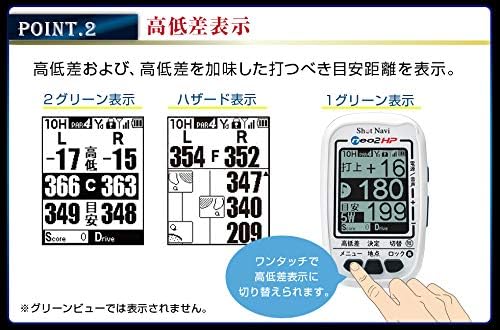
Figure 4: Examples of Low Difference Display, Hazard View, and Green View.

Figure 5: Large Character View activated by tilting the device.
3. Voice Guidance
The device can provide audible distance information to the green center. This is useful when you prefer not to look at the screen or are using the Hazard View.
- Press the Power/Voice button to activate voice guidance.
- The device will announce the distance to the green center.

Figure 6: Voice guidance feature in action.
4. Competition Mode
For official competitions, the device features a competition mode that disables certain functions to comply with rules.
- In competition mode, features like low difference, reference distance, and flight distance are not displayed.
- Refer to the quick guide or full manual for instructions on how to activate/deactivate competition mode.
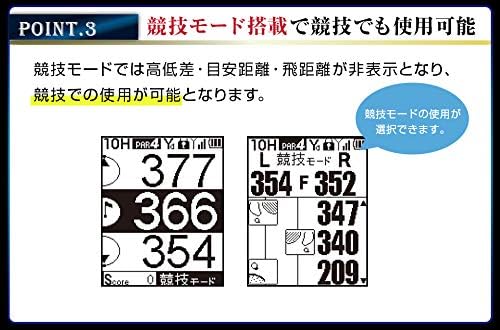
Figure 7: Display in Competition Mode.
5. Data Management Functions
- Point Recording: Mark specific locations on the course.
- Distance Measurement: Measure shot distances.
- SCO Log Support: Log your scores and course data.
- Scorecard Function: Keep track of your score directly on the device.
- Score Counter Function: A simple counter for strokes.
Access these functions through the device's menu. Consult the quick guide for specific button operations.
Maintenance
1. Cleaning
- Wipe the device with a soft, dry cloth.
- For stubborn dirt, slightly dampen the cloth with water. Do not use harsh chemicals or abrasive cleaners.
- Ensure the charging port cover is securely closed to maintain IPX4 water resistance.
2. Data Updates
Golf course data can be updated via USB storage mode using a Windows or Mac computer. Regularly update your device to ensure the most current course information.
- Connect the device to your computer using the microUSB cable.
- The device should appear as a removable storage drive.
- Visit the Shot Navi official website for the latest update software and instructions.
3. Storage
Store the device in a cool, dry place away from direct sunlight and extreme temperatures when not in use.
Troubleshooting
| Problem | Possible Cause | Solution |
|---|---|---|
| Device does not power on. | Low or depleted battery. | Charge the device for at least 3 hours using the provided AC adapter and microUSB cable. |
| Cannot acquire satellite signals. | Obstructed view of the sky; first-time use; device not updated. | Ensure you are outdoors with a clear view of the sky. Wait a few minutes. Update the device's course data. |
| Inaccurate distance readings. | Poor satellite signal; outdated course data. | Move to an area with a clearer view of the sky. Update the device's course data. |
| Screen is unresponsive or frozen. | Software glitch. | Perform a soft reset by pressing and holding the power button for 10-15 seconds until the device restarts. |
If you encounter issues not listed here or if the suggested solutions do not resolve the problem, please contact Shot Navi customer support.
Specifications

Figure 8: Product Specifications Table.
| General Specifications | |
|---|---|
| Brand | Shot Navi |
| Model Number | SN-NEO2-HP |
| Dimensions (L x W x H) | 49mm x 18mm x 80mm |
| Weight | 62 grams |
| Display | 2-inch Black and White LCD (128x160 dots) |
| Battery Type | Lithium-ion |
| Full Charging Time | Approx. 3 hours |
| Continuous Usage Time | Approx. 17 hours |
| Waterproof Rating | IPX4 |
| Connectivity | USB |
| Supported Satellite Systems | QZSS (Michibiki L1S) |
| Map Type | Asia (including Japan, Hawaii, Guam, Saipan) |
| Data Update Method | USB Storage Mode (Windows/Mac) |
| Key Functions | |
|---|---|
| Navi Functions | Simple View, Green View, Hazard View, Large Character View, Low Difference Display |
| Data Management | Point Recording, Distance Measurement, SCO Log Support, Scorecard Function, Score Counter Function |
| Other Functions | Auto Start, Navi Interruption Function, Black/White Reversal Display, Voice Guidance, Competition Mode |
Warranty and Support
Warranty Information
The Shot Navi NEO2 HP comes with a one-year warranty from the date of purchase. This warranty is limited to defects arising from normal use. Please retain your proof of purchase and the warranty card included in the package.
Customer Support
For technical assistance, troubleshooting, or warranty claims, please contact Shot Navi customer support. Refer to the contact information provided in your warranty card or visit the official Shot Navi website for support details.
Official Shot Navi Website: www.shotnavi.jp
Related Documents - SN-NEO2-HP
 |
Shot Navi RAYS GR+ Laser Rangefinder for Golf - User Manual This user manual provides comprehensive instructions for the Shot Navi RAYS GR+ Laser Rangefinder for Golf, covering setup, operation, measurement modes, safety precautions, specifications, and after-sales service. |
 |
Shot Navi Nexia ELUA+ Laser Rangefinder for Golf User Manual User manual for the Shot Navi Nexia ELUA+ laser rangefinder for golf, covering features, operation, safety, specifications, and warranty. Learn how to use your golf laser rangefinder effectively. |
 |
Shot Navi RAYS+ Laser Rangefinder for Golf: User Manual Comprehensive user manual for the Shot Navi RAYS+ Laser Rangefinder for Golf, covering features, operation, safety, specifications, and support. Includes detailed instructions for measurement types, slope functions, and device care. |
 |
Shot Navi Voice Laser Leo Laser Rangefinder for Golf User Manual User manual for the Shot Navi Voice Laser Leo, a laser rangefinder for golf featuring voice operation, slope measurement, and various measurement modes. Includes setup, operation, safety, and warranty information. |
 |
Shot Navi nano GR+ Laser Rangefinder for Golf User Manual User manual for the Shot Navi nano GR+ Laser Rangefinder for Golf, covering features, operation, safety, specifications, and support. |
 |
Shot Navi RAYS+ Laser Rangefinder for Golf User Manual Comprehensive user manual for the Shot Navi RAYS+ laser rangefinder, detailing features, operation, safety precautions, and specifications for golf enthusiasts. |
Ask a question about this manual
Ask about setup, troubleshooting, compatibility, parts, safety, or missing instructions. Manuals+ will review the question and use this page’s manual context to help answer it.